
I’ll never forget the sound. It wasn’t loud, just a rhythmic, metallic ‘tink-tink-tink’ coming from under my palms as I finished a 40-page report. I told myself it was just the fan. I was wrong. It wasn’t just noise; it was the funeral march for my data. I was using one of those unbeatable laptop deals I’d found months prior, thinking I was invincible. Within twenty minutes, my screen froze, and every photo from my last three vacations was gone because I hadn’t learned the best way to partition your hard drive for extra security or, more importantly, how to listen to what my hardware was screaming at me. Today, I’m going to make sure that never happens to you. We are going to dive into the subtle—and not-so-subtle—red flags that mean your drive is on its last legs, so you can save your files before the hardware gives up the ghost.
Listen Closely Before Your Data Vanishes Forever
Modern laptops are remarkably quiet, but when things go wrong, they get vocal. Early in my career, I made the amateur mistake of assuming a slow boot-up was just ‘Windows being Windows.’ I ignored the tiny stutters and the way my student laptops would hang when opening simple PDFs. I even ignored the heat, which I now know can be a major killer. According to data from Backblaze’s 2023 report, while SSDs are generally more reliable than older spinning HDDs, they still have failure rates that increase significantly after the four-year mark. If your machine feels sluggish, it might not just be bloatware; it could be your storage medium gasping for air. Have you ever noticed your laptop making a strange grinding noise, or has it ever just ‘lost’ a file you know you saved? If so, you are already in the danger zone.
Is my data actually safe if I only use SSDs?
There is a common myth that Solid State Drives (SSDs) live forever because they have no moving parts. While it’s true they are tougher, they have a finite number of ‘write cycles.’ When they go, they often go instantly, unlike the slow, noisy death of a traditional hard drive. Whether you are rocking top business laptops or a budget rig, the signs of failure are often hidden in system logs and weird software glitches rather than physical sounds. I’ve learned the hard way that the best way to organize your external drives for fast editing starts with realizing that no drive is permanent. Let’s look at the specific symptoms that should have you reaching for your backup drive immediately.
Scan Your Drive Before the Windows Blue Screen Appears
The first thing you need to do is stop guessing. Most of us treat our laptops like appliances—we expect them to work until they don’t. But your storage has a built-in early warning system called S.M.A.R.T. (Self-Monitoring, Analysis, and Reporting Technology). I use free tools like CrystalDiskInfo to pull this data. If you see anything other than a ‘Good’ status—specifically ‘Caution’ or ‘Bad’—you are on borrowed time. I remember a specific Tuesday when I ran this on a three-year-old machine I used for freelance work. It showed hundreds of ‘reallocated sectors.’ That’s basically the drive’s way of saying it has run out of safe places to put your data. Because I caught it then, I had time to migrate everything to a secure setup using the best way to organize your external drives for fast editing before the drive became a paperweight.
How to Decipher the Cryptic Language of SMART Data
When looking at these reports, don’t get bogged down by the hex codes. Look for ‘Reallocated Sectors Count’ and ‘Current Pending Sector Count.’ These are the digital equivalent of cracks in a foundation. If these numbers are rising, your drive is actively dying. This is especially common on student laptops that get tossed into backpacks while still powered on. The physical shock can cause the head to crash on a spinning disk, or internal errors in an SSD’s controller. If you see these numbers move even slightly over a week, stop what you are doing and back up.
Kill the Heat Before the Heat Kills Your Hardware
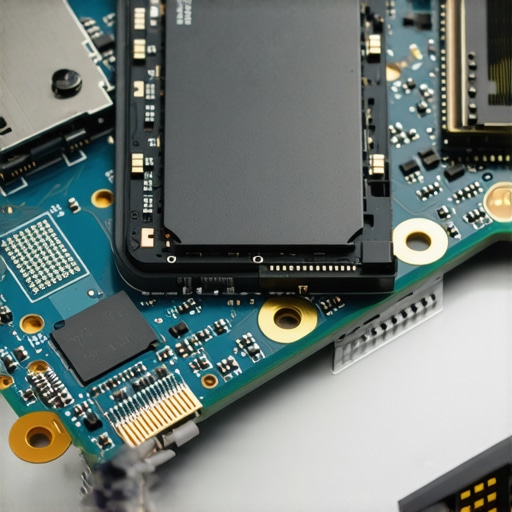
Heat is the silent assassin of electronics. I once spent three days trying to figure out why my NVMe drive kept disappearing from the BIOS. I thought it was a faulty motherboard, but it was actually just a lack of airflow. I realized that why your laptop is getting hot while the lid is closed wasn’t just a quirk; it was cooking my storage. Heat causes the delicate controllers on your drive to fail. If your laptop feels like a pizza oven, you need to intervene. You should start by learning how to check your laptop fan for dust without opening it to ensure your cooling system isn’t choked by pet hair or lint.
The Small Fixes That Save Big Bucks
Sometimes the solution is mechanical rather than digital. I’ve seen drives ‘fail’ simply because the thermal pads dried out or the laptop’s internal temperature was too high due to old paste. In one instance, I managed to extend a laptop’s life by years simply because I knew how to replace your laptop thermal paste without breaking anything. If you are using a high-performance machine, you might even find that how we fixed our laptop thermal throttling with a 5 shim is the exact niche solution you need to keep your drive from reaching critical temperatures during heavy workloads. Don’t assume the hardware is dead until you’ve confirmed it isn’t just suffocating.
Everyone tells you that ‘new’ is synonymous with ‘reliable.’ I’m here to tell you that’s a flat-out lie. When you see those unbeatable laptop deals at your local big-box store for $299, you aren’t looking at a bargain; you’re looking at a ticking clock. In my experience, why most 300 laptops are just e-waste in a box comes down to the quality of the silicon. These budget machines often use ‘bottom of the barrel’ NAND flash that lacks a dedicated controller cache. It isn’t just slow; it’s prone to early ‘bit rot.’ I’ve seen more budget student laptops fail in eighteen months than I have five-year-old machines that were built for the corporate world. That’s why we prefer used enterprise laptops over cheap new consumer models; they are built to be serviced and survive the daily grind, not discarded after a single semester.
The Soldered Storage Trap That Kills Your Data for Good
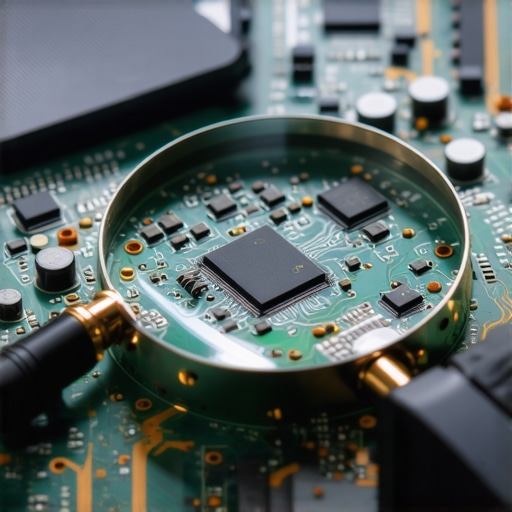
The hidden trap that catches even the tech-savvy is the industry-wide move toward soldered components. Manufacturers love to brag about how thin their new game-changing gaming laptops for 2025 adventures are, but they rarely mention the catastrophic cost of that portability. If your storage chip is soldered directly to the motherboard, a single hardware failure can turn your $2,000 investment into a high-tech brick. This is exactly why we avoid laptops with soldered storage at all costs. It isn’t just about the storage, either. For the sake of your long-term wallet, you need to understand why we never buy laptops with soldered ram for longevity. According to a report by iFixit, the trend toward non-modular hardware significantly reduces the average lifespan of modern portables because a single failed capacitor near a memory chip renders the entire logic board useless. If you can’t swap it, you don’t really own it.
Why does my high-end gaming laptop feel sluggish on battery?
This is a question I get from power users all the time. They spend thousands on top-tier gaming laptops, only to find the system stutters the moment they unplug from the wall. The answer isn’t just ‘power saving’ settings. It’s the real reason your gaming laptop feels sluggish on battery: the lithium-ion cells literally cannot provide enough instantaneous current to keep the GPU and CPU at full clock speeds without damaging the battery itself. A 2023 technical analysis by Digital Foundry highlighted that many high-performance machines throttle performance by up to 50% the second they lose AC power to prevent thermal runaway. This isn’t a bug; it’s a desperate safety measure. If you’re doing heavy work on the go, you aren’t just wearing down your battery—you’re potentially stressing the voltage regulators every time they have to switch power states. Have you ever fallen into this trap of thinking your laptop was broken when it was just unplugged? Let me know in the comments.
Maintenance isn’t about running a CCleaner scan once a month and hoping for the best. To me, it’s a rigorous process of monitoring and physical care that starts the day you unbox those top laptop deals in 2025. I swear by a tool called HWiNFO64. It’s not pretty, but it tells you the ‘Battery Wear Level’ and the exact temperature of your VRMs—data points that Windows hides. If you’re pushing one of those game-changing gaming laptops for serious players in 2025, you need to be looking at these numbers. I’ve seen laptops where the user thought the fan was just loud, but the software revealed the CPU was hitting 100°C because they were doing exactly why you should never use your laptop on a soft blanket.
How can I keep my hardware fresh for more than three years?
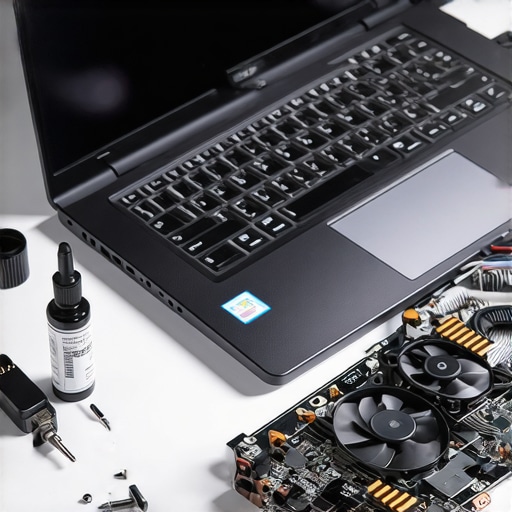
The secret lies in heat management and voltage control. I’m a massive advocate for learning how to undervolt your gaming laptop for better temps and performance. By lowering the voltage slightly, you reduce the heat generated without sacrificing speed. It sounds scary, but tools like ThrottleStop make it manageable. Beyond the software, you need the right physical kit. I don’t buy a machine without considering must-have laptop accessories for a seamless setup, specifically a high-quality stand that allows the intakes to breathe. If you don’t keep the dust out, you’ll eventually wonder why your laptop fan only gets louder after cleaning—usually because the dust has been pushed deeper into the fin stack.
Stop Killing Your Battery Every Night
We’ve all been guilty of it: leaving the charger in 24/7. Battery University, a leading technical resource on battery tech, notes that keeping a Lithium-ion battery at 100% charge (especially at 4.2V per cell) is the quickest way to degrade its capacity. I always recommend that you learn how to calibrate your laptop battery for better accuracy every few months and set a charge limit of 80% in your BIOS or manufacturer software. This is why for serious long-term use, why we only buy laptops with removable battery packs remains our golden rule. In the future, I predict we will see a massive shift back toward modularity, spurred by right-to-repair laws in the EU. We’re already seeing it with companies like Framework, and soon, even the mainstream business laptops for professionals will have to follow suit or be taxed out of the market. My challenge to you today: download HWiNFO64 and check your ‘Battery Wear Level.’ If it’s over 15%, it’s time to start looking at recalibrating or searching for a replacement before the swelling starts.
What I Learned the Hard Way After Losing Six Months of Work
If I could go back to my younger self, I would stop being so complacent about that ‘weird noise.’ The most expensive lesson I ever learned was that software can’t fix a physical bearing failing in a fan or a NAND gate burning out in an SSD. First, remember that backup redundancy is non-negotiable; if your data doesn’t exist in three places, it doesn’t exist. Second, cheap hardware is actually more expensive in the long run. I stopped chasing the real cost of buying a budget laptop for gaming because the repair costs and downtime eventually eclipsed the price of a high-end machine. Finally, physical maintenance—just blowing out the dust every six months—can double the lifespan of your device.
My Go-To Kit for Keeping Systems Running Fast
I don’t trust marketing brochures; I trust data. To keep my machines in peak condition, I rely on a few specific resources. I use HWiNFO64 daily to monitor voltage and thermals because it catches spikes before they cause damage. For drive health, CrystalDiskInfo is my absolute baseline for checking S.M.A.R.T. status. I also regularly check iFixit to see how repairable a new machine is before I buy. When setting up a new workstation, I always look for must-have laptop accessories to boost your work setup, like quality cooling pads or grounded docks, to ensure the internal components aren’t being stressed by external factors. I also make it a point to source how to find a replacement battery that won’t explode early, so I’m not stuck with third-party knockoffs when the OEM cell finally quits.
Own Your Hardware Instead of Letting It Own You
Technology should be a tool that empowers you, not a source of constant anxiety. By paying attention to the small warning signs—the heat, the stuttering, and the battery health—you take control back from the manufacturers who want you on a three-year upgrade cycle. Whether you are hunting for top laptop deals in 2025 or maintaining a trusty old workstation, your vigilance is your best insurance policy. Invest in quality, keep things cool, and always have a plan for when (not if) the hardware fails. You have the knowledge now; go use it to save your data and your wallet. If you are looking for a machine that lasts, prioritize top business laptops for productivity in 2025 expert recommendations because they are built to be opened and repaired.
Have you ever had a laptop drive die on you without any warning, or did you catch the red flags just in time? Let me know your stories in the comments below.