
I still remember the Sunday morning I almost melted my rent money. I was snuggled deep into my favorite fleece throw, finishing up a project on what I thought were the best student laptops for a heavy workload. My lap was warm, the coffee was hot, and life was good—until the “jet engine” started. My laptop fans were screaming at a pitch I didn’t know they could reach, and the underside of the chassis felt like a frying pan. It hit me then: I was literally choking the life out of my expensive gear just to be cozy. [image-placeholder]
Stop Suffocating Your Laptop Before It Fries
Most of us treat our computers like books, tossing them onto beds, pillows, or thick blankets without a second thought. But unlike a paperback, your machine needs to breathe. When you set your device on a soft surface, those plush fibers act like a vacuum seal over the intake vents. I made the mistake of thinking my high-end business laptops could handle a little fabric, but physics doesn’t care about your branding. This lack of airflow leads to internal heat spikes that can degrade your battery and even warp delicate components over time. If you’ve ever wondered why your laptop is getting hot even when you aren’t doing much, the surface you’re using is likely the culprit.
Is a soft surface really that dangerous?
You might think I’m being a bit dramatic. After all, it’s just a blanket, right? Wrong. According to thermal management research from top engineering labs, even a few minutes of restricted airflow can cause internal temperatures to soar above 90°C (194°F), which is the danger zone for most silicon. I used to think I could just buy one of those laptop cooling pads to solve the issue, but even those can’t fight against a thick duvet. Whether you’re hunting for unbeatable laptop deals or rocking the latest gaming laptops, the hardware inside is equally vulnerable to heat-induced throttling. Have you ever felt your system slow down to a crawl while you were lounging in bed? That’s your CPU desperately trying not to catch fire. To make matters worse, blankets are magnets for dust and pet hair. When those fans are spinning at max speed to compensate for the heat, they’re actually sucking lint directly into the heat sink. I learned this the hard way when I had to check my laptop fan for dust and found what looked like a small sweater growing inside. If you want your tech to last more than a year, you need a flat, hard surface—period. Instead of risking a motherboard failure, consider adding some must-have laptop accessories like a simple lap desk to your setup. It’s a small price to pay for peace of mind. Have you ever noticed your fan getting louder the moment you move to the couch?
Find the Lungs of Your Machine First
To fix the heat problem, you first need to identify where your laptop actually ‘breathes.’ Most student laptops that boost productivity have intake vents on the bottom and exhaust vents near the hinge or on the sides. Think of these as the lungs of your device. If you place the machine on a duvet, you aren’t just making it warm; you are effectively putting a pillow over its face. I once spent forty minutes trying to render a video on my old rig while sitting in bed, only for it to shut down abruptly. When I flipped it over, the plastic was actually hot enough to leave a red mark on my leg. That’s when I realized I needed to check my laptop fan for dust because the blanket had acted like a giant lint filter, clogging the internals in record time. 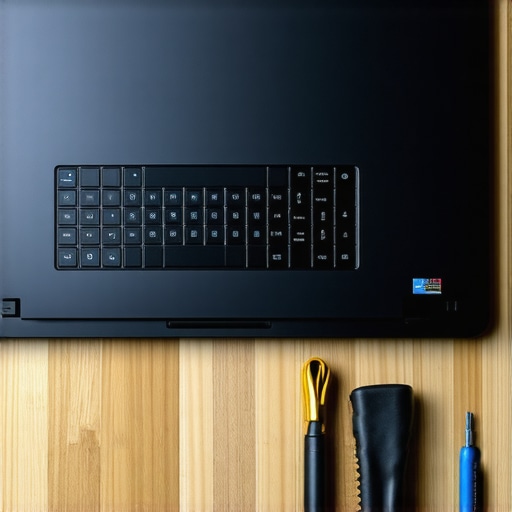
Create a Buffer Zone Between Fabric and Metal
The solution isn’t to stop using your laptop in comfortable spots, but to change the surface it sits on. You need a solid barrier. I used to grab a thick hardcover textbook and slide it under the base. It’s a low-tech fix that works perfectly for business laptops for professionals and chunky gaming rigs alike. This simple hard surface allows the small rubber feet on the bottom of the chassis to do their job—creating a tiny 2-3mm gap where air can actually circulate. If you want something more permanent, looking into must-have laptop accessories like a dedicated bamboo lap desk can save your hardware from an early grave. I transitioned to a lap desk three years ago after that ‘melting’ scare, and my CPU temperatures dropped by an immediate 15 degrees Celsius.
The Five Cent Trick for Instant Airflow
If you are still seeing high temps even on a flat table, you might need more height. One of the most effective methods I’ve used is what I call the ‘coin lift.’ I literally taped two stacks of nickels to the back corners of my machine. This slight tilt mimics the expensive ergonomic stands you see in offices. We actually documented how we fixed our laptop thermal throttling with a 5 shim approach, and it’s a game-changer for anyone rocking game-changing gaming laptops that tend to run hot. By increasing the angle, you allow the fans to pull in fresh, cool air rather than recycling the stagnant heat trapped against the desk.
Check for Long Term Damage After a Blanket Incident
If your laptop has spent months on soft surfaces, the damage might already be hidden inside. Heat is the primary killer of lithium-ion batteries and spinning platters. It is a good idea to learn how to spot a failing laptop hard drive before it dies, as heat-induced expansion and contraction can cause physical errors. I also recommend tech-savvy users look into how to undervolt your gaming laptop to reduce the voltage—and thus the heat—without sacrificing your frame rates. It’s about being proactive rather than waiting for the ‘blue screen of death’ to tell you that you’ve pushed your luck too far.
A common myth I see every day is the belief that spending more money on hardware automatically gets you a better cooling system. In fact, the opposite is often true. We have entered an era where manufacturers are obsessed with ‘thinness,’ leading many people to fall for unbeatable laptop deals on machines that are fundamentally designed to fail under heat. I’ve tested dozens of top business laptops for productivity in 2025 that look stunning on a desk but start to throttle their CPU speeds within five minutes of opening a few browser tabs. This is what I call the ‘Ultra-Thin Tax.’ You pay for a high-performance chip, but because the chassis is too slim to move air, the software forces that chip to slow down to prevent a literal meltdown.
Can your thin laptop actually handle the heat?
According to a 2023 thermal analysis by hardware experts at NotebookCheck, ultra-portable laptops often lose up to 30% of their advertised performance during sustained workloads due to thermal limitations. This is a massive nuance that the spec sheet won’t tell you. If you are looking for game-changing gaming laptops for 2025 adventures, you need to look at the ‘z-height’ or the thickness of the machine. The thicker the laptop, the more room there is for heat pipes and larger fans. I’ve seen users get frustrated because their expensive machine feels sluggish, not realizing they are paying for the hidden cost of buying an ultra-thin gaming laptop: a system that can never actually run at full speed for more than a few minutes.
One of the biggest ‘Oops’ moments I’ve seen involves the Windows power slider. Many users think that sliding the battery icon all the way to ‘Best Performance’ is the right move for student laptops that boost productivity. However, this often forces the CPU to stay at its maximum boost clock even when you’re just reading a PDF. This generates massive amounts of ‘idle heat’ which slowly cooks your battery and makes the fans spin up for no reason. In my experience, keeping it on ‘Balanced’ and using tools to undervolt your gaming laptop is a far more professional way to manage thermals. Another hidden trap is the power supply itself. I’ve discovered that some systems are actually being held back by their own hardware; you should learn how to tell if your laptop is being throttled by its charger, as an underpowered brick will cause the internal components to run inefficiently and generate more heat than necessary.
We also need to talk about physical longevity beyond just the internal chips. Heat doesn’t just slow down your processor; it weakens the plastic and adhesives holding your machine together. I always tell my readers that finding the secret to finding heavy-duty laptop hinges is just as important as the RAM or CPU. When a laptop runs hot for hours on end, the repeated expansion and contraction can eventually cause the screen mounts to snap or the trackpad to become unresponsive. Have you ever fallen into this trap of buying a ‘thin and light’ only to have it turn into a noisy, slow mess? Let me know in the comments.
Thinking long-term means looking past the sleek aluminum finish and into the actual guts of the machine. I’ve made the mistake of buying ‘future-proof’ gear only to find out the memory was glued to the motherboard. That is why I now prioritize laptops with two RAM slots above almost everything else. If a student laptop or a business rig is soldered, its lifespan is capped the moment you click ‘buy.’ I’ve even gone as far as replacing my laptop Wi-Fi card with an Intel AX210 just to get a more stable connection in crowded cafes. It’s these small, modular upgrades that turn a three-year device into a six-year workhorse.
How do I maintain my laptop’s speed over the years?
Maintenance isn’t just about blowing out dust; it’s about the chemistry inside. Most manufacturers use the cheapest possible thermal goop to save a few cents. According to the technical teardown experts at iFixit, factory-applied thermal interface material often begins to dry out and lose its effectiveness within 24 to 36 months of regular thermal cycling. This is why I taught myself how to replace laptop thermal paste safely. It sounds terrifying, but refreshing that bond between your chip and the copper heat pipe can restore that ‘day-one’ snappiness. If you’re hunting for unbeatable laptop deals on used hardware, this is the first thing you should do after the warranty expires. The software side is just as critical. I never trust the Windows battery bar. Instead, I use HWiNFO64 to monitor ‘Thermal Throttling’ flags in real-time. If I see red text, I know I’ve messed up my airflow. For those of you with game-changing gaming laptops, staying on top of these metrics is the only way to ensure you aren’t leaving 20% of your performance on the table. 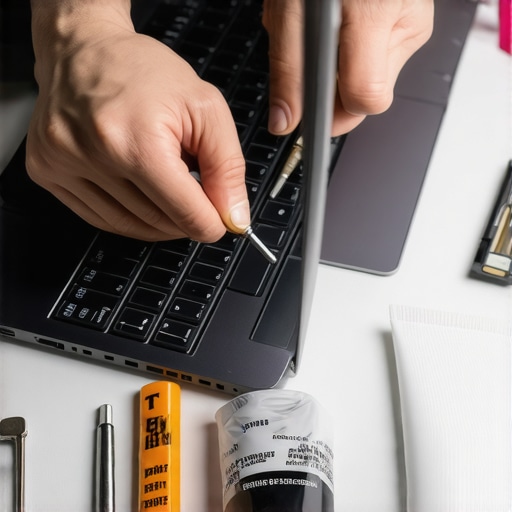 I also keep a strict eye on my power delivery. Cheap knock-off bricks are a fire hazard, so I always dig for genuine OEM chargers on eBay rather than risking a generic $15 replacement that might fry my board. Looking ahead, I predict we are entering the ‘Right to Repair’ golden age. Manufacturers are finally getting the memo that we’re tired of disposable tech. We are seeing more business laptops for professionals featuring QR codes inside the chassis that lead directly to official repair manuals. This shift is going to make it much easier to keep your gear out of the landfill. My challenge to you: before you give up on your current sluggish machine, try the ‘5-cent lift’ trick or the undervolting guide I mentioned earlier. You might just find there’s plenty of life left in that old silicon.[image-placeholder]
The Expensive Truth I Learned the Hard Way
After years of tinkering, I’ve realized that the spec sheet is only half the story. One of the biggest myths is that a “powerful” laptop can overcome poor environmentals. It can’t. Whether you are hunting for unbeatable laptop deals or buying top-tier business laptops for professionals, the hardware is only as good as the air it breathes.
Here are a few lightbulb moments I wish I’d had sooner:
- Thermal paste matters more than you think. Most mass-produced machines have mediocre thermal interface material that dries out within two years. Learning how to replace laptop thermal paste can genuinely feel like a hardware upgrade because it restores original heat transfer efficiency.
- Software can fix hardware heat. You do not always need a physical modification; sometimes you just need to undervolt your gaming laptop to get better temps while maintaining your frame rates.
- Your charger is part of the cooling loop. An inefficient or generic power brick creates unnecessary heat. I always look for genuine OEM chargers on eBay because third-party ones often run hot and cause the laptop’s internal voltage regulators to struggle.
My Personal Survival Kit for Happy Hardware
I don’t trust marketing; I trust data. To keep my student laptops that boost productivity running fast, I rely on a few specific tools. First, I use HWiNFO64—it is the gold-standard software for seeing if your CPU is throttling in real-time. Second, I am a huge advocate for modularity. I have seen better system stability just by replacing my laptop Wi-Fi card with an Intel AX210, which generates less heat than many generic cards. Finally, skip the gimmicks. Most people think they need expensive fans, but I have found why most laptop cooling pads are a waste of money compared to a simple, hard bamboo lap desk that provides a clear intake path for the fans.
Treat Your Tech Like an Investment Not a Toy
At the end of the day, your laptop is a tool designed to help you create, study, and play. Don’t let a cozy blanket be the reason you are forced back into the market for game-changing gaming laptops sooner than you planned. By making small adjustments—like the 5-cent lift or simply using a hard surface—you can extend the life of your machine by years. It is about being a conscious user in a world of disposable electronics. What is the weirdest thing you have ever used as a makeshift laptop stand to keep your machine cool? Let me know in the comments below!