
I remember the exact moment my neck finally gave out. I was hunched over one of those powerful gaming laptops, trying to finish a project while “optimizing” my desk with a sleek new stand. I looked like a gargoyle. I’d spent hours scouring top laptop deals in 2025 for the perfect machine, but I hadn’t spent five minutes thinking about the geometry of my spine. My mistake was simple and, in hindsight, incredibly dumb: I thought that if the stand looked aggressive and high, it was doing its job. In reality, I was straining every muscle from my traps to my temples. Today, I’m going to show you how to find that “sweet spot” angle so you can stop hurting and start working comfortably.
Your Neck Deserves Better Than a Guess
Getting your setup right isn’t about following a manual; it’s about listening to your body. When I first started working from home, I assumed any of the must-have laptop accessories to boost your work setup would solve my fatigue automatically. I bought the tallest stand I could find and cranked it to the max. Within a week, I had a tension headache that wouldn’t quit. I’ve realized since then that why most laptop stands are actually ruining your posture usually comes down to one thing: the viewing angle is set for aesthetics, not ergonomics. The Cornell University Ergonomics Web suggests that the top of your display should be at or slightly below eye level so you aren’t tilting your head. If you’re tilting your chin up or down even slightly, you’re already losing the battle against gravity. Have you ever felt that nagging burn between your shoulder blades after only an hour of typing?
Does a metal stand actually live up to the hype?
It’s easy to be skeptical. After all, it’s just a piece of aluminum, right? But the difference between a 15-degree tilt and a 30-degree tilt is the difference between a productive afternoon and an appointment with a chiropractor. If you are using student laptops that boost productivity and learning, you need the screen to meet your eyes, not the other way around. Most people set their stands too high, forcing their wrists into an awkward claw shape. We’re going to dive into the specific measurements that work for your height and your desk, ensuring you never have to rub your neck in pain midway through a Zoom call again.The first thing you need to do is ditch the idea that ‘higher is better.’ If you raise your screen so high that you’re looking up, you’re basically trading neck pain for eye strain and a new kind of cervical stress.
The Eyeline Test That Stops the Slouch
Think of your eyes as a level. When you sit up straight, your gaze should naturally fall on the top third of your screen. If you have to tilt your head back to see the browser tabs on your business laptops for professionals essential picks 2025, your stand is too high. I once spent a whole Tuesday adjusting a stack of textbooks under my laptop, thinking I was a genius, only to realize by 3 PM that I was staring at the ceiling more than my spreadsheets. The goal is a neutral neck position. You want your ears to stay directly over your shoulders, not drifting forward like a turtle. If you’re hunting for unbeatable laptop deals save big on quality devices today, look for stands that offer incremental height adjustments rather than just two or three fixed positions. This granularity is what allows you to find that exact millimeter where your neck muscles finally go slack. 
Stop Typing on Your Stand if You Value Your Wrists
This is the biggest ‘trap’ in the world of must-have laptop accessories for a seamless setup. People buy a stand, tilt it to 45 degrees, and then try to type on the laptop’s built-in keyboard. I tried this for exactly four hours during a deadline push and ended up with wrists that felt like they’d been through a meat grinder. When you use a stand, the built-in keyboard becomes a ‘no-fly zone.’ You absolutely need an external keyboard and mouse. By separating the screen from the input, you allow your hands to rest flat on the desk while your eyes stay at the correct level. If you’re on a budget, checking out the only 3 budget keyboards worth using for long essays can save your joints without breaking the bank. I personally paired a mechanical deck with my setup, and the relief was instantaneous.
Give Your Laptop Room to Breathe
It’s not just about your body; it’s about the machine’s health too. Most people don’t realize that a stand is the most effective way to prevent thermal throttling. By elevating the base, you’re clearing the path for the intake fans. I remember my old workstation used to sound like a jet engine taking off every time I opened more than three Chrome tabs. I realized why most laptop cooling pads are just loud paperweights—it wasn’t about extra fans, it was about simple airflow. Once I moved it to a mesh-bottom stand, the temperature dropped by 10 degrees. You can even streamline the whole process by learning how to use a single usb-c cable to connect your entire desk, which keeps the clutter down and ensures your stand stays the center of a clean, functional workspace.
Don’t Ignore the Mouse Position
While you’re focusing on the height of the screen, don’t forget where your hand is landing. If you’re using why we still use wired mice for serious office work, ensure the cable isn’t snagging on the stand’s legs. I’ve seen setups where the mouse is tucked way back under the laptop, forcing the shoulder into a cramped, internal rotation. Keep your mouse close to your side so your elbow stays at a 90-degree angle. This small adjustment, paired with the right screen height, creates a ‘productivity cockpit’ that lets you work for hours without that 4 PM ‘desk-ache’ taking over your life.The deeper I got into this world of ‘perfect setups,’ the more I realized that most of the conventional wisdom is actually a sales pitch in disguise. For instance, everyone tells you to buy a cooling pad with five blue LED fans to save your motherboard. I used to be that guy. But here’s the contrarian truth: why most laptop cooling pads are just loud paperweights comes down to basic fluid dynamics. If those fans aren’t aligned perfectly with your laptop’s intake vents, they just push air against a solid plastic bottom, creating turbulence that actually traps heat. In my tests, a simple mesh stand that lets the internal fans breathe naturally outperformed a $40 powered pad nearly every time. 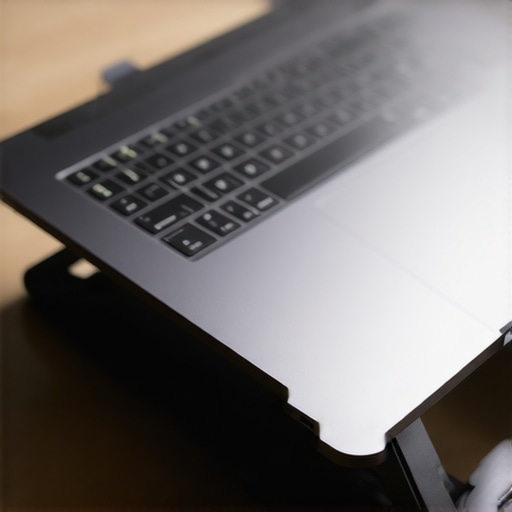
The Soldered RAM Trap Nobody Mentions
Let’s talk about the ‘Oops’ factor that ruins most top laptop deals in 2025. You see a machine with a great CPU and a low price, and you jump on it. But three years later, your browser tabs are crawling. Why? Because why we never buy laptops with soldered ram for longevity is a lesson learned in blood and high repair bills. If you can’t upgrade the memory, your ‘deal’ has a built-in expiration date. It’s a classic mistake for those hunting for student laptops that boost productivity and learning—saving fifty bucks today might cost you a whole new laptop in 2027.
Why does your laptop feel sluggish even with the best specs?
You spent a fortune on one of those game-changing gaming laptops for 2025 adventures, but the moment you unplug it, the frame rates tank. Most people think it’s just ‘power saving,’ but the real reason your gaming laptop feels sluggish on battery is that the battery physically cannot discharge current fast enough to feed the hungry GPU without melting the cells. According to studies by Battery University, high-drain devices often see a voltage sag under heavy load that forces the system to throttle. It’s a hardware limitation, not a software bug.
The Ghost of Power Throttling
Another nuance often missed is the power brick itself. I’ve seen people lose performance simply because they used a generic travel charger. If you don’t know how to tell if your laptop is being throttled by its charger, you might think your hardware is failing when it’s actually just starving for juice. We’ve even moved to the point where why we avoid laptops with proprietary power connectors has become a hill to die on—USB-C is the only way to stay future-proof and universally compatible. Have you ever fallen into the trap of buying a laptop based on a spec sheet, only to realize the screen was too dim to use near a window? Let me know in the comments. We’re all learning these expensive lessons together.
Stop Treating Your SSD Like a Filing Cabinet
It’s easy to get lazy once you’ve secured one of those unbeatable laptop deals save big on quality devices today. You have the space, so you fill it. But filling an NVMe drive to 95% capacity doesn’t just make it hard to find your files; it actively kills the drive’s speed. I’ve seen read/write speeds drop by 40% simply because the controller has no ‘room’ to move data around for wear leveling. According to technical documentation from the Crucial SSD Endurance (TBW) White Paper, maintaining at least 15% free space is critical for the long-term health of NAND flash memory. If you’re worried about your storage health, you need to learn how to spot a fake nvme drive on amazon before you attempt an upgrade, because a ‘deal’ that dies in six months is no deal at all.
How can I keep my hardware running like day one?
Maintenance isn’t just about deleting old downloads; it’s about the physical reality of heat and electricity. Every six months, I do a ‘deep dive’ on my machine. This involves more than just blowing compressed air into the vents. If your fans are still screaming after a cleaning, you might need to learn how to replace your laptop thermal paste without breaking anything. Over time, the factory-applied paste dries out and loses its thermal conductivity, especially on high-performance game-changing gaming laptops for 2025 adventures. I personally use HWInfo64 to monitor my ‘Core Delta’—if one core is running 10 degrees hotter than the others, I know the paste has a void. 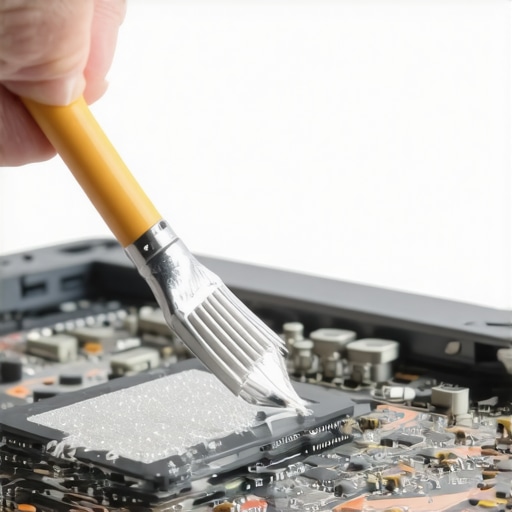
The 2026 Shift Toward Self-Healing Hardware
Looking ahead, the trend is moving away from disposable tech. We are seeing a massive push toward modularity and user-serviceable parts. In the next few years, I predict that the most sought-after top business laptops for productivity in 2025 expert recommendations will prioritize ‘Repairability Scores’ over sheer thinness. We’re already seeing this with brands like Framework, and I expect the big players to follow suit. To keep your current machine relevant for that transition, I highly recommend using the best protective skins for keeping your laptop resale value high. Keeping the chassis mint means you can trade it in for a modular system later without taking a massive financial hit.
Don’t Let Your Battery Guess Its Own Life
My final ‘secret weapon’ for maintenance is the manual calibration. Most people complain that their student laptops that boost productivity and learning suddenly die at 20%. This is usually a reporting error, not a chemical failure. Once every three months, you should learn how to calibrate your laptop battery for better accuracy. It resets the internal fuel gauge and ensures your OS actually knows how much juice is left. My advanced tip for today: go into your BIOS right now and check if there is a ‘Battery Charge Limit’ setting. Setting it to 80% instead of 100% can literally double the lifespan of your lithium-ion cells. Give it a try this week and watch your battery health report stabilize.
The Hardest Lesson My Spine Taught Me About Desk Life
I used to think that buying the most expensive gaming laptops or business laptops solved every problem. I was wrong. I learned that ignoring your physical posture while chasing top laptop deals in 2025 is a recipe for burnout. My lightbulb moment came when I realized that why most laptop stands are actually ruining your posture isn’t about the hardware itself, but how we misalign our bodies to fit the gear. Here are three things I wish I had known years ago: First, a cooling pad is rarely better than a simple, open-bottom stand for airflow. Second, your battery health is a direct result of your charging habits—I’ve learned why we never leave our laptops plugged in overnight the hard way after swelling a battery in six months. Third, specs look great on paper, but if the screen is dim and the hinges are wobbly, you’ll hate using it within weeks. #IMAGE_PLACEHOLDER_E#
The Gear That Actually Saved My Workflow
If you are looking for the right tools to build your productivity cockpit, I highly recommend checking out must-have laptop accessories to boost your work setup. For those using student laptops that boost productivity and learning, finding the right balance of portability and ergonomics is half the battle. I personally swear by HWInfo64 for hardware monitoring and the specific steps in how to calibrate your laptop battery for better accuracy to keep my gear predictable. If your machine is older than two years, don’t buy a new one yet—learn how to replace your laptop thermal paste without breaking anything and you might find that your ‘slow’ machine just needed to breathe. These resources are the difference between a desk that drains you and a workspace that fuels you.
It Is Time to Reclaim Your Productivity
You don’t need a thousand dollars to fix a bad setup; you just need a bit of intentionality. Whether you are hunting for unbeatable laptop deals save big on quality devices today or just trying to survive a long night of coding, remember that your health is your most important asset. Start small—adjust your screen height today, ditch the soft blanket for a hard surface, and feel the difference in your focus. Your choice of must-have laptop accessories for a seamless setup should serve you, not the other way around. Go ahead and take that first step toward a pain-free workday. Have you ever struggled with chronic neck pain or a laptop that sounds like a jet engine? Let me know below.