
The screen flickered, the frame rate dropped to a painful 12 FPS, and I felt like throwing my brand-new rig across the room. I had just spent a week hunting through top laptop deals in 2025 to find the perfect machine, only for it to run like a calculator. I assumed the hardware was faulty. I even started looking up privacy policies for returns. It turns out, the hardware was fine; the software was just being ‘too smart’ for its own good. My laptop was stubbornly using the weak integrated graphics chip instead of the powerful dedicated GPU I actually paid for. If you have ever felt that sinking realization that your expensive hardware is sitting idle while your apps crawl, this guide is for you. We are going to stop the guessing game and force your machine to give you the power you deserve.
Why Windows Likes to Throttle Your Fun
For years, I believed that if I plugged in my charger, the laptop would automatically max out its performance. That is a myth. Windows and GPU drivers use a technology often called ‘Switchable Graphics’ to save energy. It is great for student laptops that balance power and portability, but it is a nightmare for power users. I once spent three hours reinstalling every driver in sight, thinking I had a ‘lemon,’ only to realize a single toggle in the Windows settings was overriding my Nvidia control panel. According to research by NotebookCheck, the performance gap between integrated and dedicated graphics in modern laptops can be as high as 300% depending on the workload. By letting the OS decide, you are essentially gambling with your productivity. This is especially true for game-changing gaming laptops where thermal throttling is already a battle; you do not need the software fighting you too.
Doesn’t My Laptop Know Better?
It is easy to assume the engineers at Microsoft or Nvidia have this figured out. They don’t. The system defaults to power-saving mode because it prioritizes battery longevity over your desire for a smooth export in Premiere Pro or a high kill-death ratio in your favorite shooter. Have you ever noticed your fans staying eerily silent while your laptop struggles to render a simple 3D model? That is the sound of your dedicated GPU sleeping on the job. We need to wake it up. If you’ve been frustrated by this, drop a comment below—I want to know which app is giving you the most trouble. It is time to dive into the settings and take back control.
Override the OS Defaults in Sixty Seconds
Windows 10 and 11 have buried the most important toggle for power users inside the System settings, moving away from the old-school control panels we used to rely on. To fix this, you need to head to Settings > System > Display > Graphics. I remember doing this on one of the top business laptops for productivity in 2025 that I was testing; it was a beast of a machine but struggled to rotate a simple architectural 3D model. Once you are in that menu, you will see a list of apps. If your specific game or editing software isn’t there, you have to manually ‘Browse’ for the .exe file. After adding it, click ‘Options’ and select ‘High Performance.’ This tells Windows to ignore the power-saving integrated chip entirely and spin up the dedicated silicon the moment that app launches. While you are tweaking these menus, it is also a great time to learn how to disable Windows features that eat your battery life, as running the GPU constantly will drain your cell faster than a leaky bucket. 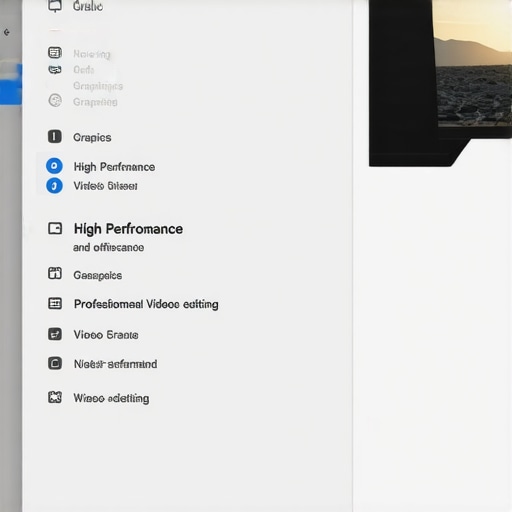
Force the Issue with Manufacturer Control Centers
If the Windows toggle feels like a suggestion to your hardware rather than a command, you need to go to the source: the Nvidia Control Panel or the AMD Radeon Software. For Nvidia users, right-click your desktop and open the Control Panel. Navigate to ‘Manage 3D Settings’ and look for the ‘Preferred graphics processor’ dropdown. Changing this to ‘High-performance NVIDIA processor’ globally will make everything faster, but it will also turn your laptop into a space heater. I once made the mistake of leaving this on while on a cross-country flight without a charger. My battery died in 45 minutes, and I spent the rest of the trip staring at a black screen. This is why many game-changing gaming laptops come with MUX switches—a physical hardware bypass that connects the screen directly to the GPU, skipping the integrated graphics ‘middleman’ entirely. If your laptop has one, use it. It is the only way to ensure 0% interference from the CPU’s weak internal graphics.
Check Your Power Plan and Plug Status
Sometimes the software is doing its job, but your power profile is acting as a restrictor plate. Even the most powerful rigs among heavy laptops for serious video production will default to a ‘Balanced’ profile to prevent the power brick from melting. You need to ensure your power slider is set to ‘Best Performance’ by clicking the battery icon in your taskbar. If you are doing a live demo, you might also want to apply the simple tweak that stops your laptop from sleeping during presentations so your GPU doesn’t go to sleep mid-render. I’ve seen countless pros get embarrassed because their screen dimmed and the GPU throttled down right as they were showing off a complex project. Always verify that ‘Link State Power Management’ in your advanced power settings is turned off; otherwise, your PCIe bus—the highway your GPU uses—might be taking naps while you’re trying to work.Most people I talk to think that snagging unbeatable laptop deals is just about finding the lowest price for an i7 processor or a specific GPU model. That is a massive mistake. In my experience, the ‘spec-sheet trap’ is the quickest way to end up with a machine you hate. You might see two laptops with the exact same GPU name, but one is 20% faster because the manufacturer didn’t cripple the wattage to keep the chassis thin. This is the hidden downside of ultra-thin gaming laptops—you are often paying for high-end hardware that the thermal design literally cannot handle. According to a detailed analysis by Hardware Unboxed, the same mobile GPU can vary by up to 35 watts in power delivery across different brands, which drastically changes your actual frame rates and render times. If you are shopping for game-changing gaming laptops for serious players, you must ignore the sticker and look for the Total Graphics Power (TGP) rating in the fine print. 
Why Does My High-End Laptop Lag When Unplugged?
Even if you have followed my previous advice on forcing the GPU, you might notice a massive performance cliff the moment you pull the power cable. Most modern systems, including top business laptops for productivity in 2025, are hardcoded to throttle the PCIe bus and CPU clocks to protect the battery from the intense heat of high current draw. This is why we only use 100w pd chargers for our workstations; using an undersized power brick can trick the system into a low-power state even when you are doing heavy work. Another ‘oops’ factor is settling for base-level memory to save fifty bucks. I will say it loudly: 8GB of RAM is no longer enough for modern browsing, let alone professional video editing or gaming. Have you ever fallen into this ‘big numbers, small performance’ trap? Let me know in the comments. Before you buy your next rig, consider must-have laptop accessories to boost your work setup, like a high-quality cooling pad, because why gaming laptops still struggle with thermal throttling in small frames is a physical reality that no software setting can entirely overcome.If you have already navigated the minefield of top laptop deals in 2025 and secured your hardware, your journey isn’t over—it’s just moving from the acquisition phase to the maintenance phase. Most people treat their laptops like appliances that eventually wear out, but I treat mine like a performance vehicle. I never start a project without knowing how to find out if your laptop can be upgraded. If you can’t swap the RAM or the SSD, you’ve essentially bought a device with an expiration date.
Stop Fearing the Screws
I used to be terrified of opening my chassis, thinking I’d snap a plastic clip and ruin everything. Then I bought the specific screwdriver kit you need to open 90 of modern laptops, and it changed my life. Having the right Torx and Pentalobe bits means you aren’t stripping screws while trying to get to the cooling fans. Even if you aren’t a ‘techie,’ you should own a basic kit. I’ve found that the only 3 brands that still make easily repairable laptops actually encourage you to peek inside. If you see a thick layer of grey lint on your fans, your 2025 powerhouse is currently performing like a 2018 budget model. 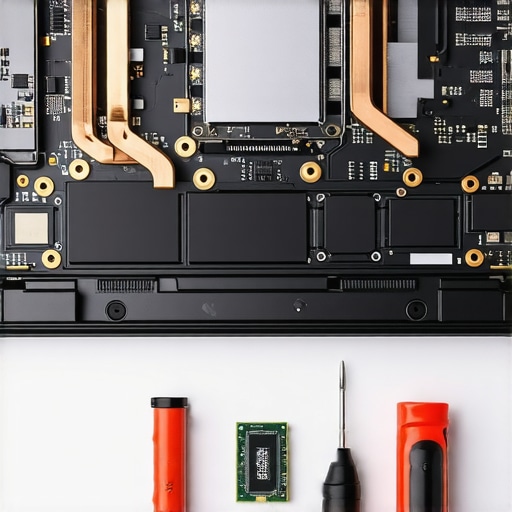
How Can I Keep My Laptop Fast for Five Years?
Longevity is a choice, not a lucky break. Every year, I perform what I call ‘The Great Repaste.’ Over time, the thermal interface material between your CPU and its heatsink dries out, becoming a brittle, insulating mess. This is why we swapped the thermal paste on our brand-new laptop right out of the box—often, the factory application is sloppy. According to the technical data sheets from Thermal Grizzly, a high-end paste like Kryonaut offers a thermal conductivity of 12.5 W/mk, which can drop your operating temperatures by 5-10 degrees Celsius compared to stock pastes. If you aren’t ready to pull the heatsink off, at least learn how to clean the dust out of your laptop without opening it using compressed air in short, controlled bursts. Just remember to hold the fan blades still with a toothpick so you don’t over-spin the bearings.
Predicting the End of the Disposable Laptop Era
Looking ahead, I see a massive shift toward modularity. While companies have pushed us toward soldered components for years, the ‘Right to Repair’ movement is finally forcing manufacturers to reconsider. We are starting to see how to replace a dead laptop fan without voiding the warranty becoming a standard guide rather than a secret hack. In the next few years, I expect ‘Laptop Maintenance’ to be as common as changing the oil in your car. If you want your investment to last, stop treating it as a black box. My challenge to you: find your screwdriver kit, pop that bottom panel off tonight, and just look at the fans. If they’re dusty, clean them. Your hardware will thank you by not thermal-throttling during your next big deadline.
Hard Truths About Hardware I Learned the Hard Way
After years of testing everything from budget rigs to high-end workstations, I realized that software is often the biggest bottleneck. First, never assume a driver update is a magic wand; sometimes, ‘stable’ older drivers handle GPU switching better than the latest beta. Second, the wattage rating of your GPU is more important than the model name itself—a 60W ‘Pro’ chip will always lose to a 115W ‘Mid-range’ chip. Finally, I’ve learned that knowing how to find out if your laptop can be upgraded is the single most important skill you can have to extend your machine’s life. If you can’t swap the RAM or the SSD, you’ve essentially bought a device with an expiration date.
The Kit I Use to Keep My Gear Screaming Fast
To maintain peak performance, you need more than just software tweaks. I personally swear by the specific screwdriver kit you need to open 90 of modern laptops because it prevents the heartbreak of a stripped screw during a routine fan cleaning. I also keep a tube of high-end thermal interface material handy, as why we swapped the thermal paste on our brand-new laptop isn’t just about heat—it’s about consistent frame rates. For those looking for new gear without the ‘retail tax,’ I recommend learning how to find hidden warehouse deals on premium laptop brands to get hardware that actually has the thermal headroom to perform. #IMAGE_PLACEHOLDER_E#
Stop Babying Your Hardware and Start Owning It
The transition from a passive user to an active power user starts the moment you decide to look under the hood—literally and figuratively. Whether you are hunting for the top laptop deals in 2025 or squeezing the last bit of life out of your current machine, remember that you are the boss of your silicon. Don’t let a hidden power-saving setting dictate your productivity or your gaming experience. Go ahead, open those settings, turn on high performance, and let your GPU do what it was built for. Which specific app or game is giving your GPU the most trouble right now? Let me know in the comments below!