
I spent years fighting what I call the morning octopus. You know the drill: you sit down with your coffee, flip open your laptop, and spend the next five minutes fumbling with four different cables just to get your monitor, keyboard, and power working. One morning, I actually yanked my portable student laptop right off the desk because my headphone cord got tangled in the charging brick. That was the day I decided the clutter had to die. If you have ever felt like your desk looks more like a server room than a workspace, I am here to tell you there is a better way. Today, we are going to simplify your life using the magic of a single USB-C connection. We are going to turn that chaotic nest of wires into a clean, one-and-done setup that works whether you are rocking one of the latest high-end business laptops or a powerhouse gaming rig. Have you ever had a cable snag and pull your laptop toward the floor, or is it just me?
Will this single cable actually charge my laptop and run my monitors?
When I first tried this, I made a massive rookie mistake. I bought the cheapest USB-C hub I could find on a clearance site. I thought a port was just a port. Boy, was I wrong. That hub got so hot I could have fried an egg on it, and my screen flickered every time I moved my mouse. I learned the hard way that not all chargers and docks are created equal. People often worry that a single cable cannot handle the bandwidth needed for high-resolution displays and peripherals. However, with the advent of Thunderbolt 4 and USB4, we are looking at speeds up to 40Gbps. According to the USB Implementers Forum, the latest Power Delivery standards can now handle up to 240W, which is enough to power even some serious gaming laptops without needing a separate brick.
Stop Plugging in Five Things Every Morning
The goal is simple: you arrive at your desk, plug in one cable, and everything—your monitors, your backup drives, your mechanical keyboard, and your power—activates instantly. This is not just about aesthetics; it is about reducing the wear and tear on your device ports. I have seen too many people ruin their professional laptops by constantly jamming connectors in at weird angles. By using a specific dock for our dual monitor setup, we can create a permanent workstation anchor. We are going to look at the specific hardware you need to ensure your data does not bottleneck and your battery actually stays full while you work.
Check for the Tiny Lightning Bolt First
Before you buy any new gear, you need to know what your laptop port can actually do. Just because a port is shaped like a USB-C connector does not mean it can carry video or high-speed data. Look for a tiny lightning bolt icon next to the port; this signifies Thunderbolt, the gold standard for one-cable setups. If you do not see it, look for a small ‘D’ shape, which means DisplayPort Alt Mode. I remember the frustration of setting up a brand-new desk for my sister’s student laptops that boost productivity and learning, only to find out her port was ‘data-only.’ We had the dock, the monitor, and the cables, but the screen stayed black. To avoid this, always verify your laptop specs for ‘Power Delivery’ and ‘DP Alt Mode’ before assuming that single cable will do anything more than charge a phone.
Don’t Starve Your Laptop of Necessary Juice
Power is where most people get tripped up. Most high-performance machines, especially game-changing gaming laptops for serious players in 2025, require significantly more power than a standard phone charger provides. If your dock only provides 60W but your laptop wants 90W, your battery will slowly drain even while plugged in. I once sat through a three-hour deep-work session only to have my laptop die mid-sentence because my ‘universal’ dock was underpowered. This is why we only use 100W PD chargers for our workstations now. It provides a safety net. You should also be aware that the real reason your laptop power brick is getting extremely hot is often due to it being pushed to its absolute thermal limit. Giving your setup a bit of ‘wattage overhead’ keeps everything running cool and prevents those annoying performance throttles.
Manage Your Data Like a Traffic Controller
Think of your USB-C cable as a ten-lane highway. Your 4K monitor takes up six lanes, your webcam takes one, and your external drive takes two. If you try to add a mechanical keyboard and a high-speed mouse, you might run out of lanes, leading to ‘input lag’ where your mouse feels like it is moving through molasses. To fix this, prioritize high-bandwidth devices. If you are using the best vertical docks that support dual 4k displays, the hardware inside the dock acts like a traffic cop, ensuring every device gets the speed it needs. For those using business laptops for professionals, this reliability is the difference between a smooth presentation and a glitchy mess. You might also want to invest in must-have laptop accessories for a seamless setup like high-quality shielded cables. Cheap cables lack the internal shielding to prevent interference, which is often the culprit behind those mysterious ‘ghost’ disconnects that happen right when you are in the middle of a meeting.People love the word ‘universal,’ but in the world of must-have laptop accessories, it is often a marketing lie. I have seen hundreds of users grab a ‘universal’ USB-C dock thinking it will work perfectly across their fleet of high-end business laptops and home gaming rigs, only to realize that certain features like ‘wake-on-LAN’ or even simple power button passthrough are locked to specific brands. The problem with proprietary docking stations for business is that they prioritize the ecosystem over the consumer’s flexibility. If you are mixing a Dell laptop with an HP dock, do not be surprised when your dual-monitor setup refuses to wake up from sleep without a full reboot. This is the ‘handshake’ issue that most beginners ignore until it ruins their Monday morning workflow.
Why is my expensive 4K monitor stuck at a laggy 30Hz?
This is the most common ‘oops’ I see. You buy a beautiful 4K screen and a dock that claims to support it, but the mouse feels like it is swimming in honey. This usually happens because your dock is splitting the USB-C bandwidth between high-speed data (USB 3.0) and video. According to the Video Electronics Standards Association (VESA), if you do not have enough ‘lanes’ available for DisplayPort Alt Mode, the hardware forces a lower refresh rate to compensate. To avoid the disappointing reality of budget 4k gaming monitors and docks, you must ensure your hardware supports Display Stream Compression (DSC). Without it, you are basically trying to push a gallon of water through a straw.Even with the right specs, you can get burned by the physical build of the gear. Many people hunt for unbeatable laptop deals but then pair them with docks that have fixed, six-inch host cables. If you want to use a vertical stand to save space, that short cable might not even reach your port. I once spent forty dollars on a dock only to realize it hung off the side of my desk like a heavy, electronic pendulum, eventually damaging the port on one of my student laptops that balance power and portability perfectly. Always look for docks with detachable host cables. It allows you to swap in a longer, high-quality Thunderbolt cable so you can hide the dock under the desk and keep your workspace truly minimal. Have you ever fallen into this trap where a ‘deal’ ended up costing you more in the long run? Let me know in the comments.If you have successfully built this one-cable dream, the next challenge is ensuring it does not break three months from now. I have noticed that most people treat their USB-C ports like old-school VGA connectors—they jam them in and leave them. But these tiny connectors are delicate. To keep your investment safe, I always recommend a little bit of physical maintenance. For example, I make it a habit to check for lint. It sounds silly, but a tiny piece of pocket fuzz inside your laptop’s port can prevent a full ‘handshake,’ leading to those annoying flickers. Knowing how to clean the dust out of your laptop without opening it is the first step in protecting that high-speed connection.
Stop Your USB-C Port from Wiggling to Death
The biggest threat to your setup is mechanical stress. If your heavy Thunderbolt cable is hanging off the edge of the desk, it is slowly prying the port off your motherboard. I have seen this happen to everything from student laptops that boost productivity and learning to rugged workstations. I use a simple adhesive cable clip on the back of my desk to create a ‘strain relief’ loop. This ensures that the weight of the cable is supported by the desk, not the delicate pins inside your machine. If you do start to feel a bit of a wobble, you might need the specific screwdriver kit you need to open 90 percent of modern laptops just to tighten the internal bracket before it snaps entirely.
How do I keep this setup running smoothly for years?
Maintenance is not just about the hardware; it is about the software handshake. Every few months, I go through and update the firmware on my docking station. Most people forget that docks are essentially small computers themselves. According to the Intel Thunderbolt 4 Certification standards, these devices require specific driver stacks to manage dual-display bandwidth correctly. If your screen starts acting up after a Windows update, the dock firmware is usually the culprit. I also keep a close eye on my battery health. Using a high-wattage dock is convenient, but you should understand the truth about high-wattage chargers and battery longevity to ensure you are not cooking your cells 24/7. I personally set a battery charge limit of 80% in my BIOS to prevent premature wear. 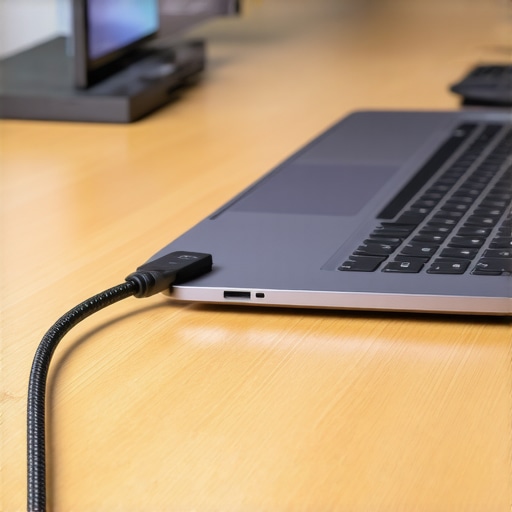
The Only Tools You Actually Need for Desk Maintenance
Beyond a good screwdriver, I always keep a few must-have laptop accessories to boost your work setup nearby. Specifically, a can of compressed air and a high-quality microfiber cloth. When you are swapping between game-changing gaming laptops for serious players in 2025 and your work machine, you are touching those ports constantly. Skin oils can actually cause minor corrosion over years of use. It is a small detail, but cleaning your connectors once a month makes a massive difference. For those who travel, I recommend picking up the best minimalist backpacks for carrying two laptops at once to ensure your gear stays immobile and protected from port-bending pressure while you are on the move.
Wireless Power is Closer Than You Think
Looking ahead, the ‘one cable’ dream is eventually going to become ‘no cables.’ We are already seeing the early stages of wireless USB4 and magnetic resonance charging that could theoretically power high-end business laptops through the desk surface itself. Until that becomes affordable, the USB-C dock remains the king of productivity. If you are hunting for unbeatable laptop deals, prioritize machines with at least two Thunderbolt ports so you have a redundancy plan if one ever fails. Try this today: go to your desk and use a single velcro tie to anchor your main cable to a desk leg; you will immediately feel the difference in how ‘locked in’ the connection feels.
Lessons Learned From a Thousand Docking Handshakes
After years of testing different configurations, I have realized that the most expensive dock in the world won’t save you if you ignore the basics. First, never underestimate the power of a clean connection. Even a microscopic layer of oxidation or skin oil can cause your 4K monitor to flicker or disconnect at the worst possible moment. Also, be incredibly wary of third-party power bricks that lack proper certifications; you should always know how to spot a fake charger before it fries your motherboard. I have seen beautiful, expensive machines turned into paperweights because of a ‘bargain’ power supply that couldn’t handle a voltage spike.
Another lightbulb moment for me was realizing that your battery does not need to be at 100 percent all the time. Keeping it pinned at maximum capacity while docked can actually shorten its lifespan due to heat and chemical stress. Reading up on the truth about high-wattage chargers and battery longevity changed how I manage my power settings. Now, I use software to cap my charge at 80 percent to keep the cells healthy for years, ensuring my machine is ready for travel when I finally do unplug.
My Personal Toolkit for a Bulletproof Workstation
Building a reliable setup requires more than just cables; it requires the right maintenance gear to keep things running at peak performance. I keep a small kit at my desk to handle the occasional loose screw or dusty port. If you want to be prepared for any hardware hiccup, I highly recommend picking up the specific screwdriver kit you need to open 90 percent of modern laptops. It is a lifesaver for tightening those USB-C internal brackets before they become a permanent hardware failure from too much wiggling.
For day-to-day tidiness, knowing how to clean the dust out of your laptop without opening it is essential for keeping those fans quiet during heavy workloads. Once your hardware is physically set, focus on your digital environment to match the physical order. I have found that the best way to organize your desktop for deep work is to minimize desktop icons and use a focused layout that mirrors your physical minimalism. This combination of hardware and software hygiene is the secret to a setup that lasts.
Step Into Your New Stress-Free Morning
Transitioning to a single-cable lifestyle is one of those small changes that yields massive psychological dividends every single day. Whether you are managing high-end business laptops for a demanding career or specialized game-changing gaming laptops for serious players in 2025, the lack of clutter allows you to focus on the task at hand rather than the tangle of wires. It is a genuine investment in your daily sanity. Don’t forget that must-have laptop accessories to boost your work setup are meant to serve your workflow, not complicate it. Go ahead, clear that desk, plug in that one cable, and feel the relief of a truly modern, simplified workspace. Have you ever had a USB-C port fail on you or feel loose right before a big deadline? Let me know your survival story in the comments below!