
I was standing in the middle of a crowded Heathrow terminal, sweating through my favorite blazer, and desperately hunting for an outlet that wasn’t already swarmed by other travelers. My laptop—a high-end machine I picked from a list of business laptops for professionals—was sitting at a terrifying 2%, and I had a client presentation starting in twenty minutes. The problem wasn’t just the battery; it was the massive, two-pound slab of plastic and tangled cables that required its own zip-code in my briefcase. It was that visceral moment of frustration when I realized that while we obsess over the thinness of our screens, we completely ignore the ‘travel tax’ of our bulky accessories. We spend thousands on portability only to carry a brick that weighs us down. Today, I’m going to show you exactly how to stop that madness and switch to a setup that actually fits in your pocket without sacrificing a single watt of power. [image: A ultra-compact 100W GaN charger compared to a massive traditional laptop power brick]
Why Your Massive Power Brick is Ruining Every Trip
It is not just about the literal weight in your bag, though that shoulder strain is real enough after a day of terminal hopping. It is about the friction. When you are trying to find must-have laptop accessories that actually make your life easier, a giant power brick is the first thing that needs to go. I made the mistake early on of buying a cheap, no-name ‘mini’ charger from a clearance bin. It felt like it was going to melt my hand after ten minutes, and it eventually sparked so badly I thought I’d lost my motherboard. You really have to spot a fake charger before it fries your motherboard because the internals matter more than the shell. Modern Gallium Nitride (GaN) technology has changed the game entirely. According to research published by the IEEE Power Electronics Society, GaN components are significantly more efficient than traditional silicon, allowing chargers to be up to 50% smaller while generating much less heat. If you have noticed that your laptop power brick is getting extremely hot, you are literally feeling the inefficiency of old tech.
Do these tiny plugs really have enough juice?
I get the skepticism. It feels wrong that something the size of a deck of cards can power a 16-inch workstation and charge your phone at the same time. But thanks to the Power Delivery (PD) 3.1 standard, we are now seeing pocket-sized plugs that push 100W or even 140W. This isn’t just for the high-end pros either; even the student laptops that boost productivity benefit from getting rid of the clutter. The real magic happens when you can use a single USB-C cable for every single device in your bag. Have you ever had to choose between charging your phone or your laptop because you only had one bulky adapter? Tell me about your most annoying ‘dead battery’ story in the comments—I’d love to know I’m not the only one who has hunted for outlets under airport benches.
Find the Magic Number on Your Current Brick
The first step in shedding the ‘brick weight’ is knowing your hardware’s minimum requirements. Flip your current massive power adapter over and look for the ‘Output’ section. You are looking for a wattage number, typically ranging from 45W to 140W. If you have one of the business laptops for professionals used for heavy data or video work, you are likely in the 90W+ club. I remember trying to cheat this system during a trip to Berlin; I brought a tiny 20W phone charger thinking it would ‘trickle charge’ my workstation overnight. Instead, I woke up to a dead laptop because the background processes consumed more power than the charger provided. You need to understand the truth about high wattage chargers and battery longevity: using a higher wattage charger won’t explode your battery, but using one that is too low will leave you stranded.
Match the wattage to your peak performance
Don’t just buy a 65W charger because it is small if your laptop came with a 130W brick. While many student laptops that balance power and portability perfectly can survive on 65W, a gaming or pro-grade machine will throttle its CPU speed to a crawl if it isn’t getting enough juice.
Get a Multi-Port Charger That Scales with Your Gear
Once you know your number, look for a GaN charger with at least three ports. This is where you reclaim your sanity. Ideally, you want a charger that provides a dedicated high-output port for your laptop and two smaller ports for your phone and headphones.  This setup is central to must-have laptop accessories for a seamless setup because it eliminates the need for a power strip in your bag.
How power splitting works under the hood
Be careful with the ‘total wattage’ marketing. A ‘100W’ charger often splits that power when you plug in a second device. If you plug in your phone, your laptop might drop from 100W to 65W. This is exactly why we only use 100w PD chargers for our workstations—it ensures that even when the power is split, the laptop still gets enough to stay functional.
Stop Choking the Power with Cheap Cables
You can buy the most expensive GaN charger in the world, but if you use the thin cable that came with your old kindle, you will only get about 10W of power. Cables are the literal pipelines of your setup. You need a cable rated for 100W or 240W E-Marking. I once spent forty minutes debugging a ‘slow charging’ notification on a client’s machine, only to find they were using a decorative braided cable they bought for five dollars at a gas station. It’s better to learn how to use a single USB-C cable to connect your entire desk properly than to risk a thermal event from a substandard wire. This isn’t just about speed; it’s about reliability when you’re three thousand miles from home.Everyone assumes that once you buy a high-wattage GaN adapter, your power problems are over. But in my experience, the ‘Total Output’ sticker is the biggest lie in tech today. Most people think they are getting a 100W stream for their business laptops for professionals, but the moment you plug in a smartphone to top up, the charger has to ‘re-negotiate’ the power distribution. This causes a momentary disconnect for your laptop. If you are mid-update or rendering a video, that split-second power drop can be catastrophic. I’ve seen people lose hours of work because their charger decided to ‘share’ five watts with a pair of headphones. 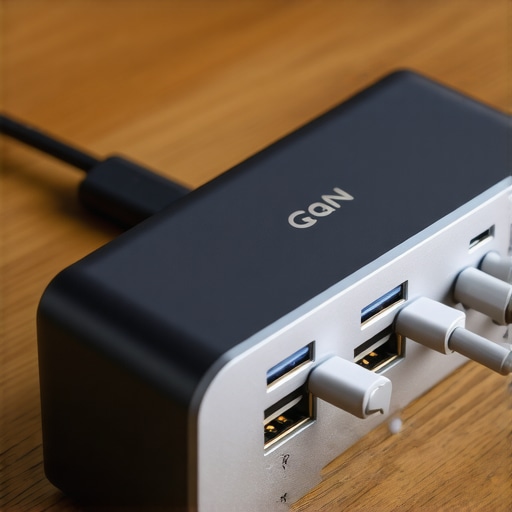
The power reset trap that kills your workflow
This ‘re-handshaking’ isn’t just an annoyance; it is a sign of how the internal controller manages heat. When you look for must-have laptop accessories to boost your work setup, you need to check if the charger supports ‘independent power distribution.’ This is especially critical for game-changing gaming laptops for serious players in 2025 that draw massive amounts of sustained current. If the charger is constantly resetting the handshake, you’re looking at micro-cycles of battery wear that can degrade your cells faster than necessary. Have you ever noticed your screen flicker when you plug something else into your wall brick? Have you ever fallen into this trap? Let me know in the comments.
Why does my laptop disconnect when I charge my phone?
The answer lies in the USB-PD (Power Delivery) controller logic. According to a technical report by TUV Rheinland, compact chargers often lack the sophisticated circuitry to dynamically adjust voltage on the fly without a full reset of the power rail. This is one of the hidden costs of choosing an ultra-thin business laptop setup where every gram matters—you sacrifice the capacitors that could buffer those power transitions. You might find that why gaming laptops still struggle with thermal throttling in small frames applies to chargers too; as they get smaller, they have less surface area to dissipate the heat generated by these complex conversion tasks.
Skip the clearance bin and buy the firmware
Here is the advanced move: stop looking for the cheapest wattage-per-dollar ratio. High-end brands like Satechi, Anker, or UGREEN actually update the firmware in their chargers to better handle the communication between the brick and the laptop. This is why we say why 8gb of ram is no longer enough for modern browsing—it is about the hardware overhead. You need overhead in your power supply just as much as you need it in your memory. If you are hunting for unbeatable laptop deals, don’t let a $20 savings on a generic charger ruin a $2,000 investment. Stick to chargers that explicitly list their ‘power sharing’ map on the back of the box so you know exactly what happens when every port is full.I’ve realized that even the most perfect GaN charger can’t save a machine that is choking on its own dust. While we focus on the power going into the machine, we rarely think about the heat that can’t get out. If you are carrying around one of those top-tier top business laptops for productivity in 2025, you owe it to your bottom line to keep the fans clear. I personally carry a small microfiber cloth and a single stick of compressed air in my tech pouch because the oils from your fingers don’t just look gross—they can actually degrade the coating on high-end keys over time. You need to know the best way to clean your laptop keyboard from crumbs and oil before a single stray sesame seed bricks your spacebar during a flight.
The $10 tool that outlasts your warranty
I keep a very specific toolkit in my desk drawer—it is not a fancy electric driver, but a manual precision set. You should look for the specific screwdriver kit you need to open 90% of modern laptops, specifically one that includes Torx T5 and Pentalobe bits. Why? Because most manufacturers do not want you inside the machine. But if you want to keep your gear running fast, you have to be able to clear out the lint. I try to learn how to clean the dust out of your laptop without opening it for quick fixes, but once every six months, that back panel has to come off. 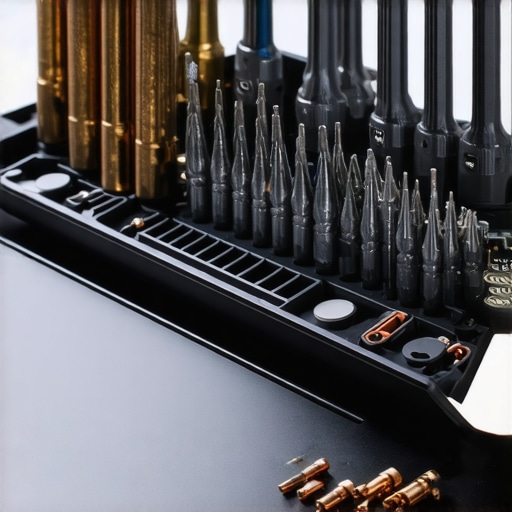
How can I maintain my laptop hardware over several years?
It comes down to thermal management. According to the Arctic Silver 5 application guide—which is basically the bible for PC builders—thermal compound can dry out and lose its effectiveness after about three to five years. This is a huge issue for game-changing gaming laptops for 2025 adventures where the heat is intense. If you want to know how to pick a student laptop that lasts all four years, you should prioritize the only 3 brands that still make easily repairable laptops. This allows you to swap the battery or the Wi-Fi card when the tech inevitably moves forward.
The coming era of universal 240W charging
Within the next 24 months, I expect the 240W USB-C standard to become the absolute baseline for even the most power-hungry rigs. We are moving toward a future where the proprietary ‘barrel plug’ is a relic of the past, found only in museums or thrift stores. If you see unbeatable laptop deals that still rely on a non-USB-C charging port, think twice. You are buying into a dead-end ecosystem. My advanced tip for today: Go download a hardware monitor like HWInfo64. Watch your ‘Thermal Throttling’ flag while you work. If it turns red, it is time to clean those fans.
Three Hard-Earned Lessons from a Decade of Dead Batteries
Over the years, I’ve learned that the spec sheet on the box is only half the story. First, never assume a charger is ‘universal’ just because it has a USB-C port; always verify the Power Delivery profile matches your machine’s needs. Second, the heat your laptop generates isn’t just an annoyance—it’s a battery killer. This is the real reason your laptop power brick is getting extremely hot and why you need to ensure proper airflow. Finally, I’ve realized that why we only use 100w PD chargers for our workstations comes down to stability; having that extra wattage overhead prevents your laptop from throttling when you plug in a second device. It’s these small, technical nuances that separate a frustrating travel day from a productive one.
The Gear That Actually Lives in My Commuter Bag
I don’t carry much, but what I do carry is non-negotiable for keeping my setup running at peak performance. I always keep a copy of HWInfo64 running to monitor my CPU temperatures, especially when I’m pushing game-changing gaming laptops for 2025 adventures to their limits. For maintenance, I rely on the specific screwdriver kit you need to open 90% of modern laptops to ensure I can clear out dust every few months. #IMAGE_PLACEHOLDER_E# I also swear by a high-quality microfiber cloth and a gentle cleaning routine—knowing the best way to clean your laptop keyboard from crumbs and oil has saved my keys from becoming a sticky mess after long nights of work. These tools are the foundation of a reliable mobile office.
Take Back Your Mobility with Smarter Power Choices
Building a better setup isn’t about spending the most money; it’s about choosing the right must-have laptop accessories to boost your work setup that actually solve your specific pain points. Whether you are using business laptops for professionals or a sleek machine for school, shedding that heavy power brick is the single most impactful change you can make today. You deserve a setup that feels light, runs cool, and never leaves you hunting for an outlet in a crowded terminal. Go ahead and slim down your bag—your shoulders and your workflow will thank you. Have you ever been stranded by a bulky charger or a dead battery at the worst possible moment? Tell me your story in the comments below!