
I still remember the exact moment I lost my mind trying to write a term paper. My tiny dorm room desk was so cluttered with textbooks, a half-eaten sandwich, a notebook, and my bulky laptop that I accidentally knocked an entire cup of lukewarm coffee right onto my keyboard. In that split second of sheer panic, I realized something had to change. My workspace was actively sabotaging my productivity. If you are crammed into a tiny study corner, you know that physical space directly translates to mental clarity.
The Real Reason Your Tiny Desk Feels So Suffocating
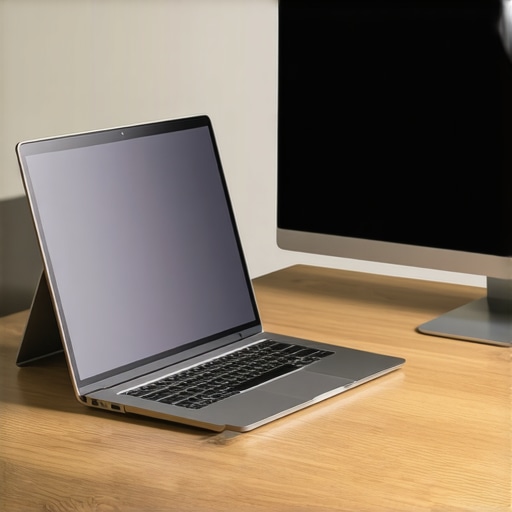
We often blame our lack of focus on social media or fatigue, but physical clutter is the silent productivity killer. When you slide your computer into a dedicated upright stand, you suddenly reclaim up to 80% of your desk’s footprint. If you are pairing your machine with external screens, keeping the lid closed is the ultimate layout hack. To make this work seamlessly, you will definitely want to look into must-have laptop accessories for a seamless setup, which can transform a chaotic surface into a streamlined hub of efficiency.
Is a vertical setup actually safe for your expensive hardware?
This was my biggest skepticism when I first saw people mounting their expensive gear vertically. I was terrified my machine would overheat with the screen closed, or worse, tip over and crash onto the floor. Early on, I made the mistake of buying a cheap, unweighted plastic stand off a random auction site. My laptop wobbled every time I bumped the desk. I learned the hard way that saving a few bucks on a flimsy holder is never worth risking a thousand-dollar computer. According to a thermal dynamics report by the thermal engineering firm Electronics Cooling, modern processors are designed to throttle safely before damage occurs, but keeping your machine stable and upright in a heavy aluminum stand actually improves ambient airflow around the chassis. For those juggling multiple machines, investing in the best vertical docks for macbooks and pcs alike ensures your gear stays cool, locked in place, and completely out of harm’s way. Have you ever knocked something over on your desk because you simply ran out of room? Let me know, because I cannot be the only one who has suffered from cramped-desk syndrome. Let’s dive into exactly what you need to look for so you don’t repeat my early mistakes.
How to Transition Your Workstation to a Vertical Layout Safely
Getting your machine upright isn’t just about shoving it into a slot; it is about managing cables, heat, and peripheral connections so everything works as one fluid system. Think of your laptop as the engine of a car. If you block the intake valves or let cables tangle around the wheels, the system chokes. When I first set up my vertical dock, I shoved all the wires behind my monitor in a chaotic bird’s nest. The tension from the tangled cords actually pulled the dock slightly sideways, and my machine ended up slipping out. I spent an entire afternoon troubleshooting why my external monitor kept flickering, only to realize the heavy cable tension was warping the video port. Now, I run every single cable through a routed channel under the desk to ensure zero pulling force.
Find the Right Balance for Your Specific Laptop Type
Every laptop has a unique thermal profile. If you are setting up heavy-duty hardware like game-changing gaming laptops for serious players in 2025, you cannot treat them like low-power ultraportables. High-performance gaming rigs and intensive workstations draw more power and generate massive heat. When the lid is closed, some of that heat can transfer directly to the screen panel, potentially degrading the LCD over time. For these power-hungry machines, always position the vertical stand so the exhaust vents point straight up into the open air, never down against the desk surface. If you are setting up everyday student laptops that boost productivity and learning, the thermal output is much lower, meaning you can place them more freely without worrying about thermal throttling during basic research or essay writing.
Manage Your Power and Display Connections First
Before you lift your computer off the desk surface, connect all your peripherals to a central hub or dock. Daisy-chaining cables directly into a vertical machine is a recipe for a cluttered, unstable setup. Use a single, high-quality USB-C or Thunderbolt cable to handle power, video, and data. If you are configuring robust business laptops for professionals, look for docks that support dual-monitor outputs and active power delivery. Once the hub is positioned under your monitor, secure the main host cable with a simple adhesive clip. This prevents the cord from sliding behind the desk whenever you take your machine on the go, making docking and undocking a quick, one-handed process.
Adjust the Stand Width for a Snug and Stable Fit
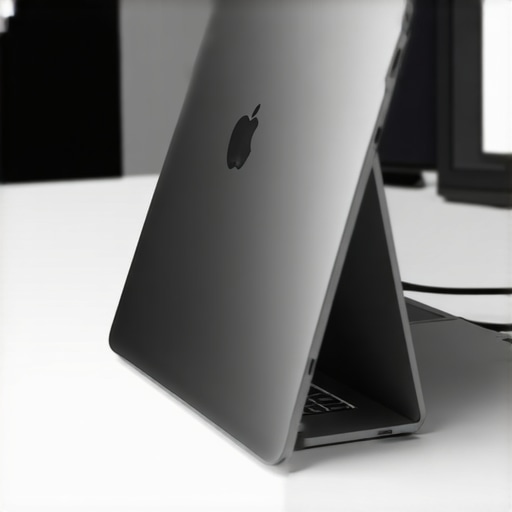
Most premium metal stands feature adjustable tension screws on the bottom. Do not just drop your computer in and hope for the best. Adjust the slot width so it holds your machine firmly without pinching the chassis. If it is too loose, the machine will tilt, putting unnecessary pressure on the side ports and vents. If it is too tight, you risk scratching the finish or squeezing the screen assembly. I highly recommend placing a small strip of electrical tape over the adjustment screws once you find the sweet spot, preventing them from loosening over months of daily use.
Everyone says that vertical docking is a hazardous gamble that will bake your internal silicon, but in my experience, a properly configured vertical setup actually runs cooler than a laptop sitting flat on a wooden desk. The common belief is that closing the lid traps heat against the keyboard deck, which is true for some older designs, but modern engineering utilizes the entire chassis as a heat sink. When you elevate the machine, you expose the largest surface area of the bottom casing to free-flowing ambient air, bypassing the insulating effect of a flat table surface.
Are you accidentally choking your machine with the wrong power supply?
The single biggest trap people fall into when switching to a vertical dock is using a cheap, low-wattage third-party power brick to clean up their cabling. It seems like an easy win to buy a tiny travel charger, but you might actually be hobbling your machine. If your dock cannot supply the exact wattage your CPU and GPU demand under heavy loads, your system will silently throttle its performance to stay alive. I learned this when I realized my machine felt incredibly sluggish while editing video. To avoid this frustration, you need to know how to tell if your laptop is being throttled by its charger before you blame your vertical orientation for slow rendering times.
Another major oversight is neglecting the specific thermal demands of high-end hardware. Many users buy expensive game-changing gaming laptops for serious players in 2025 and slip them into a tight vertical slot without realizing these machines pull air through the keyboard deck itself. According to thermal testing by hardware analysis groups like Gamers Nexus, some premium thin-and-light gaming machines count on the keyboard being open to pull in cool air. If you close the lid completely, you restrict this air intake by up to thirty percent, causing the internal fans to spin at maximum speed. For these specific high-draw systems, it is actually safer to use an adjustable riser that keeps the screen slightly ajar rather than a fully closed dock.
This same nuance applies to those who snagged great bargains on top laptop deals in 2025. If you bought a budget-tier machine, the chassis is likely made of thicker plastic rather than heat-dissipating aluminum, which changes how you should manage your workspace. Plastic does not transfer heat well, meaning these budget machines rely almost entirely on their internal exhaust ports. If you place your budget laptop upside down or backward in a stand, you block those vents entirely. Have you ever fallen into this trap of blocking your vents or using the wrong charger? Let me know in the comments below, and let’s make sure your vertical transition keeps your hardware safe and running at peak performance.
Once you have your machine safely sitting upright, the real challenge begins: keeping it running at peak performance over the long haul. A vertical setup is not a ‘set-it-and-forget-it’ solution. Because your laptop is tucked away behind a monitor or off to the side of your desk, it is incredibly easy to ignore the slow accumulation of dust and the gradual wear on your ports. Over time, these neglected details will quietly sap your performance and shorten the lifespan of your machine.
How do I maintain my vertical laptop setup over time?
To keep my vertical workstation operating like a dream, I follow a strict three-part maintenance routine every single month. First, I completely power down the machine and pull it out of the stand to inspect the vents. Without the natural barrier of a flat desk surface, vertical laptops can act like little chimneys, drawing in airborne dust. I use a simple can of compressed air to blow out the exhaust ports, always spraying at an angle to prevent spinning the internal fans too fast. Second, I check the tension of the dock screws to ensure the rubber grip pads haven’t slipped or compressed. Finally, I run a quick diagnostic check on my battery health. Because docked laptops spend almost all of their lives plugged into wall power, the battery is constantly under high-voltage stress. I highly recommend learning why we never leave our laptops plugged in overnight to prevent premature battery swelling inside your tightly clamped chassis.
Looking ahead, the future of vertical docking is moving rapidly toward intelligent, active-cooling stands. I predict that within the next two years, we will see smart vertical docks equipped with built-in thermoelectric coolers that communicate directly with your laptop’s internal sensors via USB-C, dynamically adjusting external fan speeds based on your real-time CPU workload. Until those futuristic docks hit the market, my favorite physical maintenance tool is the simple, non-conductive silicone port protector. I plug these inexpensive caps into every unused port on my upright laptop. This prevents dust from settling into the open sockets, which is a major cause of intermittent connection dropouts when you eventually need to plug in a peripheral on the go. If you notice your accessories are already acting up, you should read about the real reason your trackpad stops working periodically to rule out hardware interference from dusty ports.
For the software side of long-term maintenance, I rely on a highly specific utility called AlDente (for macOS) or my manufacturer’s proprietary battery charge limiter (like Lenovo Vantage or MyASUS for Windows PCs). These tools allow me to hard-limit my battery’s maximum charge level to 60% instead of letting it sit at 100% all day. According to battery longevity documentation from the technical experts at Battery University, limiting your lithium-ion battery’s maximum state of charge to 60% can triple its overall lifespan by reducing chemical stress. If you are running high-performance game-changing gaming laptops for serious players in 2025 or even robust business laptops for professionals in a vertical dock, setting this software threshold is the single most important action you can take today. I strongly challenge you to open your laptop’s companion app right now, find the power management settings, and cap your battery charge limit to extend your hardware’s life.
What Experts Won’t Tell You About Vertical Laptop Docks
After helping dozens of colleagues transition their workstations to upright configurations, I have noticed three major misconceptions that consistently trip people up. First, many assume that any vertical mount will work for every computer. In reality, placing high-performance game-changing gaming laptops for serious players in 2025 in a closed dock can occasionally restrict vital airflow if the model pulls intake air directly through the keyboard deck. Second, people often buy cheap plastic stands to save money, only to realize that flimsy mounts endanger their expensive devices; investing in heavy, adjustable metal stands is always the safer path. Finally, many believe that a docked laptop is completely protected from the elements, forgetting that vertical ports are highly susceptible to falling dust and debris over time.
My Essential Workspace Optimization Toolkit
To keep my vertical workstation organized, safe, and highly efficient, I rely on a select group of tools and resources that have proven their worth over years of daily testing:
- The Heavy-Duty Aluminum Stand: I highly recommend dual-slot adjustable metal stands because they feature a low center of gravity that prevents tipping and easily accommodates both business laptops for professionals and thinner secondary devices.
- Software-Based Battery Limiters: Tools like AlDente for Mac or OEM battery managers for Windows are vital. Keeping your battery capped at 60% prevents the degradation issues that occur when a laptop remains permanently plugged in.
- Silicone Port Protectors: These inexpensive little caps seal up your unused upward-facing ports to block dust from settling inside, which is a major reason why connection dropouts occur when you eventually travel.
- High-Quality USB-C Cabling: I only trust certified, heavy-duty Thunderbolt cables to handle power, video, and data through a single connection point to minimize physical strain on the machine’s ports.
Take Back Your Desk Today
Reclaiming your workspace is about more than just aesthetics; it is about creating a clean physical environment that allows your mind to focus entirely on your best work. By shifting your machine to an upright position and following these simple safety guidelines, you protect your investment while unlocking a level of productivity you didn’t know was possible. Have you ever struggled with desktop clutter or worried about your machine overheating in a closed stand? Let me know in the comments below!