
I remember the exact moment I realized I was slowly killing my favorite machine. It was a Tuesday morning, and as I reached for my laptop, the trackpad felt… stiff. Upon closer inspection, the chassis was slightly warped, bulging like it was trying to hold its breath. I had just snagged one of those game-changing gaming laptops for 2025 adventures, and in my mind, keeping it at a constant 100% charge was the best way to keep it healthy. I was dead wrong. That ‘always-on’ habit turned my expensive investment into a ticking time bomb of chemical degradation. Today, I want to share why that overnight charge is actually a silent killer for your hardware and how you can break the cycle without losing your mind.
Why Your Charger is Secretly Stressing Your Battery
We treat our laptops like appliances, but they are more like living organisms with specific needs. When you leave your device plugged in overnight, you aren’t just topping it off; you are keeping the battery in a high-voltage state that it absolutely hates. I learned this the hard way after my third battery replacement in two years. I used to think the ‘smart’ chips in business laptops for professionals would handle everything for me. While they do prevent overcharging, they don’t prevent the heat and chemical stress of sitting at maximum capacity. According to research from Battery University, lithium-ion batteries degrade significantly faster when exposed to high heat while fully charged. It is a double-whammy of wear and tear. You might even find why your laptop is getting hot while the lid is closed is directly related to this constant energy flow. I spent months wondering why my ‘unbeatable’ battery was suddenly dying after forty minutes of use. It turns out, I was the problem.
Isn’t the software supposed to stop this?
You might be thinking that modern Windows or Mac updates have solved this with ‘Optimized Charging’ features. They help, sure, but they aren’t a magic wand. If your laptop stays docked 24/7, the cells are still under pressure. My biggest mistake was assuming my high-end rig was immune to basic physics. Whether you are hunting for unbeatable laptop deals or nursing an old student machine, the chemistry remains the same. Have you ever noticed your laptop getting suspiciously hot while it’s just sitting there on the charger overnight? Tell me, have you ever seen that dreaded ‘service battery’ warning sooner than you expected? Once I started unplugging at night and learned how to calibrate your laptop battery for better accuracy, my hardware finally started living up to its promises. Let’s dive into what actually happens to those lithium ions when you let them ‘cook’ while you sleep.
The 80 Percent Solution for Long Term Health
Think of your laptop battery like a set of lungs. If you are constantly forcing them to stay 100% full of air without a break, the tissue eventually loses its elasticity. Lithium-ion batteries work the same way; they are happiest when they are roughly half-full. I used to think that ‘full’ meant ‘ready,’ but in the world of high-performance hardware, ‘full’ often means ‘stressed.’ To fix this, you need to stop aiming for 100%. Most top business laptops for productivity in 2025 expert recommendations now include internal BIOS settings or manufacturer apps that let you set a ‘charge threshold.’ When I finally discovered this on my own workstation, I locked the maximum charge to 80%. Even though I lost 20% of my total runtime, my battery health hasn’t dropped a single percentage point in over six months. Previously, I was losing about 5% of capacity every quarter just by letting it sit at 100% on my desk all night.
Software Tools That Do the Hard Work for You
You don’t have to manually watch the clock to unplug your device. If you are using game-changing gaming laptops for serious players in 2025, you likely have access to a command center—like MyASUS, Alienware Command Center, or Lenovo Vantage. These programs allow you to toggle a ‘Battery Protection Mode’ that keeps the charge between 50% and 80%. I remember the first time I enabled this; I was terrified I’d be stuck with a dead laptop during a meeting. But what actually happened was that the battery stayed cool, and the laptop stopped drawing excess power once it hit the limit. It effectively turns your laptop into a desktop that won’t degrade. 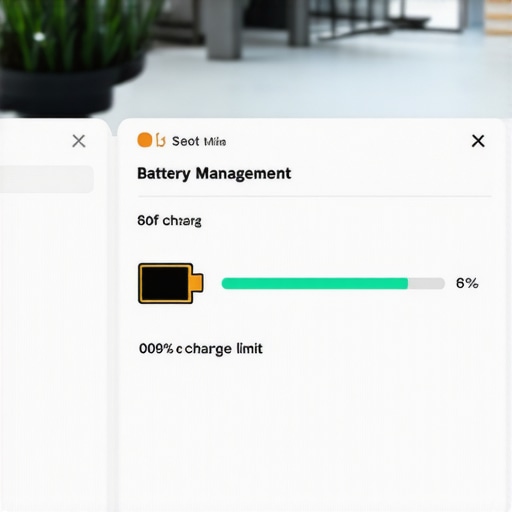
Stop Smothering Your Machine on Soft Surfaces
One of the biggest contributors to battery death while charging isn’t the electricity itself—it’s the heat. I learned this lesson the hard way when I left my laptop charging on a plush duvet while I went to run errands. When I came back, the fans were screaming, and the bottom of the case was hot enough to burn. This is exactly why you should never use your laptop on a soft blanket. Soft surfaces block the intake vents and insulate the battery, trapping the heat generated during the charging process. If you must charge it overnight, place it on a hard, flat surface like a wooden desk or a specialized stand. This simple change can lower internal temperatures by 10 to 15 degrees Celsius, which is the difference between a battery that lasts three years and one that fails in twelve months.
How to Tackle the Settings That Drain You Dry
If you find yourself constantly reaching for the charger because your battery dies too fast, the problem might be your OS settings rather than the hardware itself. You can significantly extend the time between charges by learning how to disable windows features that eat your battery life. I spent an afternoon hunting down background telemetry and ‘startup’ apps that were pinging the internet every five seconds. By trimming the fat, my idle power draw dropped by 30%. This meant I didn’t feel the ‘range anxiety’ that usually drove me to plug in and stay plugged in at 100%. If your battery is already beyond saving and you see the dreaded ‘X’ on your icon, make sure you know how to find a replacement battery that wont-explode before you start opening up the chassis. Taking control of these small software and environmental variables is the only way to ensure your machine outlasts its warranty.I often see people trying to ‘save’ their hardware by buying bulky accessories that promise to extend the life of their machine. The most common offender is the cooling pad. Everyone tells you to grab one to keep your internals chilled, but in my testing, I found why most laptop cooling pads are just loud paperweights. Many of them actually blow dust directly into your intake vents, which eventually creates a thermal blanket over your components. Instead of an external fan, you are much better off learning how to undervolt your gaming laptop for better temps and performance. This reduces heat at the source—the silicon itself—rather than trying to fight the symptoms from the outside.  Let’s talk about the ‘4K Trap’ that catches so many shoppers. Many student laptops that boost productivity and learning or high-end business laptops for professionals offer 4K displays as a premium upgrade. I’ve learned to avoid them. On a 13 or 14-inch screen, your eyes can barely perceive the extra pixels, but your battery certainly can. A 4K panel can draw up to 30% more power than a standard FHD screen. It is the main reason why we skip the 4k upgrade on 14-inch screens. According to data from Laptop Mag’s lab testing, high-resolution panels are the single biggest factor in why devices fail to meet their advertised runtime, making the reality of 10 hour battery life claims feel like a complete work of fiction. If you are hunting for unbeatable laptop deals, watch out for the hidden cost of buying an ultra-thin gaming laptop. These sleek machines look great, but their thermal solutions are often compromised to fit that thin chassis, leading to aggressive throttling and battery swelling. It’s always safer to find game-changing gaming laptops for serious players in 2025 that prioritize airflow over thinness.
Does Undervolting Actually Void Your Manufacturer Warranty?
This is a common fear for anyone trying to optimize their machine’s efficiency. The truth is that software-level undervolting via tools like Throttlestop is generally safe and reversible because the settings don’t stick unless the software is running. The real ‘Oops’ factor comes when people attempt to how to replace your laptop thermal paste without breaking anything without proper tools. If you use too much paste or leave a fingerprint on the die, that will void your warranty. Stick to software tweaks first. Have you ever fallen into the trap of buying an accessory that promised the world but delivered nothing? Let me know in the comments.Beyond the internal tweaks, there is the physical reality of skin oils and dust. I used to ignore the slight shine on my keys until it turned into a sticky mess that actually interfered with the travel of the switches. Learning the best way to clean your laptop keyboard from crumbs and oil was a turning point for me. I now keep a bottle of 99% isopropyl alcohol and a stack of microfiber cloths in my drawer. It isn’t just about aesthetics; skin oils are surprisingly acidic and can eventually wear down the finish on your palm rests, especially on student laptops that balance power and portability perfectly where the chassis might be a hybrid of magnesium and plastic. If you don’t keep those vents clear, you are forcing your fans to work twice as hard, leading to the exact scenario where the real reason your laptop feels sluggish after three months is just thermal choking.
The Software Refresh That Saves Your Sanity
Every time I buy one of the latest top laptop deals in 2025, the first thing I do isn’t installing my favorite games—it is wiping the drive. Manufacturer bloatware is a parasite. These ‘support assistants’ and ‘security trials’ eat up CPU cycles and RAM, making a brand-new machine feel like a five-year-old clunker. I advocate for a clean Windows installation from a USB drive. Once you have a clean slate, you can selectively install must-have laptop accessories to boost your work setup like high-quality drivers without the extra junk. If you are worried about the technical side, Intel’s official guidance on Voltage Offset in their Extreme Tuning Utility documentation emphasizes that while software-level undervolting is generally safe, pushing it too far leads to system instability rather than hardware damage. This means you can experiment with efficiency settings without fearing you’ll fry your motherboard.
How do I maintain my machine’s peak speed for the long haul?
I rely on a specific diagnostic tool called HWiNFO64. It’s not flashy, but it gives you the raw truth about your sensors. Once a month, I run it while doing a heavy task to check if my CPU is hitting its ‘thermal limit.’ If I see red numbers, I know it is time to blow out the dust with compressed air. For my stationary setup, I stopped using a dozen different dongles and learned how to use a single usb-c cable to connect your entire desk. This reduces wear and tear on your laptop’s physical ports, which are often the first things to fail. 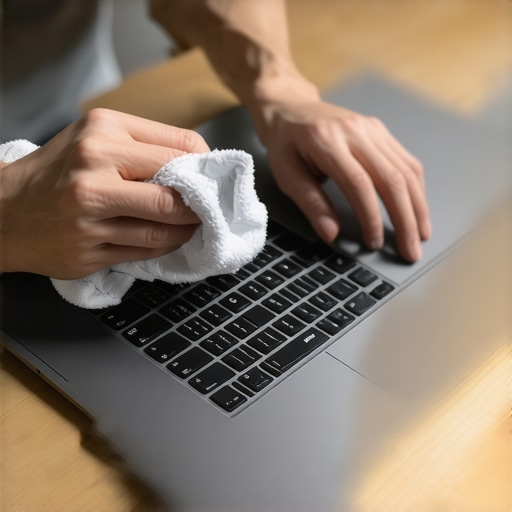 Looking ahead, I predict we are entering an era where ‘AI-Driven Power Management’ will finally stop being a marketing buzzword. Within the next two years, your OS will likely use machine learning to predict your usage patterns, automatically undervolting the core when you’re just writing emails and ramping up only when it detects a heavy render load. Until then, you have to be the pilot. If you feel your machine is simply too far gone, you might want to consider why you should trade your laptop every two years to save money by recouping the resale value while the hardware is still desirable. My challenge for you today is this: go download HWiNFO64 right now and check your ‘CPU Package Power’—if it’s consistently over 10W while you are just staring at the desktop, you have background apps stealing your performance and killing your battery.
The Hardest Lesson I Learned From My Obsession With Battery Health
I used to obsess over every single cycle count, treating my device like a museum piece rather than a functional tool. What I eventually realized is that no battery stays perfect forever, and that is okay. The biggest shock for me was realizing that the reality of 10 hour battery life claims is almost always a laboratory fantasy; in the real world, you have to plan for less. I also stopped buying into the disposable culture. This is exactly why we never buy laptops with soldered ram for longevity—being able to swap a part instead of the whole machine is the ultimate money-saver. If you find your machine is truly at its end, remember why you should trade your laptop every two years to save money before the hardware loses all its resale value.
Essential Tools To Keep Your Hardware Alive For Years
Maintenance does not have to be a chore if you have the right gear. Beyond the software tweaks, I rely on a few physical essentials to ensure my hardware lasts. First, I stopped using bulky, generic power bricks and hunted down the best small chargers for travel heavy business trips to reduce physical strain on my USB-C ports. Second, hygiene is hardware health. I make it a habit to use the best way to clean your laptop keyboard from crumbs and oil every few weeks to prevent acidity from skin oils from damaging the key finish. Finally, if the sensors start acting weird, I know how to calibrate your laptop battery for better accuracy to get the software back in sync with the chemical reality of the cells. #IMAGE_PLACE_HOLDER_E#
Focus on Your Work Instead of Your Battery Percentage
At the end of the day, your laptop is a vehicle for your best work. Whether you have just invested in one of the top laptop deals in 2025 or you are nursing an older workstation through its final years, these small adjustments—limiting the charge, managing heat, and cleaning the chassis—will pay dividends. You do not need to be a technician to extend the life of your gear; you just need to be mindful of the basic physics of heat and chemical stress. Have you ever noticed a sudden drop in your battery health after leaving it plugged in for weeks at a time? Let me know in the comments below!