
Three o’clock in the morning. A lukewarm cup of tea. And a dull, throbbing ache radiating from my wrist all the way to my elbow. I was midway through a massive database migration, clicking through thousands of cells, when my hand simply locked up. I had to physically pry my fingers off my mouse. It was a wake-up call I never expected. I realized that even the most expensive laptop accessories aren’t worth a dime if they don’t support the grueling reality of 10,000-row spreadsheets. Today, I want to share the specific mouse that saved my career from the clutches of carpal tunnel and why we finally settled on one specific model after testing dozens of alternatives.
Stop Settling for a Mouse That Hurts Your Hand
I made a massive mistake early in my career. I thought that because I had one of the top business laptops for productivity, the peripheral I used didn’t really matter. I grabbed the first ‘ergonomic’ mouse I saw on a clearance rack. It was a disaster. It was too light, the sensor skipped over small cells, and the click tension was so high it felt like I was lifting weights with my index finger. When you are doing large-scale data entry, the margins for error are tiny, and the physical toll is cumulative. You need something that feels like an extension of your arm, not a plastic brick you’re fighting against. According to the Occupational Safety and Health Administration (OSHA), repetitive motions like clicking and dragging can lead to serious musculoskeletal disorders if your equipment doesn’t promote a neutral posture. That is why we stopped looking for ‘cool’ and started looking for ‘functional.’ We needed a tool that could handle the precision required for Excel while keeping our hands from cramping by noon.
Is an expensive mouse actually worth the hype?
I know what you’re thinking because I thought it too: ‘It’s just a mouse, right?’ I used to scoff at people spending over a hundred dollars on a pointing device. But after dealing with why your expensive gaming mouse feels laggy during high-stakes data transfers, I changed my tune. In the world of data, precision is king. There are only a few gaming mice that work well for spreadsheets, and the one we chose stands in a league of its own for its infinite scroll wheel and side-scrolling capabilities. Have you ever felt that ‘claw hand’ sensation after a long day of data crunching, or have you found a secret weapon that keeps you comfortable? I’d love to hear your horror stories in the comments. We spent months looking for the perfect fit, and the results were surprising, even to a tech veteran like me.
Stop Fighting Your Hardware and Start Tuning Your Setup
I remember a specific Tuesday when a client sent over a CSV file that was basically a digital landfill. 60,000 rows of unformatted logistics data. My old “standard” mouse felt like I was trying to perform surgery with a sledgehammer. Every time I tried to click a tiny filter icon, I’d overshoot it. If you’ve ever wondered why your expensive gaming mouse feels laggy, it’s often because the polling rate and the surface aren’t playing nice together. For data work, you need a sensor that can track on glass, wood, or even your jeans during those work-from-the-couch days. It is not just about speed; it is about the micro-movements that prevent you from missing a cell and ruining a whole script.
Fly Through Fifty Thousand Rows in Seconds
The secret weapon for any spreadsheet warrior is the electromagnetic scroll wheel. Most laptop accessories use a mechanical click-style wheel that moves three lines at a time. That is fine for reading a blog post, but it’s a death sentence for auditing a database. The mouse we settled on allows you to toggle a “free-spin” mode. I flick the wheel once, and it spins for nearly ten seconds, ripping through thousands of rows without a single finger twitch. It’s like switching from a bicycle to a bullet train when you are trying to find that one specific entry at the bottom of the stack.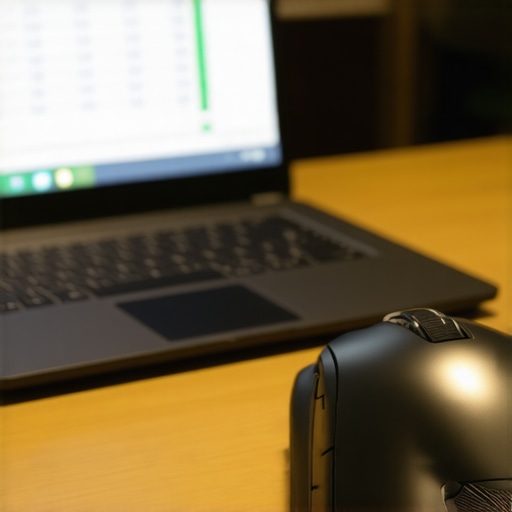
Program Your Way Out of Repetitive Stress
The most underutilized feature on high-end business laptops for professionals is the ability to remap peripheral buttons. I mapped my side-thumb buttons to ‘Enter’ and ‘Backspace’. This sounds small, but it means my left hand rarely has to leave the home row, and my right hand doesn’t have to jump between the mouse and the number pad as often. If you’re using student laptops that boost productivity, this tiny hack can save you thousands of movements a day. It’s the difference between a sore wrist and a productive afternoon. Think of it as creating shortcuts for your physical body, not just your software.
Why Heavy Mice Actually Win for Data Entry
The market is currently obsessed with “ultralight” designs, especially for game-changing gaming laptops. But for spreadsheets, a bit of heft is your friend. A heavier mouse provides more “stopping power.” When you’re trying to land your cursor on a specific 2-pixel border to resize a column, a featherweight mouse will jitter with every heartbeat. You want something with a bit of drag to it. We even looked into the only laptop stands that don’t shake because even the vibration from your typing can mess with a high-precision sensor if your desk isn’t solid. Stability is the silent partner of speed.
The Horizontal Scroll Hack
Stop using the bottom scroll bar in Excel. It is a massive waste of time and energy. The model we chose has a dedicated thumb wheel for horizontal scrolling. In a world of wide-screen top business laptops for productivity, you’re often dealing with columns that stretch into the ‘ZZ’ range. Being able to swipe left and right with your thumb while your index finger stays on the data is a game-changer. I once fixed a multi-column formatting error in half the time it took my colleague, simply because I didn’t have to hunt for that tiny grey scroll bar at the bottom of the window.
The Expensive Hub Trap You Need to Avoid
Most professionals believe that once they invest in one of the business laptops for professionals, the hard part is over. They go out and find unbeatable laptop deals on generic accessories to round out the setup. But here is the contrarian truth: a cheap accessory can be more expensive than a premium one in the long run. I’ve seen countless colleagues fry their motherboards because they used a $20 multi-port adapter. The ‘Oops’ factor here is real. Many generic hubs lack proper voltage regulation, and why cheap USB-C hubs might be killing your ports isn’t just a clickbait headline—it is a technical reality involving Power Delivery (PD) handshakes. A report by the USB Implementers Forum (USB-IF) highlights that non-compliant PD controllers can bypass safety protocols, delivering a surge that turns your high-end workstation into a brick instantly. Let’s dig deeper into why we often prioritize the wrong specs when building a professional desk.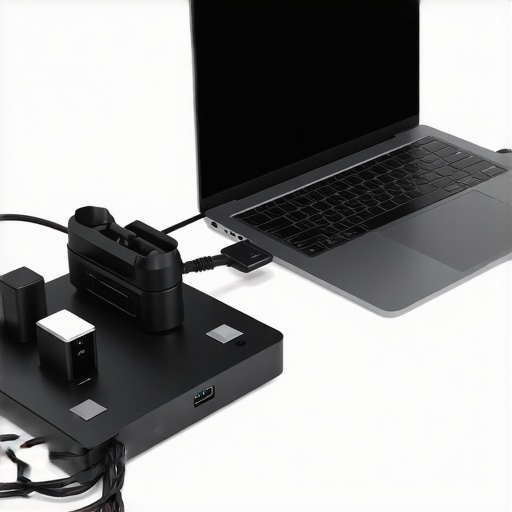
Does your peripheral choice actually throttle your hardware speed?
It sounds like a myth, but your choice of docking station can actually create a data bottleneck. I once spent three days troubleshooting a ‘slow’ external drive, only to realize the proprietary dock I was using was capping my transfer speeds to 480Mbps because of internal bandwidth sharing. Understanding the problem with proprietary docking stations for business is crucial for anyone handling large datasets. If you are moving gigabytes of logs or high-res media, your dock needs to support the full Thunderbolt or USB4 spec, not just ‘look’ like it does. We often focus on the laptop’s CPU, but the bridge between your laptop and your storage is where the real speed is lost. This is especially true when you consider the real difference between consumer and enterprise grade SSDs; there is no point in having enterprise-grade speed if your cable is a consumer-grade bottleneck. Have you ever fallen into this trap of buying a premium laptop but a budget dock? Let me know in the comments.
Stop Ignoring the Port Layout on Your Next Machine
We usually look at *what* ports a laptop has, but we rarely look at *where* they are. This is a nuance most reviewers miss. If all your high-speed ports are on the right side of the machine, and you are a right-handed mouse user, you are going to spend all day bumping your hand into rigid cables. It’s a subtle ergonomic nightmare that leads to cable strain and physical frustration. When researching the best port layouts for left-handed mouse users (or righties), look for machines that keep the bulky connectors on the back or the opposite side of your dominant hand. It’s these tiny, advanced considerations—like port spacing and thermal exhaust direction—that separate a ‘good’ laptop from a machine you can actually live with for eight hours a day. Professional productivity isn’t just about the raw power; it’s about removing the friction between your intent and your execution.Once you have perfected your workstation layout, the real challenge begins: keeping it that way. I have seen three-thousand-dollar machines turn into noisy space heaters within six months because the owner ignored the air intakes. I personally follow a strict ‘Sunday Clean’ ritual where I use a soft-bristled brush and a can of air to clear the vents. You really should learn how to clean the dust out of your laptop without opening it before the fans start sounding like a jet engine during every Zoom call. This isn’t just about the noise; it is about preventing the thermal throttling that kills your export speeds and degrades your hardware over time. Even the most efficient student laptops that balance power and portability perfectly will eventually choke if you do not respect the airflow. I also make sure my machine sits on the only laptop stands that dont shake while you type because physical stability reduces the micro-vibrations that can loosen internal connections over years of heavy use.
How do I keep my gear running like day one for years?
The secret to longevity is a combination of software hygiene and aggressive thermal management. When I am hunting for top laptop deals in 2025, I prioritize machines that allow at least some level of user maintenance. One of the first things I do—and I know this sounds extreme to some—is replace the factory thermal solution. Many manufacturers use ‘cookie-cutter’ pads that dry out quickly under heavy workloads. We actually found that why we swapped the thermal paste on our brand new laptop was the only way to maintain consistent clock speeds during massive data renders. According to Intel’s Thermal Interface Materials (TIM) technical whitepaper, even a microscopic air gap or degraded material between the heat sink and the processor can lead to a 10-15 degree Celsius spike in core temperatures, leading to permanent silicon degradation. If you are uncomfortable with a full teardown, at least invest in the specific screwdriver kit you need to open 90 of modern laptops so you can properly blow out the fans once a year.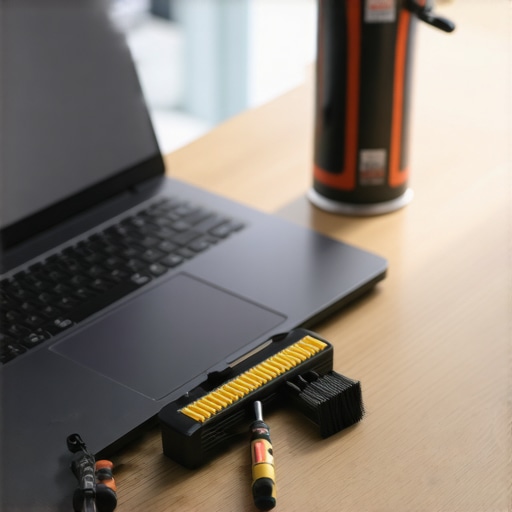
Protect Your Battery Before It Protects Itself
I predict that the future of professional hardware will shift heavily toward modularity and user-serviceable parts. Within the next few years, we will see every major manufacturer forced to adopt the standards set by the only 3 brands that still make easily repairable laptops. Until that shift becomes industry-wide, you have to take charge of your own battery health. If your laptop stays docked at your desk all day, your battery is likely under constant ‘voltage stress.’ You might notice that the reason your laptop battery wont charge past eighty percent is actually a built-in health feature that you should be utilizing manually if your system doesn’t do it automatically. Limiting the charge capacity to 80% can nearly double the lifecycle of the lithium-ion cells. I have managed to keep a four-year-old workstation at 95% original capacity just by being disciplined about these thresholds. Stop letting your machine sit at 100% capacity overnight; it is the fastest way to turn a portable powerhouse into a permanent desk ornament. Go into your BIOS or manufacturer power management app right now and cap your maximum charge at 80%—it is the single most effective thing you can do for your laptop’s long-term health.
What Most Professionals Ignore Until Their Hardware Fails
One thing I’ve realized after a decade of crunching numbers is that ergonomics isn’t a luxury; it’s a career-saver. I wasted years thinking a higher DPI meant a better mouse, but for data, it’s all about the sensor’s stability on different surfaces. I also learned that port layouts can make or break your desk flow—don’t let cables dictate where your hand moves. Finally, remember that your laptop is a living thing; if you don’t clear the dust, it will throttle its performance right when you need it most.
#IMAGE_PLACE_HOLDER_E#
The Essential Survival Kit for Your Desk
If you’re serious about your setup, you need more than just the laptop itself. First, grab the specific screwdriver kit you need to perform basic maintenance; being able to open your machine safely is empowering. I also highly recommend looking into the best budget docking stations for home offices to manage your peripherals without cluttering your workspace. Lastly, browse through these must-have laptop accessories to boost your work setup to find the small tools that fill the gaps in your workflow.
Take Control of Your Digital Environment
Building a professional workspace is a marathon, not a sprint. You don’t need to buy everything today, but you should start listening to what your body and your machine are telling you. Whether you are using top business laptops for productivity in 2025 or a reliable older machine, the way you treat your gear determines how long it will treat you well. Invest in the right laptop accessories and keep your software lean. You’ve got the knowledge; now it’s time to apply it. Have you ever had a specific mouse or keyboard actually change the way you feel at the end of a long workday? Let me know your favorites in the comments below!