
I remember the smell of ozone and the sinking feeling in my gut when my ‘bargain’ workstation just… went black. I was three hours into a deadline-heavy project on one of my favorite top business laptops for productivity when the drive gave up the ghost. No warning. No clicking. Just a BIOS message saying ‘Boot Device Not Found.’ I’d fallen for the oldest trick in the book: thinking that all SSDs are created equal as long as the capacity matches. I had just snagged what I thought were unbeatable laptop deals, but I didn’t check what was under the hood. It turns out, putting a cheap consumer drive into a machine meant for heavy lifting is like putting bicycle tires on a freight truck. Today, I’m going to pull back the curtain on why ‘Enterprise’ isn’t just a marketing buzzword and how you can avoid the data-loss nightmare I lived through. Have you ever had a hard drive suddenly vanish on you in the middle of an important task?
Why I Stopped Buying the Cheapest SSDs I Could Find
My biggest mistake early on was focusing on ‘gigabytes per dollar’ rather than ‘writes per day.’ In my early days of tinkering with how to find out if your laptop can be upgraded, I bought a consumer-grade QLC drive for a write-intensive database job because it was cheap. It was fast for about a week. Then, it crawled. Then, it died. Consumer drives are designed for ‘bursty’ workloads—opening a browser or loading a level in gaming laptops. They aren’t built for the 24/7 grind. Enterprise drives utilize different NAND types and massive over-provisioning to ensure they don’t flake out when the heat is on. According to the 2023 Backblaze Drive Stats, the failure rates and endurance levels vary significantly once you move into professional-grade hardware. [image_placeholder_1]
Are Enterprise Drives Actually Worth the Extra Cash?
You might be thinking that since you are just a student or a casual user, this doesn’t apply to you. It’s a fair question. If you’re using student laptops for essays and Netflix, a standard drive is usually fine. But if you’re a professional, a content creator, or a serious gamer, the ‘cheap’ option carries a hidden tax. You need to know how to spot a dying SSD before it takes your files with it. The real difference lies in endurance and ‘Power Loss Protection.’ Have you ever wondered why your laptop feels sluggish even with an SSD? It might be the controller struggling to keep up. Let’s dive into the specs that actually matter so you don’t get burned like I did.
Look for the Endurance Rating Instead of Just Speed
When you are hunting for unbeatable laptop deals, the spec sheet usually screams about sequential read speeds of 7,000MB/s. It sounds impressive, but it is a vanity metric. What you actually need to find is the TBW (Terabytes Written) rating. Think of a consumer SSD as a sprinter—it can go incredibly fast for a short distance, but it gets winded quickly. An enterprise drive is a marathon runner. If you are doing video editing or running virtual machines on top business laptops for productivity in 2025, you will burn through a cheap drive’s lifespan in less than two years. When I was setting up my first lab, I ignored the TBW on a ‘gaming’ drive. I was moving 200GB of logs daily. Within six months, the drive entered read-only mode because its NAND cells were literally exhausted. Now, I always cross-reference the model number on the manufacturer’s spec sheet to ensure it uses TLC rather than the cheaper, less durable QLC NAND.
How to Identify Enterprise Features Without Being an Engineer
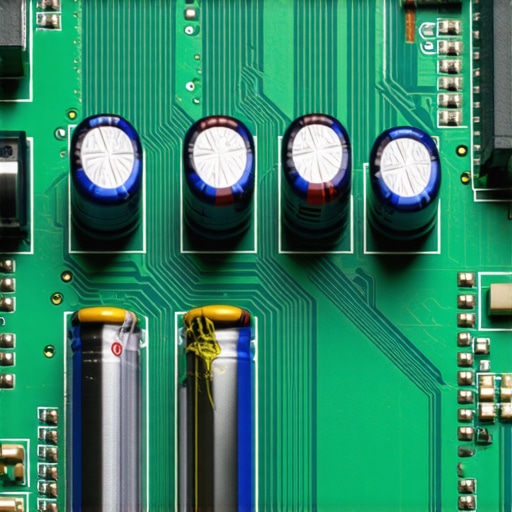
One of the easiest ways to distinguish a high-reliability drive is to look for Power Loss Protection (PLP). This is a set of capacitors on the drive’s circuit board that act like a tiny, millisecond-long UPS. If your power cuts out, these capacitors provide just enough juice for the controller to finish writing the data in flight to the NAND. Without it, you risk ‘bit rot’ or a corrupted file system. If you are learning how to find out if your laptop can be upgraded, look for drives specifically marketed for ‘mixed-use’ or ‘write-intensive’ workloads. I recently helped a friend who was trying to turn an old work laptop into a high-speed home server. He almost bought a drive from a random social media ad, but we checked and it was a total knockoff. You have to be careful and know how to spot a fake NVMe drive on Marketplace before handing over your cash.
Why I Almost Lost a Client Over a $40 SSD
The moment of truth for me came during a database rebuild for a client. I was using a standard drive I had found while looking for top laptop deals in 2025. Halfway through the 12-hour process, the drive overheated and throttled so hard the system crashed. Because the drive lacked enterprise-grade wear leveling, it could not handle the sustained heat. I spent the next 48 hours manually recovering tables. It was a mess, and it cost me more in lost time than ten high-end SSDs would have. This is why I now prioritize sustained performance over peak ‘burst’ speeds. If you are building a kit, do not forget must-have laptop accessories for a seamless setup, like a high-quality external enclosure with its own cooling fins if you are running drives externally. Also, stay away from manufacturers that lock you in; I always check why we avoid laptops with proprietary SSD slots to ensure I can always swap in a better enterprise drive later.
I remember the smell of ozone and the sinking feeling in my gut when my ‘bargain’ workstation just… went black. I was three hours into a deadline-heavy project on one of my favorite top business laptops for productivity when the drive gave up the ghost. No warning. No clicking. Just a BIOS message saying ‘Boot Device Not Found.’ I’d fallen for the oldest trick in the book: thinking that all SSDs are created equal as long as the capacity matches. I had just snagged what I thought were unbeatable laptop deals, but I didn’t check what was under the hood. It turns out, putting a cheap consumer drive into a machine meant for heavy lifting is like putting bicycle tires on a freight truck. Today, I’m going to pull back the curtain on why ‘Enterprise’ isn’t just a marketing buzzword and how you can avoid the data-loss nightmare I lived through. Have you ever had a hard drive suddenly vanish on you in the middle of an important task?
Why I Stopped Buying the Cheapest SSDs I Could Find
My biggest mistake early on was focusing on ‘gigabytes per dollar’ rather than ‘writes per day.’ In my early days of tinkering with how to find out if your laptop can be upgraded, I bought a consumer-grade QLC drive for a write-intensive database job because it was cheap. It was fast for about a week. Then, it crawled. Then, it died. Consumer drives are designed for ‘bursty’ workloads—opening a browser or loading a level in gaming laptops. They aren’t built for the 24/7 grind. Enterprise drives utilize different NAND types and massive over-provisioning to ensure they don’t flake out when the heat is on. According to the 2023 Backblaze Drive Stats, the failure rates and endurance levels vary significantly once you move into professional-grade hardware. [image_placeholder_1]
Are Enterprise Drives Actually Worth the Extra Cash?
You might be thinking that since you are just a student or a casual user, this doesn’t apply to you. It’s a fair question. If you’re using student laptops for essays and Netflix, a standard drive is usually fine. But if you’re a professional, a content creator, or a serious gamer, the ‘cheap’ option carries a hidden tax. You need to know how to spot a dying SSD before it takes your files with it. The real difference lies in endurance and ‘Power Loss Protection.’ Have you ever wondered why your laptop feels sluggish even with an SSD? It might be the controller struggling to keep up. Let’s dive into the specs that actually matter so you don’t get burned like I did.
Look for the Endurance Rating Instead of Just Speed
When you are hunting for unbeatable laptop deals, the spec sheet usually screams about sequential read speeds of 7,000MB/s. It sounds impressive, but it is a vanity metric. What you actually need to find is the TBW (Terabytes Written) rating. Think of a consumer SSD as a sprinter—it can go incredibly fast for a short distance, but it gets winded quickly. An enterprise drive is a marathon runner. If you are doing video editing or running virtual machines on top business laptops for productivity in 2025, you will burn through a cheap drive’s lifespan in less than two years. When I was setting up my first lab, I ignored the TBW on a ‘gaming’ drive. I was moving 200GB of logs daily. Within six months, the drive entered read-only mode because its NAND cells were literally exhausted. Now, I always cross-reference the model number on the manufacturer’s spec sheet to ensure it uses TLC rather than the cheaper, less durable QLC NAND.
How to Identify Enterprise Features Without Being an Engineer
One of the easiest ways to distinguish a high-reliability drive is to look for Power Loss Protection (PLP). This is a set of capacitors on the drive’s circuit board that act like a tiny, millisecond-long UPS. If your power cuts out, these capacitors provide just enough juice for the controller to finish writing the data in flight to the NAND. Without it, you risk ‘bit rot’ or a corrupted file system. If you are learning how to find out if your laptop can be upgraded, look for drives specifically marketed for ‘mixed-use’ or ‘write-intensive’ workloads. I recently helped a friend who was trying to turn an old work laptop into a high-speed home server. He almost bought a drive from a random social media ad, but we checked and it was a total knockoff. You have to be careful and know how to spot a fake NVMe drive on Marketplace before handing over your cash.
Why I Almost Lost a Client Over a $40 SSD
The moment of truth for me came during a database rebuild for a client. I was using a standard drive I had found while looking for top laptop deals in 2025. Halfway through the 12-hour process, the drive overheated and throttled so hard the system crashed. Because the drive lacked enterprise-grade wear leveling, it could not handle the sustained heat. I spent the next 48 hours manually recovering tables. It was a mess, and it cost me more in lost time than ten high-end SSDs would have. This is why I now prioritize sustained performance over peak ‘burst’ speeds. If you are building a kit, do not forget must-have laptop accessories for a seamless setup, like a high-quality external enclosure with its own cooling fins if you are running drives externally. Also, stay away from manufacturers that lock you in; I always check why we avoid laptops with proprietary SSD slots to ensure I can always swap in a better enterprise drive later.
Sequential Speed Ratings are Often a Marketing Lie
Most reviewers will tell you to look for the highest megabytes-per-second rating. I’m here to tell you that for 99% of tasks, that number is a marketing gimmick. Whether you are browsing unbeatable laptop deals or looking for top business laptops for productivity, you are likely being sold on ‘Peak Sequential Speed.’ This is the speed of moving one giant file. But Windows, your apps, and your games mostly deal with ‘Random 4K’ reads and writes—tiny chunks of data scattered everywhere. A drive with ‘slower’ advertised speeds but better random IOPS will actually feel snappier. I’ve seen ‘budget’ drives beat premium ones in real-world boot times because they prioritized the right kind of speed.
Why Does Your SSD Suddenly Crawl When it Gets Full?
This is the ‘Oops’ factor most people ignore until it’s too late. Most modern consumer SSDs use a trick called SLC caching. They treat a small portion of their slow storage as ultra-fast storage to give you those high benchmark scores. However, as the drive fills up, that cache shrinks. According to performance testing by AnandTech, some QLC drives see their write speeds drop from 2,000MB/s to 160MB/s—slower than a mechanical hard drive—once the cache is exhausted. This is why you should always aim for a drive larger than you need. If you’re a student using student laptops that boost productivity and learning, keep at least 20% of your drive empty to maintain that ‘new PC’ feel.
Avoid the Ultra-Thin Trap for Heavy Workloads
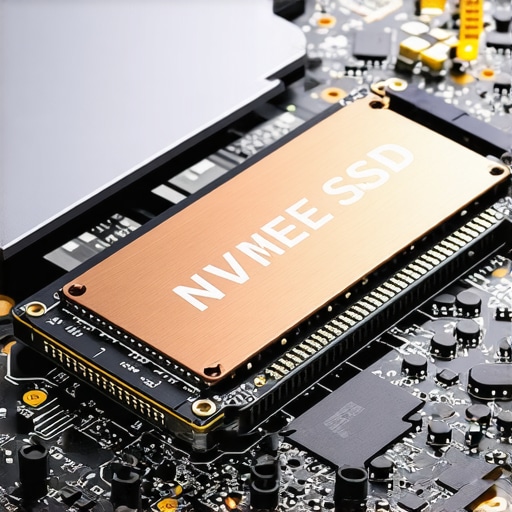
We all love the look of a sleek machine, but there are the hidden costs of choosing an ultra-thin business laptop that go beyond just the price tag. These machines often lack the thermal headroom to keep a high-performance SSD cool. When an NVMe drive gets too hot, it throttles, and your $2,000 workstation starts performing like a $400 budget rig. Before you commit to a purchase, especially when looking at how to spot a scam laptop listing on social media, check the internal layout. If the SSD is sandwiched right against the CPU with no heatsink, you’re buying a ticking time bomb of frustration. Much like the reason your laptop battery won’t charge past eighty percent is often a safety feature, thermal throttling is your drive’s way of surviving—but it kills your productivity. Have you ever fallen into this trap of buying a drive based on peak speeds alone? Let me know in the comments.
I have learned the hard way that a high-performance drive is like a sports car—it requires more than just gas; it needs a dedicated mechanic. When you are looking at top laptop deals in 2025, you aren’t just buying hardware; you’re starting a maintenance clock. I personally rely on CrystalDiskInfo to monitor my drive’s health. It’s a free, open-source tool that exposes the S.M.A.R.T. (Self-Monitoring, Analysis, and Reporting Technology) attributes. I specifically look at the ’05’ attribute, which tracks reallocated sectors. If that number jumps, I know my drive is physically failing, and I immediately use the best way to transfer files between two laptops to secure my data on a secondary machine. Most users ignore these signs and only realize there is a problem when they search for how to spot a dying SSD after the fact.
Stop Trusting the Windows Default Drivers
I always tell my fellow tech enthusiasts that the best way to configure a new business laptop is to ditch the generic Windows NVMe drivers. Companies like Samsung and Western Digital offer dedicated ‘Dashboard’ software that provides much tighter control over over-provisioning. Over-provisioning is the process of setting aside 10% of your drive’s space to be used only by the controller for wear leveling. It significantly extends the life of the NAND cells. If you are using business laptops for professionals for heavy database or video work, this isn’t optional. I’ve seen drives that would have died in three years last for six just because the user bothered to install the manufacturer’s toolbox and set up a proper cache buffer.
How do I keep my high-end storage healthy over the years?
The number one enemy of high-speed storage is heat. I’ve reached a point where I won’t even close the bottom panel of a new machine without checking if I can improve the thermals. Sometimes this means why we swapped the thermal paste on our brand new laptop or adding a dedicated copper shim to the NVMe slot to help dissipate heat. You should also regularly learn how to clean the dust out of your laptop without opening it to ensure airflow remains unobstructed. According to a technical deep-dive by StorageReview, once a drive hits its thermal limit, performance can drop by as much as 50% to prevent permanent damage. If you’re a gamer, check your game-changing gaming laptops for 2025 adventures for an extra M.2 slot that might have better airflow than the primary one located directly under the CPU. 
The Future of Storage is Smarter Rather Than Just Faster
Within the next few years, I predict we will see the rise of AI-integrated SSD controllers that can predict failures before the first sector even goes bad. Currently, we react to data; soon, the drive will proactively move data to healthy cells based on usage patterns it learned over months of operation. This will make even unbeatable laptop deals on budget brands much safer than they are today. For now, though, stick to the basics. Get yourself must-have laptop accessories for a seamless setup, including a high-quality toolkit if you own one of the only 3 brands that still make easily-repairable laptops. My advanced tip for the day: download HWiNFO right now and check your ‘Drive Temperature 2’ reading while copying a large folder. If it is consistently over 70°C, you need to look into a better cooling solution before your next big project starts.
The Hardest Lessons I Learned After Losing a Week of Work
If I could go back in time, I would tell my younger self that reliability beats speed every single day of the week. My first ‘hard’ lesson was that saving $50 on a budget drive isn’t worth a $500 data recovery bill when the NAND eventually gives up. I also learned that you shouldn’t wait for a BIOS error to tell you a drive is failing; you need to be proactive with health monitoring. Finally, I realized that even the top laptop deals in 2025 can hide inferior internal components, so you must always verify the TBW (Terabytes Written) rating yourself before committing to a purchase.
My Essential Toolkit for Guarding Drive Health
I don’t leave my data to chance anymore, and neither should you. My personal monitoring routine starts with CrystalDiskInfo, which I check monthly to look for reallocated sectors or high wear levels. For real-time thermal monitoring, HWiNFO is unparalleled—it lets me see if my drive is being toasted during a long video export or a heavy gaming session. I also swear by manufacturer-specific dashboards (like Samsung Magician or Western Digital Dashboard) to manage over-provisioning. Setting aside that extra 10% of space is the single best way to ensure your drive outlives your laptop. While you’re at it, make sure you have the must-have laptop accessories for a seamless setup to keep your workspace organized and your thermals under control.
Make Your Next Storage Upgrade Count
Choosing the right storage is about more than just numbers on a box; it is about long-term peace of mind. Whether you are hunting for student laptops that boost productivity and learning or configuring a high-end workstation for 4K editing, treat your SSD as the heart of your machine. You now have the knowledge to look past the marketing fluff and find a drive that will actually go the distance. Don’t wait for the ‘Boot Device Not Found’ screen to take action on your storage health. Have you ever had an SSD fail right when you needed it most? Let me know your story in the comments below.