
I was sitting in my favorite local coffee shop, trying to wrap up a client proposal, when I felt the familiar, irritating urge to throw my laptop out the window. Every time I wanted to compare two rows of spreadsheet data while looking at a brief, I had to scroll. And scroll. Then scroll some more. I was using a premium 16:9 widescreen machine, but it felt like looking at the digital world through a mail slot. It was that exact moment of frustration that forced me to reconsider my entire portable setup, leading me to a revelation that completely changed how I work away from my desk.
The Vertical Real Estate We All Quietly Sacrificed
For years, the tech industry pushed us toward widescreen displays. It made sense for watching movies, but for actually getting work done, it has been an absolute disaster. When you are working on the go, you do not have the luxury of a dual-monitor desktop setup. You rely entirely on your single built-in display to stay efficient. That is why I have become an absolute evangelist for the 16:10 aspect ratio, especially when choosing top business laptops for productivity in 2025.
My biggest mistake early on was chasing higher resolutions like 4K on tiny screens, thinking more pixels automatically meant more space. I even ignored the physical dimensions of the panel itself. What I quickly realized is that extra vertical space is what actually keeps you from constantly switching tabs. With a 16:10 screen, you get about 11% more vertical pixels compared to a standard widescreen. That might sound small on paper, but in reality, it means seeing extra lines of code, more rows of data, and actual paragraphs of text without constantly reaching for your trackpad.
Is a slightly taller screen actually worth the hype?
You might be skeptical. After all, does a fraction of an inch really make a difference when you are answering emails at an airport gate? The answer is a resounding yes. When you are writing, editing, or researching, your workflow moves vertically, not horizontally. A taller display reduces visual fatigue because your eyes do not have to scan wide, empty margins. It is the single best upgrade you can make, which is why we always suggest looking for this feature when hunting for the best student laptops that boost productivity. Even major display manufacturers like LG Display have highlighted in industry whitepapers that taller aspect ratios directly correlate with higher user focus and fewer window-switching actions during document editing.
Have you ever found yourself constantly resizing windows on a cramped screen just to write a simple email? Tell me about your biggest laptop screen frustrations in the comments below.
If you are tired of feeling like you are squinting through a panoramic camera just to read a PDF, it is time to look at how this physical change in screen shape alters everything. Let us dive into exactly how this extra vertical space transforms your daily workflow and why your next machine needs to make the stretch.
When I finally upgraded to a taller aspect ratio, I decided to test it under fire. I was working on a complex financial model while simultaneously pulling references from a thirty-page PDF. On my old 16:9 machine, this task required a dizzying routine of window-snapping, shrinking font sizes, and constant tabbing. It was like trying to read a roadmap through a straw. Once I switched to a 16:10 display, the extra vertical real estate allowed me to stack my reference window above my spreadsheet cleanly. I finished the entire review in half the time, without a single headache from squinting.
How to Choose and Optimize Your Taller Display Setup
Getting a 16:10 screen is only the first step; you need to configure your workspace to actually exploit those extra vertical pixels. If you leave your default operating system settings alone, scaling options might eat up the very space you just gained. Many manufacturers ship laptops with scaling set to 150% or higher, which artificially balloons your windows and defeats the purpose of a taller screen.
Dial in Your Operating System Scaling
First, right-click your desktop and open your display settings. Look for the scale and layout options. If your laptop has a sharp resolution like 1920×1200 or 2560×1600, drop the scaling down to 125% or even 100% if your eyes can handle it. This adjustment acts like pulling a camera lens back, instantly revealing more rows in your spreadsheets and more code in your IDE. If you are struggling with blurry text after tweaking these settings, you can learn the only way to fix a dead pixel on your laptop screen and calibrate your panel for maximum clarity.

Reclaim Your Taskbar Real Estate
Your taskbar or dock is a massive vertical space hog. By default, it sits at the bottom of your screen, stealing about 50 to 80 pixels of vertical room. To maximize your new aspect ratio, set your taskbar to automatically hide in desktop mode. This simple change gives you back a substantial chunk of screen space, making a 14-inch 16:10 screen feel as spacious as a traditional 15.6-inch widescreen. If you are setting up a temporary workspace, utilizing must-have laptop accessories to boost your work setup like a portable stand can also help position the taller screen at the perfect eye level, reducing neck strain.
Ditch the Heavy Browser Toolbars
We often clutter our web browsers with bookmark bars, extension icons, and massive search fields. When your goal is vertical efficiency, every millimeter counts. Hide your bookmarks bar using keyboard shortcuts (Ctrl+Shift+B on Windows or Cmd+Shift+B on Mac) and only call it up when you actively need it. For those managing heavy academic workloads on student laptops that boost productivity, keeping the browser interface minimal ensures that your research papers and online portals occupy the entire screen, allowing you to focus on the text rather than UI clutter.
While upgrading your screen shape solves the immediate problem of vertical physical space, many professionals and students still make critical mistakes when choosing their actual machines. The tech industry loves to market specs that sound impressive on a box but fall flat in daily use. To truly optimize your workflow, we need to challenge a few common myths and look at the finer details of modern hardware.
The Core Count Trap Most Buyers Fall Into
Everyone will tell you to buy the processor with the highest core count or the highest boost clock speed. In my experience, chasing those raw numbers on paper is a massive trap. On a portable machine, a high-core-count CPU paired with a thin chassis is a recipe for disaster. The processor will quickly heat up, and the laptop’s internal firmware will aggressively slow down your speed to prevent melting. You end up paying a premium for performance you can only utilize for about thirty seconds at a time.
Instead, look for machines that prioritize thermal efficiency. A laptop that can sustain a medium-tier processor at its peak speed will always outperform a super-hot flagship that is constantly throttling. If you are shopping around for a new machine, focus on real-world thermal tests. This is especially true when hunting for top laptop deals in 2025 or looking at highly praised business laptops for professionals, where sustained performance matters far more than short burst benchmarks.
Why do ultra-thin laptops frequently suffer from high failure rates?
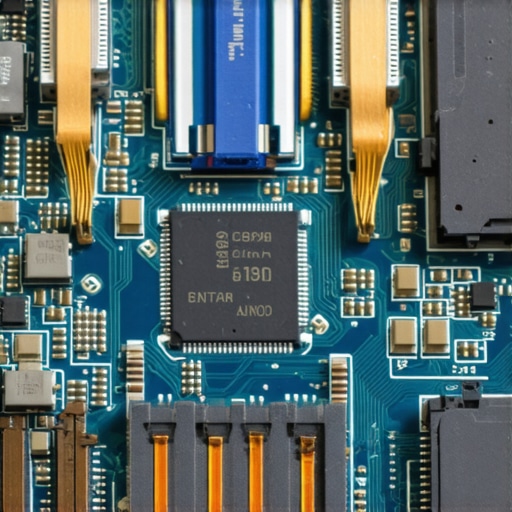
It comes down to soldered components and structural rigidity. When manufacturers strive to make laptops as thin as a notepad, they solder the RAM, the storage, and even the wireless card directly to the motherboard. If a single solder joint cracks due to the physical flexing of a thin aluminum chassis, the entire motherboard dies, taking your data with it. According to a long-term reliability study by the Consumer Reports Tech Division, laptops with non-upgradable, highly integrated internal components show a significantly higher rate of unrepairable hardware failures within the first three years of use compared to slightly thicker, modular enterprise machines.
This is why many seasoned tech professionals actively avoid ultra-thin consumer models. For longevity, look for devices that maintain a bit of thickness to allow for proper physical support and modular components. We specifically advocate for these robust builds when reviewing student laptops that balance power and portability perfectly because a student’s machine needs to survive years of being shoved into a heavy backpack.
The Screen Coating Dilemma
Another major point of confusion is the screen coating. Consumers are often told that matte screens are objectively superior because they reduce reflections. However, if you are a designer, photographer, or someone who spends hours reading fine text, matte coatings can actually introduce a subtle, greasy distortion over your entire display. Glossy panels offer much higher contrast ratios and text sharpness, which reduces eye strain over long working sessions. As long as you can control your lighting environment or have sufficient screen brightness to overpower reflections, a glossy screen is often the superior choice for visual comfort.
Have you ever fallen into the trap of buying a laptop based purely on its thinness or raw core specs only to regret it later? Let me know in the comments below.
When you are pushing your system to the absolute limit, whether you are crunching spreadsheets or running complex design software, physical maintenance is what keeps that carefully chosen hardware performing like new. I used to think that as long as my operating system was clean, my laptop would run forever. I learned the hard way that dust and poor power habits will choke even the most expensive machinery within eighteen months.
Keeping Your High-Performance Machine Running Like New
To prevent performance degradation, I adhere to a strict monthly maintenance routine. I do not use compressed air cans blindly; blowing cold, pressurized air directly into a warm laptop can cause condensation or spin the fans faster than they are rated to go, potentially damaging the delicate bearings. Instead, I use a specialized anti-static mini-vacuum paired with a soft brush to gently clear out the exhaust vents. This simple habit keeps internal temperatures down and prevents the system from throttling during intense work sessions.
How do I maintain my display and battery health over time?
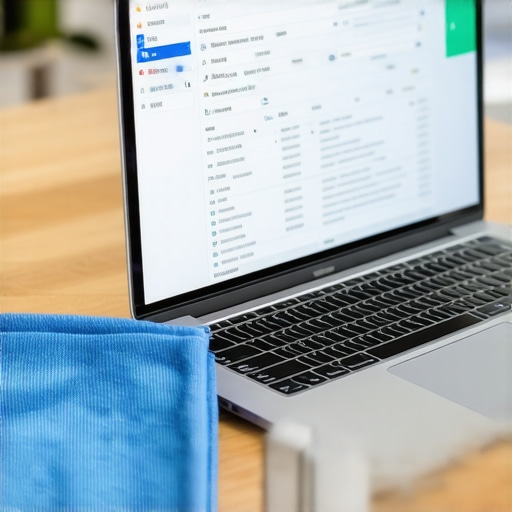
Screen maintenance requires a delicate touch to avoid destroying specialized anti-reflective coatings. I completely avoid harsh window cleaners or rubbing alcohol. Instead, I use a high-density microfiber cloth slightly dampened with distilled water to gently lift oil from my keys. For detailed instructions on keeping your panel flawless, you can read my guide on how to clean laptop screen smudges without leaving streaks. When it comes to power delivery, heat is the ultimate enemy. I never leave my machine resting on soft, insulating surfaces while plugged in, and I actively practice habits to extend the physical lifespan of my internal cells, which is why we never leave our laptops plugged in overnight.
The Tools that Saved My Sanity
Beyond cleaning, I rely heavily on specific software tools to monitor my system’s health. I use HWiNFO64 weekly to check my CPU core temperatures and battery wear levels. It provides raw, unfiltered sensor data directly from the motherboard. If I notice my battery capacity dropping too quickly, I immediately adjust my power profiles to limit the maximum charge state to 80% using the manufacturer’s companion software. This single adjustment can double the overall lifespan of a lithium-polymer battery pack.
Looking ahead, I predict that the industry will continue to shift toward modularity as consumers demand longer-lasting devices. The standard of completely sealed, un-upgradable thin-and-light laptops is beginning to fracture under consumer pressure. Highly respected repair advocates, like the engineers at iFixit, have documented that the environmental and financial costs of disposable tech are driving a massive resurgence in user-serviceable designs. We are already seeing the return of standardized M.2 storage slots and socketed Wi-Fi cards in premium business models.
If your machine has been feeling sluggish lately, do not just assume it is getting old. Take control of your hardware today. Open up your display settings right now, drop your operating system scaling down to 125%, and experience the immediate relief of having actual breathing room on your desktop screen.
What Experts Won’t Tell You About Buying Modern Business Laptops
Over my years of testing and configuring mobile workspaces, I have noticed that the marketing team’s dream laptop is often a professional’s worst nightmare. Here are the core insights most manufacturers try to bury in their glossy spec sheets:
- Aspect ratio beats raw resolution every time: A 4K screen on a standard widescreen panel looks incredibly sharp, but it forces you to use massive scaling. To get actual usable desktop real estate, you need the physical height of a 16:10 or 3:2 layout. In fact, many users make a huge mistake by choosing 4K screens on 13-inch laptops because it dramatically tanks battery life for no real-world productivity gain.
- Soldered components are a ticking time bomb: The trend toward impossibly thin designs means everything is glued and soldered down. If your solid-state drive fails, your entire computer becomes an expensive brick. That is exactly why we avoid laptops with soldered storage at all costs when picking out systems for critical workloads.
- Matte screen coatings can muddy your view: While non-glare screens are great for bright offices, they soften fine text and dim your colors. High-contrast glossy displays are actually much gentler on your eyes during long, detailed editing sessions. There is a very specific reason why professional editors prefer glossy screens over matte setups when pixel-perfect clarity is on the line.
My Essential Toolkit for Maximizing Screen Real Estate
When you are working from coffee shops, library desks, or airport terminals, you have to be highly strategic with your setup. Over the years, I have curated a specific kit of software and hardware to keep my taller displays performing at their peak:
- HWiNFO64: This is my absolute go-to utility for tracking exact internal thermal levels and watching my battery wear status. It lets me catch performance issues before they cause physical slowdowns.
- Custom Operating System Scaling: I always drop my Windows or macOS scaling down to 125% or even 100% on a 16:10 screen. This single adjustment lets you see multiple document pages side-by-side without needing an external monitor.
- A Premium Portable Stand: Elevating your laptop changes the screen angle, reduces glare, and opens up the bottom vents for better airflow. I highly recommend pairing a taller aspect ratio with must-have laptop accessories to boost your work setup, ensuring your screen is positioned perfectly at eye level.
Your Turn to Stop Squinting and Reclaim Your Screen
It is easy to get comfortable with the status quo, even when that status quo means endlessly scrolling through spreadsheets and squinting at cramped lines of text. But once you experience the physical relief of a screen designed for vertical productivity, you will never want to go back to a standard widescreen. Take a moment today to look at your current device. Turn on your auto-hiding taskbar, adjust your browser margins, and prepare your workspace for a much taller view. If you are ready to upgrade your mobile workstation, head over to our handpicked list of business laptops for professionals to find a machine built to handle serious work.
Have you ever noticed your eyes straining after a long day of working on a standard widescreen laptop? Let me know your thoughts in the comments below!