
I was three hours deep into a color-grading session for a wedding film when I realized something was horribly wrong. I’d just bought a high-end matte-screen laptop, thinking the ‘pro’ anti-glare coating was the gold standard for serious work. But as I looked at the dark shadows of the groom’s tuxedo, everything looked like gray mush. I exported the frame, checked it on my phone, and nearly fell out of my chair. The phone—which had a glossy screen—showed deep, rich blacks and vibrant colors that my laptop had completely hidden from me. I was editing in the dark, literally and figuratively. This is the dirty little secret of the creative world. We’re often told that matte is better because it kills reflections, but for those of us who live and breathe in Premiere or DaVinci Resolve, that anti-glare layer is often just a filter that kills our contrast. Today, I’m going to show you why the pros I know are moving back to glossy panels and how you can manage the reflection trade-off without losing your mind.
Stop Letting Your Matte Screen Muffle Your Colors
When you choose a matte display, you aren’t just getting rid of reflections; you’re adding a layer of microscopic texture over your pixels. This texture scatters light. While it’s great for working near a sunny window, it also scatters the light coming out of your screen. The result? Lower perceived contrast and a slight loss in sharpness. I made the mistake of thinking ‘more expensive equals more accurate.’ I spent a fortune on a matte panel only to realize it was washing out my black levels and making my critical color decisions a guessing game. Professional editors often prefer glossy because it offers a direct, ‘naked’ view of the pixels. According to display technology experts at DisplayMate, matte coatings can slightly reduce the peak contrast ratio by diffusing the light before it reaches your eye, which is why high-end reference monitors often avoid heavy frost coatings. If you’re still hunting for the right machine, check out some business laptops for professionals to see which manufacturers are still offering high-quality glass panels.
Isn’t the Glare Going to Drive Me Crazy?
This is the number one thing people ask me when I suggest a glossy display. Look, I get it. Nobody wants to see their own forehead reflecting back while they’re trying to edit a cinematic masterpiece. But the trade-off is almost always worth it. You can control your lighting; you can’t ‘fix’ a screen that lacks the physical ability to show true contrast. It’s much easier to calibrate your monitor for accuracy when you aren’t fighting a hazy coating. Have you ever felt like your edits look great on your screen but totally different everywhere else? Tell me about your most frustrating ‘color shift’ moment in the comments—I’ve definitely been there. Before you commit to your next upgrade, remember that not all high-resolution screens are created equal. Sometimes, a 1440p glossy screen will give you a better visual experience than a 4K matte one that mutes your creativity.
Build Your Studio Around Your Screen
Transitioning to a glossy display is like upgrading from a budget camera to a full-frame sensor; you get more data, but you have to know how to handle the light. The first thing you must do is audit your workspace. I learned this the hard way while color-grading a commercial in a sun-drenched coffee shop. My screen was essentially a $2,000 mirror. I ended up draping a black hoodie over my head and the laptop just to see the shadows. I looked like a basement-dwelling hacker, but the final grade was perfect. To avoid the ‘hoodie method,’ position your desk so that windows are to your side, never behind you or directly in front of the screen. If you’re serious about your craft, invest in some must-have laptop accessories to boost your work setup, such as a black desk mat and dark curtains. 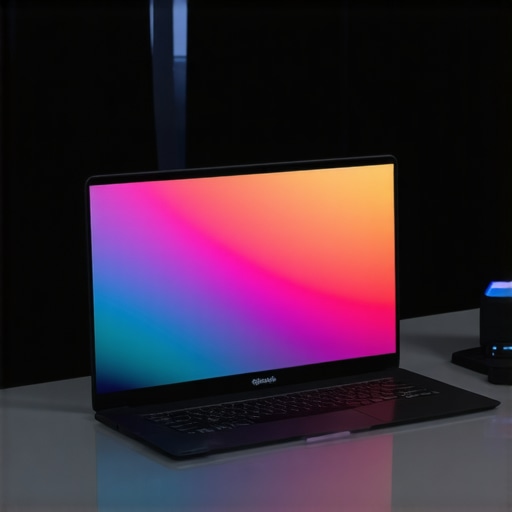
Master the Art of Lighting Placement
Most glare issues aren’t caused by the sun; they’re caused by that $10 desk lamp sitting right behind your shoulder. Glossy screens act like a lens. To manage this, use bias lighting—a light strip behind your monitor that glows against the wall. This increases your perceived contrast without hitting the screen surface directly. If you are using a laptop on the move, you need to learn how to find the best viewing angle for your laptop stand to deflect overhead office lights. A five-degree tilt can be the difference between seeing your timeline and seeing the fluorescent bulb above you.
Find the Best Glass in a Sea of Plastic
Not all glossy screens are created equal. When hunting for business laptops for professionals, look for those with ‘anti-reflective’ (AR) coatings rather than just ‘glossy’ finishes. High-end panels, like those found on top-tier OLED laptops, use a multi-layer coating that kills the mirror effect while keeping the deep blacks intact. This is why many game-changing gaming laptops for 2025 are moving toward glass fronts; players want that immersive pop that matte plastic just can’t provide.
Calibrate for Perfection Every Single Time
Once you have the right light and the right screen, you cannot skip the software side. A glossy screen can look ‘too good,’ tricking you into thinking your colors are more saturated than they actually are. I used to think my exports were dull until I realized my screen’s natural vibrance was doing all the heavy lifting. You must learn how to calibrate your monitor for accurate photo editing without expensive gear to ensure your ‘glossy’ decisions translate to everyone else’s ‘matte’ reality. This process involves setting your white point and brightness levels to match your ambient light, ensuring that the ‘pop’ you see is actually in the file, not just a reflection of the glass. By controlling your environment and checking your specs, you turn a potential distraction into a professional advantage.
The biggest myth I see in my inbox is that a high refresh rate automatically makes a screen ‘pro-grade.’ I’ve seen countless unbeatable laptop deals where the marketing screams ‘144Hz!’ but the actual panel has a gray-to-gray response time so slow it looks like a watercolor painting in motion. This is the hidden trap of budget gaming screens: motion blur. Most people think a deal is just about getting the most RAM or the fastest CPU for the lowest price, but they ignore the interface they stare at for eight hours a day. If you are buying a machine for creative work, that high refresh rate means nothing if the pixels can’t change color fast enough to keep up with the frame rate.
Avoid the Spec-Sheet Mirage
Just because a machine is marketed under business laptops for professionals doesn’t mean the screen is color-accurate or bright enough for outdoor use. I once helped a colleague pick out a ‘pro’ machine that arrived with a miserable 62% sRGB coverage. Everything he edited looked vibrant on his screen but died the moment it hit a client’s device. According to research from the Society for Information Display (SID), many mid-range laptop panels prioritize power efficiency over color volume, leading to ‘washed out’ results even on expensive hardware. Always check for NTSC or sRGB percentages, not just resolution. If you’re a student, don’t just look for the cheapest price; look for student laptops that balance power and portability without sacrificing a decent cooling system or a 300-nit brightness minimum.
Why Does Your New Laptop Feel Slower Than Your Old Desktop?
It’s often not the processor; it’s the thermal management or the power delivery. People often buy game-changing gaming laptops thinking they’ll replace a high-end desktop, only to find the real reason your gaming laptop feels sluggish on battery is that the GPU is being severely throttled to prevent the battery from melting. Performance on a laptop is a moving target, not a static number. To truly unlock the hardware, you need to look into how to undervolt your gaming laptop to keep temperatures low while maintaining high clock speeds.
Don’t Waste Money on Useless Accessories
I see so many people trying to fix a ‘slow’ laptop with expensive cooling pads, but why most laptop cooling pads are just loud paperweights comes down to the simple physics of airflow. If your laptop’s intake vents don’t align with the fans on the pad, you’re just blowing air against a plastic wall. Instead, focus on ergonomics and cable management. Using a single USB-C cable to connect your entire desk will do more for your productivity than a generic LED cooling stand ever will. Have you ever fallen into this trap of buying a ‘deal’ only to realize the screen or the performance was a total dud? Let me know in the comments—I’d love to hear your horror stories. 
Don’t Let Your Investment Turn into a Space Heater
I’ve seen $3,000 workstations reduced to the speed of a budget netbook simply because the owner ignored the internal health of the machine. The ‘dirty secret’ isn’t just about glossy screens; it’s about the dust bunnies currently suffocating your CPU. If you notice your fans ramping up while you’re just browsing Chrome, it’s already started. You need to learn how to check your laptop fan for dust without opening it before you reach the point of no return. I personally make it a habit to blast my intake vents with compressed air every two weeks. It sounds obsessive, but for game-changing gaming laptops, that small act can prevent the thermal throttling that kills your frame rates during a late-night session.
The Tools That Actually Save Your Motherboard
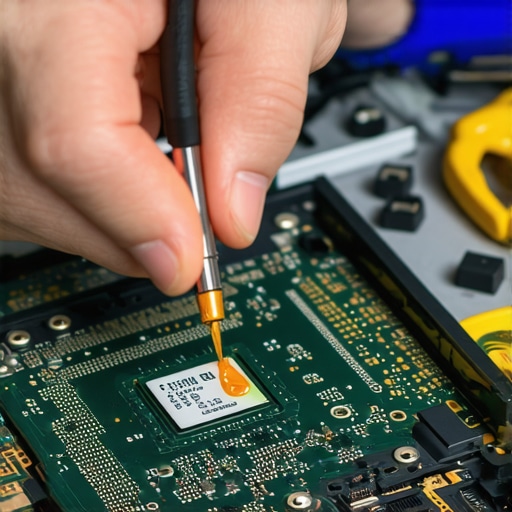
If you’re brave enough to go deeper—and if you want your laptop to last more than three years, you should be—invest in a high-quality precision toolkit. I’m not talking about the cheap pot-metal drivers from the grocery store. You want hardened steel bits that won’t strip your delicate screws. Before you even touch the internals, you must learn how to properly ground yourself before opening a laptop. Static electricity is the silent killer of modern electronics. Once inside, the single best thing you can do for long-term stability is a repaste. Igor’s Lab, a highly respected technical outlet for hardware testing, recently highlighted how factory thermal paste often suffers from the ‘pump-out’ effect, where the paste literally migrates away from the heat source over time due to thermal expansion. This is why I always recommend learning how to replace your laptop thermal paste without breaking anything. Switching to a high-viscosity paste like Honeywell PTM7950 can drop your temps by 10 degrees and keep them there for years.
How do I maintain my laptop’s physical appearance over time?
Maintenance isn’t just internal. A greasy keyboard and a smudged lid make your ‘pro’ setup look like a disaster. I’ve found that the best ways to clean a greasy laptop keyboard involve 70% isopropyl alcohol and a microfiber cloth, but never spray the liquid directly on the keys. If you’ve opted for a machine with a premium finish, you’ll need to know the best way to clean a fabric laptop cover to avoid pilling or staining. Looking ahead, I predict a major shift toward solid-state active cooling, such as the AirJet chips from Frore Systems. This technology could eventually eliminate fans entirely in business laptops for professionals, making the ‘dust-clogged vent’ a thing of the past. Until then, you need to be the guardian of your airflow. I challenge you to download a sensor monitoring tool like HWInfo64 today; if your CPU is hitting 90°C while doing basic tasks, it’s time to open that case and perform some surgery. For those still using school-issued gear, don’t forget to check out student laptops that balance power and portability to see which new models offer the easiest access for user-performed maintenance.
What I Know Now About Screen Specs That No Salesperson Mentions
After years of trial and error, I’ve realized that the ‘pro’ tag on a laptop box is often just marketing fluff. You need to look for the real technical wins that affect your daily workflow. First, stop fearing the glare; a glossy screen isn’t your enemy if you know how to manage your environment. Second, never sacrifice color accuracy for a high refresh rate if you’re a creator. I’ve seen unbeatable laptop deals that looked great on paper but fell apart the moment I tried to edit a sunset. Third, always think about the future. I’ve learned why we avoid laptops with soldered storage at all costs—it’s not just about space, it’s about being able to recover your data when the motherboard decides to call it quits. Finally, remember that your screen is a fragile window into your work; if you ever find yourself in a pinch, knowing how to fix your laptop screen if the backlight dies can save you a thousand-dollar repair bill.
The Gear That Keeps My Setup Breathing and My Pixels Sharp
I don’t trust my livelihood to generic accessories anymore. If you want to keep your machine running at peak performance, you need a few specific items in your kit. I always keep 70% isopropyl alcohol and a high-gsm microfiber cloth nearby because a clean screen is a precise screen. For those long nights writing scripts or code, I skip the mushy laptop keys and stick to the only 3 budget keyboards worth using for long essays to save my wrists from fatigue. Most importantly, I’ve stopped using my lap as a desk. I’ve seen too many friends cook their internal components, which is why you should never use your laptop on a soft blanket. These simple changes in habit and gear aren’t just about ‘taking care’ of a device; they’re about ensuring your tools don’t fail you when the deadline is looming. #IMAGE_PLACEHOLDER_E#
Take Control of Your Creative Vision Before Your Next Big Project
The journey from a washed-out matte display to a vibrant, glossy workflow isn’t just about aesthetics—it’s about seeing your work for what it truly is. By mastering your environment, staying on top of thermal maintenance, and choosing hardware that prioritizes accuracy over hype, you’re setting yourself up for professional success. Don’t be afraid to demand more from your devices. Your art, your games, and your career deserve to be seen in the best possible light. Whether you are hunting for student laptops that balance power and portability or a high-end workstation, always prioritize the interface between you and your work. Have you ever had a moment where your screen completely lied to you about how a project looked? Let me know in the comments below—I’d love to hear how you handled it!