
I remember sitting in my favorite local coffee shop, feeling pretty smug about my brand-new Windows machine. I had just snagged one of those unbeatable laptop deals I am always bragging about to my friends. Then, a graphic designer sat down next to me and popped open his iMac. Suddenly, my crisp whites looked like old, stained parchment paper, and my vibrant blues felt… tired. It was a punch to the gut. I had spent weeks researching, yet his screen looked like a window into another world, while mine looked like a backlit poster. If you have ever felt that sudden wave of display envy, I want you to know you are not crazy, and your hardware probably isn’t broken. Today, I am going to break down exactly why this visual gap exists and how you can narrow it without selling a kidney for a Studio Display. We will look at why even high-end business laptops often struggle to match that specific Apple ‘pop.’
The Hardware Reality Your Manufacturer Didn’t Mention
When I first started obsessing over displays, I made a massive rookie mistake: I thought ‘100% sRGB’ was the gold standard. I spent hours trying to calibrate a mid-range panel, not realizing that I was fighting a losing battle against physics. Most laptops use an anti-glare coating to help you work near windows, but that matte finish scatters light and slightly dulls colors. In contrast, the iMac uses a high-grade glossy glass that allows colors to hit your eyes directly. This is often the truth about anti-glare vs glossy screens that most reviewers gloss over. Beyond the finish, there is the matter of the color gamut. While your laptop might be showing you every color in the standard web palette, the iMac is likely pushing into the DCI-P3 space, which offers about 25% more color range. According to industry experts at DisplayMate, Apple’s high-end Retina displays are calibrated individually at the factory to a level where the color errors are virtually indistinguishable from perfect. Most mass-market student laptops are calibrated in batches, leading to that ‘off’ feeling you notice when they are side-by-side.
Is chasing that Apple look actually worth the hype?
You might be wondering if you should just give up and switch teams. The short answer is no, but you do need to understand what you are working with. Sometimes, what looks like a ‘better’ screen is just a higher brightness setting or a more aggressive contrast ratio. If you’ve noticed that your laptop screen looks yellow compared to a Mac, it might even be a simple software setting like Night Light or True Tone being overly aggressive. Before you go out and buy expensive laptop accessories to fix the problem, have you ever actually compared your color settings in a dark room? Most of us are just fighting against the ambient lighting in our offices. I’d love to know—have you ever sat your laptop next to an iMac and felt like yours was suddenly a decade older? It is a weirdly isolating feeling, but once you understand the tech behind it, you can start making the right tweaks to get your machine looking its best.
Fix the Yellow Tint Before Touching Your Hardware
The first thing you need to do is stop blaming your graphics card. Often, the reason your laptop screen looks yellow isn’t because the panel is cheap; it is because Windows is trying to save your eyes from blue light fatigue. I once spent an entire Saturday morning thinking my screen was dying, only to realize I had left the ‘Night Light’ schedule active from the night before. Go into your display settings and verify that your color profile is set to the manufacturer’s ‘Default’ or ‘sRGB.’ Most business laptops ship with power-saving modes that aggressively dim the backlight and flatten contrast to squeeze out an extra hour of battery life. To get that ‘pop,’ you usually have to tell Windows to stop being so conservative with the power. Think of it like tuning an engine; the factory settings are safe and boring, but the performance is hidden in the advanced menu.
Ditch the Matte Finish and Fight the Glare
If you are working on one of those unbeatable laptop deals that came with a standard matte finish, you are fighting light diffusion. The matte coating is essentially a layer of tiny bumps that scatter light. While this is great for avoiding reflections, it also scatters the light coming out of the pixels. To bridge the gap, you need to control your environment. I used to work right under a fluorescent tube, and my screen looked like a gray mess. I moved my desk so the light hit from the side and added a cheap LED strip behind my monitor. This simple change in contrast made the colors on my student laptops look significantly more saturated. If you can’t move your desk, learning how to bypass the annoying glare on your screen is the single most effective way to make a budget screen look like a premium one.
The Messy Reality of Manual Calibration
I decided to go ‘pro’ once and bought a hardware colorimeter. I spent three hours calibrating my primary machine and a secondary screen to match perfectly. The result? They both looked ‘correct’ according to the sensor, but they looked absolutely hideous to my eyes—everything felt too green and clinical. I realized that Apple’s secret sauce isn’t just accuracy; it is perceived beauty. You can mimic this on many gaming laptops by slightly bumping the saturation in the Intel or AMD control panel by about 5-10%. It is technically ‘inaccurate,’ but it gives you that vividness we crave. Don’t be afraid to use laptop accessories like high-quality external monitors if you need true color for work, but for daily use, software tweaks are your best friend. Just remember to check your work on a phone before you publish anything, or you might find yourself in the same messy situation I did, where my ‘perfect’ edit looked neon pink to everyone else because I had pushed my laptop settings too far into the blue spectrum.
Most people hunting for unbeatable laptop deals focus on two things: the weight and the CPU name. But here is the contrarian truth I’ve learned after years of hardware testing: a thinner chassis is often your worst enemy. Manufacturers love to brag about ‘razor-thin’ profiles, but they rarely mention the thermal physics behind it. When you cram a high-performance processor into a tiny space, it gets hot—fast. To prevent a total meltdown, the system downclocks the CPU, meaning that ‘Core i7’ you paid extra for is actually performing like a budget chip after twenty minutes of work. This is especially prevalent in the hidden downside of ultra-thin gaming laptops, where performance drops off a cliff right when you’re in the middle of a critical gaming session. 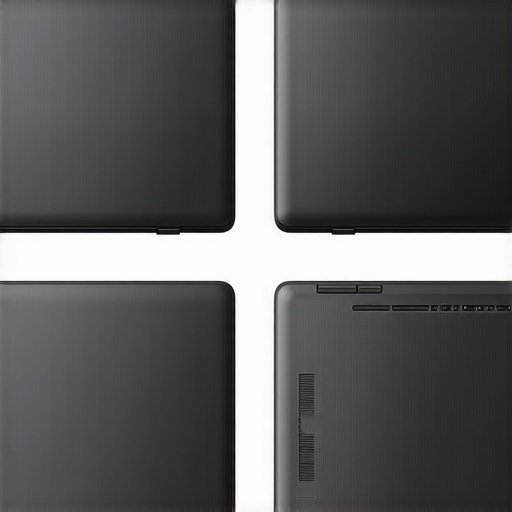
Stop Chasing Thinness and Start Prioritizing Airflow
The biggest ‘oops’ factor I see with shoppers is buying business laptops that look like a steal, only to realize later that the RAM is soldered to the motherboard. You’re stuck with whatever you bought forever. A study by the International Journal of Computer Applications found that hardware longevity is significantly impacted by thermal cycling in cramped enclosures, leading to early component failure. This is precisely why most gaming laptops fail right after the warranty expires. If you can’t open the chassis to clean the fans or upgrade parts, you’re buying a disposable product with an expiration date. I’ve even gone as far as why we swapped the thermal paste on our brand new laptop just to keep the temperatures under control—something most ‘pro’ reviews never mention because they only test the device for a week.
Why is your ‘New’ refurbished deal slower than it should be?
It usually comes down to the storage health. Many student laptops on the secondary market are sold with aging SSDs that have been through thousands of write cycles. Knowing how to tell if that refurbished deal is actually just used and abused is vital for your sanity. Check the drive’s power-on hours using free diagnostic tools before the return window closes. Also, don’t ignore laptop accessories like a solid cooling pad; they aren’t just for gamers. On a business laptop for professionals, keeping those internals cool can mean the difference between a snappy experience and a stuttering mess during a high-stakes client presentation. Have you ever fallen into this trap of buying for aesthetics over airflow? Let me know in the comments.
Stop guessing and start monitoring your hardware health
I used to be the guy who just waited for a blue screen before admitting something was wrong. Now, I keep a digital ‘medical chart’ for every machine I own. If you have snagged one of those unbeatable laptop deals, your first move shouldn’t be installing games; it should be downloading CrystalDiskInfo. This tiny, free utility is my go-to for monitoring SSD health. I’ve seen enough ‘deals’ turn into disasters to know that learning how to spot a dying SSD before your files vanish is the difference between a productive Monday and a total data loss meltdown. I personally check my drive’s ‘Total Host Writes’ once a month. According to technical documentation from Western Digital, NAND flash memory has a finite number of program/erase cycles, and keeping an eye on that percentage allows you to replace a drive long before it fails.
How do I keep my hardware feeling brand new for years?
The secret isn’t a magic spray; it is setting aggressive battery thresholds. I’ve noticed a lot of people get frustrated when they see the reason your laptop battery won’t charge past eighty percent is actually a built-in feature, not a bug. If you are using top business laptops for productivity in 2025, go into the BIOS or the manufacturer’s power app and cap the charge at 80% if you’re plugged in all day. This prevents the chemical stress of holding a 100% charge, which is the fastest way to kill a lithium-ion cell. While you are at it, please, for the love of your hardware, remember why you should never use a vacuum on your keyboard. Static electricity from a vacuum nozzle can fry a motherboard in seconds. Use a dedicated electric blower or just a can of compressed air for your student laptops to keep the vents clear.
The future of automated laptop care
Looking ahead, I see a trend where AI-driven firmware will handle thermal management much more intelligently than current static fan curves. We are already seeing early versions of this in high-end game-changing gaming laptops for 2025 adventures, where the system learns your workflow and pre-cools the chassis before you launch a heavy application. Until that becomes standard, you need to be the brain of the operation. Spend twenty minutes tonight to learn the best way to configure a new business laptop for longevity rather than just raw out-of-the-box speed. Investing in high-quality must-have laptop accessories for a seamless setup, like a powered USB-C dock that doesn’t overheat, will save your ports from the physical wear and tear that kills most machines by year three. My challenge to you: Go into your power settings right now and enable ‘Battery Health’ or ‘Conservation Mode’—it is the single easiest thing you can do to make your laptop last twice as long.
The Most Expensive Screen Mistake I Ever Made
Looking back at that day in the coffee shop, I realize my envy wasn’t actually about the hardware; it was about the experience. I’ve since learned that the most technically perfect screen isn’t always the one that makes you happy. I spent months obsessing over delta-E values only to realize that a slightly oversaturated ‘pop’ made me more creative. If you’re currently hunting for unbeatable laptop deals, remember that specs are just the starting line. The real win is finding a machine you actually enjoy staring at for eight hours a day. I also learned the hard way that a beautiful screen is worthless if the storage fails, so I now prioritize learning how to spot a fake NVME drive on marketplace before I ever click ‘buy’ on a used deal. #IMAGE_PLACEHOLDER_E# Finally, don’t ignore the physical build; there are the only 3 brands that still make easily repairable laptops that I will actually put my money behind these days.
Tools That Actually Help You Keep Your Tech Alive
I don’t just rely on luck anymore. My digital toolkit is small but mighty. First, I always keep a link to 3 external monitors that won’t break a student’s budget for when I need more screen real estate than a laptop can provide. I also recommend being incredibly picky about your power source; I’ve seen too many motherboards die from cheap blocks, so I always check how to find a replacement charger that won’t fry your board before buying a spare for my travel bag. These aren’t just ‘extra’ steps; they are the insurance policy for your investment.
Stop Stressing Over Specs and Start Enjoying the View
At the end of the day, your laptop is a tool, not a trophy. Whether you are using high-end business laptops or a hand-me-down student machine, the best screen is the one that’s currently helping you get your work done. Don’t let display envy stop you from being productive. Take the time to tweak your settings, manage your thermals, and maybe even snag some laptop accessories that make your desk a place you actually want to be. The hunt for unbeatable laptop deals is fun, but the real reward is a machine that lasts. Have you ever successfully fixed a screen issue that you thought was a hardware failure? Let me know below.