
I was one click away from glory. My palms were sweaty, my mouse movements were surgical, and I had the final opponent dead to rights in a high-stakes round. Then, the disaster happened. My finger slipped just a fraction of an inch to the left of the Alt key. Suddenly, my screen flickered, the game minimized, and I was staring at my desktop wallpaper while the Windows Start menu mocked me. By the time I frantically tabbed back in, I was looking at a ‘Defeat’ screen. I hadn’t lost because of skill or lag; I lost because of a single, poorly placed button.
The Tiny Button That Ruined My Best Match Ever
I’ll be honest with you: I used to think my equipment was the problem. I spent way too much time looking for game-changing gaming laptops for serious players in 2025, convinced that a faster processor would solve my frustrations. I even obsessed over why your expensive gaming mouse feels laggy, thinking my response times were the culprit. But none of those high-end upgrades could fix a physical layout designed for spreadsheets rather than shootouts. The Windows key is the ultimate double-agent. It’s useful for productivity, but in the heat of battle, it is a ticking time bomb. According to research published in the International Journal of Human-Computer Studies, accidental key triggers are significantly more common during high-arousal tasks where cognitive load is peaked—exactly what happens when you’re defending a bomb site.
Is Disabling a Core Function Actually Worth the Hassle?
You might be thinking, ‘But I use that key for shortcuts!’ I felt the same way until I realized that my muscle memory was working against me. Early in my journey, I made the amateur mistake of trying to physically pry the keycap off my laptop with a butter knife. Don’t do that. You’ll ruin your chassis and potentially void your warranty. Instead, I discovered that modern software and built-in firmware options allow us to neutralize this threat without permanent damage. Whether you are rocking must-have laptop accessories for a seamless setup or just using a raw machine on your lap, this one tweak is the most cost-effective performance boost you can give yourself. We aren’t just talking about a minor convenience; we’re talking about reclaiming control over your hardware so it stops betraying you at the worst possible moment. Have you ever been ‘Windows-keyed’ out of a winning streak? Let me know in the comments if you’ve ever felt the urge to throw your laptop out a window because of this.
Start with the Software You Already Own
Most modern game-changing gaming laptops for serious players in 2025 come pre-equipped with a built-in solution that most people ignore. Before you go downloading third-party tools, check your laptop’s proprietary control center. Whether it is Alienware Command Center, Razer Synapse, or ROG Armoury Crate, there is almost always a ‘Gaming Mode’ toggle. This isn’t just for overclocking; it usually includes a checkbox specifically for disabling the Windows key while the app is running. I remember my first high-refresh-rate machine; I spent twenty minutes hunting for this setting, and once I flipped that virtual switch, the relief was instant. It’s the cleanest way to fix the problem without touching your system files. 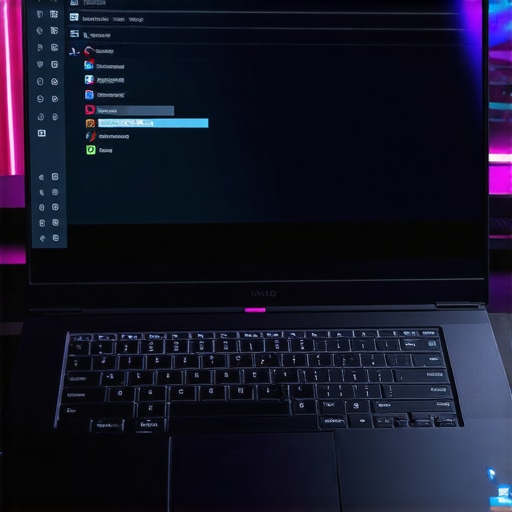
Check for a Dedicated Gaming Mode Toggle
If you are using Windows 10 or 11, there is a native ‘Game Mode’ feature buried in your settings. While its primary job is to optimize system resources, it often works in tandem with must-have laptop accessories for a seamless setup to ensure background processes don’t interrupt your session. Press the ‘Windows Key + I’, go to Gaming, and ensure Game Mode is ‘On.’ While this doesn’t always hard-lock the key on every build, it is the first layer of defense. If you find your keyboard is still acting up, it might be worth checking why mechanical switches are better for preventing typing errors, as high-sensitivity keys are often the real culprit behind accidental presses.
The Advanced Path to Permanent Peace
When the basic settings fail, you have to get more aggressive. For my older rigs, specifically when I was using student laptops that balance power and portability perfectly for late-night sessions, I turned to Microsoft PowerToys. This is an official set of utilities that includes a ‘Keyboard Manager.’ Within this tool, you can literally remap the Windows key to ‘Undefined.’ This effectively kills the button entirely until you decide to turn the utility off. It’s like putting a physical lock on a door that you only want to open during work hours.
The Nuclear Option via Registry Editor
If you want a solution that doesn’t require any apps running in the background, you can use the Registry Editor. I did this once on a laptop where I couldn’t even install new software due to strict admin rights. By navigating to ‘HKEY_LOCAL_MACHINE\System\CurrentControlSet\Control\Keyboard Layout’ and creating a ‘Scancode Map’ binary value, you can tell Windows to ignore the key at the kernel level. It sounds intimidating, but it is the ultimate ‘set it and forget it’ fix. Just remember to back up your registry first. This is a pro-level move, much like how you’d research how to find out if your laptop can be upgraded before cracking open the chassis. I once forgot I had this enabled during a major presentation, and the simple tweak that stops your laptop from sleeping during presentations saved me because I had to navigate everything with the mouse. It was a messy lesson in why you should always know how to undo your tweaks.
The Spec Sheet Lies That We All Believe
I see it every single day in the forums: someone drops three grand on a top-tier machine and then wonders why it’s stuttering while they’re just trying to render a short video or play a competitive match. We’ve been conditioned to think that more is always better. More RAM, higher clock speeds, and the latest GPU generation are the holy trinity of tech, right? Wrong. The biggest mistake most people make when hunting for unbeatable laptop deals is ignoring the ‘thermal envelope.’ You can have the fastest processor in the world, but if your chassis is too thin to breathe, that processor will slow itself down to the speed of a five-year-old budget machine just to keep from melting.
Why Thermal Throttling Kills Your High-End Performance
This is the ‘Oops’ factor nobody talks about in the glossy brochures. I once bought a super-slim workstation thinking I was being smart by balancing power and portability. Within twenty minutes of heavy use, the frame was hot enough to cook an egg, and my frame rates tanked. This is exactly why gaming laptops still struggle with thermal throttling in small frames. If the heat can’t escape, your hardware intentionally chokes itself. A study by the tech analysts at Hardware Unboxed demonstrated that some ultra-thin ‘pro’ laptops lose up to 30% of their peak performance during sustained workloads due to heat mismanagement. It’s a trap that catches even the most seasoned buyers who forget that physics doesn’t care about your marketing budget.
Don’t Fall for the High-Resolution Marketing Trap
Here is a contrarian view that usually gets me some heat: you probably don’t need a 4K screen on a 15-inch laptop. In fact, for most users, it’s a massive disadvantage. It drains your battery 40% faster and forces your GPU to work quadruple time just to push pixels you can’t even distinguish at that size. When you see the disappointing reality of budget 4k gaming monitors and screens, you realize that color accuracy and refresh rate matter significantly more than pixel density. I’ve switched back to 1440p for my main rig, and the battery life and smoothness are night and day. 
Can You Actually Spot the Difference Between Consumer and Enterprise SSDs?
Most people think an SSD is just an SSD. However, if you are looking at top business laptops for productivity in 2025, you need to understand the real difference between consumer and enterprise-grade ssds. Consumer drives are great for bursts of speed, but they crumble under the sustained write-heavy tasks required for data science or heavy video editing. Before you commit to a purchase, use the hidden price history tools every deal hunter needs to ensure you aren’t paying a premium for a drive that will wear out in eighteen months. Also, keep in mind that why 8gb of ram is no longer enough for modern browsing applies even more strictly to high-end work; if your system is swapping data to a slow drive because the RAM is full, the whole experience falls apart. Have you ever fallen into this trap of buying for specs rather than real-world stability? Let me know in the comments.It is one thing to find top laptop deals in 2025, but it is a completely different skill to keep that hardware from becoming a sluggish paperweight in twenty-four months. I have seen thousands of users invest in business laptops for professionals only to let the internals suffocate under a layer of household dust. If you want your machine to scale with your career or your gaming rank, you have to stop treating it like a sealed appliance. The first step is getting the specific screwdriver kit you need to open 90% of modern laptops. Most people are terrified of cracking the chassis, but for most student laptops that balance power and portability perfectly, the fans are easily accessible once you remove a few Torx or Phillips screws.
The Toolkit Every Serious Owner Needs
I do not recommend those cheap, generic kits from the dollar store. You need hardened steel bits that will not strip your screws—especially if you are dealing with the only 3 brands that still make easily repairable laptops. I personally use a set with a flexible extension for those awkward corner screws. Beyond the hardware, you need a software-level audit. I use HWiNFO64 to monitor my thermal sensors in real-time. If I see my CPU hitting 95 degrees Celsius while I am just browsing, I know it is time for a physical cleaning. You can learn how to clean the dust out of your laptop without opening it for a quick fix, but nothing beats a manual dusting with a soft brush and a gentle burst of compressed air. 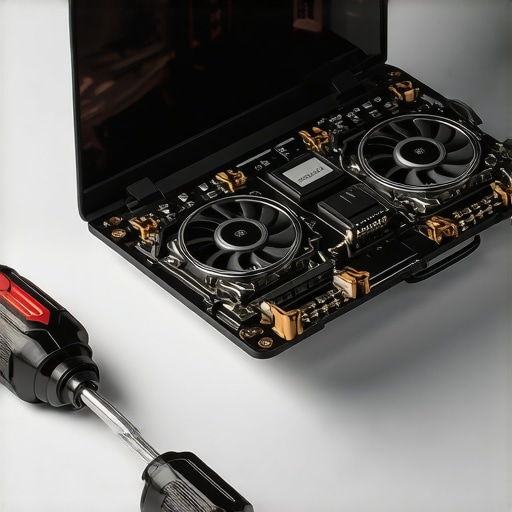
Stop Letting Dust Kill Your Frames
According to the technical maintenance documentation from Framework Computer, even a 0.5mm layer of dust on a copper fin-stack can reduce thermal efficiency by nearly 15%. This is the silent killer of game-changing gaming laptops for serious players in 2025. Once or twice a year, I go as far as refreshing the thermal interface material. It sounds extreme, but why we swapped the thermal paste on our brand new laptop comes down to the fact that factory paste is often applied in a ‘one-size-fits-all’ rush. Swapping to a high-conductivity compound like Thermal Grizzly Kryonaut can drop your temperatures by 5-8 degrees instantly, which directly translates to higher clock speeds and less fan noise.
How do I keep my laptop running like new for years?
The secret is a ‘Sunday Morning Strategy.’ Once a week, I run a TRIM command on my SSD and check for driver updates through the manufacturer’s portal—not just Windows Update. I also keep a curated list of must-have laptop accessories to boost your work setup, including a high-quality cooling pad that actually moves air rather than just looking pretty with RGB lights. If you are a student, I highly recommend checking out the only student laptops that actually survive a backpack drop, because physical durability is the foundation of any long-term maintenance plan.
The Future of Laptop Longevity
Looking ahead, I predict we are moving toward a ‘Modular Era.’ Companies like Dell with their Concept Luna are experimenting with snap-fit parts that require zero tools to replace. Until that becomes the global standard, your best bet is to stay proactive. Do not wait for the blue screen of death to start caring about your thermals. I challenge you to download a hardware monitor tonight and check your ‘Delta T’—if your CPU is idling above 50C in a cool room, it is time to open that chassis and give it the care it deserves.
Hard Lessons from My Most Expensive Tech Mistakes
After years of tinkering, I’ve realized that the spec sheet is only half the story. First, never assume a ‘pro’ price tag equals longevity. I once spent thousands on business laptops for professionals only to have them fail because I ignored simple airflow hygiene. Second, be ruthless with your ports. I learned the hard way that why cheap usb-c hubs might be killing your ports is a real concern; saving twenty dollars on a hub isn’t worth frying a two-thousand-dollar motherboard. Finally, remember that your software environment is just as important as your physical one. A cluttered OS is like a cluttered desk; it slows down even the fastest components. If you want a machine that feels brand new three years from now, you have to treat it as an evolving ecosystem rather than a static appliance.
The Zero-Fluff Toolkit I Use Every Day
I don’t believe in buying every gadget on the market, but there are a few non-negotiables for any serious setup. I always keep the specific screwdriver kit you need to open 90% of modern laptops in my drawer, because being able to clean your own fans is the single best way to prevent thermal throttling. For monitoring, HWiNFO64 is my gold standard for keeping an eye on ‘hot spot’ temperatures that standard monitors often ignore. I also suggest looking into the only 3 brands that still make easily repairable laptops if you’re tired of being locked out of your own hardware. These tools aren’t just about ‘fixing’ things; they are about understanding the pulse of your machine so you can catch failures before they happen.
Stop Being a Passive User and Take Control
Owning one of the game-changing gaming laptops for serious players in 2025 is a massive advantage, but that power comes with the responsibility of proactive maintenance. Whether you are balancing a heavy workload on top business laptops for productivity in 2025 expert recommendations or climbing the ranks in a competitive shooter, your hardware should work for you, not against you. Don’t be afraid to open that case, tweak those registry settings, or remap that annoying Windows key. The more you know about what’s happening under the hood, the less likely you are to be sidelined by a ‘random’ crash or a sudden frame drop. Your laptop is an investment in your productivity and your passion—treat it like one. Have you ever discovered a ‘hidden’ setting or a simple physical cleaning trick that completely changed how your laptop performed? Let me know your best hacks in the comments below!