
I was sitting in my home office, trying to render a quick demo for a client, when I noticed something bizarre. My laptop, which usually flies through these tasks, was wheezing. The fans weren’t even spinning that hard. It felt like the machine had just decided to take a nap while I was on a deadline. I checked my task manager and saw my CPU frequency locked at a pathetic 0.8GHz. I was plugged into the wall, so what gives? It turned out my “travel-friendly” charger was the culprit. I had fallen into the trap of thinking all USB-C bricks were created equal. They aren’t. I spent hours troubleshooting software when the problem was sitting right there on the floor. If you’ve noticed the real reason your gaming laptop feels sluggish is often tied to how it receives juice, you’re already ahead of the game. Today, we are going to dive into the symptoms of an underpowered charger and how you can reclaim the performance you actually paid for. Have you ever noticed your laptop getting strangely slow the second you plug it into a generic power bank or a different outlet?
How to Catch Your Charger Throttling Your Speed
One of the biggest mistakes I made early on was buying a cheap, third-party replacement from a random marketplace. I thought I was being savvy, but that “bargain” charger couldn’t handle the peak power draw of my workstation. When your laptop realizes it isn’t getting the wattage it needs, it enters a protective state. It’s like trying to run a marathon while breathing through a straw. It’s not just about the battery not charging; it’s about the system intentionally slowing down to avoid a total hardware crash. You might even find that your battery percentage drops while you’re plugged in—a classic sign of a system starving for power. For those of us using game-changing gaming laptops for serious players, this is the difference between a victory and a lag-induced defeat. To avoid these pitfalls, I always recommend looking for the secret to finding genuine OEM chargers on eBay rather than trusting a “universal” model that claims to do it all.
Does Your Laptop Actually Need the Original Power Brick?
There is a lot of skepticism around this. People often think manufacturers just want to upsell you on expensive accessories. While there’s a grain of truth to that, the engineering reality is more complex. According to hardware testing reports from PCWorld, modern laptops use a handshake protocol to identify the power source’s capabilities. If that handshake fails or reports a low wattage, the BIOS will immediately cap the CPU and GPU power limits. It is a safety mechanism to prevent the charger from overheating or catching fire. This is why I’m so picky about how to pick a power bank that won’t fry your motherboard. You need to understand the truth about high wattage chargers and battery longevity before you swap out your factory equipment. We’re going to walk through the software tools you can use to prove your charger is the bottleneck, so you don’t end up replacing a perfectly good laptop when all you needed was a better cable.
Dig Into the Data with Hardware Monitors
To stop guessing why your machine is slow, you need to see what is happening under the hood in real-time. I use a free tool called HWInfo64. When you open it, look specifically at the ‘CPU Package Power’ and ‘Performance Limit Reasons’ sensors. If you see a flag for ‘Power Limit Exceeded’ while you are just browsing, your charger is failing the handshake. I once sat in a coffee shop with one of those top business laptops for productivity in 2025, trying to finish a report. I’d grabbed a spare cable from my bag—a thin, flimsy thing meant for a phone. The laptop said ‘Plugged In,’ but the battery was actually draining. I opened HWInfo64 and saw the ‘Charge Rate’ was negative. My machine was consuming more power just staying awake than that cable could provide. I had to dim my screen to 10% brightness just to stop the bleed. If you are using game-changing gaming laptops for serious players, this software will literally tell you if ‘EDP Other’ or ‘PL1’ throttling is active, which are fancy ways of saying your power brick is being a bottleneck.
Verify Your USB-C Cable Rating
Not all cables are rated for high wattage, even if they look identical. Most standard cables top out at 60W. If your laptop needs 100W or more, a 60W cable will force the brick to downshift its output. Look for the ‘E-Marker’ chip inside the connector. High-quality must-have laptop accessories to boost your work setup usually specify if they are 100W or 240W rated. If the cable doesn’t have a visible rating printed on the sleeve, it’s probably the 60W variety. 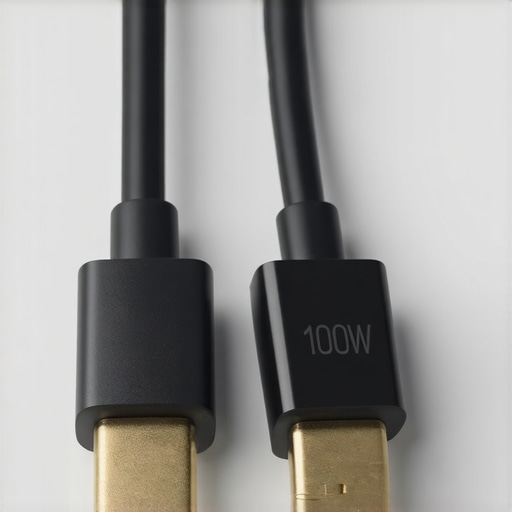
Hunt for Power Bottlenecks in Your BIOS
If your software looks fine but the laptop still feels like it is stuck in second gear, restart and mash that F2 or Delete key. Most modern machines have a ‘Power’ or ‘Battery’ section in the BIOS. Look for a setting called ‘Adapter Warnings.’ If this is disabled, your laptop might be silently throttling without ever telling you the charger is insufficient. I’ve seen this happen with unbeatable laptop deals where the seller included a generic travel charger that looked official but lacked the proper communication pins. While you are in there, check if the BIOS correctly identifies the wattage. If it says ‘Unknown Adapter,’ it doesn’t matter if it’s a 300W monster; the laptop will treat it like a 45W trickle charger. This is a common issue for student laptops that boost productivity and learning when students swap chargers in a dorm.
Force Your Hardware to Wake Up
If you are stuck with a lower-wattage charger and need a temporary boost, you can sometimes bypass the soft-throttle. Use a tool to how to undervolt your gaming laptop which reduces the total power demand. By lowering the voltage your CPU requires, you might bring the total system draw down enough that the underpowered charger can actually keep up. It’s like reducing the weight in a car so a smaller engine can still hit highway speeds. This won’t fix a broken brick, but it can get you through a presentation without the 0.8GHz stutter.There’s a common fear in the tech community that using a high-wattage charger will ‘fry’ a laptop designed for lower power. I’ve seen this countless times on forums—people terrified that a 140W GaN charger will blow the circuits of their ultra-portable. But the reality is exactly the opposite. In my experience, ‘over-speccing’ your charger is actually one of the smartest must-have laptop accessories for a seamless setup. Modern Power Delivery (PD) protocols are negotiation-based; the laptop requests power, the charger offers it, and they agree on a safe level. A 140W charger running a 65W load will run much cooler and last longer than a 65W charger pushed to its absolute limit. When a charger operates at 95% capacity, it generates significantly more waste heat, which degrades the internal capacitors. By using a beefier brick, you are operating in the ‘sweet spot’ of the efficiency curve.
Should You Ever Use a Charger with Higher Wattage than Your Factory Original?
The short answer is yes, as long as it follows the USB-PD standard. According to testing data from the USB Implementers Forum (USB-IF), the PD handshake happens in milliseconds to ensure voltage levels never exceed what the receiver can handle. The real danger isn’t high wattage; it is low-quality voltage regulation. This is why I always tell people to ignore the ‘universal’ bargain bin and stick to the best small chargers for travel heavy business trips from reputable brands. These units use Gallium Nitride (GaN) technology to maintain stable voltages even when the grid fluctuates.
Why Bigger Wattage is Actually Safer for Your Gear
If you are using game-changing gaming laptops for serious players, you know that peak power draw can spike during intense scenes. If your charger is exactly matched to your laptop’s average draw, those spikes will force the system to pull from the battery even while plugged in. This constant micro-cycling of the battery is what actually kills your capacity over time. Investing in a higher-capacity brick ensures the battery stays at a stable state of charge, effectively extending its life. I’ve switched my entire workflow to 100W+ bricks for everything, and my battery health has never been better. 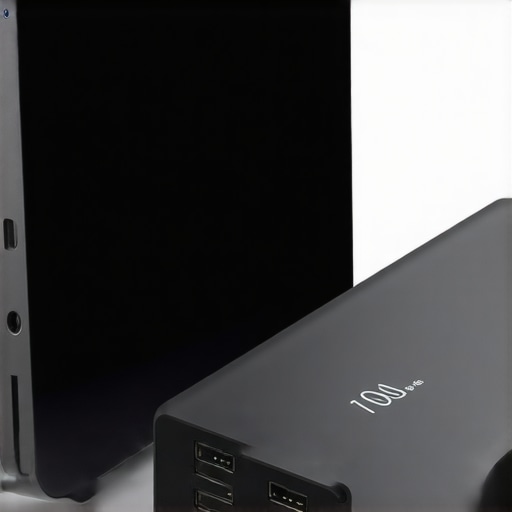
Stop Trusting Multi-Port Bricks Without Checking the Math
Here is the trap most people fall into: multi-port USB-C hubs and bricks. You might buy a ‘100W’ charger, but the moment you plug your smartphone into the secondary port, the internal circuitry reallocates the power. Suddenly, your primary port drops to 65W or 45W. If you’re running one of the top business laptops for productivity in 2025, the OS might not send a notification, but your CPU clock speeds will tank. This ‘invisible’ power drop is the reason many users think their laptop is getting old or buggy when it’s really just starving for juice. Always check the ‘power distribution map’ in the charger’s manual before you trust it with your workstation. Have you ever fallen into this trap? Let me know in the comments.
If you want to move beyond just surviving your deadlines and actually scale your setup for the long haul, you need a toolkit that tells you the truth about your hardware. I am a huge fan of the Windows command line for this. I regularly run the ‘powercfg /batteryreport’ command to generate a detailed HTML file that compares my original design capacity versus the current full charge capacity. This is how I caught a failing cell in one of my older top business laptops for productivity in 2025 before it started swelling and damaging the chassis. If you see your capacity dropping by more than 10% in a single year, your charging habits—or your charger itself—are likely the culprit.
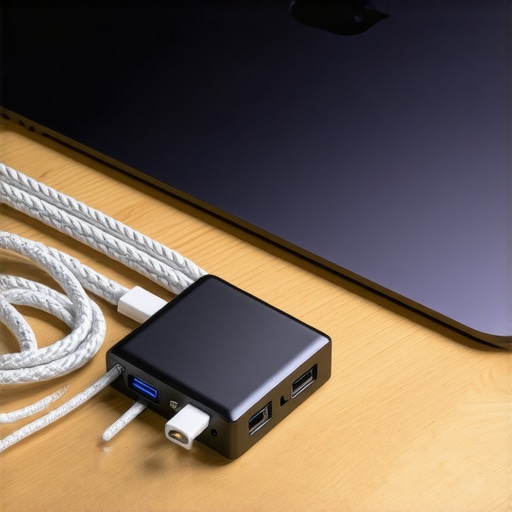
I also swear by a physical maintenance routine that most people ignore. I have seen colleagues complain about slow charging, only to find a compacted ball of pocket lint inside their USB-C port. This lint creates electrical resistance, which generates excess heat, eventually telling the charger to back off the wattage for safety. I use a thin plastic toothpick and a burst of compressed air every few months to keep the connection crisp. It is a much cheaper habit than paying for the hidden costs of repairing modern thin and light laptops later on. While you are at it, you should also learn how to check your laptop fan for dust without opening it because thermal heat and power delivery are two sides of the same coin; if the laptop cannot cool down effectively, the BIOS will never request full power from the brick.
How do I maintain my power delivery system over time?
Maintaining your laptop’s power health is about managing chemistry as much as hardware. I personally follow the ’80/20 rule,’ keeping my battery between 20% and 80% charge whenever possible. Most high-end game-changing gaming laptops for serious players now include software toggles that let you cap the charge at 80% automatically. This prevents the high-voltage stress that occurs when a battery sits at 100% while plugged in all day. If you have never done it, you should learn how to calibrate your laptop battery for better accuracy. This process resets the internal sensor so your operating system does not suddenly shut down when it incorrectly thinks you still have 15% juice left. It is one of those must-have laptop accessories for a seamless setup that is actually a free software habit.
Looking ahead, I predict we are about to see the end of the bulky proprietary power brick entirely. According to the official USB Implementers Forum (USB-IF) technical whitepaper on Extended Power Range (EPR), the move to 240W delivery over a single USB-C cable is fundamentally changing how motherboard VRMs handle heat and power distribution. We are already seeing this shift in the latest unbeatable laptop deals where even high-spec machines are ditching the heavy barrel connectors of the past. In two years, your smartphone charger and your heavy-duty workstation charger will likely be the exact same device.
My challenge to you is simple: open your laptop right now, run that battery report, and compare your design capacity to your actual capacity. If the gap is wider than 15%, it is time to stop using that bargain-bin cable that came with your headphones and invest in one of the best small chargers for travel heavy business trips to stabilize your power intake.
Lessons I Learned When My $3,000 Laptop Ran Like a Netbook
Over the years, I’ve realized that power delivery is the most overlooked component of any mobile workstation. Here are the lightbulb moments that changed how I treat my gear:
- Handshakes are non-negotiable: Your laptop and charger are literally talking to each other. If the charger doesn’t speak the right ‘language’ (PD protocol), your laptop will default to a ‘safe’ slow mode. This is why I always check the truth about high wattage chargers and battery longevity before trying a new brick.
- Wattage is a ceiling, not a floor: You can’t force too much power into a laptop, but you can definitely starve it. A higher-wattage charger is like having a larger gas tank; it provides headroom for those intense rendering or gaming sessions.
- The cable is a component, not a string: I used to think a USB-C cable was just a wire. It’s actually a data carrier that tells the system how much current is safe to pull. Using a phone cable for one of the game-changing gaming laptops for serious players is a recipe for frustration.
The Three Tools I Use to Audit My Charging Health
I don’t leave my productivity to chance. If you want to ensure your setup is actually delivering what it promises, I highly recommend these specific resources:
- HWInfo64: This is my go-to for real-time monitoring. It shows you the exact milliwatt draw of your CPU and GPU so you can see if they are being choked.
- Windows Battery Report: By typing ‘powercfg /batteryreport’ into your command prompt, you get a historical look at how your battery is aging. It’s essential for understanding the reality of 10-hour battery life claims versus your actual usage.
- Physical Port Maintenance: A simple plastic toothpick. I trust this more than any software to fix ‘slow charging’ issues caused by debris. It’s one of those must-have laptop accessories for a seamless setup that doesn’t cost a dime.
#IMAGE_PLACEHOLDER_E#
Don’t Let a Bad Cable Throttle Your Potential
Your laptop is a high-performance tool, and it deserves a clean, stable energy source to function at its best. Whether you are hunting for unbeatable laptop deals or maintaining a fleet of top business laptops for productivity in 2025, the power brick is the foundation of your experience. Stop settling for ‘good enough’ charging that leaves you with a sluggish machine and a hot battery. Take a moment to how to calibrate your laptop battery for better accuracy this weekend and see if your machine feels snappier. You might be surprised at how much hidden speed you can unlock just by giving your hardware the juice it actually needs. Have you ever noticed your laptop getting strangely slow while using a certain charger or hub? Let me know in the comments below.