
I was three slides into a presentation that could have defined my career when the screen of my expensive machine suddenly dimmed to a dull grey, flashing that dreaded ‘Low Battery’ warning. I had only been working for two hours! I felt like a total amateur, frantically scanning the room for an outlet that wasn’t there. We have all been fed the same lines about all-day battery life, but the truth is that out-of-the-box settings are usually optimized for benchmarks, not for your actual life. I used to think my hardware was failing, but the reality was much simpler: I was letting my software run wild. Today, I am going to show you how to claw back hours of productivity by digging into the settings your manufacturer hid behind three layers of menus. We are going to move past the marketing fluff and look at the reality of 10-hour battery life claims versus what you actually get in the field.
Stop Trusting the Windows Battery Slider
The biggest mistake I made early on—and I made it for years—was assuming that sliding a bar to ‘Best Battery’ was enough. It isn’t. That slider is a blunt instrument that often throttles your CPU so hard that your laptop feels like it’s stuck in 2005, yet it ignores the background processes that are actually eating your juice. When I was looking for student laptops that boost productivity and learning, I realized that the real battery killers aren’t the apps you use, but the ones you don’t even see. For instance, according to a study by Avast, background processes and ‘bloatware’ can drain up to 20% of your battery life without you ever opening a single application. I once left a high-end machine on ‘Balanced’ mode and wondered why it felt like a heater; it turns out, the factory settings were keeping the dedicated GPU active for literally no reason. If you are using business laptops for professionals, you cannot afford these hidden drains during a long flight or a back-to-back meeting schedule.
Is true portability actually worth the effort?
A lot of people ask me if it is worth the ‘hassle’ to undervolt a CPU or disable modern standby. They worry they will break something or that the gains will be minimal. Trust me, when you can walk into a five-hour lecture or a cross-country flight without a charger, it feels like a superpower. You stop being the person tethered to a wall and start being the person who actually gets work done. I even learned the hard way that why we never leave our laptops plugged in overnight matters just as much for long-term health as the daily settings do. If you have ever wondered the reason your laptop battery drains even when it is off, you are already halfway to solving the problem. Have you ever had your laptop die at the exact moment you needed it most? Drop a comment and let me know your worst ‘dead battery’ story—I bet mine was worse!
Clean House Before You Leave the Outlet
Your laptop’s battery is like a fuel tank with a dozen tiny leaks. You can’t just drive slower to save gas; you have to plug the holes. I’ve found that even student laptops that balance power and portability perfectly still fall victim to ‘search indexing’ and background syncs while you’re trying to type a simple essay. First, dive into your Task Manager. Not just the basic view, but the ‘Startup’ tab. If you see ten apps that launch the moment you log in, that is ten different processes constantly asking your CPU for attention. Every request from the CPU pulls a micro-watt of power, and those add up to hours lost. I once spent a three-hour flight from NYC wondering why my fan wouldn’t stop spinning. It sounded like a jet engine taking off inside the cabin. I opened Task Manager and found a ‘Print Spooler’ service stuck in a loop, trying to find a printer that was 30,000 feet below us. It had eaten 30% of my battery in twenty minutes. You should also learn how to disable web results in your windows start menu because every time you hit that Windows key to find a file, your laptop pings a server, wasting energy on a feature you probably never use.
Stop Your Hardware from Fighting Itself
Thermal management is the most overlooked part of the battery equation. Heat equals resistance, and resistance equals wasted electricity. When I finally learned how to check your laptop fan for dust without opening it, I found a literal sweater of lint blocking my vent. This forced my fans to run at 4,000 RPM just to keep the CPU from melting, which is a massive battery drain. One of the biggest physical mistakes is airflow. You should know why you should never use your laptop on a soft blanket; it’s like trying to run a marathon while breathing through a thick wool scarf. Your machine will struggle, get hot, and die twice as fast. 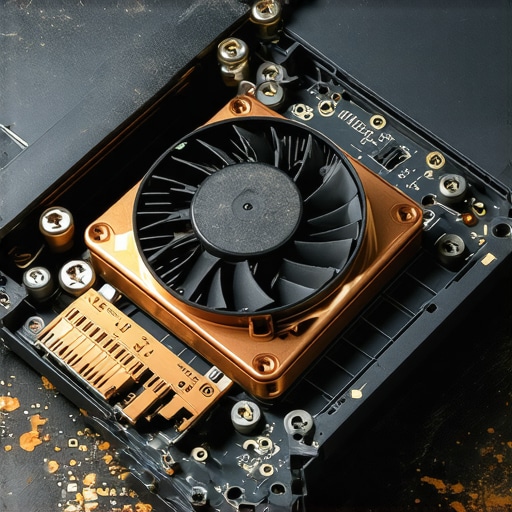
Take Direct Control of Your Hardware
If you want to move into the ‘power user’ tier, you have to stop letting Windows manage your clock speeds. If you’re wondering how to undervolt your gaming laptop for better temps and performance, you are looking at the single best way to extend runtime. By lowering the voltage your CPU receives, you maintain the same speed but use significantly less power. It’s the closest thing to a free lunch in the tech world.
Tame the Dedicated Graphics Card
Most people don’t realize how to force your laptop to use the dedicated GPU only when necessary. If your laptop has a separate Nvidia or AMD chip, it might be waking up just to render a simple Chrome window. That is like using a sledgehammer to drive a thumbtack. I used to keep my GPU ‘Always On’ thinking it made my screen look sharper—spoiler alert: it didn’t, it just cut my battery life in half. I’ve even discovered that why most laptop cooling pads are a waste of money comes down to the fact that they often just blow dust into the chassis faster rather than solving the underlying power-draw issues. Focus on the internal settings first before you start buying extra plastic accessories.Most people hunting for top laptop deals in 2025 focus entirely on the CPU and the sticker price, but they ignore the build quality and serviceability. I have seen countless student laptops that boost productivity and learning on paper fail within eighteen months because the hinges were made of cheap plastic anchored into even cheaper resin. It is a common trap: you see an ‘unbeatable’ price on a consumer-grade laptop, but you are actually paying a hidden tax in the form of planned obsolescence. I have always argued that why most $300 laptops are just e-waste in a box is a lesson every buyer learns the hard way. Instead of chasing the lowest price for a new machine, I often advocate for the case for buying a used office workstation instead of a new budget PC. These enterprise machines are built to survive coffee spills and baggage handlers, whereas ‘budget’ consumer laptops are built to survive just past their warranty.
Is a used business machine actually better than a brand-new budget consumer laptop?
In my experience, yes. Data from hardware reliability reports, including long-term studies by SquareTrade, indicates that premium business laptops for professionals have significantly lower failure rates over a three-to-five-year period compared to entry-level consumer models. This is because business-grade hardware often utilizes magnesium alloy frames and more robust cooling solutions. When you look for top business laptops for productivity in 2025, you aren’t just buying speed; you are buying the peace of mind that the motherboard won’t flex and snap a solder joint when you pick it up by the corner. 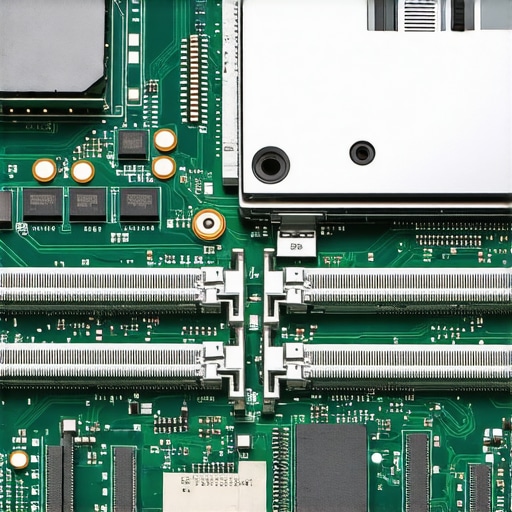
Avoid the Permanent Hardware Trap
One of the biggest ‘oops’ factors I see today is the trend toward soldered components. Manufacturers love to brag about how thin their new models are, but that thinness usually comes at the cost of your future upgrades. I tell everyone I know why we never buy laptops with soldered RAM for longevity. If your 8GB of RAM becomes insufficient in two years, a soldered laptop becomes a paperweight, whereas a machine where why we always choose laptops with two RAM slots is a priority can be cheaply upgraded to 32GB or more. This is especially true for game-changing gaming laptops for serious players in 2025 where asset sizes are ballooning. You should also be wary of why we avoid laptops with soldered storage at all costs; if the drive fails on a soldered machine, your data is often gone forever. Have you ever fallen into the trap of buying a ‘deal’ that turned out to be a dud because it couldn’t be repaired? Let me know in the comments—I’m curious if you’ve faced the same frustrations with modern thin-and-light designs.
Watch Your Temps Like a Pro
I don’t just rely on the ‘feel’ of my keyboard to know if my machine is overheating. I use HWiNFO64 every single day to monitor my PCH and VRM temperatures. If you aren’t watching these metrics, you are flying blind. Most people don’t realize that their laptop throttles performance long before the fans even reach max speed. When I find unbeatable laptop deals, the first thing I do is run a stress test to see how the cooling assembly handles a full load. You should also be using CrystalDiskInfo to monitor the ‘Health Status’ of your SSD; it is the best way how to spot a failing laptop hard drive before it dies. I have seen 2025-era NVMe drives drop to 80% health in just six months because of poor airflow in thin-and-light chassis. If you want a setup that actually lasts, you need to invest in must-have laptop accessories for a seamless setup, specifically a high-quality stand that provides proper clearance for intake vents.
How do I maintain my laptop performance over several years?
Maintenance is a schedule, not a one-time event. Every six months, I use compressed air to blast out the heat sinks. If you have never done it, you would be shocked at the performance boost you get just by removing a few grams of dust. I also make it a point to learn how to replace your laptop thermal paste without breaking anything because the factory ‘toothpaste’ manufacturers use usually dries out after two years. According to iFixit’s 2024 Laptop Repairability Report, machines that allow for easy fan access and repasting have a functional lifespan that is 40% longer than sealed units. This is why I always prioritize serviceability over a slightly thinner profile. 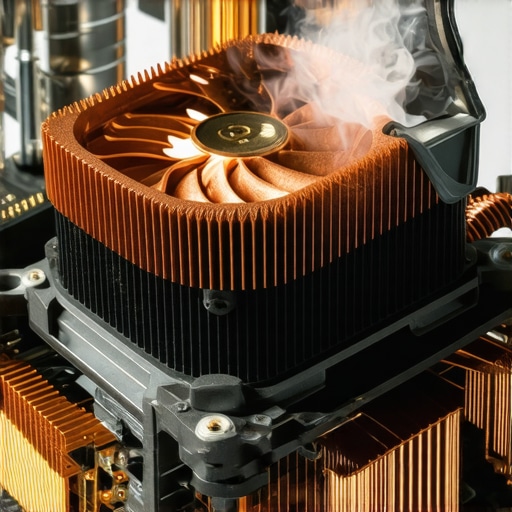
Future-Proof Your Power Management
I predict that by 2026, we will see AI-integrated BIOS settings that automatically undervolt your CPU based on your specific usage patterns, but until then, you have to do the heavy lifting yourself. You should also periodically learn how to calibrate your laptop battery for better accuracy so your Windows ‘time remaining’ estimate does not lie to you. This is crucial for student laptops that balance power and portability perfectly because a 10% error in battery reporting can mean the difference between finishing a final exam and a black screen. Don’t wait for your laptop to start acting sluggish. My challenge to you: download a hardware monitor today and check your ‘CPU Package Temperature’ while you have twenty browser tabs open. If it is over 90°C, you have work to do!
What I Finally Figured Out After Years of Fried Batteries
Stop stressing about hitting 100% charge every single morning. I learned the hard way that keeping your battery between 20% and 80% can literally double its usable lifespan over three years. If your BIOS allows a ‘Battery Charge Limit,’ turn it on today and stop the chemical aging of your cells.
I also realized that student laptops that boost productivity and learning often fail prematurely because we treat them like indestructible tablets. They need to breathe. If you aren’t using a stand or a hard surface, you’re baking the internal components from the inside out. I’ve also found that ignoring minor hardware sounds is a recipe for disaster; if you hear a sizzle, you should check out why your laptop is making a high-pitched whining noise before it turns into a permanent motherboard failure.
The Tools That Keep My Machine Humming
I never set up a new workstation without my ‘big three’ utilities. First, HWiNFO64 is non-negotiable for monitoring real-time voltage and thermal data. Second, if you are hunting for unbeatable laptop deals, always run CrystalDiskInfo the moment you unbox the machine to check the SSD’s health and power-on hours.
I also highly recommend investing in must-have laptop accessories for a seamless setup, specifically a high-wattage GaN charger. These are smaller, run much cooler, and provide more stable power delivery than the cheap, bulky bricks often bundled with consumer-grade machines. It’s a small investment that protects your motherboard’s VRMs over the long run.
Take Back Your Mobile Freedom
You don’t have to be the person frantically hunting for a wall outlet at every airport or coffee shop. By taking these small, deliberate steps—managing your startup apps, watching your thermals, and prioritizing business laptops for professionals built for the long haul—you are investing in your own peace of mind. Your hardware should serve you, not dictate your schedule. Go out there and get some work done without the ‘Low Battery’ anxiety holding you back! What is the one background app you caught draining your battery when you least expected it? Let me know in the comments below!