
Picture this. You are finally settling into a train seat or a cozy cafe corner, ready to dive into an intense session on your laptop. You boot up your favorite game, take your hands to the keys, and click. Within seconds, everything turns into an unplayable, choppy slide-show. That buttery-smooth 140 FPS you had at home has suddenly tanked to a sluggish 24 frames per second. It feels like your premium machine was instantly swapped for a budget computer from a decade ago. It is incredibly frustrating, especially when you spent hard-earned money on powerful hardware.
The Day My Portable Powerhouse Became a Slide Projector
I remember when I bought my first high-end gaming rig. I wanted to show off its performance to some friends while sitting on the porch. I unplugged the brick, walked outside, fired up a heavy title, and watched my screen stutter into oblivion. I thought the machine was broken. I spent hours reinstalling drivers, tweaking system files, and pulling my hair out. Early on, I made the classic rookie mistake of thinking Windows power plans were the only thing throttling my machine. The truth, however, is deeply tied to the physical limitations of lithium-ion batteries. In fact, standard laptop batteries simply cannot safely deliver the massive wattage required by a dedicated graphics card and CPU running at full load simultaneously. The discharge rate would literally overheat or destroy the battery, forcing the system to severely cap power draw.
Is gaming on battery actually a myth?
You might be wondering if you can ever truly get full performance while on the go. The short answer is no, not in the way you expect from a wall outlet. But that does not mean your portable machine is useless when unplugged. Today, we are going to look at exactly why this bottleneck occurs and what you can do to optimize your portable gaming experience. For instance, understanding the real reason your gaming laptop feels sluggish on battery can save you hours of unnecessary troubleshooting. Once you know how the hardware behaves, you can start making smart adjustments. If you want to dive deeper into getting the most out of your setup, check out these game-changing gaming laptops for serious players in 2025 to see how modern hardware handles power management. Have you ever tried to play a demanding game unplugged only to have it lag immediately? Let me know if you managed to find a workaround or if you just gave up and plugged it back in.
How to Force Your Machine to Cooperate
Getting decent frames when you are away from the wall requires active intervention. You cannot rely on Windows default settings to handle the transition smoothly. Think of your laptop like a hybrid car: when you unplug it, the system automatically switches to an eco-friendly mode that prioritizes fuel efficiency over raw speed. To get any playable performance, you have to manually force the hardware components to work together in harmony rather than letting the operating system choke the graphics processor.
Take Direct Control of Your Dedicated Graphics Card
By default, Windows will aggressively try to switch your laptop to integrated graphics the moment you pull the plug. It does this to save power, but it will instantly tank your performance in any 3D environment. I discovered this the hard way when I tried to run a quick multiplayer match during a flight delay. My frame rate hovered around 15 FPS because the system was relying on the weak processor graphics. To fix this, you must learn how to force your laptop to use the dedicated GPU through your Nvidia or AMD control panel. Manually assigning your high-performance chip to the game executable ensures the system actually uses the hardware you paid for, even when running on battery juice.
Cap Your Frame Rate to Save Resources
If you let your graphics card run completely unrestricted on battery power, it will try to hit high frame rates, drain your battery in twenty minutes, and then heavily throttle due to thermal buildup. The secret is to use a frame rate limiter. Capping your game at 30 or 40 FPS might sound painful if you are used to 144Hz, but a stable, flat 30 FPS line is infinitely better than a choppy ride that swings between 90 and 10 FPS. I started using Nvidia WhisperMode to lock my portable sessions to 40 FPS, and it completely transformed my mobile gaming. The cooling fans stayed quiet, and the gameplay remained consistent for over an hour. If you find your laptop is still struggling with power delivery, you might want to learn how to tell if your laptop is being throttled by its charger or if the internal battery cells are simply unable to meet the high hardware demands.
Adjust Windows Power Slider and In-Game Resolution
Do not just set your Windows battery slider to Best Performance. This often causes the CPU to boost unnecessarily high, generating massive heat and eating up the limited wattage that your graphics card actually needs. Instead, keep the slider on Balanced, but lower your in-game resolution from 4K or 1440p down to 1080p or even 720p. On smaller screens, the drop in resolution is barely noticeable, but the performance gains are massive. If you are shopping around for a new machine and want to avoid these power struggles, look at student laptops that balance power and portability perfectly to see how newer processors manage battery life much more efficiently under moderate gaming workloads.
The Myth of the Ultimate Do-It-All Power Plan
Everyone tells you to simply toggle your slider to “Best Performance” or download third-party software to overclock your system when unplugged. In my experience, however, pushing your hardware to its absolute limit on battery power is actually the fastest way to permanently degrade your system. Many users believe that if they paid for top-tier silicon, they should be able to force it to run at 100% capacity anywhere. But aggressive power draw doesn’t just drain your battery quickly; it generates localized micro-heat zones that can degrade the lithium-ion cells much faster than standard thermal exhaust systems can handle. According to battery safety guidelines published by researchers at Battery University, drawing current at high C-rates under elevated temperatures accelerates capacity loss exponentially.
Why Do Laptop Manufacturers Limit Out-of-the-Box Settings?
Manufacturers design these strict performance limits not to annoy you, but to keep your motherboard from warping. When you bypass these safety margins using custom BIOS hacks or registry edits, you risk causing permanent silicon degradation. This is the ultimate “Oops” factor for mobile power users. You might get an extra 15 frames per second for a few weeks, only to find your machine shutting down randomly because the voltage regulators can no longer sustain a clean current. Instead of forcing raw power, a much smarter approach is to invest in smart peripherals. If you want to optimize your physical environment for mobile work or play, check out the must-have laptop accessories to boost your work setup. These tools can help manage thermal output and improve ergonomics without risking your expensive internal hardware.
The False Economy of Budget Upgrades
When trying to resolve performance stuttering, many users make the mistake of buying cheap cooling pads or generic USB hubs, hoping they will somehow stabilize the system’s power delivery. In reality, low-quality accessories often draw unstable current from your laptop’s USB ports, further complicating the system’s internal power management. I have seen cheap cooling pads actually push dust deeper into the chassis, causing worse thermal throttling over time. If you want a reliable setup, prioritize quality over cheap quick-fixes. Have you ever fallen into this trap of buying cheap accessories only to realize they made things worse? Let me know in the comments below.
Maintaining high-performance hardware over time requires more than just running a disk cleanup utility once a month. To keep your gaming laptop or high-end business machine from turning into a loud, hot paperweight, you need a proactive maintenance routine. Personally, I rely heavily on custom monitoring software like HWiNFO64 to keep an eye on real-time voltage draw and temperature sensors. By monitoring how your components behave under load, you can catch performance drops before they damage your internal hardware. If you are noticing sudden drops in speed, you might need to investigate how to tell if your laptop is being throttled by its charger rather than assuming your internal hardware is failing.
How do I maintain my laptop hardware performance over time?
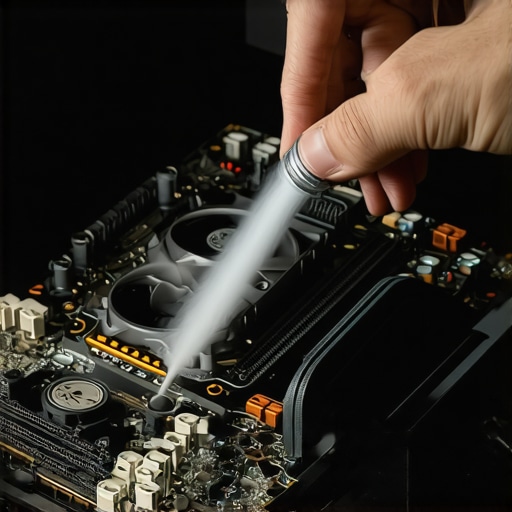
The single most effective physical maintenance step I perform is a deep dust cleaning every six months. You would be amazed at how quickly fine dust builds up inside tiny laptop exhaust fins, acting like an insulating blanket that spikes system temperatures. When cleaning, always hold the internal fans still with a toothpick or finger before using compressed air; letting them spin freely from the high-pressure air can generate static electricity and permanently fry the motherboard. For those concerned about static, learning how to properly ground yourself before opening a laptop is a non-negotiable step before touching any internal component. Additionally, I recommend using a high-quality battery limiter software like ASUS G-Helper or Lenovo Vantage to limit your maximum battery charge to 80% if your machine stays plugged into a desk most of the day. This simple software tweak alone can double the overall lifespan of your lithium-ion cells.
Looking ahead, I predict we will soon see a massive shift in how portable power is managed. Intel and AMD are rapidly developing hybrid architectures that rely on integrated neural processing units (NPUs) to dynamically allocate power. Within the next few years, machine learning models running locally on your laptop will likely predict your exact processing needs millisecond by millisecond, smoothly balancing battery output without the need for manual power plan tweaking. Until then, the responsibility of keeping the machine healthy falls on us. I highly encourage you to download a sensor monitor today, check your current operating temperatures under load, and apply a frame rate cap on your favorite portable titles to see how much cooler and quieter your system runs.
What Laptop Brands Won’t Tell You About On-the-Go Gaming
Over years of testing premium rigs, I have noticed three silent truths that manufacturers prefer to keep buried in the fine print of their user manuals:
- The 30-watt hard limit: No matter how powerful your dedicated graphics card is, your lithium-ion battery will rarely feed it more than 30 to 35 watts without risking thermal runaway. This is why a top-tier GPU suddenly performs like an entry-level chip the moment you unplug.
- Software profiles can lie: Selecting “Performance Mode” in proprietary control centers often just raises the fan speeds and increases CPU voltage, rather than actually unlocking the hardware power limits. It makes more noise, but yields almost zero extra frames.
- The passive drain effect: Keeping features like RGB lighting, high-frequency keyboard polling rates, and background cloud syncing active can consume up to 15% of your battery’s total capacity per hour, leaving even less headroom for your processor.
My Essential Toolkit for Mobile Power Users
You do not need to spend hundreds of dollars to keep your system performing beautifully. These are the specific, low-cost tools and resources I personally rely on to manage my mobile workspace:
- HWiNFO64: This free diagnostic utility is the gold standard for monitoring real-time voltage limits and thermal throttling. It lets you see exactly why your system is dropping frames.
- ASUS G-Helper or Lenovo Vantage: Lightweight alternatives to bloated proprietary software that allow you to set strict battery charge limits to double your battery’s physical lifespan.
- A Premium Sleeve: Physical protection matters as much as software tweaks. I always keep my machine in the best laptop sleeve for maximum drop protection to shield fragile internal solder joints from the vibration of travel.
- Quality Power Banks: When you need to extend your session, you must know how to pick a power bank that won’t fry your motherboard to avoid expensive hardware damage.
Take Back Control of Your Portable Machine
You do not have to accept terrible performance or ruined hardware just because you want to work or play away from a wall outlet. By understanding the physical limits of your battery, capping your framerates to manage heat, and keeping your cooling vents completely clear of dust, you can enjoy a incredibly smooth and reliable portable experience. Take things one step at a time, adjust your settings before you start your next mobile session, and protect your investment for years to come.
Have you ever struggled with sudden slowdowns or extreme battery drain while trying to use your laptop on a trip? Let me know what tricks you used to fix it in the comments below!