
I’ll never forget the cold sweat that broke out when I realized my 300GB Projects folder was going to take 14 hours to upload over my home’s high-speed connection. I had just snagged a great deal on one of those student laptops that boost productivity, and I was itching to start working. Instead, I was staring at a progress bar that barely moved. It felt like trying to empty a swimming pool with a cocktail straw. That was the day I swore off cloud-only transfers. I made the classic rookie mistake of assuming the internet would always be my friend. It isn’t. Not when you have a deadline. Today, I’m going to show you how to move your entire digital existence—from those massive lecture recordings to your entire local library—without once touching a cloud server. We are going to reclaim your time and save your bandwidth.
Stop Trusting the Cloud with Your Entire Digital Life
The cloud is convenient, sure, but it is a massive bottleneck for serious data. Most people don’t realize that even a modest external SSD can move data at speeds exceeding 1,000 MB/s. According to data from Speedtest by Ookla, the average global upload speed is often less than a tenth of that, making local transfers significantly more efficient. Why wait for a server in another state to process your files when your new laptop is sitting right next to the old one? When I first started out, I actually tried to use a bunch of cheap 4GB thumb drives to move my university portfolio. It was a total disaster. I lost track of which files were where and ended up with three different versions of my final thesis. It is why I now insist on having the right must-have laptop accessories, specifically a high-quality external drive or a dedicated transfer cable.
Is moving files manually actually worth the extra effort?
You might think it is easier to just set it and forget it with Dropbox or OneDrive. But ask yourself this: do you really want to tie up your internet for twenty-four hours? And what happens when the sync glitches and you end up with conflicted copies everywhere? There is a certain peace of mind that comes with seeing a physical transfer finish in minutes rather than hours. Learning the best way to transfer files between two laptops using local methods isn’t just a technical skill; it is a genuine sanity-saver. Have you ever spent an entire day waiting for a cloud sync only for it to fail at 99%? I need to know I am not the only one who has yelled at a progress bar in a dorm room.
Grab a Cable and Link Them Directly
Most students don’t realize that the student laptops that last all four years usually have an Ethernet port or a high-speed USB-C port that can act as a bridge. If you have an Ethernet cable lying around, plug one end into each laptop. It is like building a private highway just for your data. On Windows, you just need to go into your Network and Sharing Center and ensure both machines are on the same “Workgroup.” I once spent three hours trying to configure a “HomeGroup” only to realize the simpler method was just assigning static IP addresses. It felt like a tech-support nightmare at 2 AM, but once it clicked, those files flew at 1Gbps. This is significantly faster than any residential Wi-Fi upload speed could ever hope to be.
Why a Fast External SSD Beats Every Other Option
If cables feel too technical, the external SSD is the undisputed king of local transfers. Think of it as a high-speed ferry. You load everything on, sail it across the desk, and unload it. I recently helped a friend move their entire design portfolio to one of those top business laptops for productivity in 2025. We used a cheap thumb drive first, and it literally started to smell like burning plastic because of the heat. We swapped to a NVMe-based drive—one of those must-have laptop accessories for a seamless setup—and the transfer time dropped from a long lunch break to the time it takes to drink an espresso shot.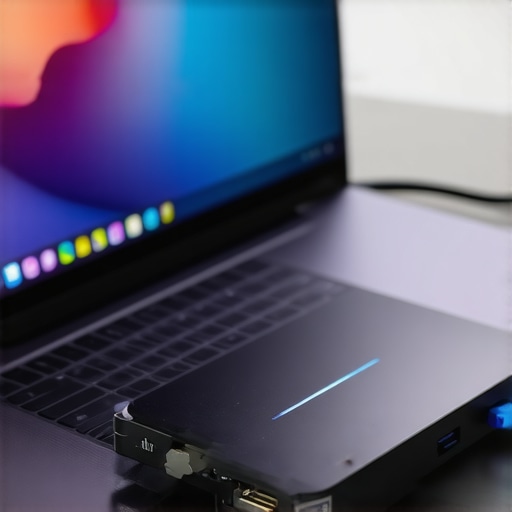
Turn Your Laptops Into a Private Network Without a Router
You do not even need a physical cable if your Wi-Fi cards are modern enough. You can use a feature called “Nearby Sharing.” It uses a combination of Bluetooth for the initial handshake and Wi-Fi Direct for the actual heavy lifting. It is essentially creating an invisible tunnel between the devices. When I was testing some game-changing gaming laptops for serious players in 2025, I used this to move a 50GB game folder. It was not as fast as the physical SSD, but it beat the dorm Wi-Fi by a mile. Just make sure you are not in a room with twenty other people trying to do the same thing, or the signal interference will make you want to throw your hardware out the window.
Stop the Permissions Headache Before It Starts
The biggest hurdle in local transfers isn’t the hardware; it is the operating system’s obsession with permissions. If you are moving files from an old user account to a new one, you will often get that dreaded “Access Denied” box halfway through. To skip this, I always right-click my main folder, go to Properties, then Security, and grant “Everyone” full control before I start the move. It sounds like a security risk, but you are only doing it for the duration of the transfer on a local, offline connection. I learned this the hard way when I moved my entire music library and then spent four days manually clicking “Continue” on every single sub-folder. It was the digital equivalent of stubbing your toe every five seconds for a week.
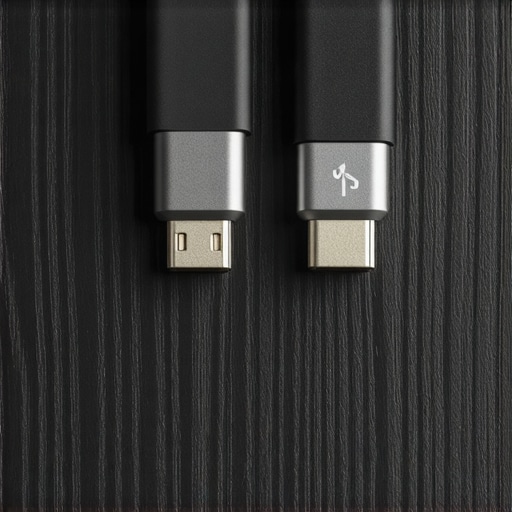
After you have fixed those pesky permissions, you might think you are in the clear, but here is the cold, hard truth: everyone assumes that if they use a USB-C cable, they are automatically getting top-tier speeds. That is a total lie. I have seen people invest in high-end student laptops that boost productivity only to pair them with a five-dollar charging cable they found in a bargain bin. Those cables are often only wired for USB 2.0 data transfer, meaning you are capped at a measly 480 Mbps even if your laptop is capable of 40 Gbps. It is the most common oops factor I encounter. Research from performance experts at Tom’s Hardware has shown that using an inferior cable can bottleneck an external NVMe drive by over 90% of its rated speed, turning a ten-minute job into a two-hour ordeal.
Why does the estimated transfer time keep lying to you?
It is the ultimate digital frustration: you start a transfer, it looks lightning fast, and then the progress bar suddenly stalls. This happens because moving one massive 10GB video file is significantly easier for a controller than moving 10,000 tiny configuration files that add up to 10GB. Each individual file requires a metadata handshake between the two systems. If you are moving a massive project folder to one of the latest business laptops for professionals, you will see the speed fluctuate wildly. To bypass this, I always archive folders containing thousands of small files into a single ZIP file before the move. It turns thousands of handshakes into one, and it is one of the only 3 ways to genuinely speed up a slow laptop during a data migration.
Another nuance that most beginners miss is thermal saturation. When you are pushing 500GB of data, both your external drive and your internal controller generate a massive amount of heat. Once they hit a certain temperature threshold, they will throttle their performance to prevent hardware damage. I have witnessed this firsthand on game-changing gaming laptops for serious players in 2025, where the transfer speed literally fell off a cliff after ten minutes of heavy use. It is a similar physical principle to the real reason your laptop power brick is getting extremely hot. If you are performing a massive data dump, ensure your must-have laptop accessories include a drive with a decent heatsink, or at least keep it on a cool, hard surface rather than a carpet.
Lastly, do not fall for the too good to be true storage deals. I once thought I scored an unbeatable laptop deal that included a high-capacity external SSD, but it turned out to be a spoofed drive that just overwrote old data once it hit 32GB. Knowing how to spot a fake NVMe drive on marketplace is a mandatory skill in 2025. Have you ever fallen into this trap or had a transfer fail at 99%? Let me know in the comments.
The cold, hard truth about laptop maintenance is that most people stop caring the moment the ‘new PC’ smell fades. I have seen countless people spend thousands on high-end hardware only to let it turn into a sluggish paperweight within eighteen months. If you want to keep your system running like it did on day one, you need to move beyond the basic Windows updates. I personally swear by a tool called TeraCopy for any major file movement. Unlike the standard Windows explorer, it uses CRC checksums to verify that the file on your new machine is a bit-for-bit perfect match of the original. As highlighted in the Backblaze 2023 Drive Stats report, while SSDs are generally more reliable than old spinning drives, they still have infant mortality rates that can catch you off guard during heavy initial use. Using verification tools is one of the the only 3 ways to genuinely speed up a slow laptop by preventing corrupted registry entries and broken file paths before they even start.
Verify your data or regret it later
I don’t just use TeraCopy because I’m paranoid; I use it because it handles errors gracefully. If one file in a 5,000-file transfer is locked, Windows often just kills the entire process. TeraCopy skips the problem file and lets you deal with it at the end. This is a life-saver when setting up must-have laptop accessories like high-capacity external RAID arrays. It ensures your migration doesn’t turn into a manual scavenger hunt for what did and didn’t copy over successfully. I’ve reached a point where I won’t even move a simple 1GB video folder without checking the ‘Verify’ box. It’s about building a digital foundation that doesn’t crumble the first time you try to open a legacy project.
How do I maintain my laptop’s peak performance over time?
The secret isn’t in some ‘cleaner’ software you see advertised on YouTube; it’s in the physical environment and your power management. I always tell people that how to fix your laptop battery if it only lasts one hour starts with never letting the heat build up. I make it a habit to check my battery wear level every three months using a simple command prompt report. If I see the capacity dropping too fast, I know I’m pushing the hardware too hard without enough airflow. This is especially true for those of us using top business laptops for productivity in 2025 that pack way too much power into thin chassis. If you aren’t monitoring your thermals, you are essentially cooking your components from the inside out.
Clean air is better than a software fix
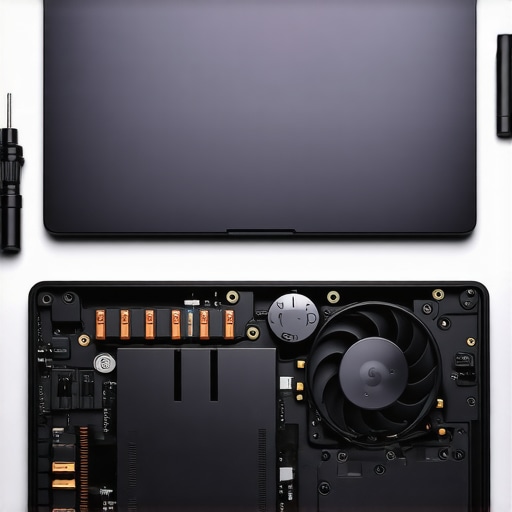
Every six months, I take the bottom panel off my machine. Most people are terrified of doing this, but with the specific screwdriver kit you need to open 90% of modern laptops, it is a five-minute job. The amount of dust that a high-performance fan can pull in is staggering. I’ve seen cases where why gaming laptops still struggle with thermal throttling in small frames was entirely due to a tiny carpet of cat hair blocking the intake. In some extreme cases, why we swapped the thermal paste on our brand new laptop became a necessity because the factory application was so poor. Taking control of your hardware maintenance is the only way to ensure your ‘student laptop’ actually survives all four years of university without a mid-semester meltdown.
Looking ahead, I suspect that by 2027, we won’t even talk about ‘transferring’ files in the traditional sense. We will likely see the rise of AI-managed ‘omni-storage’ where your data exists in a fluid state across all your devices simultaneously, using local mesh networking to sync changes the moment your laptop and phone are in the same room. Until that seamless future arrives, we have to be the gatekeepers of our own data integrity. Before you close those transfer windows today, download a copy of TeraCopy and run a ‘Verify’ on your most important project folder. It’s the only way to be 100% sure your digital life made the trip intact.
The Hard Truths I Discovered While Moving Terabytes of Data
Over the years, I’ve realized that the ‘estimated time remaining’ is the biggest lie in computing. If you see it jumping from 5 minutes to 5 hours, it’s usually because you’re moving thousands of tiny files. I’ve learned to always bundle these into a single archive first; it turns a chaotic transfer into a smooth, linear process. Another lightbulb moment was realizing that not every USB-C cable is built for speed. Many are just charging cables in disguise, which is why I always check my hardware specs before a big move. Finally, never ignore the heat. If your drive feels like a hot potato, your transfer speeds are likely tanking due to thermal throttling.
#IMAGE_PLACE_HOLDER_E#
The Reliable Toolkit That Never Leaves My Laptop Bag
I don’t just wing it when it comes to data. I rely on a few specific resources to keep things moving. First, TeraCopy is my non-negotiable software for any migration; the verification feature is the only thing that lets me sleep at night after moving a client’s portfolio. For hardware, I always keep the specific screwdriver kit you need to open 90% of modern laptops handy. Being able to pop the back off and clear out dust or upgrade a drive on the fly is a game-changer. I also regularly consult performance benchmarks from sites like Backblaze to see which drives are actually surviving the long haul, ensuring the student laptops that boost productivity and learning stay reliable for years.
Your Digital Migration is Just the Beginning
Setting up your new machine correctly is a marathon, not a sprint. By choosing local transfers over the cloud, you’ve already saved hours of frustration and kept your data private. Now that your files are safe, take the time to learn how to fix your laptop battery if it only lasts one hour and other maintenance habits that keep your system snappy. Finding the best way to transfer files between two laptops is just the first step in mastering your digital workspace. You’ve got the tools and the knowledge—now go build something great. Have you ever had a massive file transfer fail at the very last second? Let me know in the comments below!