
I’ll never forget the smell of scorching plastic that wafted from under my duvet at 2 AM. I was deep into a deadline, snuggled up with my favorite 15-inch powerhouse, when the fan suddenly hit a pitch I didn’t know was possible. It sounded like a jet engine taking off from my kneecaps. I reached down, touched the bottom of the casing, and nearly yelped. It was blistering. That night, I didn’t just lose my progress; I realized I was slowly killing my machine. We’ve all been there, right? The lure of the soft pillows is stronger than the logic of airflow. But here is the truth: your bed is basically a thermal trap designed to suffocate your hardware. I’m going to show you exactly how to avoid my expensive mistakes and keep your system running at peak performance without leaving your comfort zone. [IMAGE_PLACEHOLDER]
Why Your Duvet is a Silent Laptop Killer
Most of us treat our machines like books, but they breathe like athletes. When you plop your device onto a soft comforter, those tiny rubber feet—the ones designed to create a sliver of space for air—sink into the fabric. The intake vents are instantly blocked. This is especially dangerous for high-performance game-changing gaming laptops that generate massive amounts of heat. I made the mistake of thinking my “cooling vents” were on the side, ignoring the massive intake grilles on the bottom. It was a rookie move that nearly cost me a three-thousand-dollar investment. If you aren’t careful, you’ll end up looking for guides on how to replace a dead laptop fan sooner than you think.
Is it actually worth the risk of working in bed?
You might think I’m being dramatic, but the science is on my side. A report from the University of Hertfordshire suggests that prolonged exposure to the heat generated by laptops can lead to “Toasted Skin Syndrome,” a mottled skin condition caused by chronic heat exposure. Beyond your skin, the internal components like your SSD and CPU have a finite lifespan that is drastically shortened every time they “thermal throttle” to stay alive. I’m here to tell you that you don’t have to give up your cozy Sunday mornings. We just need to change the way you set up your space. By using a few tactics to stop your laptop from overheating on your bed, you can protect your tech and your comfort at the same time.
Your Lap is Not a Flat Surface
The biggest hurdle is the uneven nature of blankets. Even if you think you’ve cleared a spot, the moment you move your leg, the fabric shifts and seals those vents again. I used to try and balance my laptop on a large hardcover book, but that just turned into a sliding disaster. Have you ever felt that momentary panic when your laptop starts sliding toward the edge of the bed because you dared to reach for your coffee? It’s not a fun way to work. We need a solution that provides a rigid, breathable barrier between the fluff and the fans. This is where investing in some must-have laptop accessories becomes a game-changer rather than just another expense. It is about working smarter, not just harder. Have you ever noticed your computer slowing down significantly after just twenty minutes of bedside browsing?
Get Off the Duvet and Onto Something Solid
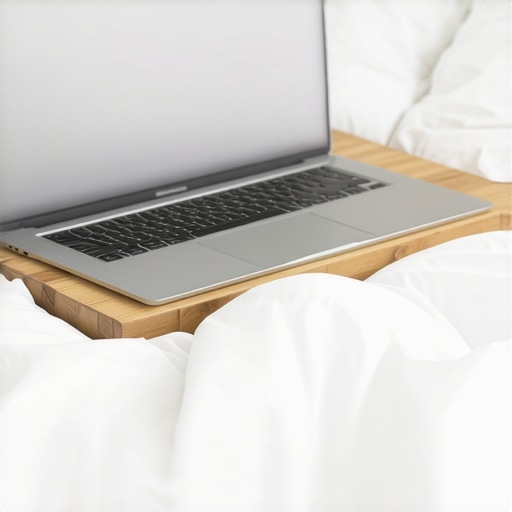
If you’re serious about your setup, you need a lap desk. Think of it as a foundation for a house; without it, everything eventually sinks. I once thought I was being clever by using a cardboard pizza box as a makeshift stand. Not only did the grease transfer to my chassis, but the heat from the GPU actually started to warp the cardboard, making it smell like toasted pepperoni. It was a disaster. Instead, looking for must-have laptop accessories to boost your work setup will save you that embarrassment. A rigid surface ensures those tiny rubber feet can actually do their job, creating a ‘wind tunnel’ effect that lets air circulate. If you don’t want a bulky desk, check out the only laptop stands that dont shake while you type for a more portable solution.
Take Control of Your Fan Speeds Before They Take Control of Your Sanity
Switching your power profile is another quick win. When you’re on the bed, you probably don’t need ‘Turbo Mode’ for browsing Reddit. Most game-changing gaming laptops for 2025 adventures come with software that lets you toggle to a ‘Quiet’ or ‘Power Saver’ mode. This limits the CPU’s clock speed, which in turn reduces heat output significantly. It’s like shifting your car into a lower gear when you’re just coasting—you save fuel and the engine doesn’t scream. I’ve found that learning how to lower your gaming laptop fan noise in seconds through these software tweaks makes a world of difference for your ears and your hardware’s longevity. You can also explore the best ways to cool a laptop without a massive fan pad if you want to keep your setup minimal and silent.
The Quick Dust Purge You Should Do Every Week
Even in a clean room, blankets are lint factories. Every time you shift your legs, you’re kicking up micro-fibers that act like a blanket for your internal components. I remember opening my old machine and finding what looked like a small sweater made of cat hair and wool stuck in the heatsink. It’s gross, and it’s preventable. You should learn how to clean the dust out of your laptop without opening it using compressed air once a week. Just a few short bursts into the exhaust vents can clear out the debris that prevents heat from escaping. It’s the digital equivalent of clearing a clogged airway.
Stop Charging While You Are Using It On Fabric
Charging your battery generates its own internal heat, separate from the CPU. When you combine the heat of a fast-charge cycle with the heat of the processor, you’re creating a thermal storm. If you must work in bed, try to charge the device fully on a desk first. If you notice your machine getting unusually hot while plugged in, it might be due to the reason your laptop battery wont charge past eighty percent, which is often a built-in safety feature to prevent the battery from cooking itself. Unplugging for an hour gives the internal chemistry a chance to stabilize and keeps the bottom of the casing from turning into a hot plate.
Stop Buying Laptops That Cannot Breathe
While we’re talking about heat, let’s look at the hardware itself. Most people think a thinner laptop is a better laptop. We’ve been conditioned by marketing to believe that ‘ultra-thin’ equals ‘cutting edge.’ But in my years of testing, I’ve found that the obsession with sleekness is actually the enemy of sustained performance. When you shave millimeters off a chassis, you aren’t just losing weight; you’re losing the copper heat pipes and airflow chambers required to keep the silicon cool. This leads to the hidden downside of ultra-thin gaming laptops: they start fast, but within fifteen minutes, the clock speeds plummet to protect the hardware. I’ve seen ‘flagship’ business machines perform worse than mid-range models simply because they couldn’t exhaust the air. It is a classic trap where aesthetics sabotage utility.
The Soldered Component Trap Most People Ignore
One of the biggest ‘oops’ factors I see with modern buyers is ignoring repairability. Manufacturers love soldering RAM and storage directly to the motherboard to save space, but this is a disaster for longevity. I’ve seen countless users buy a premium machine only to realize a year later that why 8gb of ram is no longer enough for modern browsing when they have twenty Chrome tabs and a Zoom call running. If your RAM is soldered, you can’t upgrade it; you have to buy a whole new laptop. This is why I always check the only 3 brands that still make easily repairable laptops before recommending a purchase. Furthermore, why we avoid laptops with proprietary ssd slots is simple: if the drive fails, your data is trapped. According to data from iFixit, laptops with lower repairability scores consistently have a shorter average lifespan because minor component failures become total system losses.
How Do You Know if Your CPU is Actually Throttling?
If you want to act like an expert, stop looking at the ‘Boost Clock’ speed and start looking at the ‘TDP’ (Thermal Design Power). A laptop might claim a 5.0GHz boost, but it can only sustain that for three seconds before the heat builds up. To truly get your money’s worth, you need to understand the best way to configure a new business laptop for sustained loads. Look for machines with slightly thicker profiles—they usually have better voltage regulator module (VRM) cooling. In my experience, a slightly ‘chunkier’ top business laptops for productivity in 2025 expert recommendations will outlive a thin-and-light model by several years because the internal components aren’t constantly baking at 90 degrees Celsius.
The Secret to Finding Real Deals Beyond the Price Tag
Finally, don’t be fooled by ‘doorbuster’ sales that offer huge specs for low prices. Often, those machines use inferior QLC flash storage or low-quality screens with poor color accuracy. I always tell my readers to learn how to spot a fake nvme drive on marketplace and be wary of the hidden costs of choosing an ultra-thin business laptop. You might save two hundred dollars today, but you’ll pay for it in productivity loss and early hardware failure. Always check how to spot a dying ssd before your files vanish so you aren’t caught off guard. Have you ever fallen into this trap of buying for looks over cooling? Let me know in the comments.
Your Toolbox is Your Best Insurance Policy
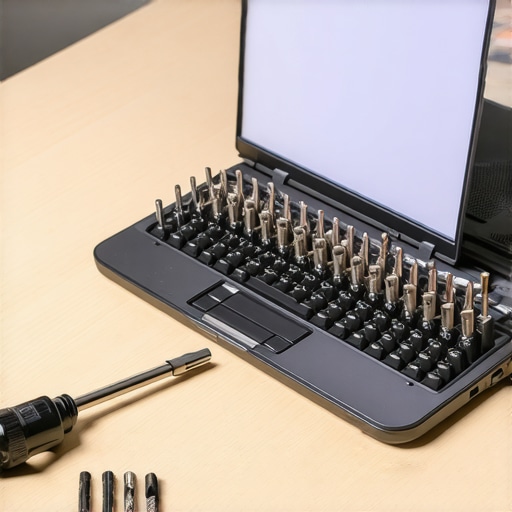
I learned the hard way that you cannot fix a high-precision machine with a kitchen knife or a generic hardware store screwdriver. If you are serious about maintaining your system, you need a specialized set of bits. I personally swear by a kit that includes Pentalobe and Torx T5 bits because that is exactly what you will find inside most modern chassis. Using the wrong tool is the fastest way to strip a screw, turning a simple cleaning into a permanent disaster. I always keep the specific screwdriver kit you need to open 90 of modern laptops in my desk drawer because it gives me the confidence to peek under the hood whenever the fans start acting up. It is not just about repairs; it is about knowing how to maintain your hardware before it fails.
The Thermal Paste Secret Manufacturers Won’t Tell You
Most people assume that the cooling system inside their laptop is a permanent fixture. In reality, the thermal interface material (TIM) between your CPU and the heatsink is a consumable. Over two or three years of high-heat cycles, that paste dries out and loses its ability to transfer heat efficiently. I have seen machines drop 15 degrees Celsius just by refreshing the paste. This is why why we swapped the thermal paste on our brand new laptop immediately after the warranty expired. According to technical whitepapers from Thermal Grizzly, the longevity of traditional silicone-based pastes is often compromised by the ‘pump-out’ effect, where thermal cycles physically push the paste out from between the die and the heatsink. If you are comfortable with a screwdriver, this one-hour task can extend your laptop’s life by years.
How can I keep my laptop feeling brand new after three years?
Maintenance is a two-front war: physical and digital. On the physical side, I perform a ‘deep clean’ every six months, which involves removing the bottom panel and using an electric duster (not a vacuum) on the fan blades. On the digital side, I avoid ‘bloatware’ that eats up background CPU cycles and generates unnecessary heat. I always look for the only 3 ways to genuinely speed up a slow laptop rather than downloading ‘optimizer’ software that usually does more harm than good. Whether you are using student laptops that boost productivity and learning or a high-end workstation, the goal is to keep the silicon running as cool as possible for as long as possible.
The Software Secret to Lower Temps
One tool I use daily is ThrottleStop or Intel XTU. These programs allow you to ‘undervolt’ your CPU. By slightly reducing the voltage sent to the processor, you can maintain the same performance while generating significantly less heat. It sounds like magic, but it is actually just optimizing the inefficient ‘auto’ settings that manufacturers use to ensure every chip (even the low-quality ones) runs stably. If you are setting up the best way to configure a new business laptop, undervolting should be at the top of your list. It is the ultimate free upgrade that protects your battery and your lap from getting scorched.
What the Future of Cooling Looks Like
Looking ahead, I expect to see a shift toward solid-state cooling solutions, like the ultrasonic cooling chips being developed by companies like Frore Systems. These could eventually eliminate the need for fans altogether, making the ‘laptop in bed’ problem a thing of the past. For now, however, we have to rely on smart habits and better accessories. If you are hunting for top laptop deals in 2025 unlock incredible savings today, prioritize machines with proven thermal track records. My advanced tip for today: Download a hardware monitor tonight and check your ‘Idle’ temperatures; if you are sitting above 50 degrees Celsius while just looking at your desktop, it is time for a clean-out.
The Reality of Thermal Stress Most People Ignore
After years of tearing down machines and testing thermal limits, I’ve realized that the biggest enemy isn’t just the heat—it’s the inconsistency of it. Here are the core truths I wish someone had told me before I fried my first motherboard:
- Thermal cycles are the silent killer: Every time your machine hits 90 degrees and then cools back down to 40, the physical components expand and contract. Over time, this can lead to microscopic cracks in solder joints. Keeping a stable, lower temperature isn’t just about speed; it’s about structural integrity.
- Software is only half the battle: You can undervolt and optimize all day, but if the physical intake is blocked by a blanket, no amount of coding will save your silicon. Physical airflow is the foundation of hardware health.
- The ‘bed trap’ is a habit, not a necessity: We retreat to the duvet because we want comfort, but we often sacrifice hundreds of dollars in hardware longevity to get it. A small shift in your setup makes all the difference.
Tools That Saved My Workstation More Than Once
I don’t believe in buying gear for the sake of it, but there are a few items and resources that have earned a permanent spot in my workflow. First and foremost, having the specific screwdriver kit you need to open 90 of modern laptops is non-negotiable. It transforms your laptop from a mysterious ‘black box’ into a maintainable tool. For monitoring, I always keep HWiNFO64 running in the background to spot temperature spikes before they become thermal shutdowns. When I’m looking for upgrades or new machines, I prioritize finding top laptop deals in 2025 unlock incredible savings today that specifically mention robust cooling arrays. Finally, investing in must-have laptop accessories to boost your work setup, like a simple mesh stand, is the most cost-effective insurance policy you can buy.
Step Into a Faster Cooler Future
You don’t have to be a tech expert to treat your hardware with respect. By simply moving your device onto a solid surface and giving the fans a quick blast of air once a month, you are already ahead of 90% of users. Your machine is an investment in your productivity, your creativity, and your entertainment. Treat it like the high-performance engine it is, and it will serve you faithfully for years. Whether you are rocking high-end gaming laptops or a reliable workhorse, the rules of thermodynamics remain the same: let it breathe, and it will fly. What is the highest temperature you have ever seen your CPU hit during a late-night session? Let me know in the comments below!