
I still remember the cold sweat that broke out when Premiere Pro flashed that dreaded ‘Media Offline’ red screen. I had four drives plugged into my laptop, a tangled mess of cables that looked like a plate of techno-spaghetti. I spent three hours—precious hours I didn’t have—just hunting for a specific B-roll clip of a sunset. It was 2 AM, and the client expected the final cut by sunrise. That night, I didn’t just lose sleep; I almost lost a major contract. It was a wake-up call. I realized that even with the fastest laptop deals in the world, a disorganized drive setup will kill your productivity faster than a dead battery. Today, I’m going to show you exactly how I tamed the chaos so you never have to play ‘guess the drive’ again.
Stop Treating Your External Drives Like Junk Drawers
We’ve all been there. You buy a new drive because your internal SSD is screaming for mercy, you dump some files on it, and you call it ‘Archive 1.’ Then comes ‘Archive 2’ and ‘New Archive 2.’ Before you know it, your desk looks like a digital graveyard. Early in my career, I made the amateur mistake of thinking that as long as I had the space, the organization didn’t matter. I even used those must-have laptop accessories like cheap hubs that throttled my speeds, making everything worse. According to data from industry analysts at Backblaze, hard drive failure is a matter of ‘when,’ not ‘if,’ and a messy drive structure makes recovery nearly impossible. If you want to edit 4K footage without your computer stuttering, you need a system that prioritizes throughput and clarity. Have you ever spent more than ten minutes looking for a file you knew was ‘somewhere’ on your desk? It’s a soul-crushing experience, isn’t it?
Is a complex filing system actually worth the effort?
You might be thinking this sounds like a lot of busywork. ‘I’m an artist, not a librarian,’ right? I used to say the same thing. But here’s the reality: every minute you spend searching for a clip is a minute you aren’t being creative. A solid organization strategy isn’t just about labels; it’s about speed. By the time we’re done here, you’ll have a tiered system that separates your active projects from your long-term storage, ensuring your gaming laptops or workstations are actually pulling data at the speeds they were designed for. We’re going to talk about why your current ‘plug and pray’ method is a ticking time bomb and how to fix it.
Build a System That Works While You Sleep
To get your workflow humming, you have to stop treating your drives as identical boxes of storage. I categorize my hardware into three distinct tiers: the ‘Hot’ drive for active projects, the ‘Cold’ drive for finished work, and the ‘Mirror’ for emergencies. Think of it like a kitchen; you don’t keep the salt in the basement. You want your fastest NVMe SSDs right next to your computer for the heavy lifting. I learned this the hard way during a high-pressure commercial shoot for a local tech startup. I was trying to edit 6K RAW footage off a standard mechanical hard drive because I thought I’d save a few bucks. The stuttering was so bad I almost threw my mouse across the room. I swapped to a dedicated external SSD, and suddenly, the timeline felt like butter. When choosing your gear, understanding the real difference between consumer and enterprise grade SSDs is vital because enterprise drives are built to handle the constant read/write cycles of a long editing session without thermal throttling.
Map Out Your Folder Structure Before You Import a Single Byte
Consistency is the secret sauce of the pros. I use a ‘Master Template’ folder that I copy-paste for every single project. Inside, I have subfolders labeled: 01_Project_Files, 02_Footage, 03_Audio, 04_Graphics, and 05_Exports. By numbering them, they always stay in the same order regardless of how the OS sorts them. This level of organization is essentially the best way to organize your desktop for deep work because your brain stops hunting and starts doing. Last year, I had to revisit a project from 2019 for a quick revision. Because I used this exact template, I found the specific ‘Music_Licensing’ subfolder in thirty seconds. If I hadn’t, I would have been digging through a mountain of generic filenames like ‘final_final_v2.mp4.’ 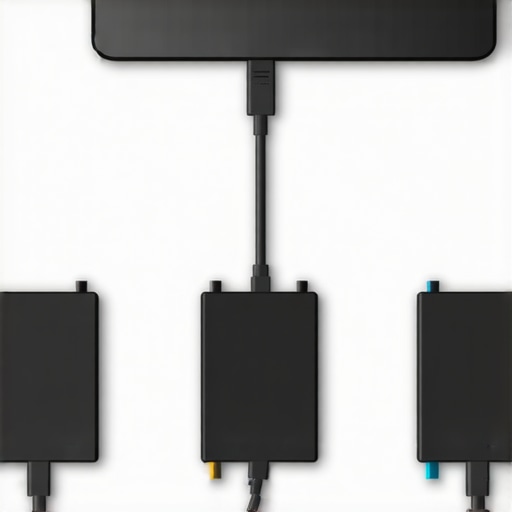
Connect Everything with a Single Cable to Avoid Chaos
Your high-speed drives are useless if they are plugged into a slow port. I’ve seen people buy the most expensive business laptops for professionals and then bottleneck their entire system by using a five-dollar USB hub from a gas station. You need to ensure your cables and hubs support the same bandwidth as your drives. Ideally, you should learn how to use a single USB-C cable to connect your entire desk. This simplifies your physical environment and ensures that your data transfer speeds remain peaked at 10Gbps or higher. I remember a colleague who complained his ‘fast’ drive was crawling; it turned out he was using an old charging cable that was capped at USB 2.0 speeds. It’s a tiny detail that makes a massive difference in whether you finish your edit at 6 PM or midnight.
Protect Your Data From Hidden Hardware Risks
Before you commit your life’s work to a new drive, you must verify it’s legitimate. The market is currently flooded with cheap, high-capacity drives that are actually just slow SD cards glued inside a fancy plastic shell. Knowing how to spot a fake SSD in a used laptop listing or a third-party marketplace can save you from a catastrophic data loss. I always run a benchmark test the moment a new drive arrives. If the speeds don’t match the box, it goes back immediately. Integrating these must-have laptop accessories for a seamless setup isn’t just about vanity; it’s about building a fortress around your creative output. Every piece of hardware, from the cable to the enclosure, is a link in the chain. Don’t let a weak link snap when you’re on a deadline.Most people assume that if they buy the most expensive business laptops for professionals, they are getting the best tool for every job. That is a flat-out myth. In my experience, these ultra-thin machines are often terrible for high-end video editing or heavy data processing because they prioritize aesthetics over airflow. I’ve seen three-thousand-dollar ‘pro’ machines get crushed by mid-range game-changing gaming laptops for serious players in 2025 simply because the gaming rig had the thermal headroom to keep the clock speeds high. If you are doing deep work, you have to weigh the hidden costs of choosing an ultra-thin business laptop against actual performance. According to a performance study by Puget Systems, thin-and-light workstations can lose up to 30% of their processing power during long renders due to heat soak.
Does thermal throttling actually destroy your drive’s lifespan?
It is not just about your CPU slowing down; heat is the silent killer of your storage. When your laptop gets hot, it radiates that heat directly into your NVMe slots. Most users don’t realize that sustained high temperatures can lead to data degradation over time. This is why gaming laptops still struggle with thermal throttling in small frames—they pack too much power into too little space. I once lost an entire afternoon of color grading because my external drive overheated and disconnected mid-save. It was a classic ‘oops’ moment: I had the drive tucked right behind the laptop’s exhaust vent. If you are hunting for top-laptop deals in 2025, look at the fan placement and port layout, not just the RAM. 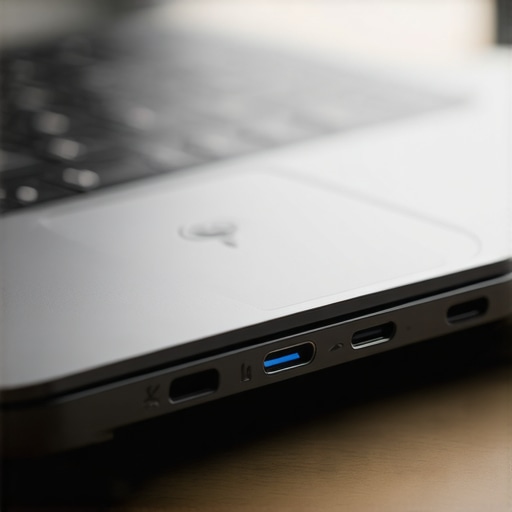 Another huge mistake is overspending on ‘Pro’ accessories while ignoring the interface. You might buy a Thunderbolt 4 drive, but if your laptop’s port is internally wired for USB 3.2 speeds, you are just lighting money on fire. Always check the lightning bolt icon next to the port to ensure you are getting the bandwidth you paid for. Have you ever fallen into this trap? Let me know in the comments. We should also discuss why 8gb of ram is no longer enough for modern browsing, let alone professional creative work. You need to build a system that respects the physics of hardware, not just the marketing on the box. By understanding these nuances, you ensure your must-have laptop accessories to boost your work setup are actually contributing to your success rather than becoming expensive paperweights.It is not enough to just buy the right gear; you have to defend it against the slow creep of entropy. I have seen four-thousand-dollar business laptops for professionals die a slow death simply because the owner never bothered to clear out the lint from the intake vents. Every few months, I perform a deep clean on my primary machine—not because I love tinkering, but because I have seen what happens when you do not. If you are nervous about opening your case, you can at least learn how to clean the dust out of your laptop without opening it. It is the simplest way to prevent that annoying fan whine that sounds like a jet engine taking off during a simple Zoom call. Even the best laptop deals lose their value if the hardware throttles itself to death within eighteen months.
How do I keep my gear running like new for several years?
Maintenance is a mix of physical care and software hygiene. On the hardware side, I keep a very specific kit on my desk. I use the specific screwdriver kit you need to open 90% of modern laptops because using the wrong bit will strip those tiny screws and lock you out of your own device forever. Once a year, I even go as far as re-applying cooling material. Research from the hardware testing experts at Gamers Nexus suggests that high-quality thermal interface materials can significantly degrade after 2-3 years of heavy thermal cycling. This is exactly why we swapped the thermal paste on our brand new laptop to ensure we were getting every ounce of performance the manufacturer promised. If you are hearing a clicking sound, do not ignore it; learn how to replace a dead laptop fan without voiding the warranty before the heat damages your motherboard. 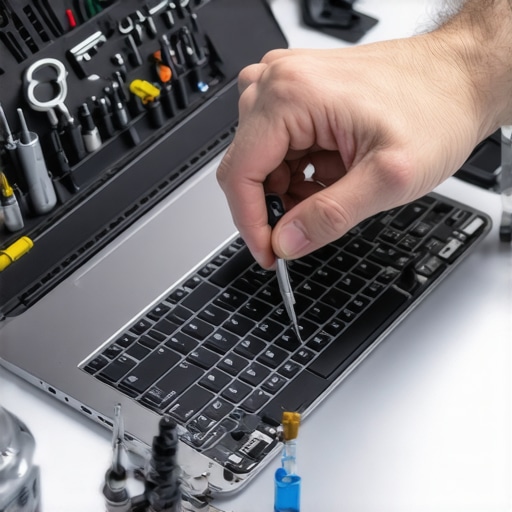 On the software side, stop letting your OS bloat. I regularly audit my startup apps to ensure nothing is eating my cycles in the background. If you are using student laptops that boost productivity and learning, you probably have a dozen ‘helper’ apps that do nothing but drain your battery. I also recommend checking your power brick occasionally; if it is scorching, there is a reason. I wrote a guide on the real reason your laptop power brick is getting extremely hot because that heat often signals an inefficient power draw that can wear out your internal components. Looking ahead, I predict we are moving toward a ‘right to repair’ revolution where modularity becomes a standard feature, not a niche luxury. Brands are beginning to realize that professionals want to swap a battery or an SSD without a degree in engineering. For now, focus on what you can control. My challenge to you is this: Download a hardware monitor like HWiNFO today and check your temps while you are under a heavy load. If you are regularly hitting 95°C, it is time to perform some of the maintenance we discussed. Do not wait until the hardware fails to start caring about its health.
The Hardest Lesson I Learned While Editing on the Go
If there is one thing I have learned after years of managing terabytes of footage, it is that organization is a form of insurance. I used to think I could just wing it, but that mentality cost me more in lost time than any piece of hardware ever could. First, never assume a drive is healthy just because it is new; run a benchmark immediately to ensure you are getting the advertised speeds. Second, labels are your lifeline. I use physical labels on the drives and digital labels in the OS that match perfectly. Third, your cables are just as important as the drive itself. A cheap cable will bottleneck the fastest game-changing gaming laptops for serious players in 2025 and leave you wondering why your renders are taking hours. Finally, remember that even student laptops that boost productivity and learning can become professional powerhouses if you treat your file structure with respect.
Gear That Keeps My Workspace From Falling Apart
To keep my system running at peak performance, I rely on a few specific tools that have never let me down. I always keep the specific screwdriver kit you need to open 90% of modern laptops in my drawer, just in case I need to swap an internal drive or clean a fan. For monitoring, I trust HWiNFO to keep an eye on thermal throttling, especially when using ultra-thin business laptops for professionals that tend to run hot. If you are looking for new gear, I always recommend checking the latest top laptop deals in 2025 to find high-bandwidth ports like Thunderbolt 4. These must-have laptop accessories to boost your work setup aren’t just luxuries; they are the infrastructure of your digital life. I personally trust brands that prioritize repairability over sleekness every single time to ensure longevity.
Your Creative Career Deserves a Solid Foundation
At the end of the day, all the unbeatable laptop deals in the world won’t save a project if you can’t find your files. Building a system of ‘Hot’, ‘Cold’, and ‘Mirror’ storage takes effort upfront, but it pays dividends in peace of mind. You didn’t become a creator to stare at progress bars or hunt through folders with generic names. By implementing these workflows, you are freeing your brain to do what it does best: create. Don’t be afraid to start small—even just numbering your folders today will put you ahead of most other editors. Your future self will thank you when that next big deadline hits and you’re ready to deliver hours ahead of schedule. What is the biggest “Media Offline” nightmare you have ever faced during a project? Let me know in the comments below!