
I remember sitting in a dead-silent library, hunched over one of my old student laptops, trying to finish a major essay. I’d just spent the morning cleaning it out, convinced I was a hero for removing a few visible dust bunnies from the vents. But when I hit that power button? It sounded like a blender full of gravel. It was significantly louder than before I had even touched it. I felt that familiar sinking pit in my stomach—the one where you are absolutely certain you just turned a minor annoyance into a $1,000 paperweight. If you have ever experienced this, I want you to know that you are not crazy, and you probably haven’t ruined your machine permanently.
[image placeholder]
The Frustrating Reality of Post-Cleaning Noise
Cleaning your hardware is supposed to be the responsible thing to do. We buy the best laptop accessories and maintenance kits to keep our gear running smooth. But here is the truth: when you remove dust, you fundamentally change the physics of the airflow inside that cramped chassis. Sometimes, that old layer of grime was actually dampening mechanical vibrations. Other times, the act of cleaning can push microscopic particles deeper into the fan’s motor or its delicate bearings. I once made the mistake of thinking a quick blast of compressed air was all my business laptops needed, only to realize later that I had spun the fan blades way beyond their rated RPM, which can actually damage the internal sleeve bearings. It is a common pitfall. We do it because we want our tech to last, yet without the right technique, we end up with a high-pitched whine that makes focusing impossible.
This issue matters right now because as machines get thinner, their cooling systems get more sensitive. If your gaming laptops are screaming at you, they aren’t just being annoying; they are often struggling with turbulent air or poorly seated components that are vibrating against the case. We need to look beyond the surface level of just blowing out dust to find the real culprit behind the racket.
Is My Fan Actually Broken Now?
It is the question that keeps us up at night after a botched DIY attempt. You start wondering if you should have just looked for top laptop deals instead of trying to be your own technician. But wait. Most of the time, the fan isn’t physically broken; it’s just reacting to new conditions. According to a technical analysis by the experts at Electronics-Cooling, fan noise is frequently a result of turbulence rather than mechanical failure. When you clean the blades but leave the exhaust vents partially blocked or misaligned, the air travels in a chaotic pattern that creates a louder acoustic signature than the dust ever did. This is why we need to look at the whole system, from how to replace your laptop thermal paste to ensuring the fan is properly balanced. We are going to solve this together today. I will show you why that noise is happening and how to get back to that sweet, out-of-the-box silence.
Have you ever spent an afternoon cleaning your laptop only for it to sound even louder the next day? Drop a comment below and let me know if I am the only one who has felt that instant regret.
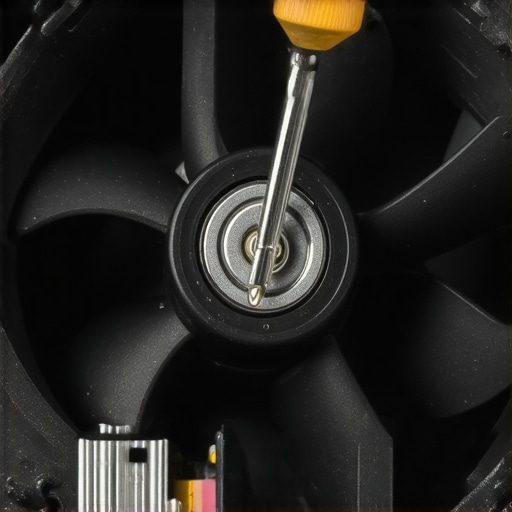
The first thing I do when a machine comes back to life louder than before is crack it open one more time. Usually, when we use compressed air, we aren’t actually removing all the dust; we are just relocating it. Imagine trying to clean a narrow hallway with a leaf blower—half the stuff just gets jammed into the corners. On many student laptops, the space between the fan blades and the exhaust fins is incredibly tight. A small “dust bunny” might have been blown into the gap where the fan blades rotate, acting like a playing card in bicycle spokes. This creates a rhythmic clicking or a high-pitched whine that sounds like a mechanical failure. I once spent an hour troubleshooting a “dead” fan on one of my old business laptops only to find a single, tiny thread of carpet fiber caught in the motor hub. It doesn’t take much.
Check for Blade Imbalance and Loose Screws
Fans are essentially tiny, high-speed turbines. If you didn’t hold the blades still while cleaning them, the force of the air might have slightly shifted the fan on its spindle. To fix this, you need to learn how to stop your laptop fan from rattling without buying parts by checking the mounting tension. If you over-tightened the screws on the fan housing after cleaning, you might be warping the plastic frame just enough to let the blades graze the side. I recommend using the specific screwdriver kit you need to back each screw off by a quarter turn, then re-snugging them evenly, like you would the lug nuts on a car tire. This ensures the fan sits perfectly level and doesn’t vibrate against the chassis.
Address Potential Thermal Paste Disruption
If the noise is more of a constant, high-speed “whoosh” rather than a rattle, the issue might not be the fan itself, but the heat it is trying to move. When we clean our machines, we often wiggle the heatsink assembly. If that movement broke the “seal” of the old, brittle thermal compound, your CPU is now running 10-15 degrees hotter than it was before you “cleaned” it. The BIOS sees this heat and pins the fan at 100% to compensate. This is exactly why you should know how to replace your laptop thermal paste without breaking anything. Fresh paste can drop your fan speeds—and the resulting noise—significantly, even on the most demanding gaming laptops. I’ve seen cases where a simple repaste turned a screaming machine into a silent one, even when the fans were already perfectly clean.
Reset Your Software Power Profiles
Sometimes the hardware is fine, but the software is confused. After a cleaning session, I’ve noticed that some Windows updates or “performance mode” settings in laptop accessories software can get stuck in a high-draw state. If you are hunting for unbeatable laptop deals because you think your current machine is dying, try this first: go into your power settings and reset the “Balanced” profile to its defaults. This forces the system to re-evaluate the fan curve based on the current (now cleaner) thermals rather than sticking to an aggressive cooling profile that was set when the machine was choked with dust. This software reset is the easiest way to see if your “loud” fan is actually just doing exactly what the operating system is telling it to do.
Beyond software, there is a physical nuance that most DIYers miss: the ‘Dust Gasket’ effect. I have found that on many budget-friendly student laptops, a thin layer of fine dust can actually act as a sound dampener. When you perform a deep clean, you’re removing that accidental insulation, exposing the raw, high-pitched whine of the motor bearings. This is a common contrarian reality in the repair world—sometimes ‘clean’ is actually louder because the machine’s assembly was never perfectly balanced to begin with. If your fan is now vibrating against the chassis, it’s often because why most laptop cooling pads are just loud paperweights that can’t fix the underlying mechanical resonance issues. One detail that experts notice, which beginners often overlook, is the breakdown of bearing lubricant during a high-heat maintenance cycle. If you used a hair dryer or an industrial heat gun to soften sticker adhesive on your case, you might have inadvertently thinned out the grease inside the fan’s fluid dynamic bearing. Once that lubricant is compromised, the fan might spin, but it will do so with a metallic grinding sound that no amount of canned air can fix.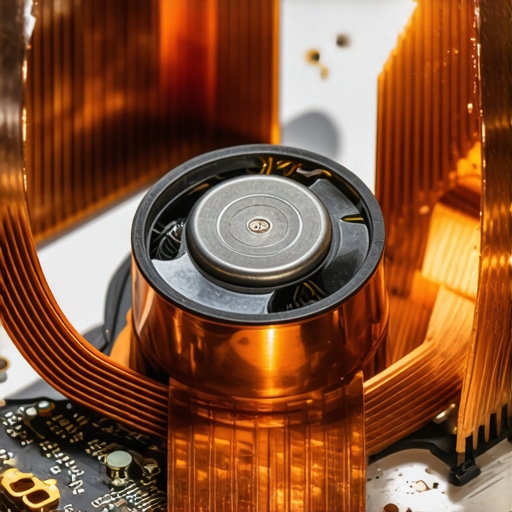
What if the noise is actually coming from the air itself?
This is where things get technical. There is a concept called ‘vortex shedding’—the same physics that makes power lines hum in the wind. In high-performance gaming laptops, the fan blades are packed so tightly that even a microscopic misalignment of the fan shroud after cleaning can cause the air to tumble chaotically. According to research by the Purdue University acoustics lab, tonal noise in small-scale electronics is often a product of this unsteady flow rather than the fan motor itself. If you’re seeing why gaming laptops still struggle with thermal throttling in small frames, it’s usually because the cooling path is so obstructed that the air is ‘fighting’ its way out, creating that jet-engine roar.
The biggest ‘oops’ factor I see? Using a household vacuum cleaner. It’s the ultimate trap for anyone looking to save money with unbeatable laptop deals by buying used gear. Vacuums generate massive amounts of static electricity that can fry the delicate sensors on business laptops before you even realize what happened. If the noise persists even after a careful, static-free clean, it might be time to learn how to replace a dead laptop fan without voiding the warranty. Replacing a $15 fan is always cheaper than a $500 motherboard repair. Have you ever fallen into this trap of over-cleaning and making things worse? Let me know in the comments below.
I’ve learned the hard way that brute force is the enemy of quiet cooling. If you’re serious about tech longevity, you need to stop using whatever random tools you find in the kitchen drawer. I personally never touch a machine without the specific screwdriver kit you need to open 90% of modern laptops. Using the wrong bit size is how you strip a screw on expensive business laptops for professionals, turning a simple maintenance task into a nightmare. Beyond the drivers, I always keep a bottle of high-purity isopropyl alcohol and a set of nylon spudgers handy. These must-have laptop accessories to boost your work setup aren’t just for show; they allow you to pry open plastic clips without leaving those ugly ‘bite’ marks on the chassis. For the fan itself, if the noise sounds like a grinding gear, I use a tiny drop of sewing machine oil or specialized synthetic lubricant on the spindle. According to technical documentation from Noctua’s fan engineering guides, maintaining the integrity of the fluid dynamic bearing is the only way to ensure a fan reaches its 150,000-hour rated lifespan. Without that microscopic layer of protection, metal-on-metal friction will eventually win, no matter how clean the blades are.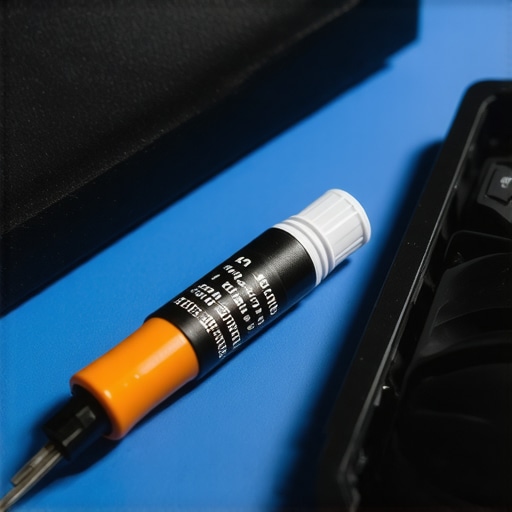
How can I make my cooling system quiet for the long haul?
Real maintenance is about habits, not just occasional deep cleans. The biggest mistake I see students make is using their gear in bed without a hard surface. I’ve written about the best ways to keep your laptop from overheating on a soft bed, and it usually boils down to airflow. When you place a laptop on a comforter, the fabric acts like a vacuum filter, sucking in every loose fiber and clogging those tiny intake vents in record time. If you want to avoid the ‘jet engine’ sound, get into the habit of using a lap desk or even a large hardcover book. Another pro-tip: every six months, use a flashlight to peer into the exhaust ports. If you see a ‘carpet’ of grey lint forming behind the grill, it’s time for a quick blast of air before it becomes a solid plug. This proactive approach is much more effective than hunting for unbeatable laptop deals because your current machine is throttling itself to death.
A Shift Toward AI-Driven Silent Cooling
Looking ahead, the way we deal with fan noise is changing. We are moving away from simple temperature-based fan curves and toward AI-driven thermal management. Future game-changing gaming laptops for 2025 adventures will likely use machine learning to predict heat spikes before they happen, ramping fans up gradually rather than in loud, sudden bursts. We’re also seeing a push for more modular cooling assemblies. Instead of having to replace a whole motherboard because a proprietary fan died, manufacturers are starting to realize that repairability is a selling point. I predict that within the next few years, ‘silent’ modes will become significantly more intelligent, leveraging new solid-state cooling technologies that eliminate moving parts entirely in low-wattage machines. For now, we still have to manage the hardware we have. I challenge you to check your power profile settings tonight—try switching to a ‘Quiet’ or ‘Efficiency’ mode while browsing and see if you can even hear the difference. You might find that your fan doesn’t need to spin at all for 90% of your daily tasks.
What Five Years of Repairing Business Laptops Taught Me
The biggest lightbulb moment I ever had wasn’t about the dust itself, but the assembly. On most high-end business laptops, the tolerance for the fan shroud is so tight that even a microscopic bit of lint caught in the bearing can create a resonance that vibrates through the entire chassis. I learned that silence is a balance of friction and airflow. If you’ve cleaned your machine and it’s screaming, you’ve likely shifted that balance. I also realized that people often mistake ‘air friction’ for ‘fan noise.’ If you haven’t properly cleared the exhaust fins, that clean fan is just pushing air into a wall, creating more noise than before. Finally, I’ve seen that ‘over-cleaning’ can strip the factory-applied dampening oils from the fan spindle, which is why a gentle touch is always better than a high-pressure blast.
The Toolkit Every Student Needs to Avoid Hardware Heartbreak
Maintaining student laptops requires more than just a can of air. I personally rely on these four essentials: First, I never start a repair without the specific screwdriver kit you need to ensure I don’t strip any internal mounting screws. Second, I use HWiNFO, a free utility that allows me to monitor sensor data in real-time to see if a fan is spinning fast because of a legitimate heat spike. Third, I always keep a tube of high-quality compound nearby and follow the steps on how to replace your laptop thermal paste to ensure the heat transfer is perfect. Lastly, for those hunting for unbeatable laptop deals, I recommend keeping a pack of non-conductive nylon brushes to safely scrub fan blades without the risk of static discharge.
Your Journey to a Silent Workspace Starts Now
You don’t have to accept a noisy machine as your new reality. Whether you are dealing with high-performance gaming laptops or a sleek ultrabook, the goal is the same: efficient heat dissipation without the acoustic drama. Take a breath, re-open the case, and check those connections one more time. Patience and the right technique will always trump brute force when it comes to technology maintenance. You’ve got this. Have you ever spent hours cleaning your fan only to have it sound like a jet engine the moment you turned it back on? Let me know your experience in the comments below!