
I was sitting in a dimly lit coffee shop, trying to finish a massive spreadsheet on one of those top business laptops for productivity in 2025, when it happened. My cursor didn’t just slow down; it started twitching like it had consumed too much espresso. Then, it died. Completely. I sat there, tapping the plastic like a moron, while my deadline loomed. I felt that familiar heat rise in my neck—the frustration of a tool failing you when you need it most. I’ve spent years tinkering with must-have laptop accessories and high-end rigs, yet here I was, defeated by a simple square of glass. Have you ever felt that sudden surge of panic when your primary way of interacting with your computer just vanishes? It’s enough to make you want to close the lid and walk away forever.
The Ghost in the Machine that Stops My Workflow Cold
For the longest time, I assumed these glitches were just ‘part of the deal’ with modern tech. I fell into the trap of thinking it was a software bug and spent hours reinstalling drivers on my student laptops that boost productivity. It was a massive waste of time. My biggest mistake early on was ignoring the physical reality of the hardware. I once even bought an entirely new mouse because I was convinced my trackpad was haunted. The reality is much simpler, and honestly, a bit more annoying. Today, I’m going to pull back the curtain on why this happens—hint: it’s rarely a virus—and show you how to regain control without spending a dime at a repair shop.
Is it actually worth trying to fix a hardware glitch yourself?
You might be skeptical. After all, modern laptops are sealed tighter than a vault. But most trackpad issues aren’t caused by a fried circuit board. According to the repair experts at iFixit, a staggering number of intermittent trackpad failures are actually caused by internal batteries beginning to swell, which puts physical pressure on the sensor from underneath. This isn’t just about a cursor not moving; it’s a safety warning. Beyond battery issues, simple static buildup or even the way you clean your device can cause the sensor to lose its mind. If you’ve been eyeing game-changing gaming laptops but are worried about longevity, understanding these quirks is essential. We are going to look at the grounding issues and the ‘invisible’ debris that usually causes these headaches so you can get back to work.
Force the Static Out of the Circuitry
Before you start digging into software menus, you need to discharge the ‘flea power.’ This is the residual electricity that gets trapped in the capacitors, often causing the sensor to register false touches. I remember helping a colleague who had one of those expensive business laptops for professionals. Her cursor was jumping across the screen like it was possessed. I shut it down, unplugged everything, and held the power button for a full sixty seconds. She thought I was performing some weird ritual, but when we turned it back on, the ‘ghost’ was gone. This simple reset clears the hardware cache and is the first thing you should do, especially since why we never leave our laptops plugged in overnight often relates to preventing these exact types of electrical build-ups.
Look for the Infamous Trackpad Smile
If your trackpad feels ‘stiff’ or is physically harder to click than it used to be, you aren’t imagining it. This is usually a sign of a swelling lithium-ion battery. As the battery degrades, it expands, pushing against the bottom of the trackpad. I once ignored this on an old workstation until the trackpad actually cracked down the middle. It looked like a tiny, expensive smile. If you see your casing bulging even slightly, stop using it. You’ll need to learn how to find a replacement battery that wont explode or consider if it’s time to browse top laptop deals in 2025. A swollen battery is a fire hazard, not just a navigation nuisance. Safety aside, a fresh battery often restores that tactile ‘click’ you’ve been missing.
Clean the Edges Where Debris Hides
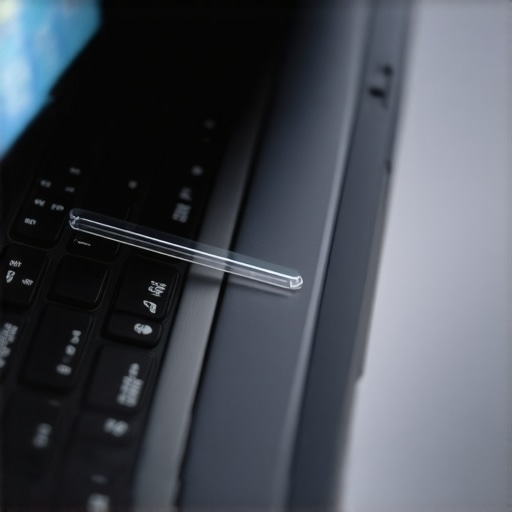
We often think about fingerprints on the surface, but the real enemy is the microscopic gap between the trackpad and the palm rest. Dust, skin oils, and crumbs (looking at you, late-night snackers) lodge themselves in there and trip the capacitive sensors. I use a thin piece of plastic—like a corner of a business card—to gently run through that gap. You’d be surprised at the gunk that comes out. While you’re at it, use a microfiber cloth with a tiny drop of 70% isopropyl alcohol. It’s similar to the best way to clean your laptop keyboard from crumbs and oil. Keeping the surface chemically clean ensures the electrical field generated by your finger is actually reaching the sensor without interference.
Address the Driver Conflict Nightmare
Sometimes the hardware is fine, but the brain is confused. If you’ve recently updated your OS, your precision drivers might have been replaced by generic ones. This is a common headache for those using student laptops that balance power and portability. Instead of just clicking ‘Update Driver,’ I recommend ‘Uninstall Device’ in the Device Manager and then rebooting. This forces Windows to rediscover the hardware from scratch. If the cursor still won’t wake up, check how to fix a laptop that wont wake from sleep as the power management settings might be accidentally putting your trackpad to sleep to save battery, leaving you stranded in the middle of a project.
Most people assume that spending top dollar on the latest release is a shield against the hardware gremlins I just described. It isn’t. In fact, I’ve found that the obsession with ‘thin and light’ is often the primary cause of these failures. Everyone says you need the newest silicon, but in my experience, a well-maintained older machine beats a modern budget shell every time. The industry calls it ‘progress,’ but for the user, it often results in the hidden costs of repairing modern thin and light laptops. When you can’t open the chassis without a heat gun and a prayer, you’re not an owner; you’re a renter. I’ve seen countless business laptops for professionals end up in the bin because a single soldered component failed, whereas an older, modular rig would have been back in service for $20.
The Myth of the Future-Proof Budget Machine
The biggest trap I see every day is the ‘bargain’ high-spec machine. You see a laptop with an i7 processor and a shiny screen for a price that seems too good to be true, and it usually is. These manufacturers often cut corners on the cooling systems and the hinge mounts. A study by SquareTrade found that nearly one-third of laptops fail within the first three years, and a significant portion of those failures are due to internal thermal damage. This is especially true for game-changing gaming laptops that prioritize aesthetics over airflow. I once bought a slim gaming rig only to realize that the hidden cost of buying an ultra thin gaming laptop is essentially a built-in expiration date. If the fan can’t breathe, the motherboard will eventually cook itself.
Should you prioritize modularity over portability for professional use?
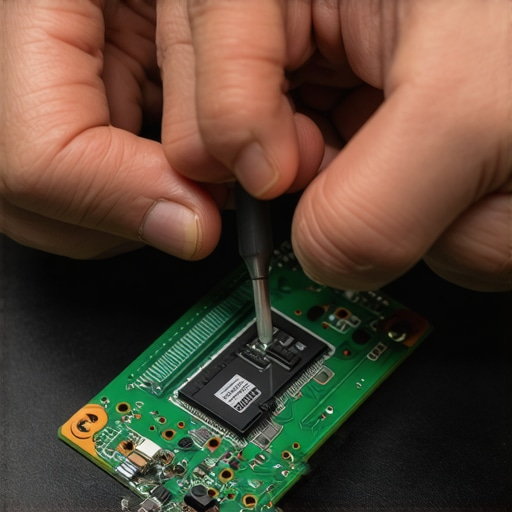
If you are looking for unbeatable laptop deals, look at the build quality, not just the clock speed. For instance, I frequently recommend the secret to buying laptops directly from lease returns because enterprise-grade machines are built to be serviced. A common mistake is buying a laptop with soldered memory. You might think 8GB is fine for your current workflow, but as software bloat increases, you’ll be stuck with a sluggish machine. This is exactly why we never buy laptops with soldered ram for longevity. Real expertise means knowing that a $500 used ThinkPad often has a longer functional lifespan than a $900 consumer-grade plastic unit from a big-box store.
Avoid the Proprietary Power Trap
Another nuance that experts look for is the power delivery system. Many brands still use custom charging pins that are prone to snapping. I’ve transitioned my entire workflow to USB-C because why we avoid laptops with proprietary power connectors is about more than just convenience—it’s about survival in the field. If your custom charger dies on a business trip, you are stranded. If your USB-C port is the charging standard, you can borrow a phone charger in a pinch to at least get your files off the drive. Have you ever fallen into this trap of buying for the brand or the ‘thinness’ rather than the build quality? Let me know in the comments. We need to stop rewarding manufacturers for making disposable tech and start looking for student laptops that balance power and portability perfectly without sacrificing the right to repair.
I’ve seen enough motherboards with ‘cooked’ chips to know that the biggest enemy of your top business laptops for productivity in 2025 is heat. Not just ‘sitting on your lap’ heat, but the invisible degradation of thermal materials inside the chassis. I personally keep a tube of Thermal Grizzly Kryonaut in my desk drawer because the generic paste manufacturers use is usually bottom-shelf sludge. If you’ve been hunting for unbeatable laptop deals, remember that even a brand-new machine might need a refresh if it sat in a warehouse for a year. I make it a rule to perform a deep-clean every six months. This isn’t just for show; it’s about preventing the hardware from hitting its ‘Tjunction’—the maximum temperature a processor can handle before it starts cutting power to save itself. According to technical documentation from Intel, sustained operation near these limits can permanently degrade the silicon’s efficiency. Learning how to replace your laptop thermal paste without breaking anything is the single most important skill you can acquire to protect your investment. 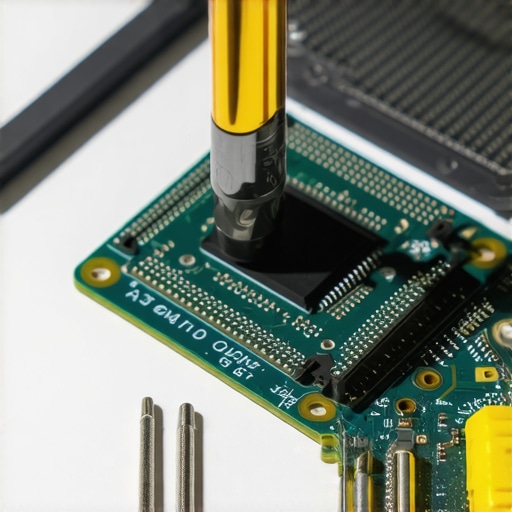
The $20 Fix Every Professional Needs
One specific upgrade I swear by—especially for student laptops that boost productivity—is swapping out the stock Wi-Fi card. Most budget and even some mid-range laptops ship with Realtek or MediaTek cards that drop signals if you move three feet from the router. I always swap in an Intel AX210. It’s a $20 fix that makes your connection rock-solid and supports the latest 6GHz bands. This is why we replaced our laptop wi-fi card with an intel ax210 in every unit we use for serious field work. While others are struggling with Zoom lag, we’re cruising on a stable pipe. Don’t let a cheap component bottleneck a high-end system.
How do I keep my laptop from slowing down over time?
The ‘sluggishness’ people complain about after six months is rarely a failing CPU; it’s usually ‘software rot’ and fragmented storage management. I use a dedicated external SSD for my active projects instead of cluttering the internal drive. It keeps the OS snappy because the system isn’t constantly indexing thousands of tiny cache files. Mastering the best way to organize your external drives for fast editing ensures that even if your laptop dies, your data is safe and your workflow is portable. Additionally, I recommend learning how to undervolt your gaming laptop for better temps and performance. By slightly reducing the voltage to the CPU, you can actually get higher sustained clock speeds because the chip stays cooler for longer.
Stop Relying on the Cloud for Everything
In my experience, the obsession with thinness has led to a lack of physical ports, which forces people into expensive cloud subscriptions. I refuse to play that game. I look for must-have laptop accessories like high-speed SD cards to expand local storage without opening the case. In the future, I predict we will see a massive shift back toward modularity. We are already seeing it with the rise of companies like Framework, and I believe by 2026, even game-changing gaming laptops for 2025 adventures will have to offer user-replaceable batteries and RAM to meet new environmental regulations. For now, your best bet is to be proactive. My challenge to you: download a hardware monitor today and check your idle temperatures. If you’re idling above 50°C, it’s time to open that chassis and clear the dust before it’s too late.
Lessons I Paid For in Sweat and Burnt Circuits
Reflecting on a decade of troubleshooting, I’ve realized that the ‘best’ laptop isn’t the one with the highest benchmark score; it’s the one you can actually keep running when things go sideways. I’ve learned that the sticker price is a lie. When you find unbeatable laptop deals, you aren’t just paying for the silicon; you’re paying for the engineering trade-offs made behind the scenes. If the chassis is too thin, it will run hot. If the RAM is soldered, it has a shelf life. I’ve also learned that physical cleanliness is non-negotiable. A laptop is essentially a high-powered vacuum cleaner that sucks in skin cells and dust. If you don’t clean it, you’re choosing to let your hardware choke. Finally, I’ve realized that modularity is the ultimate luxury. This is why we never buy laptops with soldered ram for longevity anymore—being able to upgrade for $40 is better than buying a new $1,200 machine.
The Only Toolkit I Actually Pack for Field Work
I don’t leave my desk without a few specific items that have saved my projects more times than I can count. First, I always have a spare Intel AX210 Wi-Fi card ready; it’s the cheapest way to turn a frustrating connection into a professional-grade one. Second, I rely on HWiNFO64. It’s a free tool that tells you the absolute truth about your internals, especially how to tell if your laptop is being throttled by its charger or if your battery is secretly failing. Third, I swear by a dedicated high-speed external SSD. Following the best way to organize your external drives for fast editing ensures that even if my motherboard fries, I can plug my work into any of the top business laptops for productivity in 2025 and not miss a single beat.
#IMAGE_PLACEHOLDER_E#
Take Back Ownership of Your Tech
At the end of the day, you shouldn’t feel like a renter of your own equipment. Technology is supposed to empower you, not leave you stranded in a coffee shop with a twitchy cursor. Whether you are rocking student laptops that boost productivity and learning or high-end game-changing gaming laptops for 2025 adventures, the power to maintain your device is in your hands. Don’t be afraid to pick up a screwdriver or run a hardware diagnostic. The more you know about what’s happening under the hood, the less likely you are to be forced into an emergency purchase you don’t need. Your laptop is an investment in your future—treat it with the respect it deserves, and it will serve you for years to come. Have you ever had a hardware glitch that you managed to fix yourself without a professional? Let me know in the comments below!