
I’ve spent way too many years testing the latest gaming laptops and high-end work machines, and there’s one ritual I perform before I even install a single app. I kill the chime. Picture this: it’s 2:00 AM, my wife is fast asleep three feet away, and I just need to check one quick email on my business laptop. I hit the power button, and—BOOM—the manufacturer’s “welcome” melody blasts at max volume, sounding like a digital brass band in our bedroom. It’s startling, it’s annoying, and frankly, it’s unnecessary. Today, I’m going to show you exactly how to silence that beast in the BIOS so you can start your day (or night) in peace.
The Night My Laptop Betrayed Me in a Quiet Library
Years ago, back when I was juggling finals, I walked into the quietest section of the campus library. I thought I was prepared. I had my headphones ready, my notes laid out, and my coffee steaming. But the moment I powered on my student laptop, a loud, triumphant startup sound shattered the silence. The glares from the doctoral students nearby could have melted lead. I’d made the classic mistake of thinking that muting Windows would mute the machine itself. Spoiler: it doesn’t. According to research from the Noise & Health Journal, sudden, unexpected sounds can spike cortisol levels and disrupt concentration significantly. Why would we want that every time we turn on our tools?
Does Messing with the BIOS Feel Too Risky?
I get it. The BIOS (or UEFI, for the modern crowd) feels like the “engine room” of your computer. One wrong click and you fear the whole thing might turn into a very expensive paperweight. I used to be terrified of it too. In fact, I once accidentally disabled my own keyboard while poking around in a legacy BIOS—talk about a stressful Tuesday. But here’s the reality: toggling a “POST Sound” or “Boot Audio” setting is one of the safest tweaks you can make. It’s not like trying to undervolt your gaming laptop where heat is a factor; it’s just a simple on-off switch for a speaker.
The Silence is Worth the Five Minutes of Effort
We put up with a lot of noise in our digital lives. Whether it’s whiny coil noise or trying to stop your laptop fan from rattling, we spend a lot of time troubleshooting hardware headaches. Disabling the startup sound is a rare “easy win.” It gives you back control over your environment. No more cringing when you turn on your machine in a coffee shop or a boardroom. Have you ever been “that person” whose laptop announced itself to the whole room during a quiet moment? Tell me I’m not alone in this!
Entering the Digital Basement Without Breaking Anything
To kill the chime, you have to go deeper than your desktop. Think of Windows as the furniture in your house, but the BIOS is the actual foundation and wiring. You can’t change the wiring while you’re sitting on the sofa; you have to go down to the basement. For most student laptops, this means restarting the machine and tapping a specific key before the logo even appears. I remember sitting in a quiet hospital waiting room with an old gaming beast. I needed to look up some insurance info. I pressed power, and it sounded like a spaceship taking off, followed by a loud, electronic chime. Every head turned. It was the digital equivalent of dropping a tray of silverware. I felt like an amateur, despite being a tech guy. That was the day I realized that even the most game-changing gaming laptops need a muzzle sometimes.
Catching the Right Key at the Right Time
Timing is everything. If you wait until you see the spinning circle of dots, you’ve missed your window. The most common keys are F2, F12, or the Delete key. On some business laptops for professionals, you might even need to hit the Esc key first to see a startup menu. My trick? I start feathering the key—tapping it like a nervous drummer—the second I hit the power button. I once did this so aggressively on a friend’s machine that I nearly popped the keycap off, but hey, it got us into the menu. Modern UEFI interfaces often allow mouse control, but older BIOS versions require the arrow keys. If you find yourself in a screen that looks like it belongs in the 1980s, don’t panic. You’re in the right place.
Where Manufacturers Hide the Mute Switch
Once you are in that text-heavy screen, stay focused. You aren’t here to undervolt your gaming laptop or change boot priorities. You are looking for a tab usually labeled Advanced, System Configuration, or Post Behavior. On Dell machines, it’s almost always under Post Behavior and called Adapter Warnings or MeCnx. On HP or Lenovo units, look for Boot Options. You are searching for a toggle that says Startup Sound, Power On Logo Screen, or Audio Chime. Switch it to Disabled or Off. This is also a good time to check other settings, like the reason your laptop battery drains even when it is off, which can sometimes be found in these power management menus.
Save Your Changes and Escape
This is the step most people forget. If you just pull the plug or hold the power button now, nothing will stick. You must find the Save and Exit option. Usually, hitting the F10 key acts as a universal shortcut for Save and Reset. A confirmation box will pop up, asking if you’re sure. Select Yes. Your laptop will reboot, and if you did it right, the only thing you’ll hear is the faint hum of the fans. It’s a small victory, but when you’re customizing your rig, every bit of control matters. While you’re at it, making sure you have the right must-have laptop accessories, like a silent mouse, can further complete your stealth setup for late-night sessions.
Why That $300 Deal is Actually a Trap
Most people think they are winning when they snag a bargain-bin machine, but I’ve learned the hard way that why most 300 laptops are just e-waste in a box often comes down to the quality of the components you can’t see. It’s not just about the processor speed; it’s about the voltage regulation and the quality of the flash storage. I once bought a ‘deal’ that had decent specs on paper, only to find the storage was so slow it took five minutes just to open a spreadsheet. In my experience, you are much better off looking for unbeatable laptop deals on last year’s flagship models rather than buying this year’s cheapest plastic shell.
Why does your machine slow down after the honeymoon phase?
It’s a question I get constantly. You buy a snappy new device, and ninety days later, it feels like it’s wading through molasses. Often, it isn’t even malware or ‘bloatware’—it’s thermal accumulation. According to a study by the IEEE (Institute of Electrical and Electronics Engineers), even minor dust buildup can increase internal temperatures by 10-15%, triggering aggressive thermal throttling. This is the real reason your laptop feels sluggish after three months. The system starts lowering its own clock speeds to prevent itself from melting, and suddenly, that ‘fast’ laptop is performing at 60% capacity. 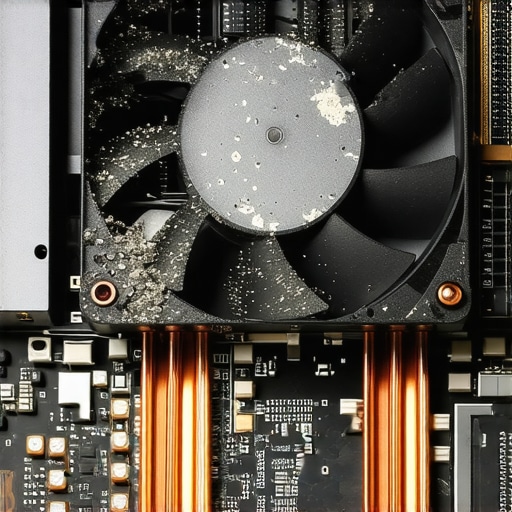
The Performance Myth of Ultra-Thin Chassis
Here is a contrarian take that usually gets me into arguments with sales reps: I almost always advise against the thinnest models if you’re a power user. Everyone wants the sleekest game-changing gaming laptops, but there is a physical limit to how much heat a 15mm frame can dissipate. This is the hidden cost of buying an ultra-thin gaming laptop. You are paying a premium for portability, but you’re often sacrificing 20% of the actual performance of the GPU because it simply cannot stay cool. I’ve seen ‘Max-Q’ chips in thin laptops get absolutely crushed by ‘lower-tier’ chips in thicker, better-ventilated frames.
Don’t Fall for the Wrong Power Source
Another ‘oops’ factor that professionals miss is the power supply. People often lose their original brick and buy a generic replacement, not realizing how to tell if your laptop is being throttled by its charger. If the laptop detects a lower-wattage or non-communicative power source, it may permanently lock your CPU into a low-power state to prevent a fire hazard. You think your computer is dying, but it’s actually just starving for the right current. If you really want to save money, use the Friday afternoon trick for catching warehouse price drops on genuine OEM parts instead of risking a $15 knock-off. Have you ever fallen into this trap of buying a ‘deal’ that ended up costing you more in the long run? Let me know in the comments below!
Stop Smothering Your CPU with Factory Sludge
If you want to keep that powerhouse running like day one, you have to get comfortable with a screwdriver. I’ve seen too many business laptops for professionals die an early death because of what I call ‘factory sludge’—that cheap, generic thermal paste manufacturers use to save pennies. Every eighteen months, I crack open my main rig and apply a high-quality compound like Kryonaut. It’s the single most effective way to prevent the performance drops we talked about earlier. You can actually learn how to replace your laptop thermal paste without breaking anything in under twenty minutes if you’re patient. While you’re in there, a quick blast of compressed air is vital; if you don’t, you should at least know how to check your laptop fan for dust without opening it to stay ahead of the heat. According to Intel’s technical documentation for mobile processors, specifically regarding Tjunction (junction temperature), once your chip hits its thermal limit (usually 100°C), the internal logic will aggressively downclock to prevent permanent silicon damage. My goal is to never let my machine get within 10 degrees of that cliff.
How do I maintain my laptop’s battery life for more than a year?
I treat my battery like a living thing, not a gas tank. If you leave it at 100% and plugged into a wall for three months straight, you’re basically suffocating it. Modern lithium-ion cells hate being ‘full’ as much as they hate being ’empty.’ I’ve transitioned to only buying machines that allow me to set a hard charge limit in the software—usually at 80%. This is the core reason why we never leave our laptops plugged in overnight. If your battery percentage starts jumping around or dropping from 20% to zero instantly, it’s a sign of a desynced controller, and you’ll need to learn how to calibrate your laptop battery for better accuracy to fix the reporting issues.
The Software Toolkit That Keeps Me Sane
Beyond hardware, I rely on a specific set of tools to monitor my system’s health. I don’t use ‘cleaner’ apps—most of those are snake oil. Instead, I use HWInfo64 to keep an eye on real-time voltage and thermal flags. It helps me spot how to tell if your laptop is being throttled by its charger before it ruins my workflow. For my desk setup, I’ve moved toward simplicity; learning how to use a single usb-c cable to connect your entire desk has reduced my cable clutter and saved my ports from physical wear and tear. I also recommend picking up must-have laptop accessories to boost your work setup like a high-quality external SSD for backups, rather than relying on a single points of failure.
Why Modularity is Finally Winning the War
Looking ahead, I predict we’re moving toward a ‘Right to Repair’ renaissance. For years, we were forced into buying disposable machines, but the market is shifting. In the next two years, I expect even the major brands to pivot away from the trend of soldering every component. It’s why we never buy laptops with soldered ram for longevity anymore; it’s a planned obsolescence trap that savvy buyers are finally rejecting. If you’re currently looking for top laptop deals in 2025, prioritize machines with accessible internals. Try this one thing today: download a hardware monitor and check your ‘Core Thermal Throttling’ flag while running a heavy task. If it turns red, it’s time to give your laptop the maintenance it deserves.
Three Realities of Hardware Ownership I Learned the Hard Way
Over the years, I’ve realized that the spec sheet is often a distraction from the lived experience of owning a computer. First, I learned that silence is a premium feature you often have to enable yourself; a loud startup chime or a whistling fan can ruin the focus you need for deep work. Second, I’ve seen how quickly performance degrades without maintenance. If you don’t keep your system clean, your high-end machine will eventually perform worse than a well-maintained budget model. Finally, modularity is your best friend. This is why we never buy laptops with soldered ram for longevity—being able to upgrade is the only way to stay ahead of software bloat without buying a whole new device every two years.
My Personal Toolkit for a Quiet and Fast Machine
I don’t just rely on BIOS tweaks to keep my office peaceful. I trust a very specific set of tools to ensure my hardware stays in peak condition. I always keep a tube of high-quality thermal compound ready, and I recommend learning how to replace your laptop thermal paste without breaking anything as a rite of passage for any serious owner. For monitoring, HWInfo64 is my go-to for catching thermal throttling before it becomes a problem. I also focus on the physical side of things, investing in must-have laptop accessories to boost your work setup like a high-wattage GaN charger and a silent mechanical keyboard. For those who prioritize repairability, it’s also why we only buy laptops with removable battery packs whenever the option exists.
Take Full Control of Your Digital Workspace
Building a setup that doesn’t fight against you is one of the most satisfying things you can do for your productivity. Whether you are hunting for top laptop deals in 2025 or trying to breathe new life into an aging machine, remember that you are the boss of your hardware. Don’t let a manufacturer’s default settings dictate how you experience your work or play. Take that five minutes to dive into the BIOS, clean out those fans, and set your battery limits. Your future self will thank you for the silence and the sustained speed. What’s the one laptop sound or habit that drives you absolutely crazy? Let’s swap horror stories in the comments!