
I was sitting in a packed coworking space in downtown Chicago, the kind of place where you are practically elbow-to-elbow with strangers, and my cursor started doing the stutter-dance. It was infuriating. I would click a spreadsheet cell, and the mouse would lag three seconds behind, finally jumping across the screen like it had a mind of its own. I replaced the batteries. I cleaned the sensor. I even restarted my laptop. Nothing worked. It felt like I was trying to draw with a pen that only worked every fifth stroke. That is when it hit me: it was not my mouse that was broken; it was the invisible air around me that was too crowded. I realized that all those unbeatable laptop deals I had been hunting for would not mean a thing if I could not even navigate my own desktop. Today, I am going to show you exactly why your wireless peripherals are struggling and how to reclaim your desk from the chaos of signal interference.
The Day My Productivity Froze in a Sea of Bluetooth
Early in my career, I made the classic mistake of buying the cheapest ‘Amazon Special’ wireless mouse I could find. I thought I was being savvy, but that bargain-bin tech was not built for the modern office. When you are at home, it works fine. But when you drop that same mouse into a room with fifty other people, all using Bluetooth headsets, Wi-Fi, and their own mice, it is like trying to have a whisper-quiet conversation in the middle of a rock concert. This is a primary reason why we still use wired mice for serious office work in high-density environments. The physical connection bypasses the ‘noise’ that kills wireless productivity. Have you ever been in the middle of a big presentation only to have your cursor freeze up right when you needed to click ‘next’?
Does an expensive mouse actually fix the interference?
You might be skeptical that throwing money at a higher-end device will solve a problem that seems to be in the air itself. However, premium must-have laptop accessories often include frequency-hopping technology that ‘searches’ for a clean channel faster than budget models. According to researchers at IEEE, the 2.4GHz ISM band is incredibly congested because it is shared by everything from baby monitors to microwave ovens, which can leak radiation that dorks up your mouse signal.
Your Office is a Radio Wave War Zone
The problem is not just other mice. It is the sheer volume of data flying through the room. Most wireless mice operate on the 2.4GHz frequency, which is the same highway used by older Wi-Fi routers and those annoying Bluetooth dongles. When every desk is packed with tech, those signals collide. Think of it like a massive traffic jam where your mouse’s data packet is a tiny scooter trying to weave through semi-trucks. If the packet gets bumped or delayed, you see lag. If it gets lost entirely, your cursor teleports. We will get into the technical fixes soon, but first, you have to understand that your hardware is fighting a literal battle for bandwidth every single second you are at work.
Move Your Receiver Out of the Dead Zone
The first thing you need to do is shorten the distance between your mouse and its receiver. Most people plug their tiny USB dongle into the back of a docking station or the far side of their laptop and forget about it. That is a mistake. Think of your mouse signal like a weak flashlight; the further away you are, and the more obstacles (like coffee mugs or metal desk legs) in the way, the harder it is for the receiver to see the light. I solved my own stuttering issues by picking up a simple USB extension cable, which is one of those must-have laptop accessories to boost your work setup. By taping the receiver to the underside of the front of my desk, I reduced the distance from two feet to six inches. The lag disappeared instantly. If you are using game-changing gaming laptops for serious players in 2025, you cannot afford even a millisecond of delay, so get that receiver as close to the mousepad as physically possible.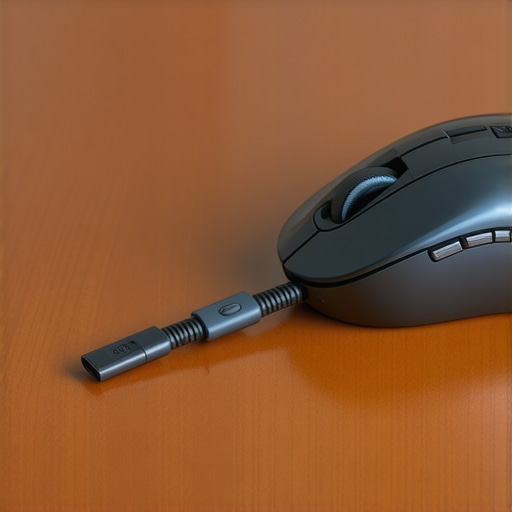
The USB 3.0 Port is Secretly Killing Your Signal
Here is a technical quirk most people miss: USB 3.0 ports are notorious for emitting radio frequency interference in the 2.4GHz range. This is the exact same frequency your mouse uses. I once spent three hours debugging a laggy mouse on a high-end workstation, only to realize my external hard drive’s USB 3.0 cable was acting like a literal jammer because it was plugged in right next to the mouse dongle. If your mouse is acting up, try moving the receiver to a USB 2.0 port if your laptop still has one, or use a shielded extension cable to move it away from active data-heavy ports. This is especially vital on top business laptops for productivity in 2025 where you likely have multiple peripherals plugged in at once.
Stop the 2.4GHz Traffic Jam in Your Settings
If physical placement does not fix it, the air itself is too crowded. Most routers default to the 2.4GHz band because it has better range, but that is where every cheap mouse and keyboard lives. You need to force your environment to clear a path. Log into your router settings and switch your Wi-Fi to the 5GHz or 6GHz band exclusively if your devices support it. This clears the 2.4GHz ‘highway’ for your peripherals. I actually took it a step further when I lived in a high-rise apartment and replaced our laptop Wi-Fi card with an Intel AX210 to ensure my machine had the best possible management of these frequencies.
Switch to Bluetooth LE for Office Work
While gamers prefer the 2.4GHz dongles for speed, many professionals should consider switching to Bluetooth Low Energy (LE). Bluetooth uses an adaptive frequency-hopping spread spectrum, which means it constantly ‘jumps’ to different frequencies to avoid interference. When I am hunting through unbeatable laptop deals for a secondary machine, I always check if the hardware supports Bluetooth 5.0 or higher. It handles crowded environments much better than the basic proprietary dongles found on budget mice. It might not be as fast as the connection on game-changing gaming laptops for 2025 adventures, but for spreadsheets and emails, it is significantly more stable in a crowded coffee shop. If all else fails, remember that why we still use wired mice for serious office work remains a valid argument—sometimes the best way to win a radio war is to stop using the radio entirely.
Don’t Fall for the Spec Sheet Trap
Most people think that if they find unbeatable laptop deals with an i7 processor and 16GB of RAM, they are set for life. I used to be one of them. But here is the hard truth: those specs are meaningless if the laptop’s internal design is garbage. I have seen ultra-thin laptops that cost two grand struggle with basic Excel tasks because they are constantly hitting thermal limits. When a laptop gets too hot, it intentionally slows down to save itself from melting—a process called thermal throttling. This is why the hidden cost of buying an ultra-thin gaming laptop often includes a massive drop in actual, usable power. If you are shopping for game-changing gaming laptops for serious players in 2025, you need to look at the cooling system, not just the sticker on the palm rest.
Can a better power adapter actually stop your cursor from lagging?
It sounds like a myth, but your power delivery system is deeply tied to your peripheral performance. When your laptop is under-powered, it often starts cutting juice to the USB ports first. According to a study by the U.S. Department of Energy on electronic efficiency, many consumer-grade power bricks fail to provide a steady voltage under heavy load. This inconsistency can cause your wireless dongle to ‘brown out’ for a fraction of a second, leading to that maddening stutter. I always check how to tell if your laptop is being throttled by its charger before I blame the mouse itself. 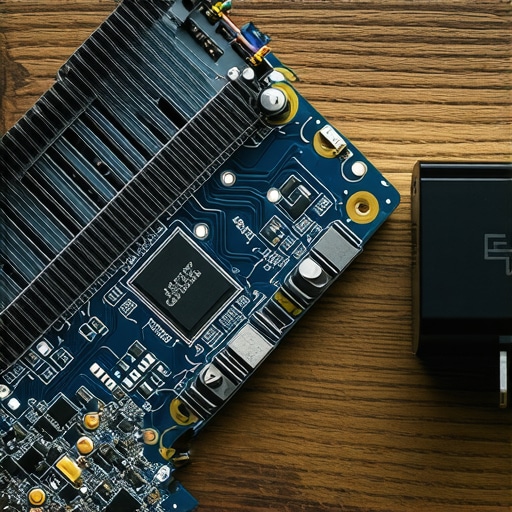
The Disposable Laptop Trap is Real
The biggest mistake I see students and professionals make is buying a $300 ‘new’ laptop instead of a three-year-old refurbished business machine. It feels counterintuitive, but why most $300 laptops are just e-waste in a box comes down to build quality. Those cheap consumer models use plastic hinges and soldered components that you can never upgrade. I have shifted my entire philosophy to why we prefer used enterprise laptops over cheap new consumer models because they are built to be dropped, spilled on, and repaired. If your RAM is soldered to the motherboard, one bad memory chip means your entire computer is a paperweight. That is why why we never buy laptops with soldered RAM for longevity is my number one rule for anyone looking for top business laptops for productivity in 2025. Have you ever fallen into this trap of buying for the price tag only to have the machine fail six months later? Let me know in the comments. If you are struggling with a specific setup issue, feel free to reach out via our contact us page.
Clear the Digital Clutter Before it Slows You Down
Software bloat is a silent performance killer that creeps into your system when you are not looking. Every time I set up a machine from those top laptop deals in 2025, the first thing I do is a deep cleaning of the OS. Windows 11 loves to pack your Start menu with suggested apps and web results you never asked for. I always make sure to how to disable web results in your windows start menu because it shaves precious seconds off my search time and keeps the UI snappy. Another pro-tip for keeping your sanity during meetings: I why we always disable the start-up sound in the bios. It sounds like a small thing, but avoiding that loud chime in a quiet library or office is essential for maintaining a professional image.
Keep the Dust Bunnies Out of Your Cooling System
Physical maintenance is where most people fail their hardware. If you are using student laptops that boost productivity and learning, you are likely tossing that machine in a backpack every day, picking up lint and dust. Over time, that debris cakes onto your fan blades and clogs the heat sink fins. You do not always have to take the whole thing apart right away; you can how to check your laptop fan for dust without opening it just by using a high-powered flashlight and a bit of patience. If your temps are still spiking, you might need to be brave and how to replace your laptop thermal paste without breaking anything. Manufacturer paste often dries out after two years, turning into a brittle, useless crust that traps heat instead of moving it.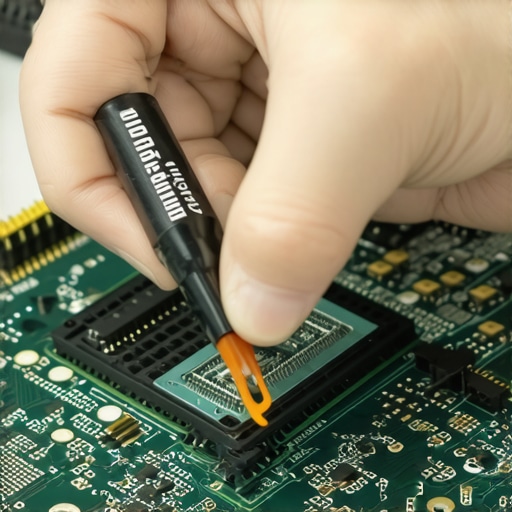
How can I keep my hardware running like new for five years?
Long-term reliability is about consistent monitoring. I personally use HWiNFO64 to keep an eye on my per-core temperatures. According to technical experts at Thermal Grizzly, high-performance thermal interface materials can degrade significantly if the laptop frequently hits its TJMax (maximum junction temperature), which is usually around 100°C for modern chips. To prevent this, I recommend learning how to undervolt your gaming laptop for better temps and performance. By slightly reducing the voltage sent to the CPU, you can maintain the same clock speeds while generating significantly less heat. This is the single best way to ensure your motherboard components do not cook themselves over the long haul.
The Future of Smart Hardware Management
I predict that within the next few years, we will see AI integrated directly into the BIOS to manage these thermal curves and battery health automatically based on your specific usage patterns. Until then, you need to be the brain of the operation. Do not forget to how to calibrate your laptop battery for better accuracy every few months. If your percentage jumps from 20% to 5% in a minute, your Windows battery gauge is lying to you because it has lost track of the cells’ actual capacity. My challenge to you today is this: download a hardware monitor and check your idle temperatures. If you are sitting above 50°C while just looking at your desktop, your machine is crying for a cleanup. Take thirty minutes this weekend to clear your vents and optimize your startup apps; your future self will thank you when that laptop is still humming along three years from now.
Hard Truths My Five Broken Dongles Taught Me
Over years of testing setups in crowded airports and quiet libraries, I’ve realized that interference is rarely a hardware failure; it is often a management failure. First, never assume your desk layout is static. Radio waves bounce off metal coffee mugs and filing cabinets in ways that can baffle even the smartest sensors. Second, the “auto” setting on your router is not your friend. It often dumps you into the same congested channel as every other device in the building. Finally, I’ve learned that why we still use wired mice for serious office work isn’t about being old-fashioned—it’s about removing a layer of signal failure that you simply don’t need to deal with during a high-stakes presentation.
My Daily Drivers for a Frustration-Free Desk
I don’t keep these specific tools around because they are flashy; I keep them because they work under pressure. To ensure I’m not frying my internal components, I rely on HWiNFO64 to monitor temps in real-time. I also swear by USB-C to DisplayPort cables with latching mechanisms to prevent accidental disconnects. When looking for new hardware, I always prioritize why we prefer used enterprise laptops over cheap new consumer models, as their internal shielding for Wi-Fi and Bluetooth is significantly better than budget consumer plastic. Lastly, I always verify my power bricks; learning how to tell if your laptop charger is actually safe to use has saved me from at least two motherboard-killing surges.
Stop Fighting Your Tools and Start Creating
You shouldn’t have to be a radio technician just to send an email, but a little bit of knowledge goes a long way in this wireless world. By moving your receiver, cleaning your fans, and choosing quality over convenience, you reclaim the speed you were promised when you first hunted for those unbeatable laptop deals. Don’t let a $10 mouse dongle or a bit of dust stand in the way of your next big project. Invest in your must-have laptop accessories to boost your work setup today and watch your frustration melt away. Have you ever had your mouse fail at the absolute worst possible moment? Let me know your horror stories—or your fixes—in the comments below, or reach out to us on our contact us page.