
I was sitting in a crowded airport lounge, sweat on my forehead, trying to squash a production bug before my boarding group was called. Every time I reached for the curly brace, my finger slipped on the flat, soulless plastic of my laptop’s built-in deck. It was mushy. It was slow. It was a disaster. I missed the commit window by three minutes because my ‘high-speed’ setup felt like typing on a stack of wet napkins. That’s the moment I realized that if I wanted to code anywhere—from trains to tiny coffee shop tables—I needed more than just a powerful machine; I needed a keyboard that could keep up with my thoughts.
The Day I Realized My Laptop Keys Were Killing My Code
We spend thousands on the latest business laptops, but we often ignore the one part we touch 100% of the time. Early in my career, I made the classic mistake of thinking any ‘portable’ keyboard would do. I bought a flimsy $15 folding plastic mess that lagged so hard I ended up with more syntax errors than actual code. It was a lesson in frustration. If you’re serious about productivity, you have to look at must-have laptop accessories to boost your work setup that actually prioritize tactile feedback. I’ve learned the hard way that a compact, clicky mechanical board isn’t a luxury—it’s a survival tool for your wrists and your sanity. Even the most high-end decks can get gummed up over time, so I always keep a guide on the best way to clean your laptop keyboard handy to maintain that crisp feel.
Is Carrying an Extra Keyboard Actually Worth the Hassle?
I get it. You already have a laptop, a charger, and maybe a tablet in your bag. Adding a slab of switches seems like overkill. But consider this: research from ergonomic studies suggests that consistent tactile feedback can reduce typing errors by nearly 20% compared to flat membrane keys. When you’re deep in a refactoring session, that 20% is the difference between finishing at 5 PM and debugging until midnight. Plus, once you find the right minimalist backpack for your gear, the weight becomes a non-issue. I now refuse to settle for the standard deck because we only use mechanical keyboards for all-day coding for a reason—the speed is simply incomparable. Have you ever felt like your hardware was literally slowing down your brain’s output? Drop a comment and tell me your horror stories, because I’ve been there, and I’m never going back. Today, I’m going to show you exactly how to pick a travel-friendly board that feels like a desktop powerhouse.
Pick the Layout That Won’t Overwhelm Your Bag
The first rule of portable productivity is that size actually matters. You might love your full-sized keyboard at home with its dedicated number pad, but trying to cram that into a standard bag is a nightmare. I learned this the hard way when I tried to bike to a co-working space with a full-size deck sticking out of my pack; it was a safety hazard and eventually led me to find the best laptop bag for biking to work in the rain just to protect my gear. You want to aim for a 60% or 65% layout. These strip away the fluff but keep the essential keys. Specifically, a 65% layout gives you dedicated arrow keys, which are non-negotiable for coding or navigating spreadsheets quickly. When you’re browsing top laptop deals in 2025, look for devices that complement these compact peripherals.
Stick to Low-Profile Switches for Maximum Portability
Traditional mechanical switches are tall. While they feel great, they turn your keyboard into a thick brick. Low-profile switches are the bridge between that mushy laptop feel and a full desktop experience. They reduce the height of the board significantly, making it much easier to slide into a sleeve alongside student laptops that boost productivity. I once spent an entire week using a high-profile board on a plane tray table, and my wrists were screaming by the time we landed because the angle was too steep. Low-profile switches keep your hands flatter and more natural.
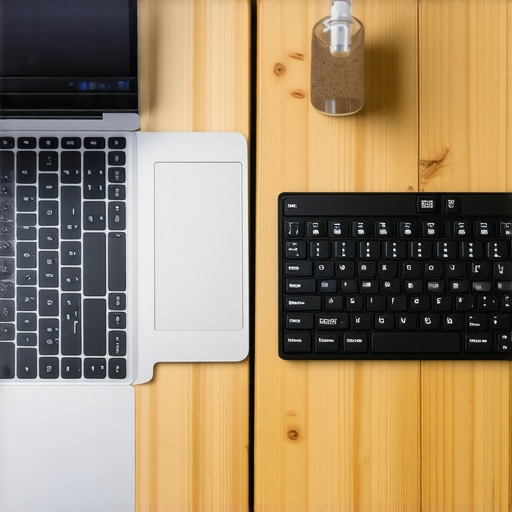
Choose Switches That Won’t Get You Banned From the Library
This is where most beginners fail. You love the click-clack of clicky blue switches, but everyone else in the coffee shop will want to throw your latte at you. I remember sitting in a dead-silent university library, proudly unboxing a new clicky board. I typed three lines of code, and the collective glare from forty students was enough to make me pack up in shame. This is why most gaming laptops fail the coffee shop noise test; their keyboards are just too loud. For a travel setup, stick to linear or silent tactile switches. They provide the bump you need to know a key was pressed without the acoustic violence of a typewriter. If you’re working on business laptops for professionals in a shared office, your coworkers will thank you.
Ditch the Cables for a Seamless Connection
Cables are the enemy of a quick setup. If you’re hopping between meetings or moving from a train to a cafe, you don’t want to spend three minutes untangling a USB-C cord. Modern Bluetooth 5.0 or 2.4GHz wireless connections are now stable enough for everything except professional gaming. When you pair a wireless board with the only laptop stands that dont shake while you type, you create a legitimate ergonomic workstation in seconds. Just ensure the board supports multi-device pairing. Being able to flick a switch and move from your laptop to your tablet is a game-changer for mid-commute emails. It makes your mobile rig feel less like a compromise and more like a curated command center.
A great keyboard is only half the battle for a mobile workstation. If you are hunting for unbeatable laptop deals to save big on quality devices today, you need to look beyond the sleek exterior. Everyone tells you to buy the thinnest laptop possible for travel, but in my experience, that is exactly how you end up with a thermal-throttling nightmare. The hidden costs of choosing an ultra-thin business laptop often include a CPU that drops its clock speed by 30% the moment you open more than three browser tabs. You think you are being efficient, but you are often paying a premium for hardware that the chassis simply cannot cool.
The Trap of Overpowered Specs in Underpowered Frames
The biggest ‘oops’ factor I see involves buying based on raw specs without considering the physical environment of the chip. I have seen countless pros drop three grand on game-changing gaming laptops for 2025 adventures only to find they cannot even use that power in a coffee shop because the fans sound like a jet engine. If you are a student, for example, high-performance monsters are usually a mistake. You are much better off looking for student laptops that balance power and portability perfectly so you are not hunting for an outlet every forty minutes.
Why Is Your High-End CPU Throttling Under Moderate Loads?
Advanced users often overlook the impact of PL1 and PL2 power limits. Research by hardware analysts at NotebookCheck confirms that many manufacturers ‘nerf’ the power limits of high-end chips to keep ultra-thin designs from reaching dangerous skin temperatures. This is exactly why gaming laptops still struggle with thermal throttling in small frames. If your frame is too small, your high-end processor will perform like a mid-range model within minutes of heavy work.  To combat this, I recommend investing in must-have laptop accessories to boost your work setup, specifically a stand that allows the bottom intake vents to actually breathe. Have you ever fallen into the trap of buying for specs only to be let down by heat issues? Let me know in the comments, because I have learned that a slightly thicker machine is often the faster machine in the long run.
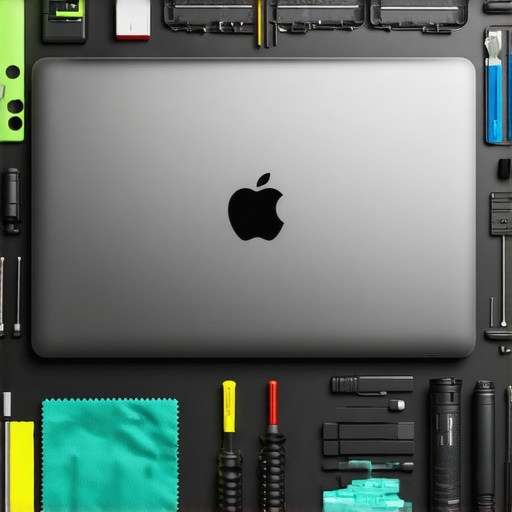
Once you have found that perfect balance of power and portability, the real work begins. I have seen too many friends score top laptop deals in 2025 only to let their machines turn into sluggish, dusty bricks within six months. Maintenance isn’t just a chore; it is the only way to ensure your investment actually survives the rigors of travel and high-intensity workloads. My personal kit always includes the specific screwdriver kit you need to open 90% of modern laptops, because being able to pop the back plate and clear out the fans is the difference between a quiet meeting and a thermal-throttling disaster. If you are not comfortable opening the chassis yet, you can still learn how to clean the dust out of your laptop without opening it to keep those air pathways clear.
Stop the Dust Before It Stops Your Work
I swear by a routine I call the ‘Sunday Reset.’ This isn’t just about clearing your inbox; it is about physical upkeep. I use a microfiber cloth and a gentle solution—never Windex—to ensure I am not looking through a layer of finger oils on Monday morning. I’ve found that cleaning a greasy trackpad without causing damage is the most underrated productivity hack there is. When your fingers glide instead of sticking, your micro-movements become more precise. For those of us using business laptops for professionals, keeping the machine looking pristine also sends a message of competence during client meetings. No one wants to see a laptop covered in crumbs and stickers when you are pitching a six-figure contract.
How do I keep my laptop’s performance from tanking over time?
The secret to long-term speed isn’t just hardware; it is power management. According to technical documentation from ThrottleStop creator Kevin Glynn, managing your CPU’s ‘SpeedShift’ settings can significantly alter how your laptop handles bursty workloads versus sustained tasks. I use these tools to manually cap my power limits when I’m on a plane to ensure I get six hours of battery instead of two. I also recommend checking the truth about high wattage chargers and battery longevity before you leave your laptop plugged in 24/7. Modern lithium-ion cells hate being at 100% all the time. If your manufacturer provides a ‘battery health’ mode that caps the charge at 80%, enable it immediately. This is especially vital for student laptops that balance power and portability perfectly, as you need that battery to actually last through a four-year degree.
Ditch the Bloat and Reclaim Your Memory
Software-wise, I’m a minimalist. Every three months, I audit my startup apps. You would be shocked at how many ‘update helpers’ and ‘cloud syncers’ crawl into your system tray. I always show people how to disable windows features that eat your battery life, like transparency effects and background indexing, which offer almost zero benefit but tax your integrated GPU. If your machine still feels slow, look into the only 3 ways to genuinely speed up a slow laptop. Usually, it’s a rogue process or a nearly full SSD. I predict that in the next few years, we will see ‘AI-driven maintenance’ that automatically clears cache and optimizes voltage in real-time based on your calendar, but for now, the manual audit is king. Try this today: Open your Task Manager, go to the ‘Startup’ tab, and disable everything you don’t recognize. You’ll feel the difference on your next reboot, I promise.
My Hardest Lessons from a Decade on the Move
Over the years, I’ve realized that the perfect setup isn’t about having the most expensive gear; it’s about removing every tiny bit of friction from your day. I’ve learned that a mechanical keyboard isn’t just a luxury for gamers—it’s a vital tool for preventing the wrist fatigue that eventually hits every professional. Another hard-earned truth is that you should never ignore your thermals. If your fans are screaming and your performance is dipping, swapping the thermal paste on your laptop can be a rewarding afternoon project that restores your machine’s peak performance. Finally, always prioritize build quality over thinness; I always tell people how to find a lightweight laptop that doesnt flex when you type because a flimsy chassis will eventually lead to cracked motherboards and broken hearts.
The Gear That Actually Lives in My Bag
I’m incredibly picky about what earns a spot in my limited backpack space. Beyond the laptop itself, I always carry the specific screwdriver kit you need to open 90% of modern laptops because you never know when a loose hinge or a dusty fan will strike in the middle of a trip. For navigation, I’ve moved away from trackpads entirely when I’m stationary; the only travel mouse we actually enjoy using is one that tracks flawlessly on those glass cafe tables that confuse cheaper sensors. I also rely on ThrottleStop for fine-tuning power limits and BleachBit for keeping my system storage lean and responsive without the bloat of traditional ‘cleaner’ apps.
#IMAGE_PLACEHOLDER_E#
Build a Setup That Inspires You
At the end of the day, your workstation is your cockpit. Whether you are hunting for top laptop deals in 2025 or optimizing a three-year-old machine, the goal is to create an environment where your best work can happen effortlessly. Don’t be afraid to experiment with different laptop accessories until you find the combination that feels right for your unique workflow. True productivity is deeply personal, and your hardware should be a bridge to your goals, not a barrier. Have you ever had a specific piece of gear completely change the way you feel about working away from your desk? Let me know in the comments below!