
I was sitting in my 8 AM calculus lecture, trying to look like the most prepared student in the room with my shiny, expensive 2-in-1 laptop. Halfway through the professor’s frantic derivation, a single, greasy fingerprint smudge from my morning bagel caught a stray beam of sunlight. Suddenly, my notes were invisible, obscured by a prismatic smear of cream cheese. To make matters worse, while my peers were coasting on their simple clamshells, my battery percentage was plummeting faster than my GPA. That was the moment I realized I’d traded actual utility for a gimmick. I fell for the marketing, but you don’t have to. Today, I’m going to show you how to find student laptops that boost productivity without the unnecessary baggage of a touch-sensitive panel.
The Hidden Cost of That Shiny Glass Screen
One of the biggest mistakes I made early on was assuming that more features always meant a better experience. I spent an extra $200 for a digitizer I barely used, only to find that my laptop was heavier and more fragile than a standard model. It’s a common trap. When you’re hunting for top laptop deals in 2025, it is easy to be swayed by the ‘cool’ factor. However, touchscreen panels are notoriously power-hungry. Research from sites like PCMag has consistently shown that touch-enabled versions of the same laptop model can see a battery life reduction of 15% to 25%. In a long day of back-to-back classes, that’s the difference between finishing your essay and staring at a black screen. It is exactly why we skip the touchscreen version of every laptop when we want a reliable workhorse.
Are Touchscreens Really the Productivity Boost They Claim to Be?
Most students think they’ll use the screen to highlight PDFs or doodle diagrams, but the reality is often different. Unless you are a digital arts major, you’ll likely find that a traditional mouse or a high-quality trackpad is far more precise. I even found that the glossy coating required for touch functionality created a nightmare of reflections. If you’ve ever tried to work near a window, you know the struggle. I eventually had to learn how to bypass the annoying glare on your screen just to see my own text. Have you ever found yourself squinting at a smudged screen during a midterm or wishing you’d prioritized a lighter bag over a touch-sensitive display? If so, you’re not alone. We’re going to break down why a matte-screened, high-performance machine is almost always the smarter investment for your degree.
Stop Chasing Pixels You Can’t See in Daylight
The first step to escaping the touchscreen trap is understanding that your screen’s finish matters more than its sensitivity. When you’re looking for student laptops that boost productivity, you should actively hunt for a matte or anti-glare display. Glossy screens look great in a dark retail store, but they act like a mirror in a library with overhead fluorescent lights. I remember trying to code in a sunny common room with my old glossy-screened laptop; I spent more time adjusting my chair to avoid the glare than I did typing. If you want to work anywhere, check out the best laptop screen brightness for working in direct sunlight to see why nits and coating beat touch-sensitivity every time.

Build a Setup for Longevity and Reliability
You need a machine that can survive a four-year degree, not just look cool for one semester. This means prioritizing build quality over gimmicks. Look for chassis materials like magnesium alloy or reinforced carbon fiber. I learned this the hard way during my sophomore year when a minor bump in my bag cracked the digitizer on my 2-in-1, rendering the entire screen useless. Since then, I’ve stuck to the only student laptops that actually survive a backpack drop. These machines often have thicker hinges and lack the fragile glass layer required for touch. While you’re at it, don’t forget that must-have laptop accessories to boost your work setup can easily replace any functionality you think you’re losing with a non-touch screen.
The Night My Touchscreen Deleted My Midterm
I once sat through a late-night study session with a laptop that had a phantom touch issue. Because the screen was slightly warped from heat, it started registering clicks in the corner of the screen while I was writing a philosophy paper. It dragged a folder into the trash and nearly cost me a week of work. That’s exactly why we dont recommend touchscreen laptops for coding or any precision work. A standard screen doesn’t have these glitches. Instead of worrying about screen calibration, I now focus on how to pick a student laptop that lasts all four years by looking at the internal specs like RAM and SSD speed.
Max Out Your Battery for All-Day Lectures
If you choose a non-touch model, you’re essentially giving yourself a free battery upgrade. Every time your laptop has to power that touch-sensing layer, it’s sipping juice you could be using for research. When scouting top laptop deals in 2025, compare the non-touch battery life specs. You’ll often see a massive jump in endurance. This is crucial for student laptops that balance power and portability perfectly. I found that switching to a matte-screened business-grade machine allowed me to leave my charger at home entirely, freeing up space in my bag for 7 small items every student should keep in their laptop bag.
The Ultra-Thin Lie: Why Shaving Millimeters Kills Your Speed
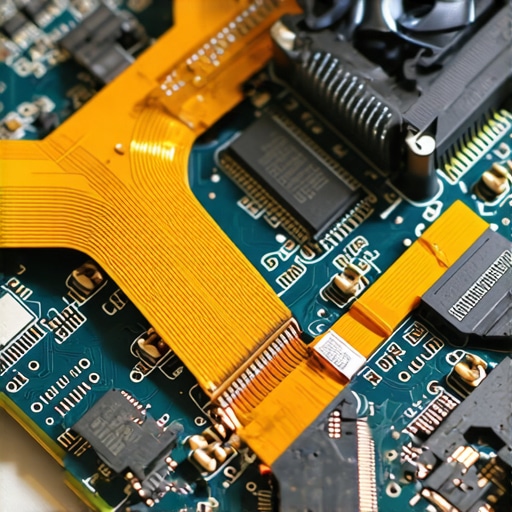
We’ve been conditioned to believe that ‘thinner is better,’ but in the world of high-performance computing, that’s a dangerous myth. When manufacturers chase the ‘ultra-portable’ aesthetic, they often sacrifice thermal headroom. I’ve seen countless students and pros pick up what they thought were top laptop deals in 2025, only to find the machine slows to a crawl after twenty minutes of heavy work. This is because thin chassis lack the space for proper heat pipes and fans, leading to aggressive thermal throttling. It’s a major part of the hidden downside of ultra-thin gaming laptops and even high-end ultrabooks. According to sustained load testing from experts at AnandTech, a thinner laptop can lose up to 30% of its peak performance just to keep from melting through its own casing. If you’re doing more than just answering emails, a slightly ‘thicker’ machine is actually the faster one.
Don’t Let a ‘Pro’ Label Fool You on SSD Endurance
One of the biggest ‘oops’ moments I see involves storage. Most people look at the capacity—say, 1TB—and stop there. However, there is a massive gap in quality that manufacturers rarely mention in the glossy brochures. I once helped a friend who bought a ‘pro’ machine that felt sluggish during file transfers; it turned out the manufacturer used a QLC drive without a DRAM cache. This is where understanding the real difference between consumer and enterprise-grade ssds becomes vital. If you’re a developer or video editor, a cheap drive will wear out its write cycles years before you graduate. Furthermore, why we avoid laptops with proprietary ssd slots is simple: if that cheap, soldered drive fails, your entire motherboard is a paperweight. Always check if the storage is user-replaceable before clicking buy.
Will a Budget Docking Station Actually Fry Your Logic Board?
I get asked this all the time by people trying to save a few bucks after dropping two grand on a new rig. The short answer? Yes, it can. Many ‘no-name’ hubs lack proper power delivery (PD) protection. This is why cheap usb-c hubs might be killing your ports through voltage spikes or improper grounding. When you’re building your desk setup, remember that must-have laptop accessories to boost your work setup should include a certified, reputable dock. Saving $40 on a hub isn’t worth risking a $500 repair bill. I’ve personally seen a student’s laptop screen turn into a permanent strobe light because of a faulty HDMI-to-USB-C adapter. Have you ever fallen into this trap or had a ‘bargain’ accessory ruin your day? Let me know in the comments. We’re all here to learn from those expensive mistakes before they happen to someone else.
The Scam Behind Those ‘Marketplace’ Warranties
Finally, let’s talk about the ‘hidden’ trap of the secondary market. You see a great price on a used workstation and the seller claims it has a ‘transferable’ warranty. Be extremely careful. I’ve helped users who learned how to spot a fake warranty on refurbished gear the hard way—by having a claim denied because the original buyer was a corporate entity that didn’t authorize the transfer. Always verify the serial number on the manufacturer’s official portal yourself. While you’re at it, keep an eye out for hardware red flags; knowing how to spot a fake nvme-drive on marketplace can save you from buying a 2TB drive that is actually a hacked 128GB card. Stick to the specs that matter, stay skeptical of ‘ultra-thin’ promises, and prioritize a machine that can actually breathe.
I’ve spent thousands of dollars on hardware over the years, but the most valuable thing in my bag is actually a twenty-dollar kit. If you want to stop being at the mercy of the Genius Bar or a corporate IT department, you need to own your hardware. This starts with getting the specific screwdriver kit you need to open 90% of modern laptops. I don’t just use it for upgrades; I use it to keep my machine from sounding like a jet engine. Every six months, I pop the back plate off and use a can of compressed air—never a vacuum—to clear the intake vents. It’s the simplest way to prevent the thermal throttling I mentioned earlier. If you aren’t comfortable opening the casing yet, at least learn how to clean the dust out of your laptop without opening it to keep those internal temps low. 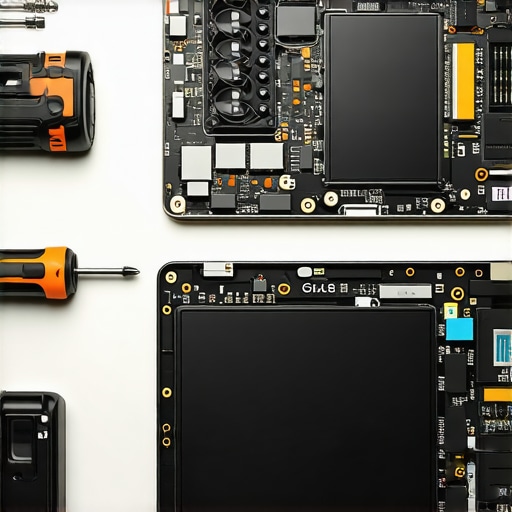
How do I keep my battery healthy for all four years?
Most people think they should leave their laptop plugged in 24/7 or drain it to zero. Both are wrong. According to the technical deep-dives at Battery University, keeping a Lithium-ion battery at 100% at high temperatures is the fastest way to kill its capacity. I personally use a software limiter to cap my charge at 80%. If you’ve wondered the reason your laptop battery wont charge past eighty percent, it’s often a deliberate safety feature you should be using. This is especially vital when scouting top laptop deals in 2025, as you want to preserve that fresh cell for as long as possible.
Stop Ignoring the Warning Signs of Hardware Failure
I recently noticed my cursor jumping around on its own. Instead of panicking and buying a new machine, I realized my trackpad was just covered in oils from a late-night snack session. Knowing how to clean a greasy trackpad without causing damage saved me a trip to the repair shop. But sometimes the issues are deeper. If your hinges feel stiff, don’t wait for them to snap. I’ve learned how to fix a wobbly laptop hinge before it snaps by simply tightening the internal mounting screws. It’s these small acts of maintenance that separate the people who buy a new laptop every two years from those who make one last for six. I predict that by 2027, we’ll see a massive shift back toward user-repairable designs as ‘right to repair’ laws gain steam globally. We are already seeing this with the only 3 brands that still make easily repairable laptops. If you really want to scale your productivity, stop looking at the shiny exterior and start looking at what you can replace yourself. My challenge to you: find your laptop’s battery health settings tonight and set an 80% charge limit to double your battery’s lifespan.
Lessons from the Library Basement
I’ve spent countless hours in campus basements troubleshooting hardware, and if there is one thing I’ve learned, it’s that the flashiest features are usually the first to fail. Stop thinking about the specs you see on the sticker and start thinking about the ones that actually help you finish your thesis. I learned the hard way why 8gb of ram is no longer enough for modern browsing when I had thirty research tabs open and my machine locked up during a final. If you are hunting for value, try the sunday morning strategy for finding hidden amazon coupons to shave another hundred bucks off a business-grade machine. Also, keep in mind that why most integrated webcams still look like rubbish is a matter of physics; don’t judge a laptop solely on its camera when a cheap external one is ten times better.
#IMAGE_PLACEHOLDER_E#
My Personal Campus Survival Kit
I don’t leave for campus without a few specific items that keep my gear running smooth. First, grab the specific screwdriver kit you need to open 90 percent of modern laptops. It is the best way to keep your fans clean and your RAM upgradable without paying a repair shop. I also swear by the most durable backpacks for students who carry too many textbooks because a padded sleeve is the only thing standing between your screen and a costly pressure crack. Finally, prioritize a machine with a great keyboard, as your fingers will be doing more work than your eyes over the next four years.
Focus on the Degree Not the Gear
At the end of the day, your goal isn’t to own the shiniest toy in the lecture hall; your goal is to graduate. By choosing student laptops that boost productivity through reliability, matte screens, and massive battery life, you’re investing in your own sanity and success. Don’t let the marketing department convince you that you need a folding screen or a touch panel to be creative. Have you ever had a specific laptop feature that you thought would be life-changing, only to never use it once? Let me know in the comments below!