
I’ll never forget the “death glares” I got during my first 8:00 AM chemistry lecture. The professor dimmed the lights for a slideshow, and I flipped open my screen. In that pitch-black room, my display felt like a searchlight hitting everyone in the retinas. I spent the next ten minutes frantically fumbling with my student laptops to lower the brightness, while my fan started screaming like a jet engine. It was a mess. It took me a while to realize that the default settings on even the best machines are rarely optimized for the cave-like atmosphere of a university auditorium. We’re going to fix your setup today so you can focus on the lecture without blinding your neighbors or running out of juice before the midterm review starts. I’ll show you exactly how to dial in your brightness, kill the fan noise, and keep your keyboard from looking like a neon sign. [IMAGE_PLACEHOLDER]
Keep Your Screen from Glowing Like a Beacon
One of the biggest mistakes I made early on was thinking that “auto-brightness” would handle everything. It didn’t. In a truly dark room, even the lowest “auto” setting can feel harsh. I’ve found that manually dropping to around 10-20% is the sweet spot. If you’re used to the best laptop screen brightness for working in direct sunlight, this will feel incredibly dim at first, but your eyes will thank you after an hour of note-taking. According to Harvard Health, exposure to blue light at night—which is exactly what that screen is pumping out—can significantly suppress melatonin production and disrupt your sleep cycle later.
Is Night Mode actually worth the hype?
Absolutely. I used to be a skeptic, thinking the orange tint was just a gimmick. But when you’re in a room where the only light is coming from your pixels, that “Warm” or “Night Shift” setting is a lifesaver for eye strain. It’s not just about the screen, though. I once forgot to silence my notifications, and a loud “ping” echoed through the silent hall because I didn’t have dedicated mute buttons on student laptops to save me. Have you ever had a moment where your laptop betrayed you in a silent classroom?
Stop the Fan From Giving You Away
Beyond the visuals, the noise in a dark, quiet hall is amplified. When everyone is silent and focused on a slide, a whirring fan sounds like a hair dryer. Most people don’t realize their laptops are running unnecessary background tasks that kick the cooling into high gear. You should definitely learn how to disable windows features that eat your battery life to keep the CPU cool and the fans silent. It’s about being a ghost in the machine, making sure your presence is felt through your notes, not your hardware’s struggle to stay cool. We’re going to dive into the specific power profiles that make this possible next.
Force Your Power Profile to Cooperate
To keep your machine as silent as a tomb, you need to be aggressive with your power settings. Don’t just rely on the little battery icon in the taskbar. Open your advanced power settings and create a “Stealth Mode” profile. You want to cap the maximum processor state at about 50%. This is like putting a speed limiter on a sports car; the engine (your CPU) never revs high enough to generate the heat that triggers those jet-engine fans. I learned this the hard way during a guest lecture by a famous novelist. My game-changing gaming laptops decided that was the perfect moment to index my entire hard drive, and the fan noise was so loud I had to physically leave the room. If you’re using student laptops that balance power and portability perfectly, you usually have a “silent” toggle in the manufacturer’s software. Use it. It’s better to have a slightly slower response in your notes than to have 200 people wondering why your desk is preparing for takeoff.
Limit Background Tasks Before You Enter
Once you’re in the dark, every extra percentage of CPU usage is an enemy. High-performance tasks are the primary reason why gaming laptops still struggle with thermal throttling in small frames, but even a thin ultrabook will heat up if Chrome has 50 tabs open. Before the lights go down, kill any auto-updaters, cloud sync services, or heavy browsers. If you really want to be a pro, learn how to disable windows features that eat your battery life specifically for these lecture marathons. It ensures your hardware stays cool enough to keep the fans at 0 RPM. 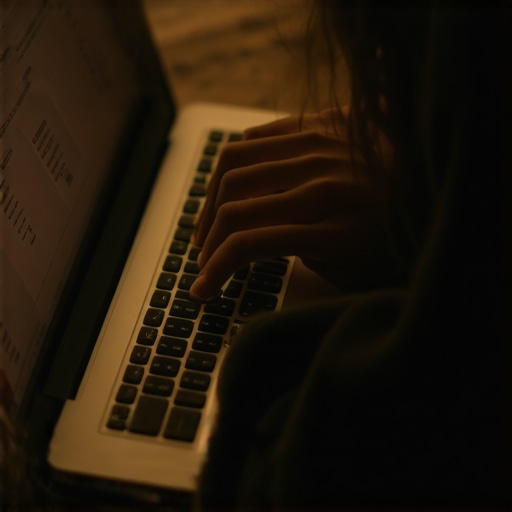
Kill the Keyboard Light Show
That cool RGB lighting that looks great in your dorm? It’s a neon sign in a dark lecture hall. Even a standard white backlight can be incredibly distracting when it’s the only light source in the room besides the projector. I’ve seen people try to cover their keyboards with their hands, but the light just leaks through their fingers like a glowing radioactive hazard.
Dial Down the Backlight Intensity
If you don’t want to turn it off completely—maybe you’re like me and haven’t fully mastered touch typing yet—drop it to the lowest possible setting. Most student laptops that boost productivity allow for 3 or 4 levels of brightness. Level 1 is usually enough to see the letters without casting a glow on your own face. If you have a machine with RGB, switch it to a static, dark red or deep amber color. These colors are much less intrusive to human night vision than bright blue or white.
Silence Your Physical Inputs
The final piece of the stealth puzzle is the sound of your hands. In a room where you can hear a pin drop, the click-clack of a mouse or a loud spacebar can feel like a drum solo.
Invest in Silent Peripherals
If you prefer using a mouse over a trackpad, do your neighbors a favor and look into the best quiet mice for students in quiet study zones. I remember sitting next to a guy who used a mechanical gaming mouse during a philosophy lecture; every time he clicked to highlight a sentence, it sounded like a stapler. It was maddening. Beyond the mouse, think about how you type. If you’re a heavy typer, try to soften your strike. It sounds like a small detail, but when you combine silent clicking with a fanless power profile, you become invisible. This allows you to focus entirely on the material, rather than worrying about the person behind you wishing you’d just close your laptop.
Stop chasing thinness at the cost of your sanity
Most people believe that a thinner laptop is inherently more ‘modern’ and therefore better for a classroom environment. I used to think the same until I realized that thinness is often the enemy of silence. When you shave off millimeters of chassis, you lose the heat sinks required to cool the processor passively. In my experience, many top business laptops for productivity in 2025 actually outperform sleek ultrabooks in quiet environments because they have the internal volume to manage heat without ramping up the fans. If you buy a machine that is too thin, the fans have to spin at a higher, more piercing frequency just to keep the internals from melting. This is precisely why gaming laptops still struggle with thermal throttling in small frames; physics doesn’t care about your aesthetic preferences.
The RAM trap most students fall into
One of the biggest nuances people miss is the relationship between memory and fan noise. You might think RAM just affects speed, but it directly impacts how much your hard drive has to work. When you run out of memory, your operating system starts using ‘swap files’ on your SSD. This extra data movement generates heat. I’ve seen countless students wonder why their fans are screaming during a simple web browsing session, and the answer is usually that why 8gb of ram is no longer enough for modern browsing in today’s resource-heavy environment. According to technical documentation from Intel regarding Thermal Design Power (TDP), an overworked system will always prioritize cooling over silence to prevent hardware damage.
Will an enterprise-grade SSD actually save your battery life?
It’s a fair question for any power user. While most people focus on the processor, the storage drive plays a massive role in thermal management. There is a the real difference between consumer and enterprise grade ssds when it comes to power efficiency and heat dissipation. Enterprise-grade drives are designed for constant ‘up-time’ with lower power draws during idle states, which keeps your laptop chassis cool to the touch. 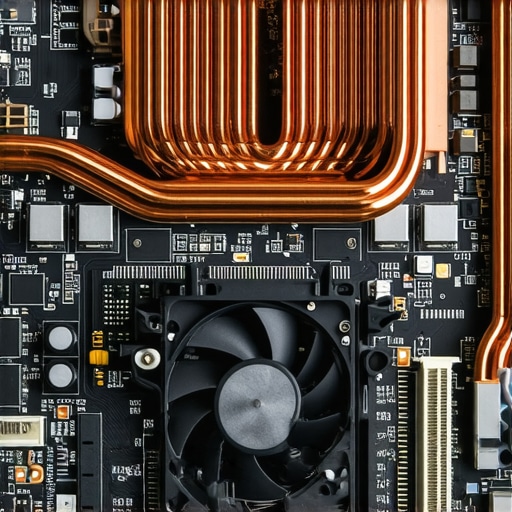
Why enterprise-grade hardware beats the consumer hype
If you are hunting for unbeatable laptop deals, be wary of ‘consumer-grade’ machines that look flashy but use inferior thermal paste and plastic hinges. I always tell people to look for student laptops that balance power and portability perfectly by borrowing features from the professional world. The ‘oops’ factor here is buying a laptop with non-upgradable parts. We have reached a point where why we never buy laptops with soldered ram for longevity is our golden rule; if a single component fails or becomes obsolete, your entire ‘silent’ setup becomes a paperweight. Have you ever fallen into this trap? Let me know in the comments.I’ve learned the hard way that the secret to a long-lasting, silent machine isn’t just buying the right hardware—it’s about the surgical maintenance you perform every few months. If you’re serious about keeping your machine from turning into a noisy space heater, you need to own the right gear. I personally swear by the specific screwdriver kit you need to open 90 of modern laptops. Having the exact Torx or Pentalobe bit means you can pop the back cover without stripping screws, allowing you to blast out the hair and dust that inevitably choke your fans.
Stop Letting Dust Kill Your Silence
Even if you aren’t comfortable taking your machine apart yet, you have to stay on top of the debris. I’ve seen silent top business laptops for productivity in 2025 become deafeningly loud simply because the intake vents were clogged with lint from a backpack. You can learn how to clean the dust out of your laptop without opening it using a simple can of compressed air and a microfiber cloth. This small habit alone can extend your hardware’s life by years because heat is the primary killer of internal components. 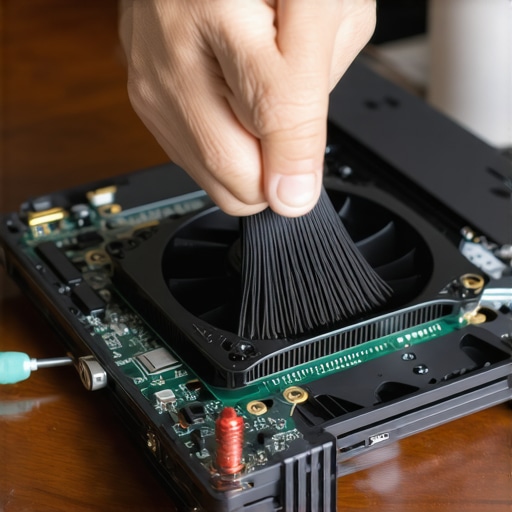
How do I maintain my laptop’s performance over several years?
The answer usually lies in two things: the battery and the thermal interface. Most people assume their battery is just ‘old’ when it stops holding a charge, but you can often find how to fix your laptop battery if it only lasts one hour by recalibrating the power controller or checking for rogue background apps. Furthermore, if your laptop is more than two years old and running hot, it’s probably time to refresh the cooling system. I’ve found that how to replace your laptop thermal paste without breaking anything is the single most effective way to restore that ‘day one’ silence. According to **Micron’s technical documentation on NAND endurance**, specifically the ‘Total Bytes Written’ (TBW) metric, your SSD’s lifespan is also directly proportional to how much unnecessary data swapping you force it to do. By keeping your thermal levels low, you prevent the system from throttling and generating the erratic power spikes that wear out your storage and motherboard.
The Modular Future is Finally Arriving
I predict that the next three years will see a massive shift toward repairability. We are moving away from the ‘glued-together’ era of ultrabooks. We’re already seeing brands move toward modular designs where you can swap a port or a keyboard in minutes. This is a game-changer for anyone looking for must-have laptop accessories to boost your work setup, as we’ll eventually be able to upgrade our machines piece by piece rather than buying a whole new unit. If you want to be ahead of the curve, I want you to try this today: go into your advanced power settings and cap your maximum processor state at 95%. You won’t feel a difference in Word or Chrome, but it prevents the CPU from hitting ‘Turbo’ boost, which is exactly what triggers those loud fans in the middle of a quiet room. Give it a shot and see if your machine finally stops screaming at you.
The Hardest Lesson I Learned About Silent Classrooms
I used to think that the ultimate setup was just about having the thinnest machine possible. I was wrong. The hardest lesson I learned was that silence is a result of preparation, not just price tags. I once spent an entire semester apologizing for a fan that sounded like a vacuum because I ignored the dust buildup in my intake vents. It taught me that owning student laptops that boost productivity and learning is only half the battle; the other half is being proactive with your settings before the lights go down.
- Don’t wait for the low battery warning to realize your CPU is redlining.
- Always carry a physical backup plan, like a notebook, for those days when the tech fails.
- The best way to stay quiet is to be boring—keep your software minimal and your background tasks non-existent.
My Essential Toolkit for Stealth Productivity
If you are ready to take control of your environment, there are a few items I never leave home without. First, I always keep the specific screwdriver kit you need to open 90 of modern laptops in my desk drawer for monthly cleaning. To keep my workspace organized and quiet, I rely on must-have laptop accessories to boost your work setup like silent mice and low-profile chargers. If you are in the market for a new machine, I highly recommend checking out student laptops that balance power and portability perfectly to ensure you are not sacrificing thermals for thinness. And for those looking to save, keep an eye on unbeatable laptop deals that often feature high-end business machines with superior cooling systems.
Your Journey Toward Distraction-Free Learning
Taking the time to master your machine’s stealth mode is not just about being polite; it is about reclaiming your focus. When you are not worried about a blinding screen or a screaming fan, you can actually engage with the material being taught. These student laptops are tools meant to serve you, not the other way around. Don’t be afraid to dive into those advanced settings and make your hardware work for your specific needs. Have you ever had an embarrassing moment where your laptop started making way too much noise in a quiet room? Let me know in the comments below!