
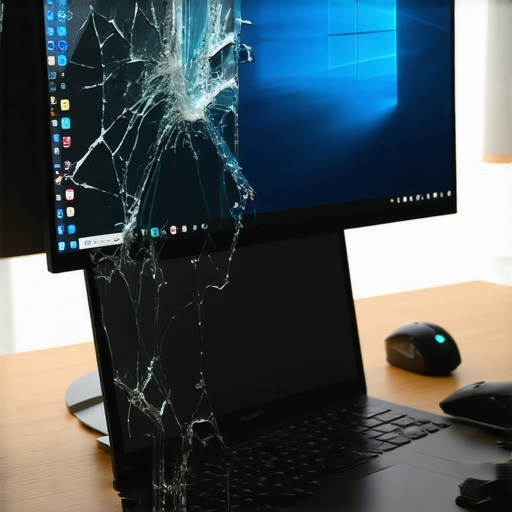
My morning coffee hadn’t even kicked in when I heard it. That sickening, metallic crunch. My trusty laptop had somehow slid off the kitchen table, landing face-down on the hardwood. When I flipped it over, the display looked like a neon spiderweb. I felt like a total amateur. I actually almost threw the whole thing in the recycling bin that same afternoon, assuming that a dead display meant a dead machine. But then I remembered: the ‘brain’ of the computer is usually just fine. I once spent $200 replacing a screen on a five-year-old machine when I could have found unbeatable laptop deals for less. It was a massive waste of money and a lesson in checking my options first.
That Heart-Sinking Sound of Cracking Glass Doesn’t Mean the End
It happens to the best of us. Whether it is a unfortunate backpack drop or a simple case of leaving a pen on the keyboard before slamming the lid, a broken screen feels like a death sentence for your productivity. But here is the secret I learned the hard way: your processor, your RAM, and your storage are likely still perfectly healthy. You basically own a ‘headless’ PC that is just waiting for a new job. Instead of letting it gather dust in a drawer, I am going to show you how to give it a permanent promotion. According to the UN’s Global E-waste Monitor, the world produces over 50 million metric tons of e-waste annually; keeping your hardware in use is both a smart financial move and a win for the planet. Today, we are going to stop the grieving process and start building something cool. Have you ever had that moment where you stared at a broken device and wondered if it was even worth the electricity to plug it back in?
Turn Your Laptop Into a Dedicated Desktop Powerhouse
The easiest win is to treat that laptop like a desktop tower. Just because the built-in screen is toast doesn’t mean the HDMI or DisplayPort is out of commission. I did this with an old business laptop that had a flickering panel, and it became the best workstation I ever had. By tucking the laptop under the desk or into a vertical stand, you free up massive amounts of space. You can pair it with some must-have laptop accessories like a mechanical keyboard and a high-resolution monitor. It is a fantastic way to get ‘new computer’ performance without spending a dime on a new CPU. Just make sure you adjust your power settings so it doesn’t fall asleep when you close the lid.
Is it really worth the hassle to save it?
I know the skepticism. Why mess with a broken machine when you could just buy something new? The truth is, these older machines often handle tasks like file storage or media streaming better than a cheap new tablet. If you have ever felt the frustration of a ‘bricked’ device, you know the satisfaction of proving the repair shops wrong. In the next section, we will look at how to take this a step further and learn how to turn an old work laptop into a high-speed home server, which is my absolute favorite way to use ‘broken’ tech.
Ditch the Broken Panel for a Real Monitor
The first step in your rescue mission is to bypass the damage entirely. You need a physical bridge between your laptop’s internal hardware and your eyes. Most machines from the last decade feature an HDMI port, though some thinner models might require a USB-C to HDMI adapter. I once tried to save money by using my living room television as a temporary fix, but I quickly realized the problem with using a TV as a gaming laptop monitor is the massive input lag and overscan that makes reading text a nightmare. For a permanent workstation, you want a dedicated display. If you are on a budget, look for 3 external monitors that won’t break a student’s budget to get back into the game without a massive investment. Once plugged in, your laptop should automatically detect the second screen, though you might need to hit a function key (usually F4 or F8) to mirror the display if you can’t see anything yet.
Stop the Laptop from Sleeping When You Close the Lid
By default, laptops are programmed to go to sleep the moment the lid is shut. To turn your broken machine into a true ‘headless’ desktop, you have to override this behavior. In Windows, head to the Control Panel, find ‘Power Options,’ and look for the setting labeled ‘Choose what closing the lid does.’ Set both ‘On battery’ and ‘Plugged in’ to ‘Do nothing.’ This is the simple tweak that stops your laptop from sleeping during presentations and, more importantly, allows you to tuck the machine away in a vertical stand. This saves huge amounts of desk real estate. I highly recommend investing in must-have laptop accessories to boost your work setup, specifically a high-quality wireless mouse and keyboard combo, so you never have to touch the broken chassis again.
My Near-Fire Experience with an Under-the-Bed Server
About three years ago, I decided to turn a laptop with a shattered screen into a dedicated file hub. I thought I was being clever by hiding it under my bed, out of sight and out of mind. I didn’t realize that even without a functioning screen, the CPU still generates significant heat while processing data. I woke up at 2:00 AM to the smell of hot plastic and a fan that sounded like a vacuum cleaner. I hadn’t researched any 3 ways to keep your laptop from overheating on a soft bed, and I nearly fried the motherboard. If you are going to hide your laptop, it must have airflow. Now, I use a wire rack for all my ‘headless’ projects. If your fan is already struggling, you should learn how to clean the dust out of your laptop without opening it before you commit it to 24/7 server duty.
Transform the Guts into a High-Speed Media Hub
If you don’t need a secondary desktop, your best bet is to follow the path of the digital hoarder. By installing software like Plex or Jellyfin, you can learn how to turn an old work laptop into a powerful media server. This allows you to stream your own movies and photos to every device in the house. This is especially effective if your broken machine was a higher-end model with a decent processor. Even an old i5 can handle multiple 1080p streams without breaking a sweat. If you are worried about security while the machine is running 24/7, make sure to how to secure your laptop SSD with BitLocker without losing speed. If you ever need to access the internals for an upgrade, make sure you have the specific screwdriver kit you need to open 90% of modern laptops, as those tiny proprietary screws are the only thing standing between you and a faster SSD or more RAM.
Most people think the best way to save money is to hunt for unbeatable laptop deals on the latest consumer models. But here is the contrarian truth: a three-year-old enterprise machine often outperforms a brand-new ‘budget’ laptop in every way that matters. I have seen countless people buy a shiny new plastic laptop for school only to have the hinge snap within six months of daily use. This is exactly why we avoid plastic screen bezels on student laptops. If you want something that actually lasts, you need to learn how to buy a used workstation without getting burned. These machines are built for 40-hour work weeks and are much easier to repair when things inevitably go wrong.
Stop Chasing Thinness if You Want Real Speed
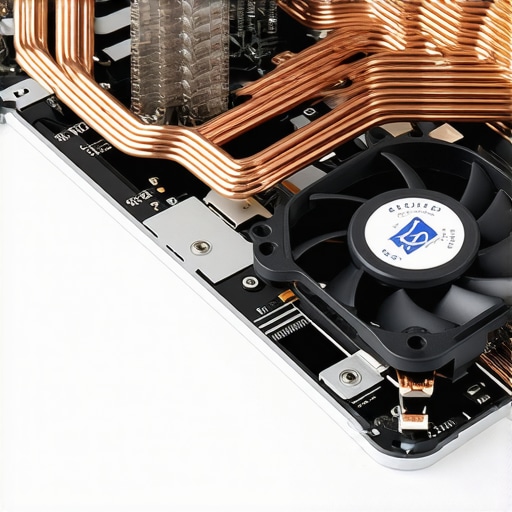
The biggest trap I see in the current market is the obsession with ‘ultra-thin’ designs. We have been conditioned to think that thinner equals better, but in the world of high-performance computing, thinness is often a thermal nightmare. I recently consulted for a friend who bought a top-tier thin machine, only to find it performed worse than her old bulky one because of extreme heat. This is one of the hidden costs of choosing an ultra-thin business laptop. When there is no room for air to move, the system slows itself down to prevent a meltdown. It is a phenomenon known as thermal throttling, and it is the reason why gaming laptops still struggle with thermal throttling in small frames. According to a study by the Ponemon Institute on hardware reliability, overheating and poor ventilation are primary contributors to early component failure in mobile workstations.
Another common ‘oops’ factor is buying the wrong peripherals for a makeshift desktop setup. I once bought a budget monitor thinking I was getting a steal, but the color accuracy was so poor I could not even use it for basic photo editing. This is the disappointing reality of budget 4k gaming monitors; they often cut corners on panel quality to hit a low price point. It is almost always better to buy a high-quality 1080p screen than a bottom-tier 4K one that washes out your colors and strains your eyes.
Why do some SSDs die while others live forever?
Most shoppers just look at the capacity—512GB, 1TB, or 2TB—and assume they are all the same. However, there is a massive gap in ‘Total Bytes Written’ (TBW) ratings that defines the lifespan of your drive. If you are repurposing an old machine for a home server, you must understand the real difference between consumer and enterprise-grade SSDs. A cheap drive will burn out its flash cells much faster under the constant read/write cycles of a 24/7 server. Furthermore, be extremely careful when shopping on secondary markets; I have seen a massive surge in scams lately. You have to know how to spot a fake warranty on refurbished gear before you hand over your cash. If you are using your old laptop as a permanent desktop, do not forget the tactile experience. Many people stick with the mushy built-in keyboard, but why we only use mechanical keyboards for all day coding becomes obvious the moment you feel the tactile response. Dealing with broken or older tech is about outsmarting the planned obsolescence cycle. Have you ever fallen into the trap of buying a ‘new’ laptop that ended up being worse than your old one? Let me know in the comments.
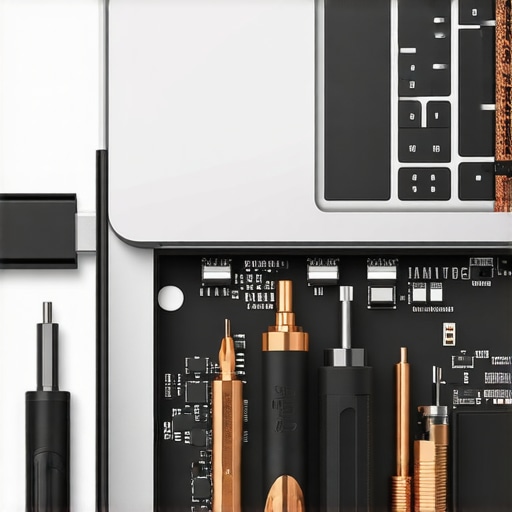
After salvaging three different ‘dead’ laptops last year, I’ve realized that the difference between a paperweight and a powerhouse is often just a five-minute fix. I used to be terrified of opening the casing, but once I grabbed the specific screwdriver kit you need to open 90% of modern laptops, the mystery vanished. You’d be shocked at how much performance is regained just by clearing out the debris. I’ve seen fans so clogged with dust that the CPU was basically suffocating; learning the best way to clean your laptop keyboard from crumbs and oil and giving the vents a blast of air can drop your temperatures by 10 degrees instantly. If that doesn’t work, we’ve even gone as far as why we swapped the thermal paste on our brand new laptop to ensure we never hit those thermal limits. It is a level of maintenance that most manufacturers don’t want you to know about because they would rather sell you a new machine than have you fix the old one.
The One Tool That Actually Saved My Sanity
Beyond just having the right bits, you need to understand the mechanics of your machine’s enclosure. I spent weeks ignoring a noise that sounded like a dying bird until I discovered the $10 tool that fixes every squeaky laptop hinge. It is these small mechanical failures that usually lead to the catastrophic ones. A tight hinge puts pressure on the plastic bezel, which eventually cracks the display. By addressing these minor annoyances early, you extend the physical life of the chassis. I also recommend checking your ports monthly. If you find your charger won’t stay in, don’t panic; the real reason your laptop charge port feels loose is usually just compacted lint that can be removed with a non-conductive toothpick. It’s about being proactive rather than reactive with your gear.
How do I maintain my laptop hardware over time?
It comes down to managing heat and battery cycles. If your machine is constantly running at 90 degrees Celsius, you are literally baking the internal components. I always suggest using the only laptop stands that dont shake while you type to keep the bottom intake clear and the airflow consistent. As for the battery, stop charging it to 100% every single day. According to data from Battery University by Cadex Electronics, a lithium-ion battery charged to its maximum voltage and kept there will degrade significantly faster than one kept in the ‘sweet spot’ between 20% and 80% capacity. Many modern BIOS settings now allow you to set a ‘Battery Charge Limit.’ If you’ve already noticed a drop in runtime, you should check how to fix your laptop battery if it only lasts one hour before assuming you need to buy a whole new cell.
Why Your Next Laptop Might Be Modular
I truly believe we are moving toward a ‘Modular Era.’ The success of niche manufacturers shows that people are tired of glued-in batteries and soldered RAM. In the next few years, I predict that the ‘sealed box’ design will become a liability for brands as right-to-repair legislation gains traction globally. We are already seeing a shift in the only 3 brands that still make easily repairable laptops, and I expect more to follow. Even with game-changing gaming laptops for serious players in 2025, repairability is becoming a selling point rather than an afterthought. If your fan starts rattling, don’t panic; how to replace a dead laptop fan without voiding the warranty is a skill that will save you hundreds of dollars in the long run. Go ahead, open up your power settings today and limit that charge to 80%—it is the single easiest thing you can do to double your hardware’s lifespan. If you are ready to take control of your hardware, start with that simple software tweak and see how your battery health stabilizes over the next month.
The Mistakes That Taught Me Everything About Hardware Resilience
Over the years, I have realized that the computer industry relies on us being afraid of our own hardware. We see a cracked screen and assume the machine is a paperweight, but that is rarely the case. One of the most vital lightbulb moments I had was discovering how easy it is to find high-quality refurbished Thinkpads that cost less than a screen repair on a consumer-grade plastic unit. These enterprise machines are built to be opened, and they taught me that a little bit of confidence with a screwdriver goes a long way. I also learned that most ‘speed’ issues aren’t actually about the processor at all; they are about heat. If you keep your vents clear and your software lean, a five-year-old machine can still outpace the top laptop deals in 2025 if those new deals are for bottom-tier budget models.
Resources That Help You Beat Planned Obsolescence
If you are ready to stop being a passive consumer and start being a hardware owner, there are a few tools I swear by. First, always keep a high-quality travel mouse in your kit; it makes navigating a ‘headless’ setup much easier than relying on a potentially damaged trackpad. Second, I cannot recommend enough the utility of a specific dock for our dual monitor setup, which allows you to turn your broken laptop into a multi-screen workstation with a single cable. Finally, sites like iFixit and the community forums at Laptop Buyers Club are invaluable for finding the exact disassembly guide for your specific model. I trust these resources because they prioritize repairability over profit margins, giving you the real story on what can actually be fixed at home.
The Future of Your Hardware is in Your Hands
The cycle of buying and discarding tech is exhausting and expensive. By choosing to salvage a machine with a broken screen, you are taking a stand against a culture of disposable electronics. It doesn’t take an engineering degree to plug in an external monitor and keep a perfectly good CPU in service for another three years. Whether you are hunting for unbeatable laptop deals or refurbishing a survivor, the goal is always the same: get the most value out of every circuit. Your tech should work for you, not the other way around. Have you ever managed to bring a ‘dead’ laptop back to life? Drop your success story in the comments below!