
I remember the day I unboxed my last machine like it was yesterday. It was silent, fast, and the screen was so crisp I felt like I could reach into it. For ninety days, it was pure bliss. I was flying through spreadsheets and editing photos like a pro. Then, almost like a silent switch had been flipped, that snappy response turned into a stutter. I felt betrayed. I thought I had bought a dud, or worse, that the manufacturer had programmed it to slow down the moment my return window closed. But here is the thing: it usually isn’t the hardware failing you. I’ve seen this happen to everything from business laptops for professionals to high-end rigs. We are going to dig into why that ‘new laptop smell’ fades so fast and how you can get it back.
Stop blaming your processor for three-month-old slowdowns
We tend to think that if a laptop slows down, it is because the ‘engine’ is wearing out. In reality, it is more like a cluttered desk. Every single app you have installed since day one is likely trying to start up the moment you hit the power button. I made a huge mistake early on by thinking I needed to search for unbeatable laptop deals just to replace a ‘broken’ machine, when all I really needed to do was manage my startup items and background noise. We often ignore the physical side too. Even in a clean house, your fans are tiny vacuum cleaners. If you do not know how to clean the dust out of your laptop without opening it, you are basically asking your machine to run a marathon while wearing a heavy winter coat. Heat is the absolute performance killer. According to research from the University of California, thermal throttling can reduce a laptop’s clock speed by over 50% to prevent permanent damage, which is exactly why your device feels like it is wading through molasses. You might also realize that why 8gb of ram is no longer enough for modern browsing becomes painfully obvious once you have twenty tabs and a few background services running.
Does my laptop really have a built-in expiration date?
It is easy to get cynical and think that even the top business laptops for productivity are designed to fail, but the truth is usually found in the digital ‘gunk’ we accumulate. Telemetry and background services from ‘helpful’ utilities are the real culprits. I once spent an entire weekend trying to fix a laggy trackpad, only to find out it was a poorly coded weather widget eating 30% of my CPU. Today, I am going to show you the only 3 ways to genuinely speed up a slow laptop without spending a dime on new parts. Before we move on, I have to ask: have you noticed your once-lightning-fast machine starting to lag lately? It is more common than you think, and usually, it is a sign that your OS needs a little breathing room. If you want to keep things lean, you should also look into how to disable windows features that eat your battery life and performance. Let’s get that speed back.
Force the Heat Out of the Chassis
If your fans sound like a jet engine taking off every time you open Chrome, you have a thermal problem. Think of your laptop like a high-performance athlete trying to run a marathon in a sauna. It doesn’t matter how fast they are; the heat will eventually force them to crawl. I once took apart a client’s ‘broken’ workstation and found a literal layer of felt—just compressed pet hair and dust—sandwiched between the fan and the heatsink. It is the number one reason why gaming laptops still struggle with thermal throttling in small frames. You do not always have to be a tech wizard to fix this. Simply knowing how to clean the dust out of your laptop without opening it can drop your temperatures by ten degrees instantly. For those who aren’t afraid of a little DIY, why we swapped the thermal paste on our brand new laptop is a great lesson in how factory-applied cooling solutions are often the bare minimum. 
Stop Windows from Suffocating Your CPU
Software bloat is the digital equivalent of a cluttered basement. You keep throwing things down there, thinking you will use them later, but eventually, you can’t even walk across the room. Every time you install a ‘free’ utility, it likely adds a startup task. I recommend taking a scorched-earth approach to your settings. Start by learning the best way to configure a new business laptop, which usually involves stripping away the ‘suggested’ apps that Microsoft loves to pin to your taskbar. Then, dive into the background services. You would be shocked at how much juice is saved when you know how to disable windows features that eat your battery life. Even security measures can be a drag; while encryption is vital, you need to know how to secure your laptop ssd with bitlocker without losing speed so your data protection doesn’t become a performance tax.
The Hardware Bottleneck You Probably Ignored
Sometimes, the ‘gunk’ is just a limitation of the hardware meeting the demands of modern software. We are living in an era where why 8gb of ram is no longer enough for modern browsing is no longer a debate; it is a fact. Browsers are memory hogs, and if you are using a machine with a mechanical hard drive or a low-end SSD, you are hitting a wall that no amount of software cleaning can fix. I remember upgrading an old student machine with a cheap SATA SSD years ago; the transformation was so dramatic the owner thought I had switched the whole motherboard. If you are shopping for parts, be careful; learning how to spot a fake ssd in a used laptop listing is crucial before you drop cash on an ‘unbeatable’ deal. Use tools like Task Manager to see which component is hitting 100% when the lag happens—that is your smoking gun.Let’s dig deeper into the hardware ecosystem because the machine itself is only half the battle. Most people think a laptop is a standalone unit, but the peripherals you choose can be silent performance killers. I’ve seen people spend weeks hunting for unbeatable laptop deals, only to pair their new machine with a bargain-bin USB hub that causes signal interference. It’s a common reason why most budget mice fail after six months; it isn’t just the physical clicker wearing out, but the cheap internal controller failing to communicate with your OS. Investing in must-have laptop accessories to boost your work setup isn’t just about aesthetics; it’s about ensuring your I/O ports aren’t being bottlenecked by low-quality copper and shielding.
Don’t Let Marketing Terms Trick You Into a Bad Buy
One of the biggest ‘oops’ factors I see involves screen resolution. We are conditioned to think higher is better, but the disappointing reality of budget 4k gaming monitors and laptop panels is that they often sacrifice refresh rate and color accuracy to hit that 2160p marketing checkbox. If you are a student, student laptops that balance power and portability perfectly usually stick to 1440p or even high-quality 1080p for a reason: it keeps the GPU from sweating and extends your battery life by hours.
Why does your high-speed SSD still lag during large file transfers?
This is where the real expertise comes in. Most users look at the ‘up to 5000MB/s’ sticker and think they are set. However, there is a massive gap in how drives handle sustained loads. The real difference between consumer and enterprise grade ssds is the presence of a DRAM cache and better ‘garbage collection’ algorithms. A study by researchers at the University of California, San Diego, found that SSD performance can degrade by as much as 30% once the drive reaches 80% capacity due to background processes trying to manage ‘write amplification.’ If your drive feels sluggish despite being ‘fast’ on paper, it’s likely because it lacks the controller intelligence found in higher-end components. 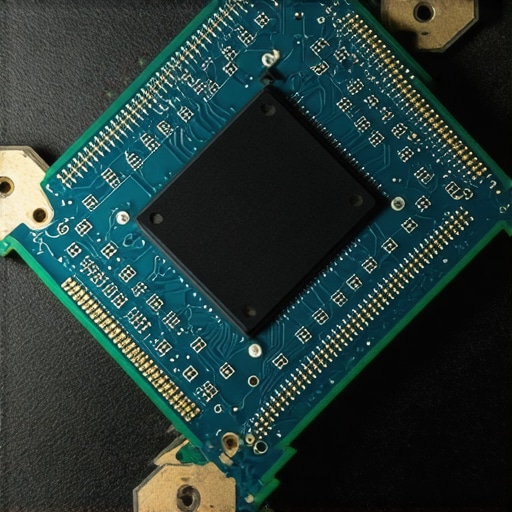
The Truth About Power and Longevity
I’ll go against the grain here: stop buying the smallest, lightest charger you can find for your travel bag. While portability is great, heat is the enemy of electronics. Small ‘nano’ chargers often run incredibly hot, which can lead to unstable voltage delivery. That is why we only use 100w pd chargers for our workstations—the extra overhead means the charger isn’t straining at its limit. Furthermore, you must be vigilant; knowing how to spot a fake charger before it fries your motherboard is a skill that saves you from a $500 repair bill. Even when looking at game-changing gaming laptops for serious players in 2025, the power brick is as important as the GPU inside. Have you ever fallen into the trap of buying a ‘premium’ spec that actually slowed you down? Let me know in the comments.
Beyond just picking the right charger, the physical state of your machine dictates its lifespan more than you might think. I’ve seen hundreds of machines—from the most expensive workstation to student laptops that balance power and portability perfectly—die early deaths simply because of neglect. It starts with the small things, like the grit under your keys. If you don’t use the best way to clean your laptop keyboard from crumbs and oil, you eventually risk a mechanical failure that requires a full chassis replacement. I personally keep a can of compressed air and a specific microfiber cloth in my bag at all times, because skin oils are surprisingly corrosive to the matte finishes on modern high-end laptops.
Get the Crumbs Out Before They Kill a Switch
Maintenance isn’t just about software updates; it’s about physical hygiene. One of the most satisfying and necessary tasks I perform every quarter is a deep clean of the input devices. We often focus on the screen, but a sticky hinge or a grimy trackpad can lead to physical strain on the internal connectors. If you start feeling a click that isn’t quite right, learn how to fix a glitchy trackpad without restarting your pc before the hardware actually gives up. For those with machines that have seen better days, knowing how to fix a wobbly laptop hinge before it snaps can save you from a catastrophic display failure that usually costs more to fix than the machine is worth.
The One Tool Kit That Rescues My Hardware
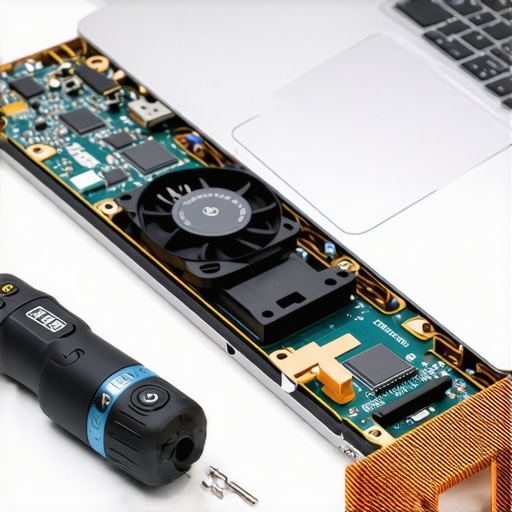
I stopped relying on the local repair shop the moment I realized most modern fixes just require the right bits. You cannot open a MacBook or a Dell XPS with a standard Phillips head. I swear by the specific screwdriver kit you need to open 90 of modern laptops, which includes the Torx and Pentalobe bits that manufacturers use specifically to keep you out. According to the 2024 Laptop Repairability Report by iFixit, the trend is finally shifting back toward modularity, with some manufacturers earning high scores for using standardized screws instead of glue. If you are serious about longevity, you should prioritize the only 3 brands that still make easily repairable laptops. Being able to swap out a failing fan or a bloated battery yourself is the ultimate way to beat planned obsolescence.
How do I maintain my laptop’s peak performance for years?
The secret is a combination of thermal management and battery discipline. First, stop leaving your laptop plugged in 24/7 at 100% charge; this stresses the lithium-ion cells. If you notice your runtime dropping, you need to know how to fix your laptop battery if it only lasts one hour by recalibrating the internal sensor. Second, keep the airflow clear. I never use my laptop on a blanket because it suffocates the intake. Instead, I look for the only laptop stands that dont shake while you type to ensure there is always a gap for cool air to circulate. When things get really hot, I’ve found that the best ways to cool a laptop without a massive fan pad often involve simple undervolting or cleaning out the exhaust fins with a specialized brush.
Repairable Chassis are the Future of Mobile Computing
Looking ahead, I predict we are entering an era where ‘disposable’ tech will become a social taboo. With the European Union pushing for ‘Right to Repair’ legislation, we are going to see even business laptops for professionals moving toward user-replaceable parts. This is great news for your wallet. Instead of hunting for unbeatable laptop deals every two years, you’ll likely just buy a new motherboard or a screen upgrade kit. My advice? Start building your toolkit now. Try this today: download a battery health utility and check your cycle count. If it’s over 500, it might be time to look up a replacement guide before the cells start to swell and damage your trackpad.
The Hardest Lesson I Learned After Replacing Too Many Workstations
For years, I believed the lie that tech just naturally decays, like an old car that eventually stops running. I spent thousands on new machines every twenty-four months because I didn’t know any better. The lightbulb moment happened when I realized that a three-year-old high-end machine, if properly maintained, can often outperform entry-level unbeatable laptop deals fresh off the shelf. Maintenance is not a chore; it is an investment in your productivity. I’ve learned that the biggest performance killers are rarely the big files—it is the tiny, invisible tasks and the physical dust we ignore. If you want to stop the cycle of constant upgrades, you must master the only 3 ways to genuinely speed up a slow laptop before reaching for your credit card. Trust me, your wallet will thank you for being a bit more surgical with your software and a bit more hands-on with your hardware.
My Personal Toolkit for Hardware Reliability
I don’t leave my machine’s health to chance anymore. I’ve curated a small collection of items that I trust implicitly to keep my gear running cool and fast. First, I never travel without the specific screwdriver kit you need to open 90 of modern laptops; it makes cleaning the fans a ten-minute job rather than an all-day anxiety attack. Second, I’ve shifted my focus from raw specs to ergonomic and thermal support. Investing in must-have laptop accessories to boost your work setup—like a solid aluminum stand—ensures that even business laptops for professionals don’t throttle during intensive video calls. Finally, I’ve learned that reliable power delivery is non-negotiable. I only trust high-wattage, reputable PD chargers to avoid the micro-stutters and battery wear caused by unstable voltage. These aren’t just gadgets; they are the insurance policy for my digital life.
#IMAGE_PLACEHOLDER_E#
Don’t Wait for Your Screen to Go Dark
The transition from a snappy machine to a frustrating one happens slowly, then all at once. It starts with one extra second to load an app and ends with a system that feels like it’s fighting you. You don’t have to accept this. Whether you are using student laptops that balance power and portability perfectly or heavy-duty game-changing gaming laptops for serious players in 2025, the power to reclaim your speed is in your hands. Start with the software, tackle the dust, and upgrade your memory when needed. You’ve worked hard for your gear, and it should work just as hard for you. What is the one thing that always slows your machine down the most—is it the heat, the battery, or just too many open tabs? Let me know in the comments below.