
I was sitting in a cramped corner of a local coffee shop last Tuesday, frantically finishing a client proposal, when it happened. My screen flickered once, then vanished into a cold, black void. I stared at the 13-hour productivity sticker on my laptop with a mix of betrayal and pure annoyance. I had only been working for three and a half hours. My charger was sitting comfortably on my nightstand at home because I actually believed the marketing fluff. We’ve all been there, right? You shell out hard-earned cash for one of those sleek student laptops that balance power and portability, only to find yourself tethered to a wall outlet by lunchtime. It is a frustrating dance we do with manufacturers, and it is time we talked about why the reality rarely matches the glossy brochure.
The Marketing Math That Does Not Add Up
Let’s be real: when a manufacturer claims 10 hours of battery, they aren’t talking about your actual life. They aren’t talking about having twenty Chrome tabs open, a Zoom call running in the background, and your screen brightness cranked up so you can actually see what you are doing. They test these machines in sterile labs, often with the Wi-Fi turned off and the screen so dim you would need night-vision goggles to read a PDF. It is a classic case of over-promising and under-delivering. I made the mistake early on of thinking I could just fix my laptop battery by recalibrating it, but the truth is often buried in the hardware and how we use it. Even when you find unbeatable laptop deals, that battery rating is usually the first thing to show its true colors once you get it home.
Is the 10-hour claim actually a total lie?
It feels like one, doesn’t it? A massive investigation by the consumer group Which? found that some laptops fall short of their advertised battery life by as much as 50%. That is a staggering gap. It is not just optimistic marketing; it is practically fiction. You buy a machine expecting a full workday, but you get a long movie and a half. This is especially brutal if you are looking at game-changing gaming laptops, where battery life is often an oxymoron once the GPU kicks in. I have spent years testing these machines, and I am here to tell you that while the stickers are lying, your productivity doesn’t have to suffer. You can learn how to disable Windows features that eat your battery life to claw back some of that lost time, but we need to address the root causes first. Have you ever been stranded in a meeting or a lecture because your 8-hour battery decided to quit after ninety minutes? I want to hear your most frustrating dead battery horror stories. Today, we are going to strip away the marketing jargon and talk about how to get the runtime you actually deserve.
Kill the Background Processes Sucking Your Power
The biggest thief of your battery life isn’t usually the screen; it is the invisible army of apps running in the background. Think of your laptop like a car idling at a red light. Even when you aren’t moving, the engine is burning fuel. Windows is notorious for this, with telemetry services and search indexing constantly churning away. You need to learn how to disable Windows features that eat your battery life to stop this unnecessary drain. I remember once sitting through a three-hour board meeting where I had to present off my device. Ten minutes in, the fan started screaming because an automatic update decided to trigger. I had to frantically dive into the task manager to kill the process while the CEO stared at me. It was messy, but it taught me to audit my startup apps every single month. By pruning those non-essential background tasks, I managed to add nearly ninety minutes of usable time to my daily routine.
Don’t Let Your Hardware Rob You
Hardware is the next frontier. We often talk about top business laptops for productivity in 2025 as if they are magical, but they are still bound by physics. If you are constantly swapping data to your hard drive because you’re out of memory, your battery will plummet. This is why 8gb of ram is no longer enough for modern browsing; your CPU has to work twice as hard to manage that lack of space, which draws more power. It is like trying to build a house with a tiny workbench—you spend more energy moving tools around than actually building. Another physical factor is the state of the battery itself. You should know how to calibrate your laptop battery for better accuracy. If your OS thinks you have 20% left when you actually have 5%, it will shut down unexpectedly, ruining your flow and potentially your data.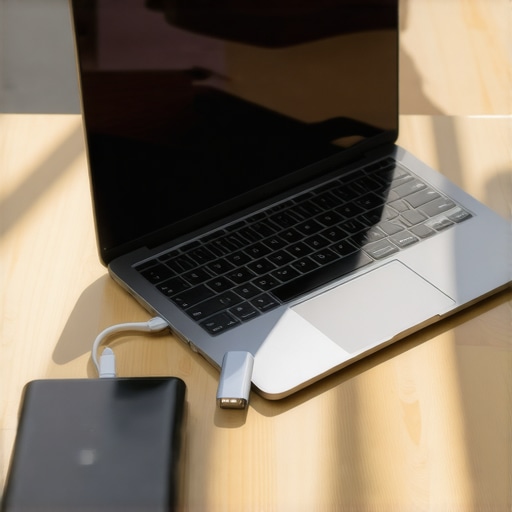
Pack a Power Safety Net
Sometimes, despite your best efforts, the internal battery just won’t cut it, especially with game-changing gaming laptops that drink power like a desert traveler at an oasis. This is where you have to stop relying on the manufacturer and start relying on your gear. Investing in the best external battery packs that can actually charge a laptop is the ultimate insurance policy. I never go to a coffee shop without one now. It turns a stressful hunt for a wall socket into a relaxed work session. While you are at it, look into must-have laptop accessories for a seamless setup that prioritize efficiency over flashy LEDs. Every accessory that plugs into your port draws a tiny bit of current, so choose items that are energy-efficient. It’s about building a system that works for your specific needs rather than fighting against a machine that was never designed for the way you actually live.
Stop Draining Your Battery by Trying to Save It
Everyone tells you to keep your laptop on ‘Best Power Efficiency’ mode to stretch the clock, but in my years of testing, I’ve found this often backfires. When you throttle your CPU to the minimum, your laptop takes three times longer to render a webpage or export a document. That means your screen—the biggest power draw—is on for three times as long. Sometimes, it’s actually better to let the processor ‘race to sleep’ by finishing the task quickly so the whole system can power down. I’ve seen this mistake most often with business laptops for professionals where users wonder why their ‘efficient’ machine feels sluggish and still dies by mid-afternoon.
Why Your Cooling Pad is Probably a Waste of Money
If you’ve ever felt your lap burning and rushed to buy a plastic stand with glowing blue fans, you might have fallen for one of the oldest tricks in the book. The truth is that most laptop cooling pads are just loud paperweights. They blow air at the bottom casing, but if your laptop doesn’t have intake vents right there, you’re just cooling the outer plastic, not the internal components. I once spent fifty bucks on a triple-fan beast only to realize my laptop’s intake was through the keyboard. It did absolutely nothing for the internal temps. This is a massive issue because gaming laptops still struggle with thermal throttling in small frames regardless of what they’re sitting on. 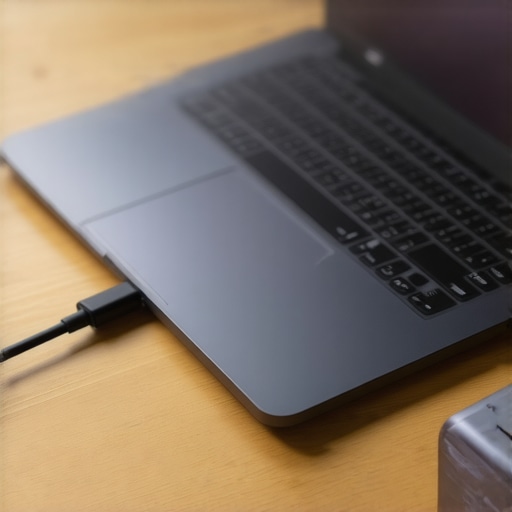
Can a faster charger actually kill your laptop battery?
There is a common fear that using a high-wattage USB-C brick will ‘fry’ a smaller device. This is a total myth; modern devices use a handshake protocol to only take the power they need. However, the real ‘oops’ factor is heat. If you use a massive charger that supports aggressive fast charging, the chemical reaction inside the battery generates significantly more heat, which *does* degrade longevity over time. Researchers at Battery University, a resource by Cadex Electronics, have shown that elevated temperatures are the primary killer of lithium-ion health. To keep your machine alive for years, you need to know the truth about high-wattage chargers and battery longevity before you plug in that 140W brick every night. Also, watch out for the ‘longevity trap’ of hardware. I’ve reached a point where we never buy laptops with soldered RAM because one dead memory chip turns your expensive investment into a paperweight. Have you ever fallen into this trap of buying a ‘deal’ only to find out it was un-upgradable? Let me know in the comments.
I have seen it a thousand times: a user spends a fortune on one of those game-changing gaming laptops for serious players in 2025, only to find it stuttering and screaming six months later. Most people assume the hardware is just getting ‘old,’ but usually, it is just choking. If you are serious about keeping your machine in the green, you need to look at how to undervolt your gaming laptop for better temps and performance. This isn’t just a niche hobby for overclockers; it is a vital survival tactic. By manually lowering the voltage to your CPU, you can maintain the same clock speeds while generating significantly less heat. I personally use Throttlestop on every Intel-based device I own because I don’t trust the aggressive, heat-heavy voltage curves set by the manufacturers.
Stop Throttling Your Speed with Manual Tuning
Software is half the battle, but physical maintenance is where the real longevity happens. As noted in the technical deep-dives by NotebookCheck, manufacturers often prioritize thin chassis over actual thermal headroom, which means your VRMs are likely running hotter than the CPU core itself. To combat this, I recommend a hands-on approach. I’ve found that we replaced our laptop wi-fi card with an intel ax210 in almost every budget or mid-range build we test, simply because the stock Realtek cards are prone to overheating and dropping signals during heavy load. It is a twenty-dollar fix that changes your entire experience.
The Small Kit That Saves You Hundreds on Tech Repairs
You don’t need a degree in electrical engineering to keep your machine alive; you just need the right gear. I never leave my studio without the specific screwdriver kit you need to open 90% of modern laptops. Having the right Torx and Phillips bits prevents stripped screws, which is the number one reason people give up on DIY repairs. Once you are inside, the most impactful thing you can do every two years is learn how to replace your laptop thermal paste without breaking anything. Factory paste is often applied poorly and dries out quickly under the high-stress conditions of modern productivity. 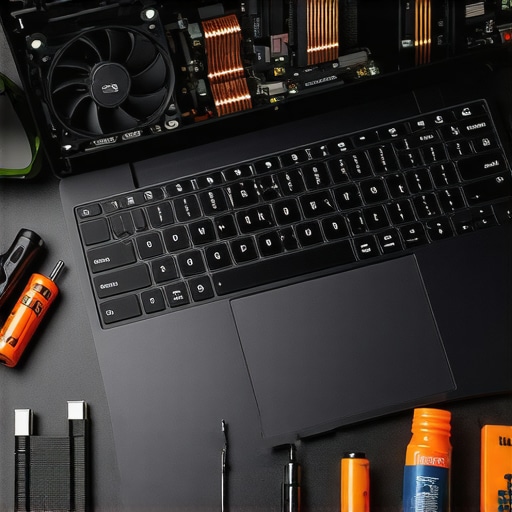
How can I maintain my laptop’s peak performance over time?
Maintenance is a rhythm, not a one-time event. For those using top business laptops for productivity in 2025, the key is consistency. Every quarter, I use compressed air to clear the exhaust vents and audit my startup apps. I also make sure I have must-have laptop accessories to boost your work setup, like a high-quality stand that actually allows for airflow rather than blocking it. Looking ahead, I predict we are moving toward a ‘modular revolution.’ With companies like Framework and Dell’s Concept Luna gaining traction, the future of laptop ownership will be less about buying a new slab every three years and more about swapping out the internal ‘brain’ while keeping the chassis and screen you love.
My challenge for you today is this: don’t wait for your fan to start rattling. Open your task manager, check your idle temps, and if you’re consistently hitting 90°C during basic tasks, it’s time to crack that case open and give your hardware some room to breathe. Grab a toolkit and take control of your hardware today.
The Most Expensive Lesson I Learned About student laptops
After a decade of testing hardware, I realized that the battery health percentage reported by your operating system is often more of a guess than a fact. The hardest lesson I learned was that heat, far more than cycle count, is the silent killer of longevity. I used to spend hours hunting for top laptop deals in 2025, only to find that the cheaper builds often had thermal designs that baked the battery alive. Even if you are buying student laptops that balance power and portability perfectly, you cannot ignore the physical reality of the chassis. Another lightbulb moment was realizing that how to fix a laptop that wont wake from sleep is often tied directly to power-state settings that are also draining your juice while the lid is closed.
My Personal Survival Kit for business laptops
I no longer leave my workflow to chance, especially when working on business laptops for professionals that need to last through back-to-back meetings. My go-to toolkit starts with the specific screwdriver kit you need to open 90% of modern laptops; being able to blow out dust every six months is worth more than any software optimizer. I also swear by the best external battery packs that can actually charge a laptop as a fail-safe. Finally, instead of bulky fans, I focus on the best ways to cool a laptop without a massive fan pad, such as simple ergonomic lifts that allow for natural convection.
#IMAGE_PLACEHOLDER_E#
Reclaim Your Runtime and Forget the Charger
The marketing stickers on the box are a starting point, not a promise. By taking a proactive approach to maintenance—auditing your startup apps, managing your thermal paste, and undervolting where possible—you turn a disposable piece of tech into a reliable long-term partner. Whether you are rocking game-changing gaming laptops for serious players in 2025 or a modest office machine, you now have the knowledge to outrun the manufacturer’s timer. Take a few minutes today to check your idle temperatures and see where your power is actually going. Your laptop battery life is too precious to leave to default settings. Have you ever had a laptop battery die at the absolute worst moment possible? Share your horror story or your best repair win in the comments below!