
I sat there in my home office, staring at my brand new $1,500 OLED laptop with a heavy heart. I had just spent twenty minutes meticulously applying what I thought was one of those must-have laptop accessories for a seamless setup—a high-quality matte screen protector. I’ve always been that person who buys a case before the phone even arrives. But as the screen flickered to life, my heart sank. Those deep, infinite blacks I paid a premium for? They were gone. In their place was a fuzzy, gray haze that looked like I’d rubbed a glue stick across the panel. It was a classic over-protection fail. I was trying to avoid reflections, but I ended up killing the very reason I bought an OLED in the first place. Have you ever done something similar, thinking you were helping your gear only to realize you’d made it worse?
The Day I Ruined My Most Expensive Screen
It’s a common trap we fall into, especially when we are setting up student laptops that boost productivity and learning or high-end workstations. We want things to last. We want to avoid that annoying glare when we’re working near windows. But applying a matte film over an OLED panel is like putting a frosted bathroom window in front of a 4K masterpiece. I learned the hard way that the microscopic texture on these protectors causes sparkle or grain because it interferes with the precise light emission of organic LEDs. According to display experts at DisplayMate, the purity of color and contrast is the primary advantage of OLED, and any secondary layer can significantly degrade that visual performance. Today, I’m going to explain why we finally decided to stop using laptop screen protectors entirely and how you can manage reflections without ruining your view.
Is it really worth sacrificing clarity for a little less glare?
You might be thinking, “But my office is bright!” I get it. I’ve made the mistake of thinking a twenty-dollar piece of plastic could fix a lighting issue better than just moving my desk. Have you ever tried one of these anti-glare solutions only to find yourself squinting even harder at the blurry text? It’s frustrating. Let’s talk about why the physics of OLED and matte film just do not mix, and what you should do instead to keep your screen pristine.
Move Your Desk Before You Buy a Plastic Film
Most people apply a screen protector because they are fighting a losing battle against a window. Think of it like trying to read a book through a foggy window; no matter how much you squint, the fog is the problem, not the book. Instead of adding a layer of pixel-blurring plastic, the first step in managing reflections is to evaluate your workspace geometry. If your screen is facing a window directly, you are basically using your high-end display as a black mirror. I once spent an hour trying to align a ‘privacy’ matte film on my 14-inch workstation, only to realize the real solution was simply rotating my desk 90 degrees so the sun hit my side rather than the panel. This simple change is one of the most effective ways to reduce eye strain on cheap student laptop screens and premium OLEDs alike without sacrificing a single drop of color accuracy. 
Manage Your Ambient Light Like a Pro
If you cannot move your desk, the next move is controlling the light intensity. High-end business laptops for professionals often come with high-nit brightness ratings specifically to overpower reflections. But if you are working with a lower-brightness panel, use a desk lamp with a localized beam rather than a bright overhead light. This prevents the ‘washout’ effect that leads many to buy matte protectors. We have found that choosing matte screens for working near windows is a better long-term strategy during the purchase phase than trying to retrofit a glossy screen later.
Clean Your Glass Without Scratching the Coating
Without a protector, your screen is vulnerable to oils. I used to be terrified of touching my screen, fearing that a single smudge would be permanent. I actually ruined a coating once by using a harsh window cleaner—don’t do that. The proper way to maintain a bare screen is to use a high-quality, dry microfiber cloth. If the smudge is stubborn, a tiny drop of distilled water on the cloth (never on the screen) is all you need. This keeps the panel pristine while you search for top laptop deals in 2025 to upgrade your setup. It is a similar logic to cleaning your laptop keyboard from crumbs and oil; consistency beats aggressive chemicals every time.
Pick the Right Panel to Avoid the Glare Trap
If you are still in the market for a device, the best ‘action’ you can take is to buy for your environment. If you do a lot of data entry or coding, we usually suggest looking into why we prefer 16:10 screens for writing and code, as the extra vertical space often helps you position windows away from the worst glare spots. For those who prioritize portability, student laptops that balance power and portability perfectly often feature modern anti-reflective coatings that are baked into the glass, rendering third-party protectors completely obsolete. I recently tested a laptop with a modern ‘Gorilla Glass’ DXC coating, and the difference between that and a cheap plastic film was like comparing a telescope to a pair of dirty glasses.Let’s dig deeper into the ‘protection’ myth, because it doesn’t stop at screen films. I’ve seen so many people grab must-have laptop accessories to boost your work setup only to realize they’ve introduced a new bottleneck. A classic example is the cooling pad. Everyone tells you that extra fans are a necessity for game-changing gaming laptops for 2025 adventures, but in my experience, why most laptop cooling pads are just loud paperweights comes down to basic thermodynamics. Most modern laptops are engineered with specific intake and exhaust paths; adding a generic fan often disrupts this internal pressure, sometimes even trapping heat inside the chassis instead of drawing it out. 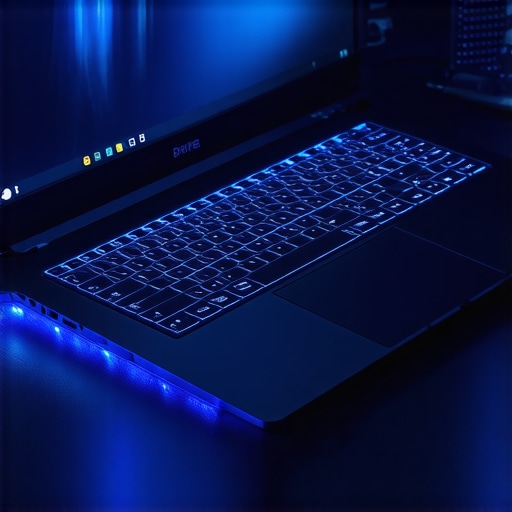
Your Cooling Pad is Probably a Loud Paperweight
Beyond just being ineffective, there is a specific ‘oops’ factor with these accessories: dust injection. By forcing air into the bottom of your machine, you are often accelerating the buildup of debris in your heatsink. A study by tech analysts at Hardware Unboxed demonstrated that for many thin-and-light designs, a simple $10 stand that provides clearance for natural airflow is just as effective as a $50 powered cooling pad. Instead of buying more fans, I usually recommend learning how to undervolt your gaming laptop for better temps and performance. This software-based approach reduces the heat at the source without adding bulk to your bag.
Can Undervolting Save Your Motherboard From an Early Grave?
It sounds counter-intuitive to give your computer less power to make it run better, but that is exactly how it works. By reducing the voltage sent to the CPU, you lower the thermal output, which prevents the dreaded ‘thermal throttling’ that makes your gaming laptop feel sluggish on battery or under heavy load. If you are hunting for unbeatable laptop deals, look for machines known for good thermal headroom rather than trying to fix a hot-running chip with plastic accessories later.
Avoid the Soldered Component Trap
Another nuance most buyers miss when looking at top business laptops for productivity in 2025 is repairability. We have a strict rule: why we never buy laptops with soldered RAM for longevity. Manufacturers claim soldering memory saves space, but it essentially puts an expiration date on your device. Once your workflow outgrows that 8GB or 16GB, you can’t just pop in a new stick; you have to buy a whole new laptop. It is a hidden cost that turns a ‘deal’ into a long-term liability. This is why we also advocate for laptops with removable battery packs whenever possible. Have you ever fallen into this trap of buying a ‘protective’ accessory or a ‘slim’ laptop only to have it backfire? Let me know in the comments.
The soldered RAM issue is just the tip of the iceberg when it comes to the long-term health of your machine. I’ve realized that the real reason your laptop feels sluggish after three months often has more to do with ‘thermal drift’ than actual hardware failure. To combat this, I don’t rely on the basic Windows Task Manager anymore. I personally use HWInfo64 because it provides granular data on every single sensor inside the chassis. It’s exactly how I discovered that one of my favorite business laptops for professionals was actually underperforming because of a faulty power brick. Without that data, I would have just assumed the CPU was getting old. Learning how to tell if your laptop is being throttled by its charger is a game-changer for troubleshooting performance dips that feel like ‘software lag’ but are actually power-delivery failures.
Ditch the Task Manager for Real Sensor Data
If you aren’t monitoring your ‘T-junction’ temperatures, you’re essentially flying blind. I recommend setting up a custom alert in HWInfo64 to ping you when your CPU hits 90°C. According to official technical documentation from Intel Ark, most mobile processors have a TJMax (Thermal Junction Maximum) of 100°C, after which the system will aggressively cut clock speeds to prevent physical damage. If you see your machine hovering at 95°C just while browsing Chrome, it’s time to stop looking for new unbeatable laptop deals and start looking at your internal fans. I’ve saved at least three machines from the scrap heap by simply realizing they were thermal throttling due to a tiny dust bunny in the exhaust port. 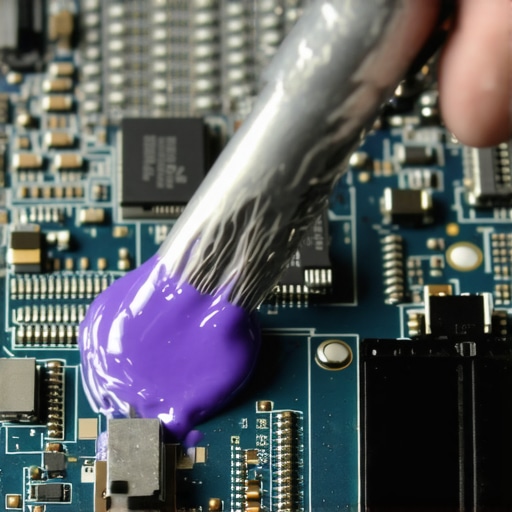
How do I maintain peak performance for the long haul?
Maintenance is a two-pronged attack: software hygiene and physical upkeep. Once a year, I perform what I call the ‘Deep Clean.’ This involves more than just the best ways to clean a greasy laptop keyboard; it means opening the back panel. If you are past your warranty period, I highly suggest learning how to replace your laptop thermal paste without breaking anything. Factory paste is often applied poorly and dries out after 24 months. Applying a high-quality non-conductive paste like Noctua NT-H2 can drop your temps by 10 degrees instantly. This is vital for game-changing gaming laptops for 2025 adventures where heat is the primary enemy of the motherboard’s lifespan.
The One-Cable Setup is the Future of Modularity
Looking ahead, I predict we are moving away from the ‘all-in-one’ philosophy and back toward a modular desk setup. With the rise of Thunderbolt 4 and USB4, the smart way to scale is to buy a laptop that is thin enough for travel but powerful enough to act as a desktop core. I’ve moved to a system where I use a single usb-c cable to connect my entire desk, including dual monitors and my mechanical peripherals. This reduces the physical wear and tear on your individual ports, which is one of the hidden costs of repairing modern thin-and-light laptops. If a port on your $200 dock breaks, it’s a cheap fix; if the port on your $2,000 motherboard breaks, you’re in trouble. To keep things moving fast, I also suggest mastering the best way to organize your external drives for fast editing to keep your internal SSD from filling up, which can also slow down your OS. I challenge you to download a sensor monitor tonight and check your idle temps—you might be surprised how hard your laptop is working just to stay cool.
What I Learned After Wasting Hundreds on ‘Essential’ Gear
Looking back at my drawer full of discarded plastic, the biggest realization I had was that ‘protection’ often acts as a barrier to performance. I spent years buying laptop accessories that promised to keep my gear mint, but I was actually suffocating the hardware. For instance, I now know that why most laptop cooling pads are a waste of money comes down to the fact that they do not address internal thermal paste or dust buildup. My ‘lightbulb moment’ was realizing that a clean, well-ventilated machine outperforms a ‘protected’ one every single time.
Another hard lesson was the screen protector debacle. I see so many people hunting for top laptop deals in 2025 only to immediately ruin the display with a matte film. If you have a glossy screen, embrace the clarity. If the glare is too much, move your chair. Physics is a much cheaper solution than aftermarket plastic. Finally, I have learned that the hidden costs of repairing modern thin-and-light laptops make initial research vital. Do not buy for the ‘thinness’ if it means sacrificing every repairable part inside the chassis.
Tools That Earned a Permanent Spot on My Desk
I do not trust marketing brochures anymore; I trust data. That is why HWInfo64 is the first thing I install on any of my business laptops for professionals. It tells me the truth about my thermals and power draw. I also keep a tube of high-quality thermal compound ready; knowing how to replace your laptop thermal paste without breaking anything is a skill that has extended the life of my machines by years. For connectivity, I have simplified everything. I have found that learning how to use a single usb-c cable to connect your entire desk is the best way to prevent port wear and keep my workspace organized.
Take Control of Your Workspace Today
Your laptop is a tool designed to be used, not a museum piece to be wrapped in bubble wrap. Whether you are rocking high-end gaming laptops or budget-friendly student laptops, focus on the fundamentals: clean air, good lighting, and smart data monitoring. Do not be afraid to open that back panel or move your desk away from the window. The best laptop accessories are the ones that actually solve a problem without creating a new one. You have invested in your tech; now it is time to let it perform at its absolute peak. Have you ever regretted buying a ‘protective’ accessory that actually made your laptop experience worse? Let me know in the comments below.