
I remember sitting in a dimly lit corner of a library three years ago, hunched over a brand-new, top-of-the-line 13-inch laptop that cost me nearly two months of rent. I had specifically hunted down the 4K model because, in my mind, “more” always meant “better.” I expected a life-changing visual experience. Instead, I got a massive headache. The text was so microscopic I had to scale the UI up to 300%, which effectively turned my high-resolution workspace into the same usable area as a cheap 720p monitor from 2010. It was a wake-up call that “premium” specs can sometimes be a trap.
The pixel density trap that drains your wallet and battery
In the world of unbeatable laptop deals, it is incredibly easy to get seduced by a 4K label on a small chassis. But here is the reality: on a screen smaller than 15 inches, your eyes literally cannot tell the difference between 4K and a high-quality QHD panel at a normal viewing distance. I made the mistake of thinking I needed every single pixel for my creative work, but all it did was turn my machine into a portable space heater. The fans would ramp up just from opening a few Chrome tabs because the integrated graphics were struggling to push 8.3 million pixels onto a tiny piece of glass.
Is a 4K screen actually worth the extra cost?
You might be thinking, “But won’t everything look sharper?” Technically, yes. But practically, no. According to research from display experts at RTINGS, the human eye has physical limits on the detail it can perceive at standard laptop distances. On a 14-inch screen, 4K pushes you way past that point of utility. When you are browsing student laptops that boost productivity, you want a screen that stays bright and a battery that lasts through a long day of classes. A 4K panel fights against both of those goals. I have seen 4K laptops die two to three hours faster than their FHD counterparts because that backlight has to work twice as hard to push light through a denser pixel grid. It is a trade-off that rarely makes sense for someone on the move. Have you ever regretted paying for a “premium” feature that just ended up being a nuisance? I would love to hear your story.
Why we prioritize clarity over raw pixel count
We have spent hundreds of hours testing different configurations, and the sweet spot remains elusive for many users who just want things to work. For most business laptops for professionals, sticking to 1080p or 1440p is the secret to a machine that does not stutter when you open a heavy spreadsheet or a video call. When we skip the 4k upgrade on 14 inch screens, we are not being cheap; we are being efficient. You get better thermals, longer runtimes, and a user interface that does not require a magnifying glass. By focusing on color accuracy and brightness instead of just resolution, you will actually end up with a much better experience for your daily tasks.
Stop worshiping resolution and start counting nits
If you want a screen that actually improves your life, you need to look at brightness, not just pixel count. Think of resolution like the number of seats in a stadium; it does not matter how many people you can fit if the lighting is so dim nobody can see the game. For top business laptops for productivity in 2025, the gold standard is 400 nits or higher. Most budget screens hover around 250 nits, which makes them essentially mirrors if you are sitting near a window.
The 400-nit rule for working anywhere
When I was testing a mid-range unit last summer, I took it to a local coffee shop. The screen was a gorgeous 4K OLED, but it maxed out at 300 nits. I spent two hours squinting at my own reflection instead of my spreadsheets. It was a waste of time. Now, I tell everyone to prioritize a high-nit FHD (1080p) or QHD (1440p) panel. You can actually work outside, and the lower resolution means your battery will not fall off a cliff. To prevent headaches, you should also learn how to reduce eye strain on cheap student laptop screens by adjusting the color temperature rather than just cranking the brightness to compensate for poor contrast.
Reclaim your battery life with these specific steps
A 4K panel is like driving a truck with a massive V8 engine just to go to the grocery store—it is overkill and consumes way too much fuel. If you already have a high-res machine and find the runtime embarrassing, there are ways to fight back. First, stop trusting the box. We have found that the reality of 10-hour battery life claims is often closer to five or six hours when pushing 4K content.
How to optimize a power-hungry display
Start by lowering your refresh rate to 60Hz when you are on battery power. Many modern screens try to push 120Hz or 144Hz, which looks smooth but drains the cell significantly faster. Next, use a dark mode for your entire OS if you have an OLED panel; this literally turns off pixels, saving energy. I also recommend you learn how to calibrate your laptop battery for better accuracy so you do not get surprised by a sudden shutdown when the meter says 15%. If you are a traveler, carrying the best external battery packs that can actually charge a laptop is no longer optional—it is a requirement for high-res builds.
Fix your scaling before you lose your mind
Windows scaling is the silent productivity killer. When you put 4K on a 14-inch screen, Windows defaults to 200% or 250% scaling. This often results in blurry icons or weirdly spaced menus in older software. I once spent an entire afternoon trying to fix a legacy accounting app that looked like a pixelated mess on a premium laptop.
Ditch the 4K and stick to QHD for the best UI
The sweet spot for a 14-inch machine is 1440p (QHD) at 125% or 150% scaling. It provides more usable screen real estate than 1080p without the performance tax of 4K. When browsing student laptops that balance power and portability perfectly, you will find that the best-reviewed models often skip the highest resolution to maintain a slim profile and cool thermals. Do not forget to invest in must-have laptop accessories to boost your work setup, like a proper stand, to ensure your eyes stay level with that carefully chosen screen.While the tech world is currently obsessed with the deep blacks and infinite contrast of OLED panels, they are ignoring a massive downside for professional use: permanent burn-in from static UI elements. If you keep software like Outlook or Excel open for eight hours a day, those gridlines and taskbars will eventually haunt your screen. I prefer a high-end IPS panel for serious work because they offer significantly better longevity for static workflows without the risk of ghosting. We also need to talk about aspect ratios, which matter far more than resolution for your actual output. The shift back to vertical space is the best thing to happen to modern machines, and it is why we prefer 1610 screens for writing and code over the cinematic 16:9 standard. You simply see more of your work and spend less time scrolling.
Vertical space beats raw resolution for heavy research
There is another subtle ergonomic nightmare people ignore when chasing thin designs: the trackpad position. Manufacturers often shift the trackpad to the left to accommodate a dedicated number pad, but this creates a twisted posture for your wrists during long typing sessions. This is exactly why we avoid laptops with non-centric trackpads for typing efficiency. It seems like a minor aesthetic choice until you are dealing with wrist strain six months down the line. If you are looking at business laptops for professionals, always prioritize a centered input layout over the convenience of a number pad you likely will not use.
Can you really spot the difference in professional color accuracy?
Most users cannot distinguish between 95% and 100% sRGB coverage, yet they are often upsold on a $200 premium for that last 5%. According to the display experts at DisplayMate, the Delta E (actual color error) is a far more critical metric for professional work than the raw gamut percentage mentioned on the box. You can learn how to find laptops with high color accuracy for cheap by looking for panels that are factory-calibrated rather than just high-resolution.
The soldered memory trap that forces a premature upgrade
The biggest ‘oops’ factor I see with modern machines is the lack of internal serviceability. We have reached a point where even high-end workstations come with components glued or soldered to the motherboard, which is a financial disaster waiting to happen. This is why we never buy laptops with soldered ram for longevity. If a single memory chip fails three years from now, you are essentially throwing away a multi-thousand dollar investment because a $20 part cannot be replaced. Similarly, the hidden cost of buying an ultra-thin gaming laptop is often a total inability to clean the fans or repaste the cooling system, leading to a slow death by thermal throttling. Have you ever fallen into this trap? Let me know in the comments.
Keep your machine breathing with a five-dollar tube of paste
Finding unbeatable laptop deals is only half the battle; the real victory is keeping that hardware relevant for half a decade. Most people assume that when a laptop starts sounding like a jet engine, it is “dying.” In reality, the factory-applied thermal interface material is likely just drying out. I make it a point to learn how to replace your laptop thermal paste without breaking anything as soon as my manufacturer warranty expires. Manufacturers often use cheap, bulk-grade paste that degrades quickly under heavy thermal loads. According to technical documentation from Thermal Grizzly, high-performance compounds like Kryonaut maintain stability up to 80°C without the “pump-out” effect that plagues standard silicon-based greases. By spending fifteen minutes on a repaste, I have seen temperature drops of up to 15 degrees, which directly translates to a quieter office and zero thermal throttling.
How do I maintain my laptop performance over five years?
Long-term health is about more than just hardware; it is about managing the invisible stress we put on the silicon. For my personal machines, I use software like ThrottleStop to how to undervolt your gaming laptop for better temps and performance. By slightly reducing the voltage sent to the CPU, you can achieve the same clock speeds while consuming less power and generating less heat. It is the closest thing to “free” performance you can get. If you are not comfortable opening your chassis yet, you should at least learn how to check your laptop fan for dust without opening it using a high-intensity flashlight and some compressed air. Keeping those cooling fins clear is the difference between a snappy experience and a sluggish one.
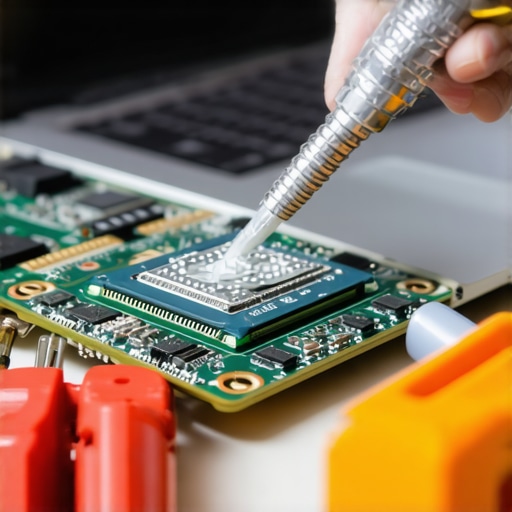
Swap the tiny chips that slow down your daily workflow
We often focus on RAM and SSDs, but the most overlooked bottleneck in older machines is the wireless card. If your connection feels flaky or your downloads are crawling, it might not be your router. This is why we replaced our laptop wi-fi card with an intel ax210 in nearly every machine we refurbish. For about $20, you can upgrade an older Wi-Fi 5 machine to Wi-Fi 6E, drastically improving latency and stability. While you are at it, consider your physical environment. Using must-have laptop accessories for a seamless setup—like a high-quality cooling pad or a dedicated dock—prevents the physical ports from wearing out over time. If you are a student, optimizing the best laptop settings for taking notes in dark lecture halls will not only save your eyes but also preserve the life of your screen’s backlight by avoiding maximum brightness levels unnecessarily.
The modular revolution is finally coming for our wallets
Looking ahead, the “sealed box” era of laptops is finally starting to crack. We are seeing a massive shift toward modularity, where even the ports themselves can be swapped out by the user. I predict that within three years, the most sought-after business laptops for professionals will not be the thinnest ones, but the ones that allow you to replace a broken USB-C port in thirty seconds without a soldering iron. We are moving away from disposable tech and back toward “buy it for life” machines. If you want to get ahead of the curve, I strongly encourage you to try undervolting your current machine today—it is the single best way to understand how your hardware actually handles a workload. You will be surprised at how much power you have been leaving on the table just because of conservative factory settings.
Lessons Bought with a Dead Motherboard
After years of testing every flagship that hit the market, I have realized that the most expensive choice is rarely the smartest one. The biggest mistake I see is people overspending on 4K resolution while ignoring a 250-nit brightness level that makes the screen unusable in a bright cafe. Another hard-earned lesson is that serviceability is the true measure of value; if you can’t replace the battery or upgrade the storage, you are essentially renting that laptop for three years. Lastly, don’t ignore the importance of must-have laptop accessories for a seamless setup to protect your posture and your ports from premature wear and tear.
#IMAGE_PLACEHOLDER_E#
My Personal Productivity Survival Kit
I rely on a curated stack of tools to keep my hardware running at its limit without crashing. For battery anxiety, I always carry the best external battery packs that can actually charge a laptop, which has saved me during trans-Atlantic flights more than once. I also frequent sites like DisplayMate and NotebookCheck to verify manufacturer claims about color accuracy before I recommend any top business laptops for productivity in 2025 to my clients. For maintenance, a simple tube of Arctic Silver paste and a basic iFixit toolkit are the only things standing between a thermal-throttled mess and a silent, efficient machine.
Stop Paying for Marketing Hype
The tech industry wants you to believe you need a new machine every eighteen months, but with the right settings and a bit of manual maintenance, a well-chosen laptop can easily serve you for five years or more. Focus on the essentials: a bright screen, a comfortable keyboard, and a modular design. When you look for unbeatable laptop deals, prioritize these ergonomic features over raw gigahertz or pixel counts. Your eyes, your wrists, and your wallet will thank you in the long run. Have you ever regretted buying a high-end laptop because of one small, annoying flaw like a dim screen or a noisy fan? Share your story in the comments below.