
I was sitting in a crowded local cafe, nursing a cold brew and trying to finish a massive freelance project on one of my favorite business laptops. The little icon in the corner told me I had a solid 18% left—plenty of time to hit ‘send’ and pack up. Then, without a single warning chime, the screen went black. Dead. My heart sank. I’d just lost ten minutes of unsaved work because my laptop decided to lie to my face. It’s a betrayal we’ve all felt, especially when we’re hunting for the top laptop deals in 2025 and expect our hardware to just work. Today, we are going to fix that digital lie together and get your battery gauge back on the side of truth.
Your Laptop is Gaslighting You and It Needs to Stop
The truth is, your battery isn’t necessarily broken; it’s just confused. Most modern gaming laptops and productivity machines use “smart” batteries that have a tiny internal sensor. Over time, as you plug and unplug your charger at random intervals, that sensor loses its place. It forgets where “zero” is and where “one hundred” is. I learned this the hard way back in college when I thought my machine was a lost cause and almost threw away one of the best student laptops I ever owned. I even made the rookie mistake of downloading a “battery optimization” app from a sketchy forum that ended up being bloatware. Don’t be like younger me. If you’ve noticed that your laptop battery dies faster in the cold or if you’re struggling to fix your laptop battery if it only lasts one hour, calibration is your first line of defense. It’s essentially a factory reset for the battery’s brain. According to the experts at Battery University, a smart battery needs a full discharge/charge cycle every three months or after 40 partial cycles to stay accurate. We’re going to walk through the manual way to do this today—no shady software required.
Wait, Will Draining My Battery All the Way Kill It?
This is the biggest fear I hear from my neighbors and friends. We’ve been told for years that “deep discharging” is the enemy of lithium-ion cells. And look, it’s true that you shouldn’t do this every day. But doing it once every few months to recalibrate the sensor is actually a maintenance necessity, not a death sentence. It’s the difference between a gauge that tells you the truth and a gauge that leaves you stranded in a coffee shop with a dead brick. Have you ever had your laptop die while the icon still showed double digits? Let me know in the comments if that’s happened to you, because that’s exactly the frustration we’re about to solve.
Change Your Power Settings Before You Start
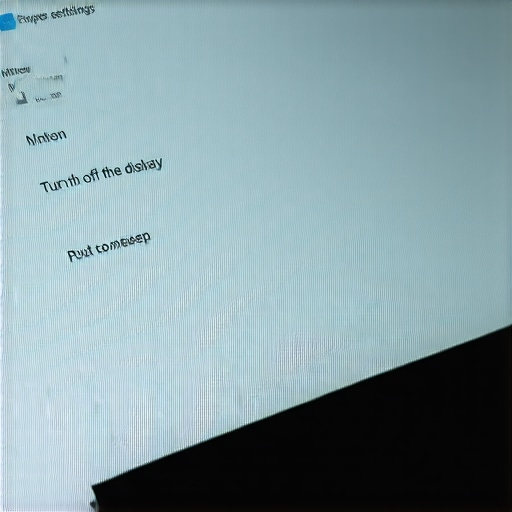
Before we pull the plug, we have to tell Windows (or macOS) to stop being so helpful. By default, your laptop will hibernate or sleep when it hits 5% or 10% to “save” your data. This is great for daily use, but it’s the enemy of calibration. We need the battery to hit absolute zero while the system is still active. Go into your power plan settings and ensure your machine is set to ‘Never’ sleep while on battery. I once ignored this step on a Saturday morning, thinking I could just keep tapping the trackpad to keep it awake. I got distracted by a phone call, the laptop went to sleep at 7%, and I had to restart the entire six-hour cycle from scratch. It was a total waste of a weekend. You can find more tips on how to disable Windows features that eat your battery life to make this process smoother and more efficient.
Charge it Until it Literally Can’t Take More
The first physical step is to top off the tank. Plug in your charger and let it sit. Even if the icon says 100%, leave it for another two hours. Think of this like overfilling a water balloon just slightly so you know exactly where the maximum capacity lies. For those using modern setups, the choice of equipment matters; why we only use 100w-pd-chargers for our workstations often comes down to the consistency of the power delivery. A steady, high-quality flow ensures the internal battery controller registers a true, stable full state. While you wait for that extra “soak” time, you should apply the simple tweak that stops your laptop from sleeping during presentations. This ensures that when we move to the next phase, your screen stays alive long enough to actually hit the zero mark.
Force the Drain Without Interruption
Now, the hard part: unplugging. You need to let the battery drain naturally until the laptop physically dies and shuts off. You can use the laptop for basic tasks like writing, light browsing, or answering emails, but avoid heavy gaming that might cause a sudden thermal shutdown or power spike. The goal is a steady, predictable decline in voltage. If you’re worried about heat during this long session, understanding the truth about high wattage chargers and battery longevity can help you realize that the discharge phase is actually very safe for the hardware. Once the screen goes black and the machine refuses to turn back on, let it sit for at least five hours. This is crucial. It allows any residual “ghost” charges in the cells to dissipate. It’s like letting a sponge dry out completely before you try to measure how much water it can hold; if it’s still damp, your measurements will be off.
The Final Recharge to Reset the Gauge
After the long rest, plug the charger back in and let it reach 100% without any interruptions. Do not unplug it halfway to go to a cafe or a meeting. This is the exact moment the sensor recalibrates its internal map, linking the physical voltage it sees with the “100%” label. If you’ve been struggling with how to fix your laptop battery if it only lasts one hour, this is the magic moment where that ‘one hour’ might suddenly jump back to a realistic three or four. The physical cells haven’t magically repaired themselves, but the reporting software is finally telling the truth. It’s like finally getting a pair of glasses that actually match your prescription; your laptop finally knows exactly where it stands, and you won’t be caught off guard by a black screen at 18% ever again.
Now that your battery knows where it stands, let’s talk about the hardware surrounding it. I see so many people hunting for the top laptop deals in 2025 only to ruin their experience with the wrong extras. We’ve been conditioned to think more is always better, but in the world of high-performance mobile computing, ‘more’ often just means more heat and more points of failure. Have you ever fallen into this trap? Let me know in the comments.
Stop Buying Cooling Pads and Start Lifting Your Laptop
Most people swear by those bulky, LED-lit cooling stands. But here is the contrarian truth: why most laptop cooling pads are just loud paperweights comes down to basic physics. According to thermal testing data from hardware reviewers like Gamers Nexus, the fans in these pads rarely align with your laptop’s internal intake. You’re often just blowing air against solid plastic. Instead, a simple $10 stand that creates a one-inch gap for airflow is infinitely more effective than a $50 plastic fan-box. If you are struggling with thermal throttling, knowing how to replace your laptop thermal paste without breaking anything is a much better long-term solution than adding more bulk to your bag.
The Soldered RAM Trap You Will Regret
Here is the ‘oops’ factor that gets even the pros. When looking at business laptops or student laptops, we often focus on the CPU speed. But why we never buy laptops with soldered RAM for longevity is because it creates a ceiling for your productivity. If a single memory module fails, your entire motherboard is trash. It’s a sophisticated mistake to trade repairability for a slightly thinner chassis. This is why I often steer people toward older workstation lease-returns rather than the newest paper-thin consumer models.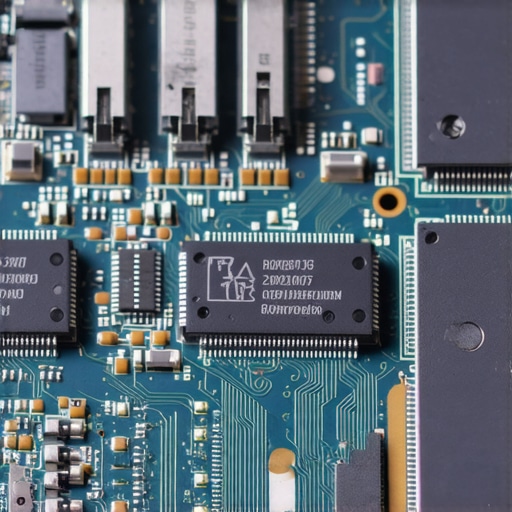
Can You Really Undervolt Without Voiding Your Warranty?
This is the big question for anyone using high-end gaming laptops. While many believe messing with voltages is dangerous, undervolting is actually safer than overclocking. It reduces heat and extends the life of your silicon by lowering the power draw without sacrificing clock speeds. It is about efficiency, not just adding more gear like must-have laptop accessories for a seamless setup. Always check the real difference between consumer and enterprise-grade SSDs before you upgrade your storage, as those subtle hardware nuances dictate whether your machine stays snappy after three months or starts to lag under a professional workload.I have spent years watching people hunt for the top business laptops for productivity in 2025 only to treat them like disposable tablets after the purchase. If you want that multi-thousand dollar investment to last, you have to look under the hood. The software side is usually where the rot starts. You notice it when the real reason your laptop feels sluggish after three months starts to kick in; it is almost always background processes fighting for resources. I personally use a tool called Autoruns from Microsoft Sysinternals because it shows me every single tiny driver and helper app that tries to boot. It is intimidating at first, but it is the only way to truly reclaim your RAM and ensure your CPU isn’t wasting cycles on bloatware you never asked for.
Clean the Cruft or Your CPU Will Suffer
The best hardware in the world can’t save you from a messy OS. Beyond just clearing your startup items, you should regularly check for ghosted devices in your Device Manager. These are leftover drivers from every mouse, monitor, or external drive you have ever plugged in, and they can occasionally cause interrupt storms that drain your battery. When you are looking at unbeatable laptop deals, remember that the machine is only as fast as its current configuration. Keeping a lean install is better than any ‘booster’ software you will find on the web.
How do I maintain my laptop hardware over time without breaking things?
Physical cleaning is the part everyone skips until it is too late. I make it a habit every six months to use the specific screwdriver kit you need to open 90% of modern laptops to blow out the dust. You would be surprised how much lint a gaming laptop for serious players can inhale just by sitting on a desk. While the back is off, check your fans. If you are already hearing a high-pitched whine, learn how to stop your laptop fan from rattling without buying parts before the bearing totally fails. And for the love of your resale value, use the best way to clean your laptop keyboard from crumbs and oil instead of just wiping it with a damp rag that might drip into the sensitive membrane below.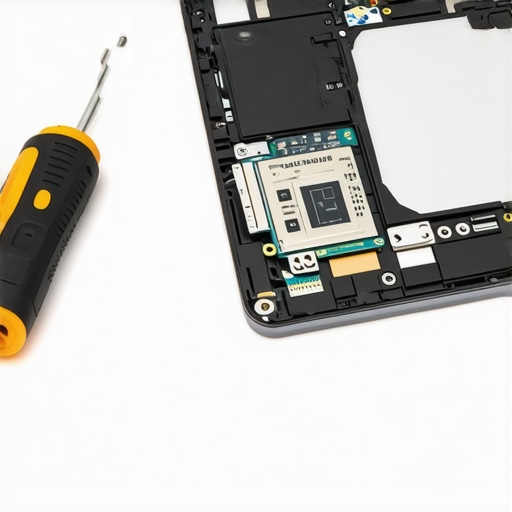
Modularity will be the defining feature of 2025
I am calling it now: we are reaching the end of the ‘thinner is better’ era. With the rise of the right-to-repair movement, manufacturers are finally realizing that professionals are tired of unrepairable bricks. By late 2025, even the student laptops that balance power and portability perfectly will start featuring user-replaceable batteries and storage as a primary selling point. We are moving back to a world where you buy a high-quality chassis and simply upgrade the internal ‘brain’ every few years. It is better for your wallet and significantly better for the planet.
Swap the One Part Manufacturers Always Skimp On
Most people do not realize that even high-end machines often come with mediocre WiFi chips to save a few dollars on the bill of materials. This is why we replaced our laptop wi-fi card with an Intel AX210 in every workstation we own. According to Intel’s official technical documentation for the AX210, the integration of 1024-QAM and 160MHz channels allows for a theoretical max throughput of 2.4Gbps, which solves almost every ‘lag’ issue in busy offices or dorms. It is the cheapest way to make an older machine feel brand new. My challenge to you: do not just buy more must-have laptop accessories to boost your work setup. Instead, grab a toolkit and try this one hardware mod this weekend. It is the single most satisfying way to reclaim control over your technology.
The Hardest Lesson I Learned About Keeping My Tech Alive
After years of testing everything from high-end business laptops to budget student machines, I have realized that the battery percentage icon is more of a suggestion than a rule. The biggest mistake I ever made was treating my laptop like a smartphone; while phones are often designed for short lifecycles, a well-maintained laptop can easily serve you for over five years. If you skip calibration, you are essentially flying blind and risking a sudden shutdown during a critical task. I also learned that heat is a silent killer; even the best gaming laptops for serious players will throttle and degrade if you ignore the dust build-up. Maintenance is not just about speed; it is about ensuring your hardware does not give up on you when you are miles away from a power outlet.
My Go-To Toolkit for a Reliable Workstation
To keep my setup running without a hitch, I rely on a few specific resources that I trust implicitly. First, I always keep the specific screwdriver kit you need to open 90% of modern laptops in my desk drawer—it makes the leap into hardware upgrades feel far less intimidating. For software monitoring, I use HWiNFO to track real-time voltages and thermal patterns before they become problems. If you are struggling with a machine that feels like it is failing, sometimes how to replace your laptop thermal paste without breaking anything is the only guide you really need to read. Finally, for those who want a truly clean workspace, investing in must-have laptop accessories for a seamless setup can transform a chaotic desk into a focused productivity hub.
Take Back Control of Your Digital Life
You do not have to be a certified technician to ensure your machine performs at its absolute peak. Whether you are hunting for unbeatable laptop deals or trying to squeeze another year out of a trusted old device, the power to improve your experience is in your hands. Calibration, regular cleaning, and smart hardware choices are the keys to a stress-free computing experience. Do not let a lying battery icon or a sluggish OS dictate your workday. Get out there, open up that chassis if you need to, and treat your laptop with the respect it deserves. Have you ever had your laptop shut down while the battery still showed 10% or more? Let me know your worst ‘dead battery’ story in the comments below!